Connect Litmus Edge Instance to License Server
You can connect a Litmus Edge instance directly to a License Server within the Litmus Edge Manager (LEM) Admin Console. This method allows you to configure the license server on the Edge device itself, bypassing the usual activation process initiated from the LEM user interface.
Before You Begin
- Ensure you have an unactivated instance of Litmus Edge.
Step 1: Generate and Copy the Configuration Key in Litmus Edge Manager
- Log in to the Litmus Edge Manager (LEM) Admin Console.
- From the navigation panel, select License Server Management.
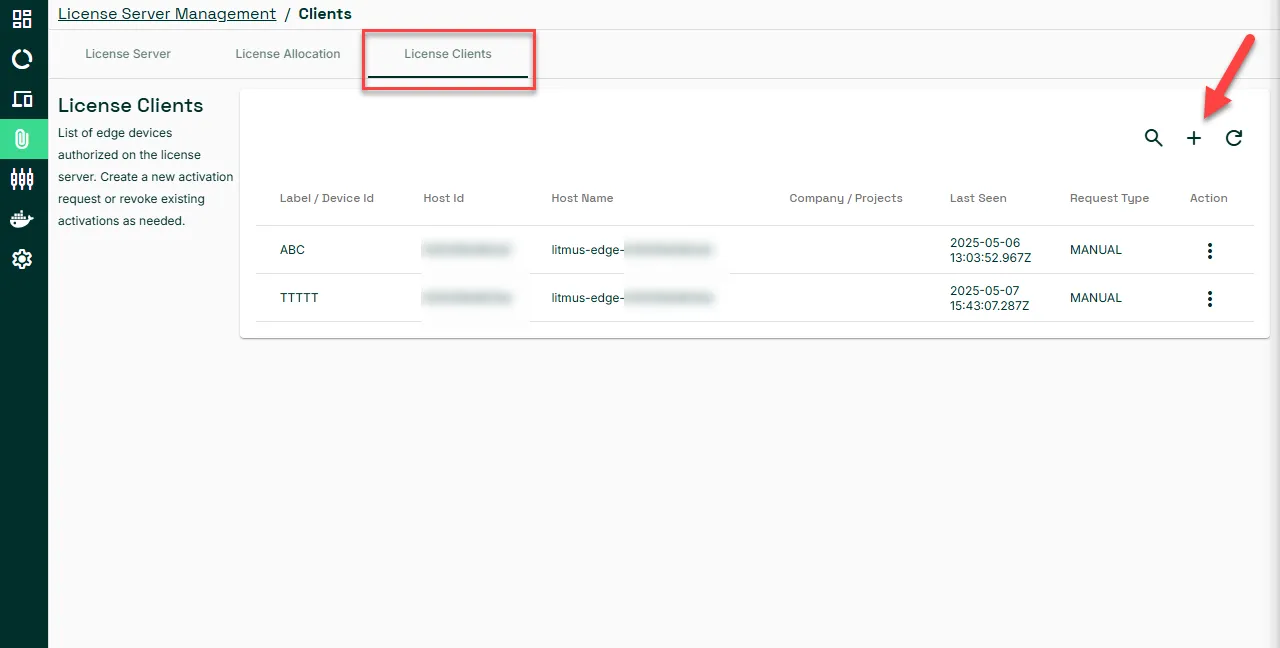
- In the License Server Management pane, access the License Clients tab.
Click the Add icon to create a new request for a device. The Create New Request dialog box appears.
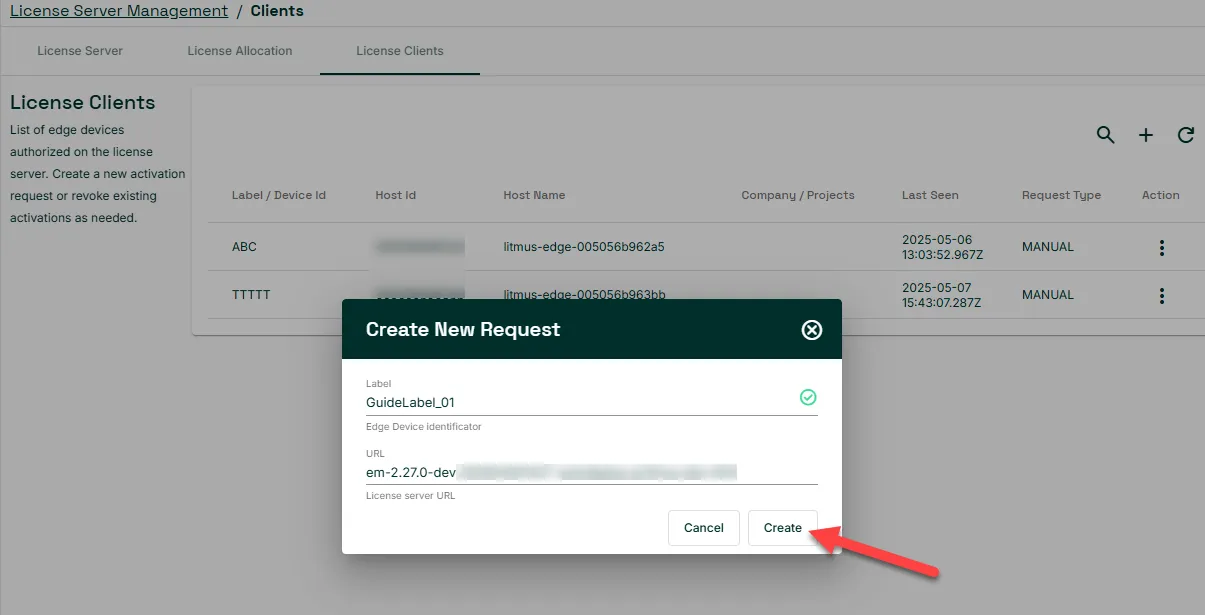
- Configure the request by entering the following:
- Label: Unique name to identify the device.
- URL: Review the URL for the license server.
Click Create.
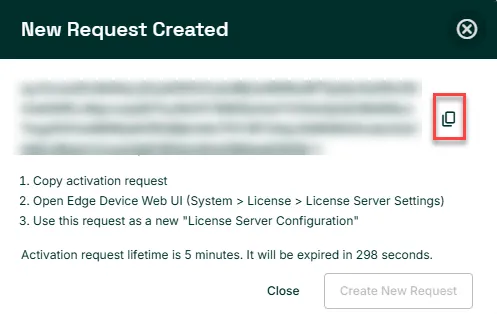
- The New Request Created dialog box displays the activation request/configuration key.
Click the Copy icon for the activation request to copy it to your clipboard.
Step 2: Access License Settings in Litmus Edge
- In a new browser window, log in to the Litmus Edge instance you want to activate.
- From the navigation panel, navigate to System > Activation > License.
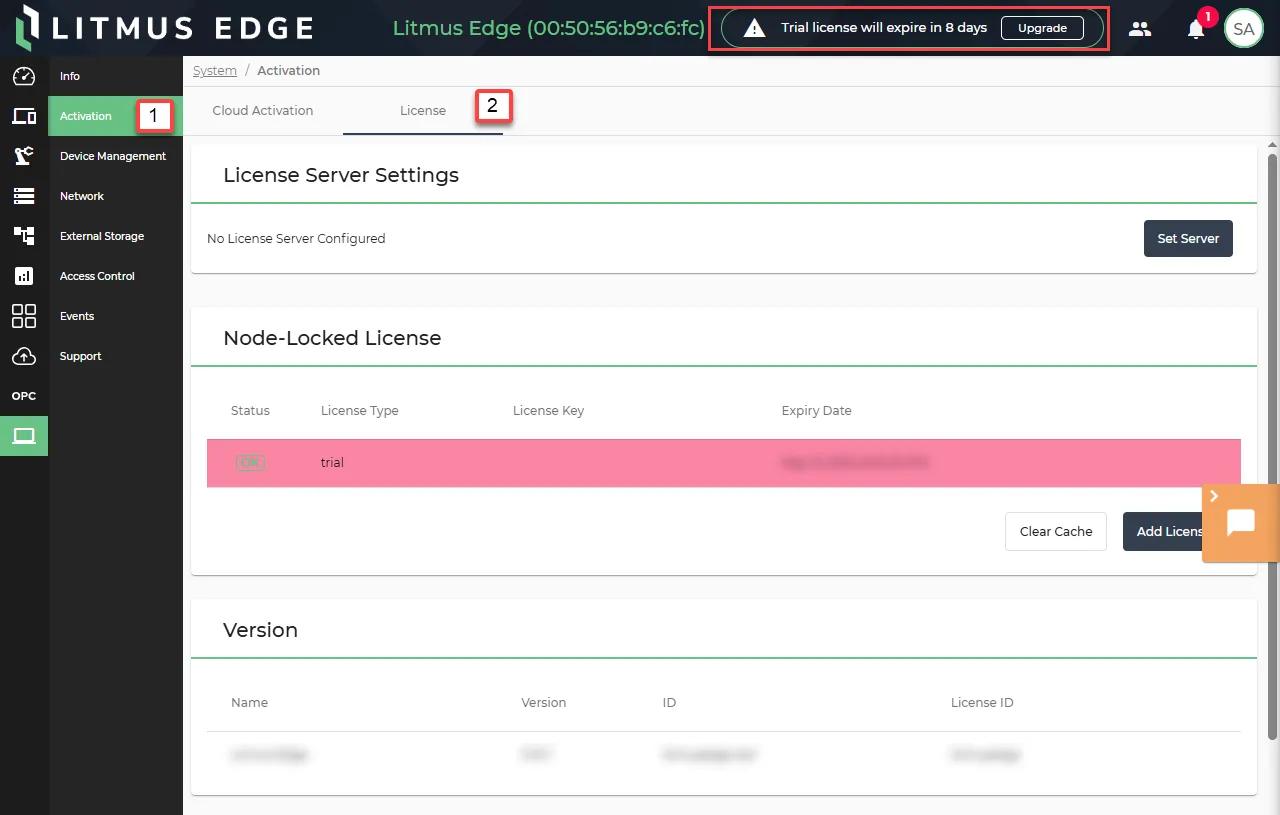
Step 3: Set the License Server Configuration
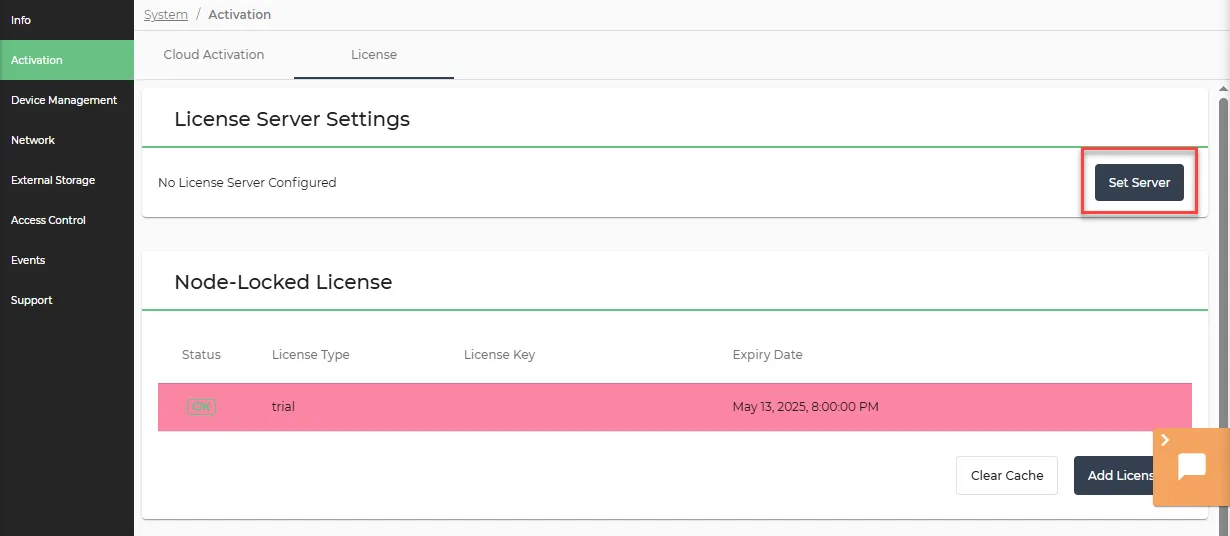
From the License Server Settings section, click Set Server. The Set License Server Configuration dialog box appears.
In the Configuration field, paste the key you copied earlier.
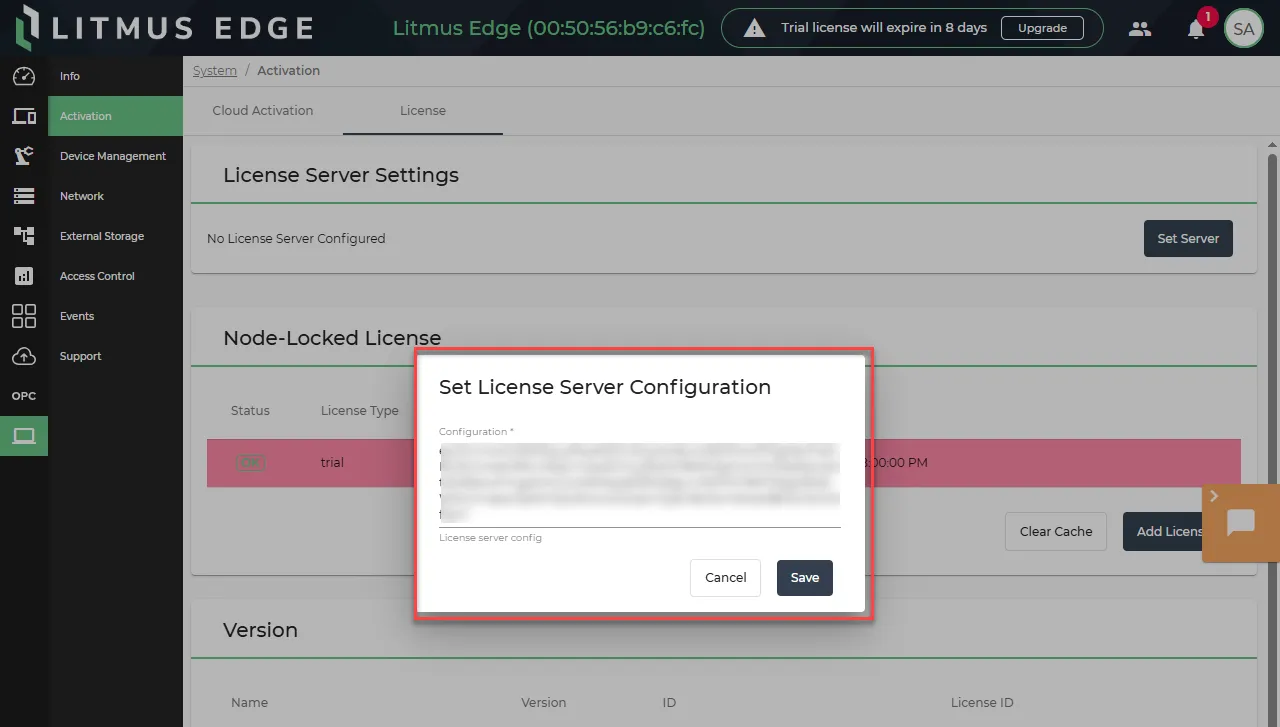
- Click Save.
If the activation is successful, a success message is displayed. Once the license server is set, you will have access to the site license.
Tip: You must refresh the page if you don't see the UP status.
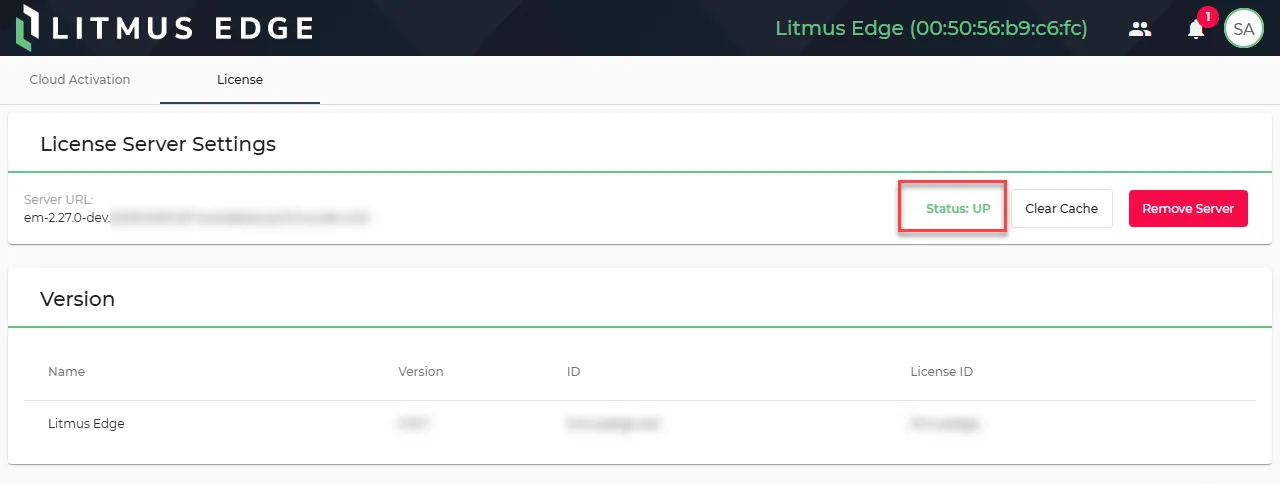
Step 4: Verify the Connection in Litmus Edge Manager
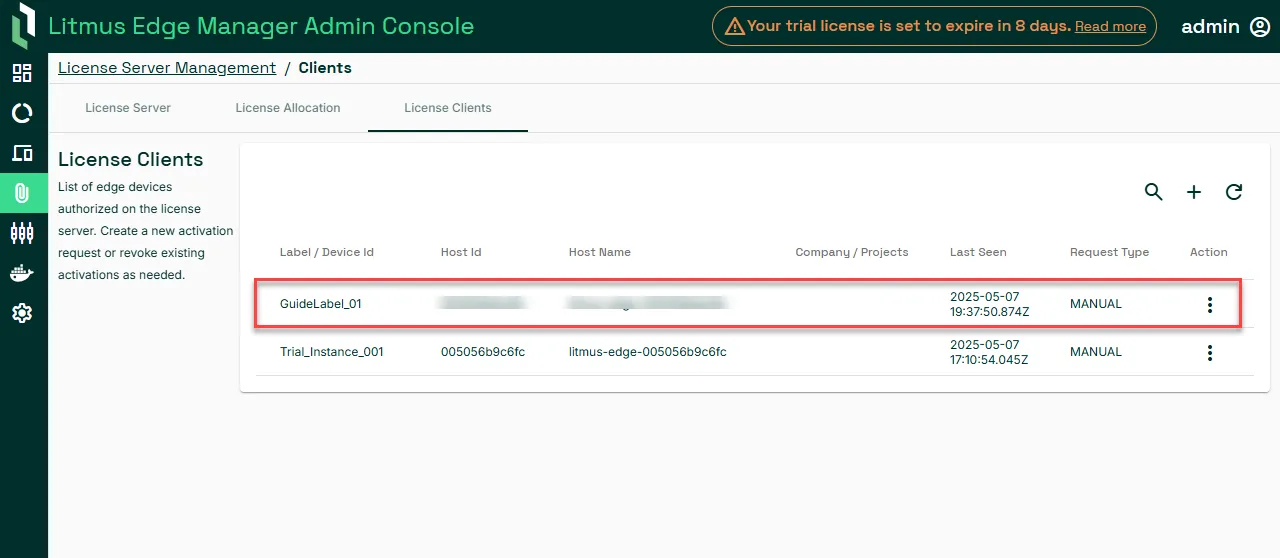
- Navigate back to LEM Admin Console > License Server Management > License Clients.
- Under the list of edge devices authorized on the license server, you can find the Label, Host ID, Host Name, Company/Project, Last Seen, Request Type, and action for revoking activation.