Step 1: Create Primary Catalog With List of Applications
From the first Litmus Edge Manager (LEM) instance located at the Headquarters (Canada), you will create a Primary marketplace catalog and then add the applications.
To create primary marketplace catalog with list of applications:
- Log in to Litmus Edge Manager.
- Select a company. The Projects pane appears.
- From the Projects pane, click a project or open the Action menu for a project and select View. The Dashboard pane appears for the project.
- From the navigation panel, select Features. The Features pane appears.
- Click the Marketplace tile. The Marketplace Catalog pane appears in a separate browser tab.
Click Add catalog. The Create Catalog dialog box appears.
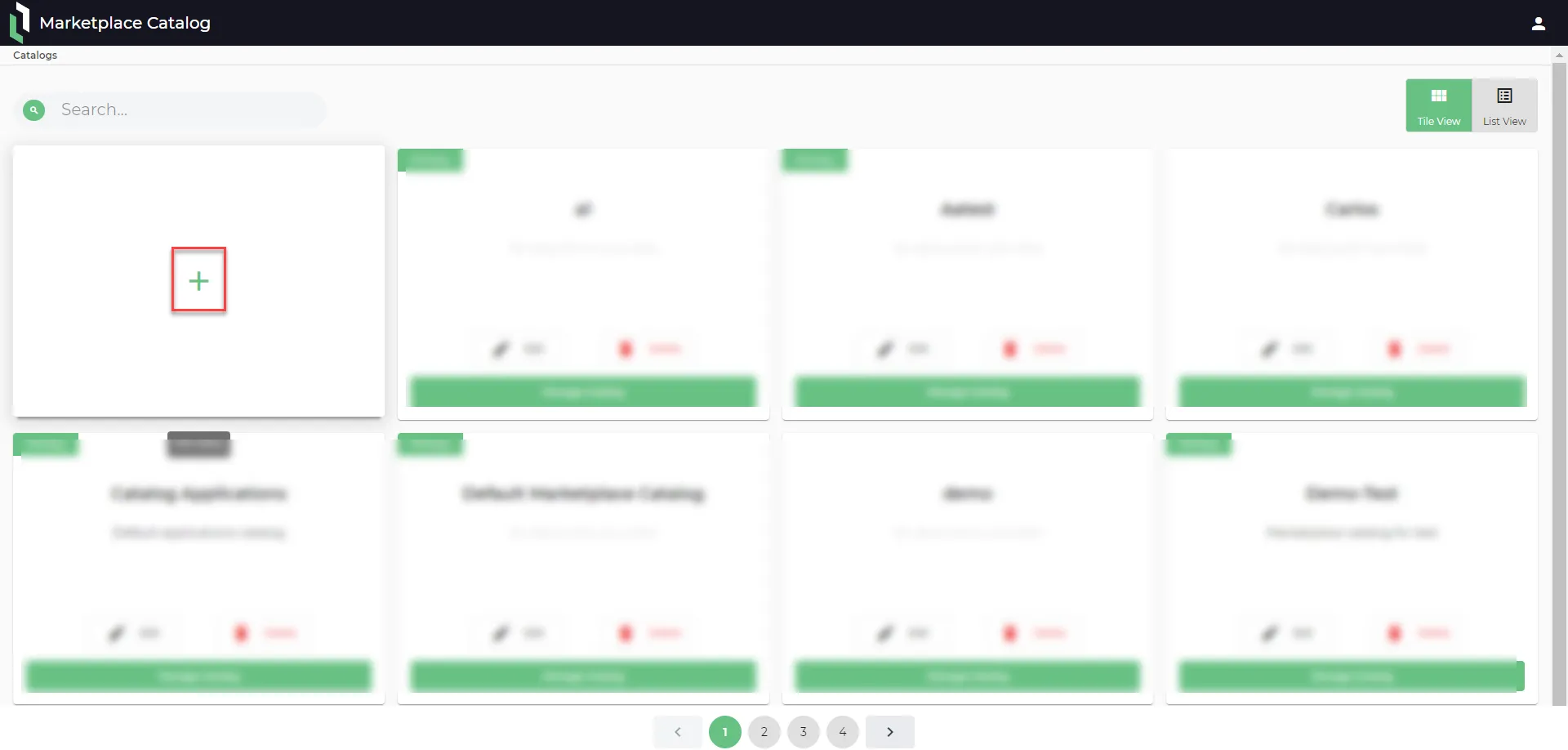 Marketplace Catalog page
- From the Create Catalog dialog box, enter the following details:
- Name: Enter a name with a maximum of 32 characters.
- Description: Enter the description for the catalog.
- Synchronize: Select the checkbox. Then, from the Select Role drop-down list, select Primary.
Click Save.
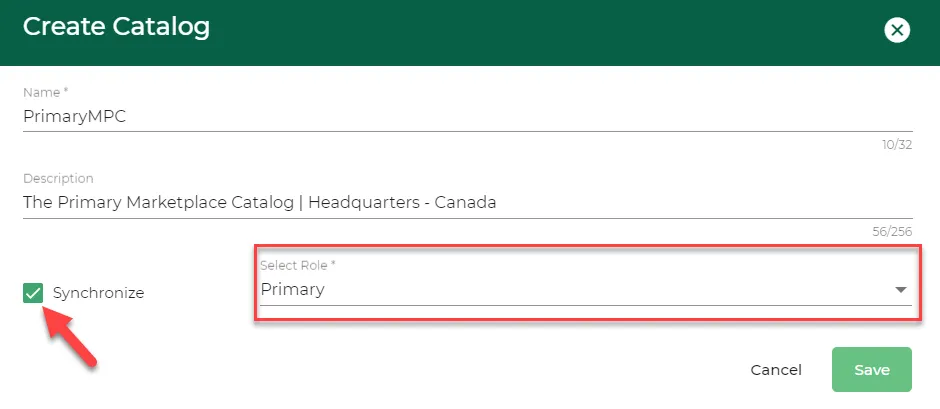 Create Catalog dialog box
Click the Primary marketplace catalog card you just created.
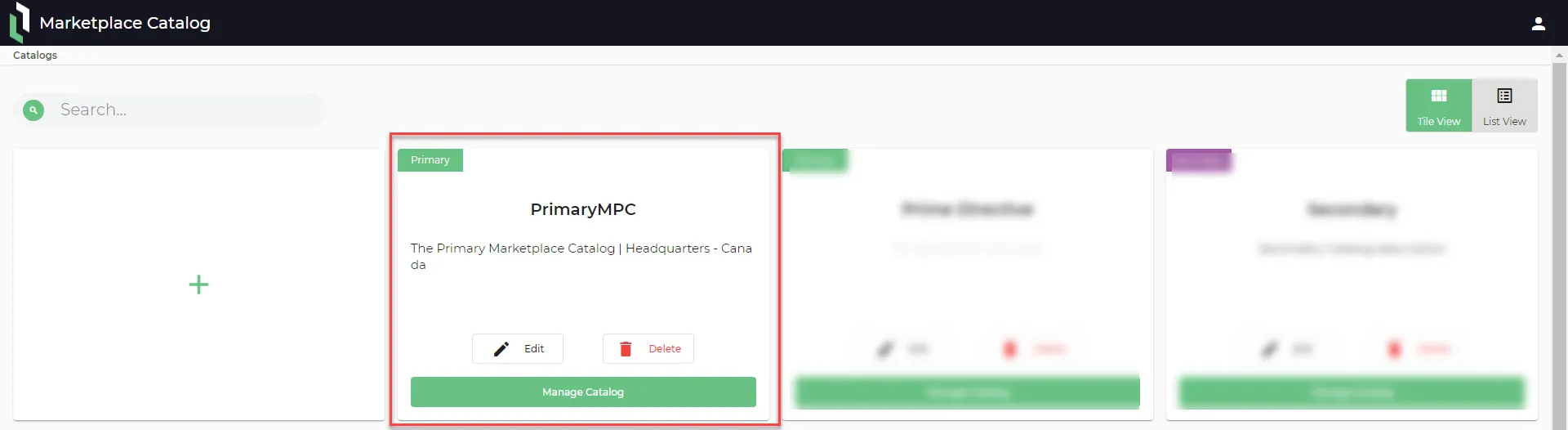 Primary marketplace catalog card
From the Applications pane for the selected marketplace catalog, click Add or Import an application.
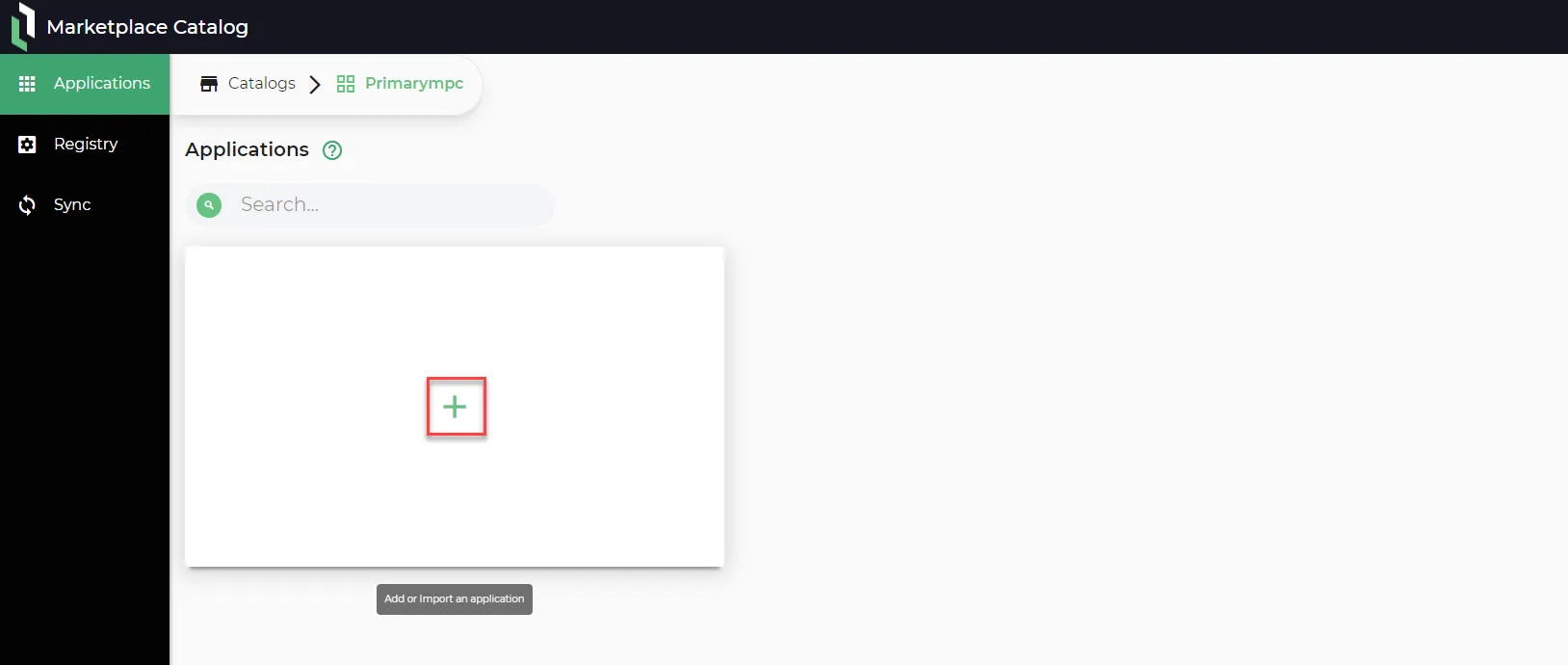 Applications pane
- From the Add Application dialog box, enter the following details:
- Name: Enter the name of the application.
- Attach Application Icon: Upload an visual image to represent the application.
- Category: Enter category for the application.
- Description: Enter description for the application.
- Import: (Optional) Upload a JSON configuration for the application.
Click Save.
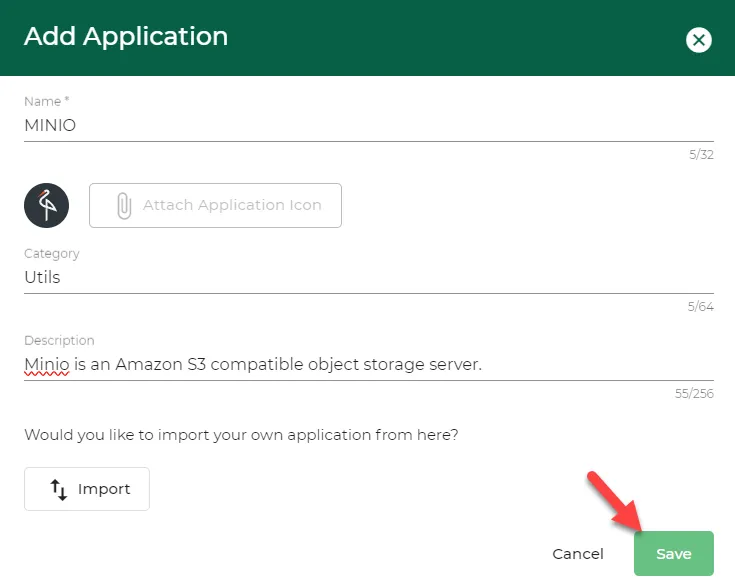 Add Application dialog box
Click the Application card you just created and add a draft application release. See Application Releases to add multiple release versions to your application. The Application card will look like below screenshot after adding multiple release versions.
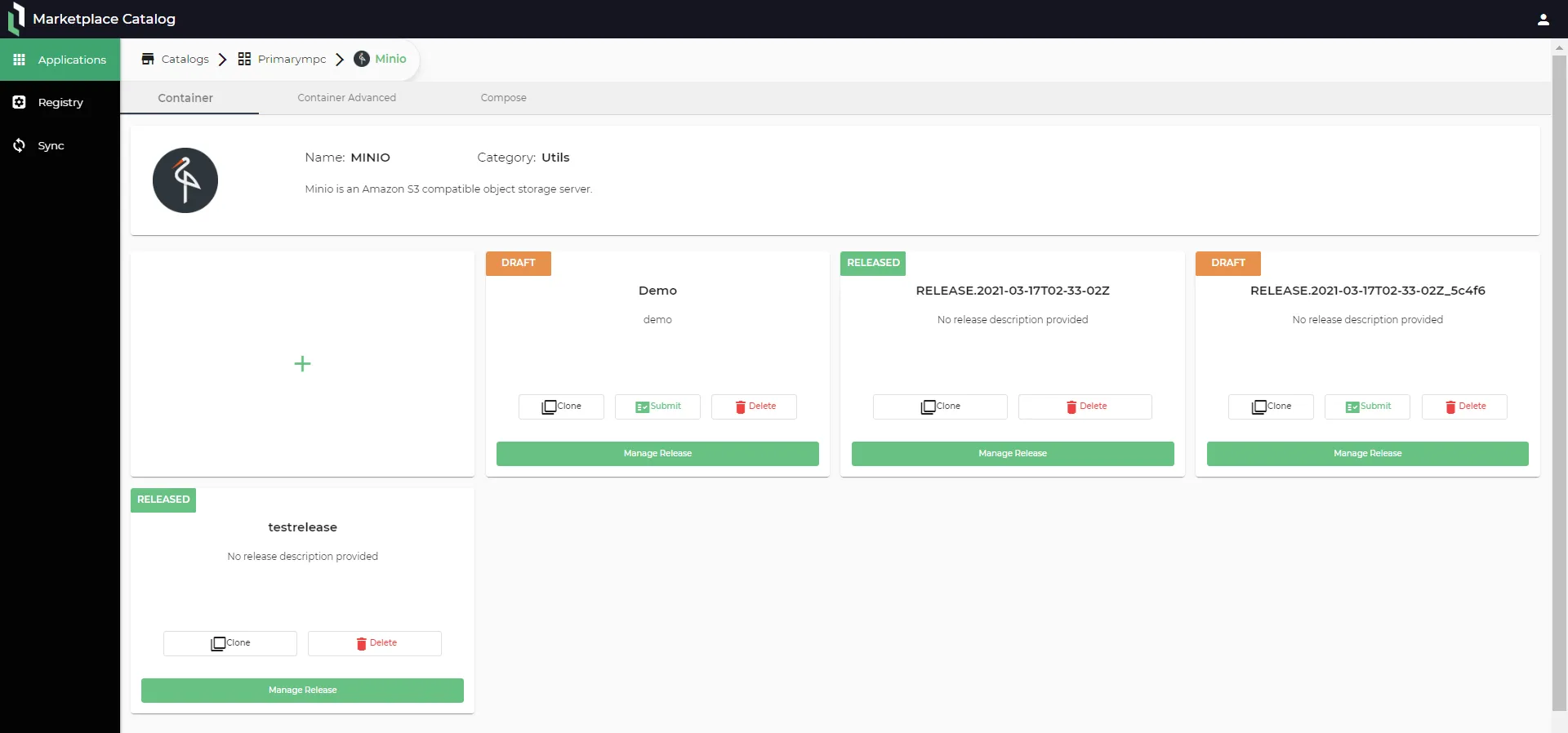 Application card
To add more applications and their respective release versions, you can repeat the process from steps 9-11. The Applications pane looks like below after adding a list of applications.
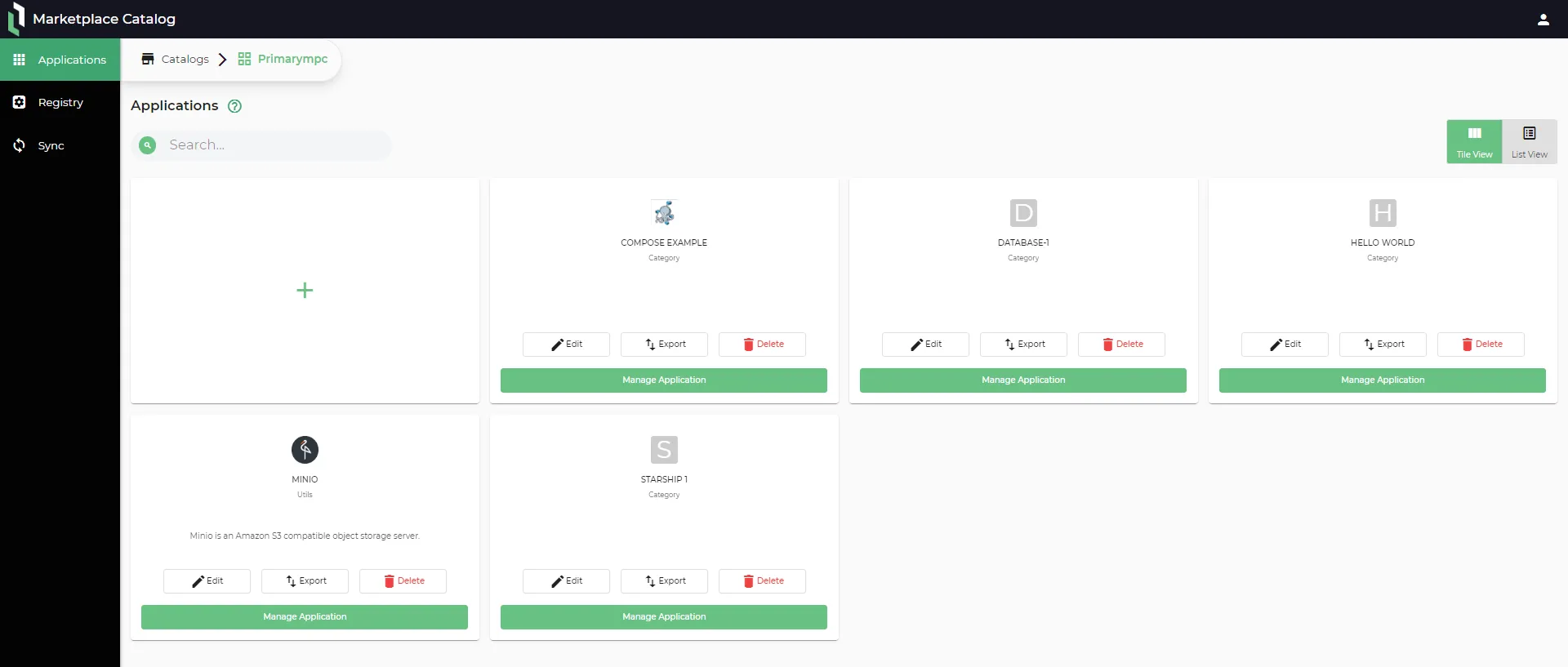 Applications pane
The LEM with the Primary marketplace catalog at the Canadian headquarters is now ready to synchronize with the Secondary marketplace catalog located in Japan.
Next: Step 2: Create Secondary Catalog