This section covers configuring email settings within the Litmus Edge Manager (LEM) Admin Console to enable email notifications.
Accessing Email Settings
To view and configure email settings, navigate to the Admin Console > Settings section and go to the Email tab. To begin configuration, ensure the Enable SMTP toggle is switched on.
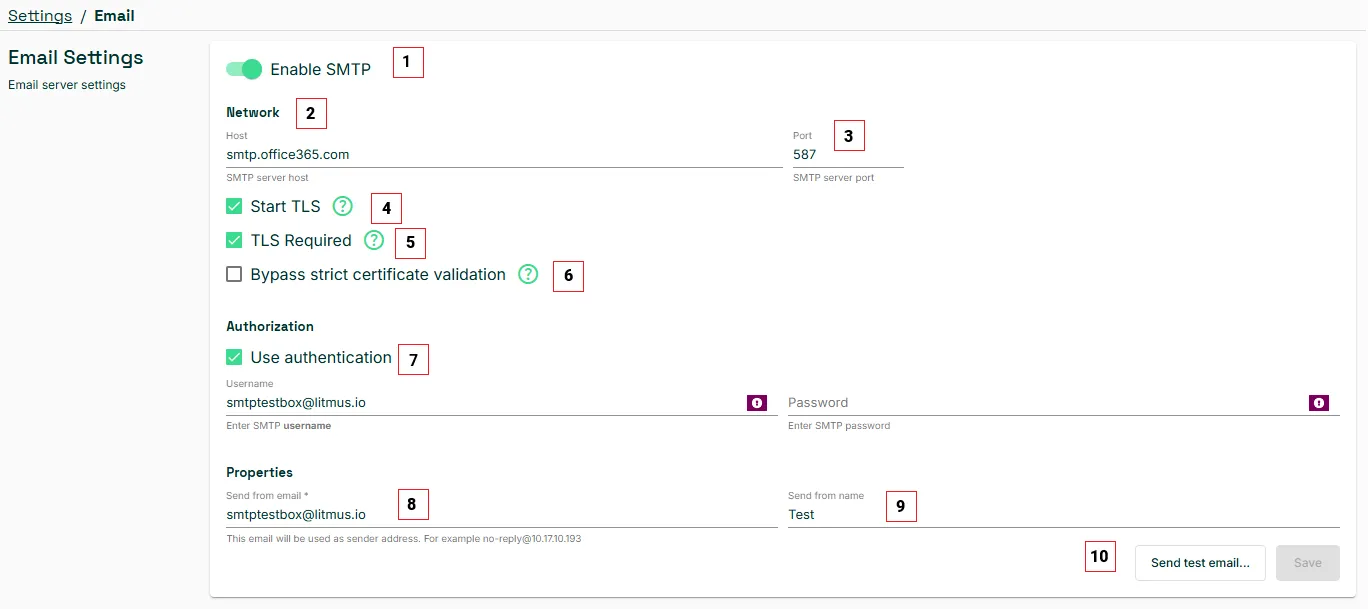
Email Configuration Parameters
When configuring email settings, complete the following parameters:
Action | Details |
|---|---|
[1] Enable SMTP | SMTP needs to be enabled to invite or add a project team member. |
[2] Network | Provide the hostname or IP address of SMTP server. |
[3] Port | Specify the port number that SMTP server uses. For example, 25 for plaintext or 587 for encrypted connections using TLS. For secure connections like Gmail, port 587 is typically used. |
[4] Start TLS | Enable this option if your SMTP server supports and requires the STARTTLS (Start Transport Layer Security) extension for initiating a secure connection. This is commonly used with port 587. |
[5] TLS Required | If your SMTP server mandates a TLS (Transport Layer Security) encrypted connection, enable this option. |
[6] Bypass strict certificate validation | Enable to specify a mail server as trusted when the server uses a self-signed or custom certificate. |
[6] Use Authentication | If your SMTP server requires authentication (username and password), enable this option. Most modern SMTP servers require authentication.
|
[7] Properties > Send from email | Specify the email address that will appear as the sender of emails from the LEM system. This is a required field. |
[8] Properties > Send from name | Enter the name associated with the sender's email address (e.g., Litmus Edge Manager). |
[9] Send Test Email | After configuring the settings, click the Send test email button to verify the configuration.
|
Important: If an email account (e.g., Gmail, Outlook.com) has MFA enabled, an App password may need to be generated and used instead of a regular password.
- Gmail App Passwords: To create an App Password for Gmail, follow the instructions provided by Google: Sign in with app passwords.
- 2-Step Verification must be enabled for the Google Account first.
- Outlook.com/Office 365 App Passwords: For Outlook.com or Office 365 accounts with MFA enabled, an App password may need to be created.
- Refer to the following resources for guidance: