Add Tokens
Note: The Tokens feature is available for Litmus Edge Manager 2.7.0 and later.
You can create a token from the Settings > Tokens pane.
Important: After a token has been created, it can be viewed but no longer be modified.
Step 1: Create Token
To create a new token:
- Log in to the Litmus Edge Manager (LEM) Admin Console at the following URL: https://[LEM IP address]:8446.
- Navigate to Settings > Tokens.
Click the Add New Token icon.
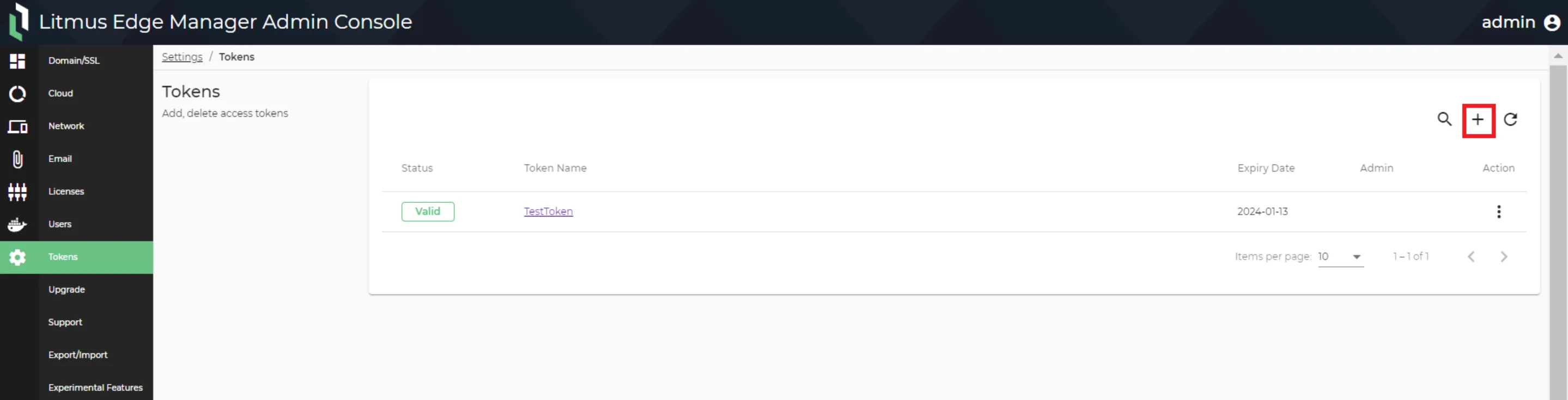 Add New Token icon
Step 2: Enter Token Details
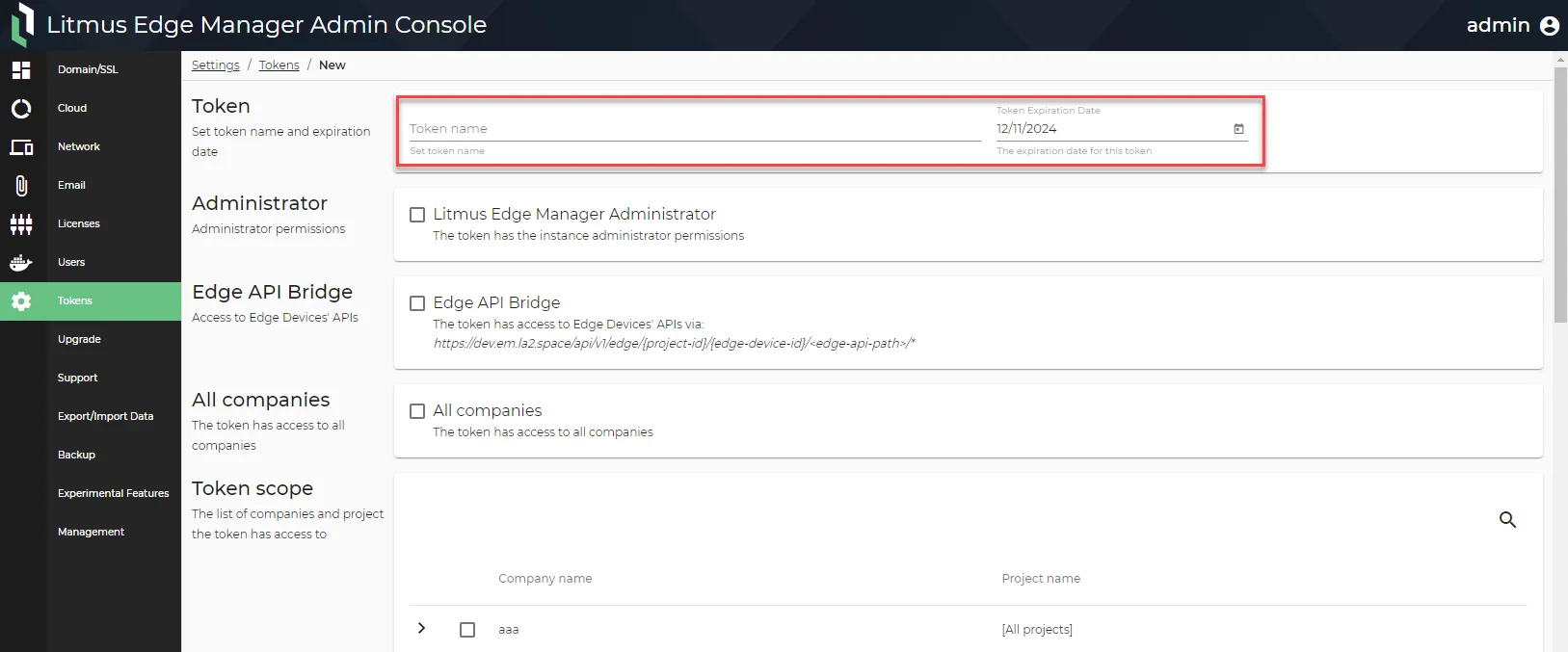
Enter the token name and select the expiration date for the token.
Step 3: Define Token Scope
You will need to define what companies and projects the token can access.
Make one of the following selections.
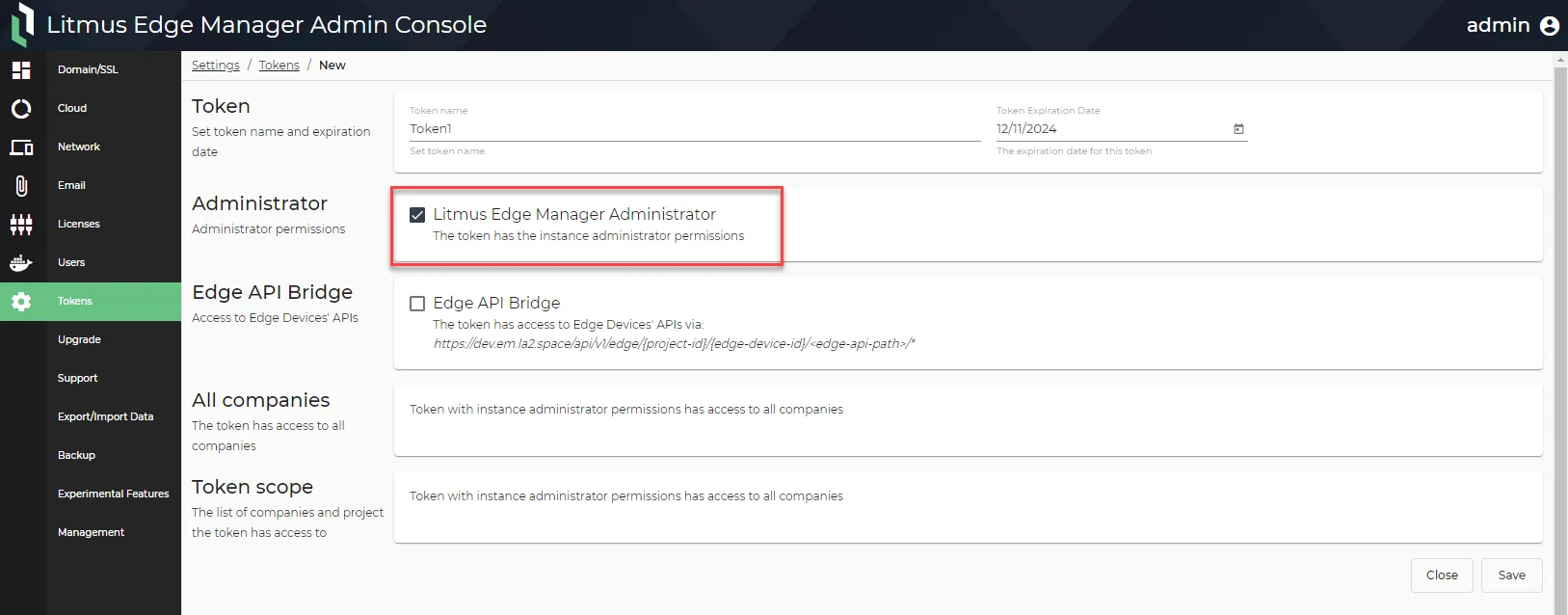
Administrator Scope
Selecting this will give the token instance administrator permissions, therefore giving access to all companies and projects.
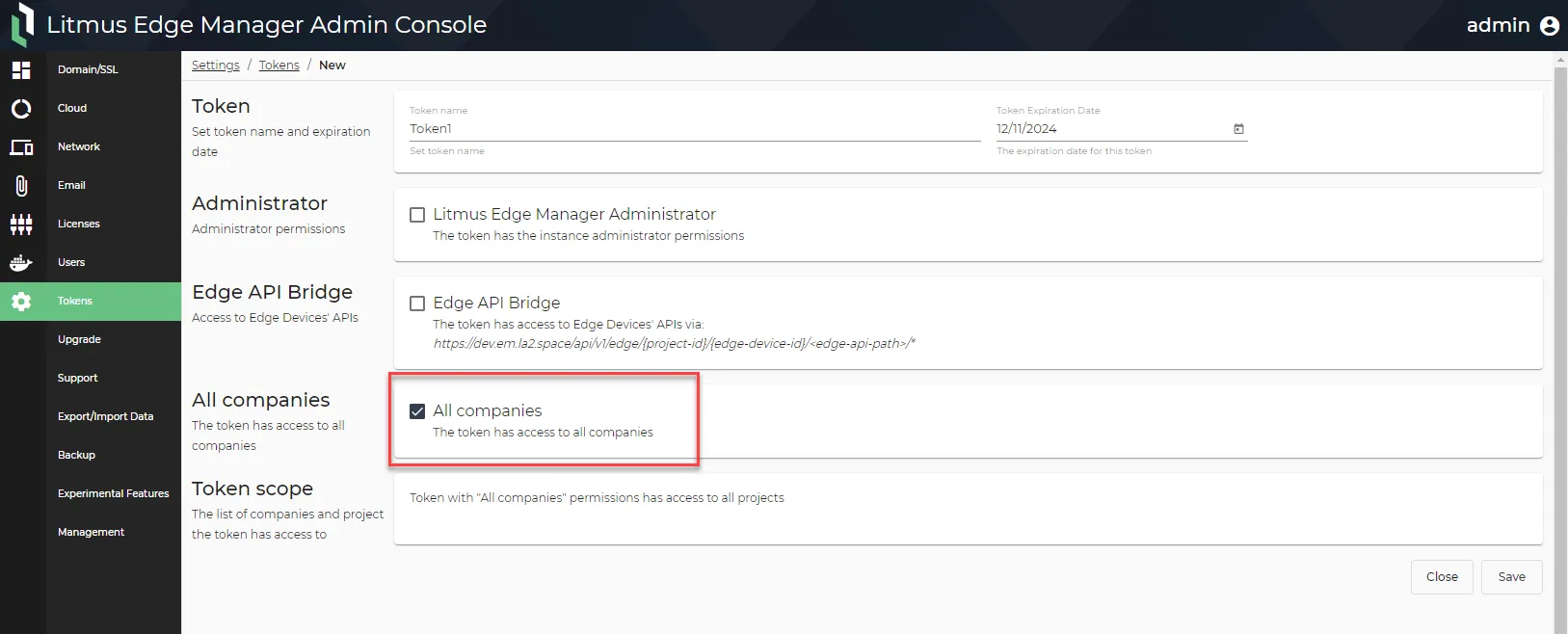
All Companies
Selecting this will give the token access to all companies and projects, but not instance administrator permissions.
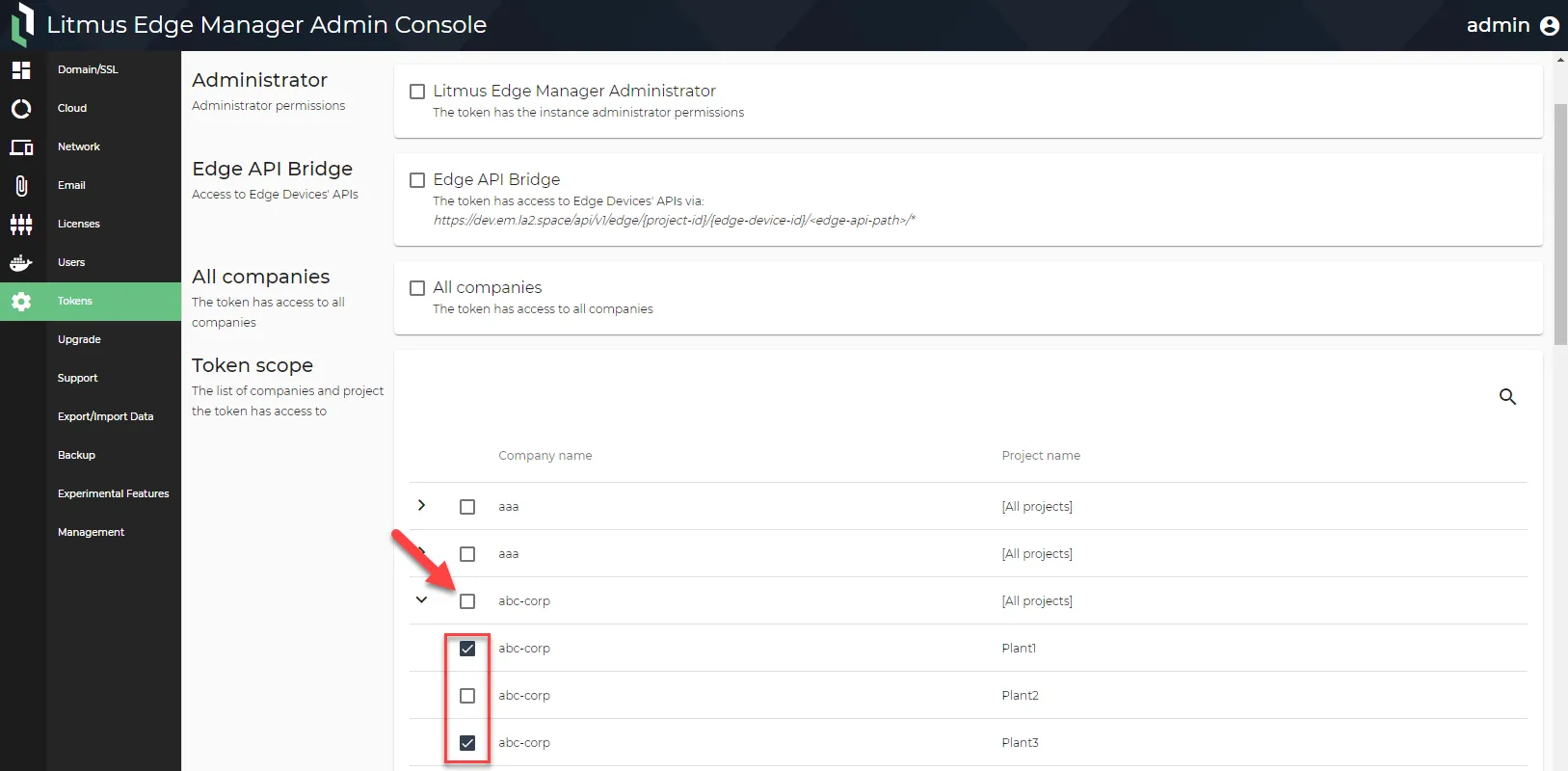
Custom Token Scope
Select individual companies to give the token access to all the projects for the company or select individual projects to the token access to.
Step 4: Edge API Bridge Option
Note: This option is available for Litmus Edge Manager version 2.15.0 and later.
Select this option to integrate all applicable Litmus Edge APIs through a single Litmus Edge Manager endpoint.
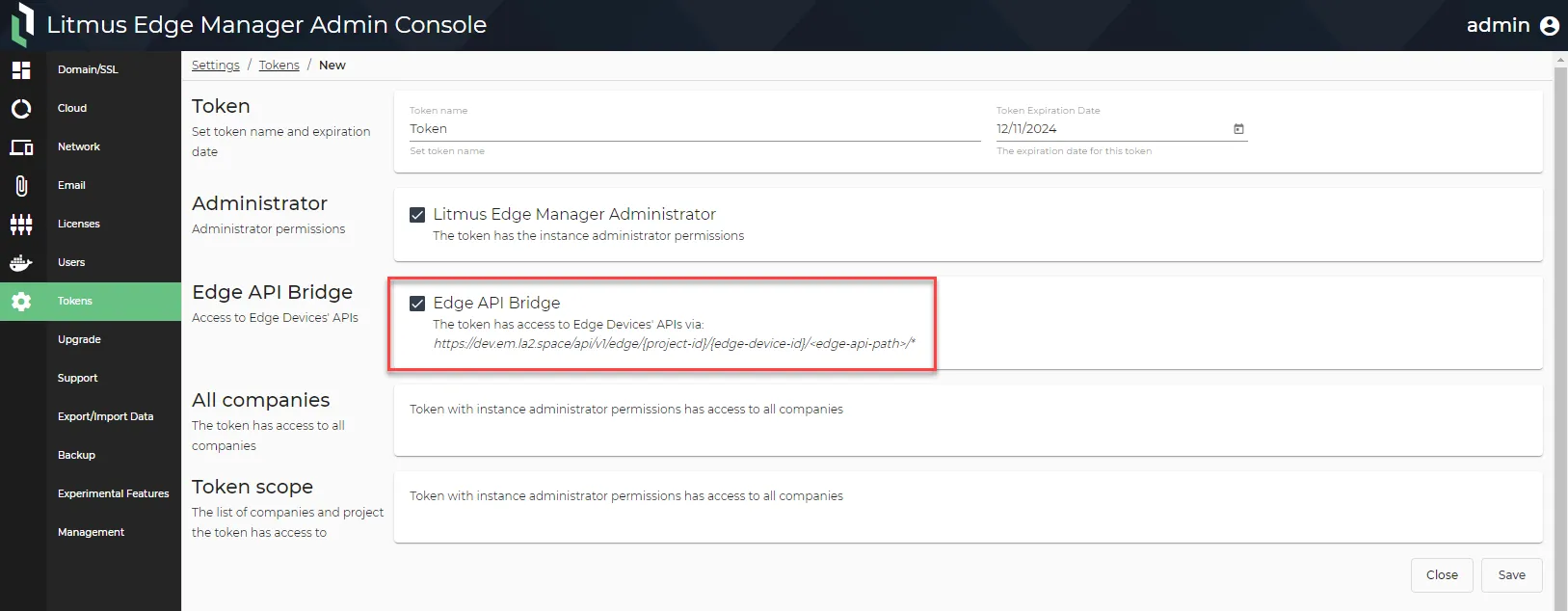
The token has access to Litmus Edge APIs through: https://[LEM URL]/api/v1/edge/{project-id}/{edge-device-id}/<edge-api-path>/*
Do the following to retrieve these parameters:
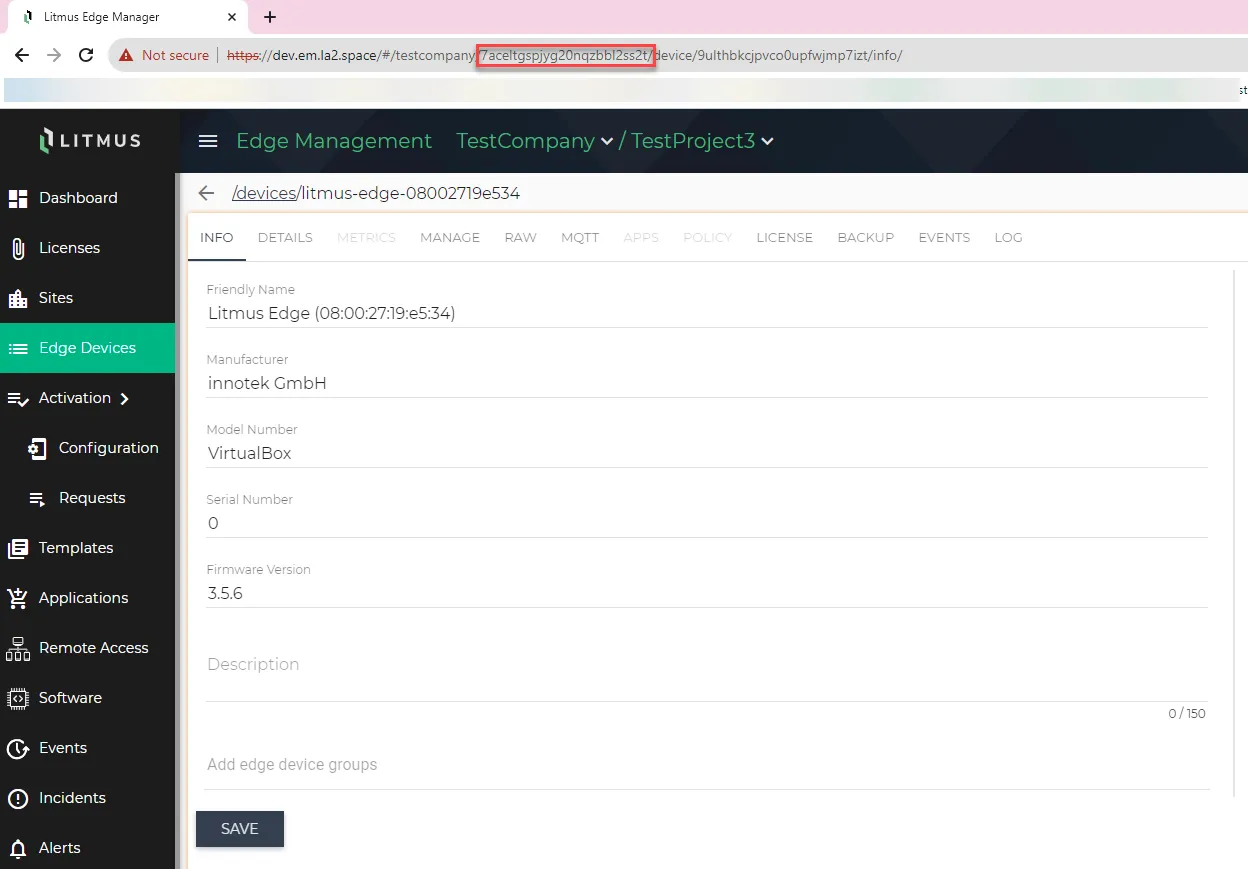
- project-id: In the Litmus Edge Manager User UI, navigate to Edge Devices and click the device name you want to give access to. In the browser address bar, copy the string after the company name.
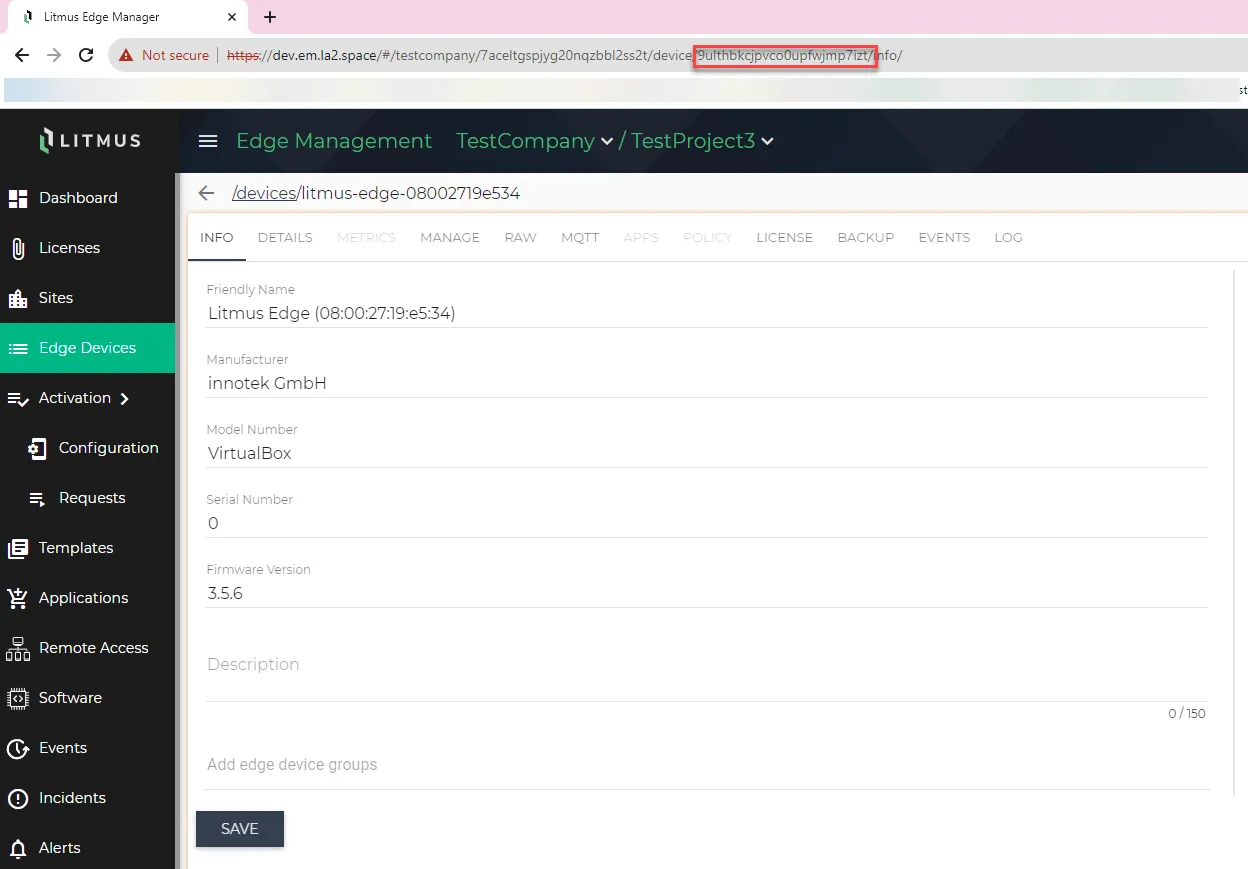
- edge-device-id: In the same browser address bar, copy the string after device.
Step 5: Save Token
After saving the token, make sure to copy it before closing the dialog.
![New token created [blurred token]](https://cdn.images.archbee.com/SSUUxKZUk9bFTEPNn_6Zo/Czs2UE5zudsaPyKuPGg-r_new-token-created.png?format=webp "New token created [blurred token]")
Use Token
When accessing the API, you must use the custom field X-AuthToken in the HTTP header.
For example:
X-AuthToken: zZA82pIo70xzsrwmSl1f0P6DSfvuZgo1