Notification Settings
2 min
In Notification Settings, you can add, modify, and view actions that is used by a trigger. The action sends an email or webhook notification when a trigger is applied.
Add an Action
You can add email or webhook actions.
To add a new action:
- Navigate to Alerts > Notifications.
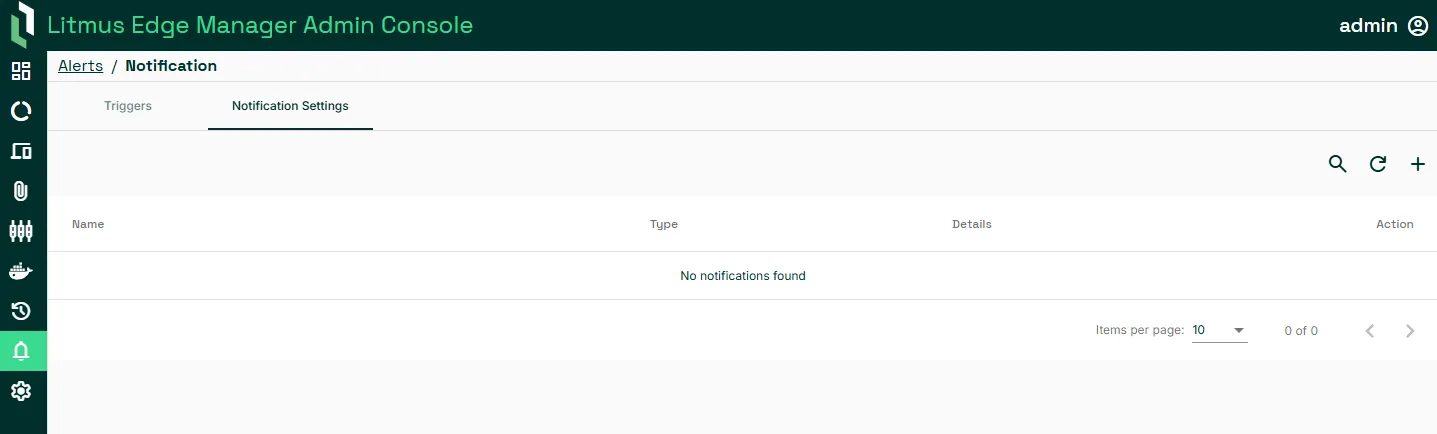
- Click the add a new action (+) icon to open the Add Action dialog.
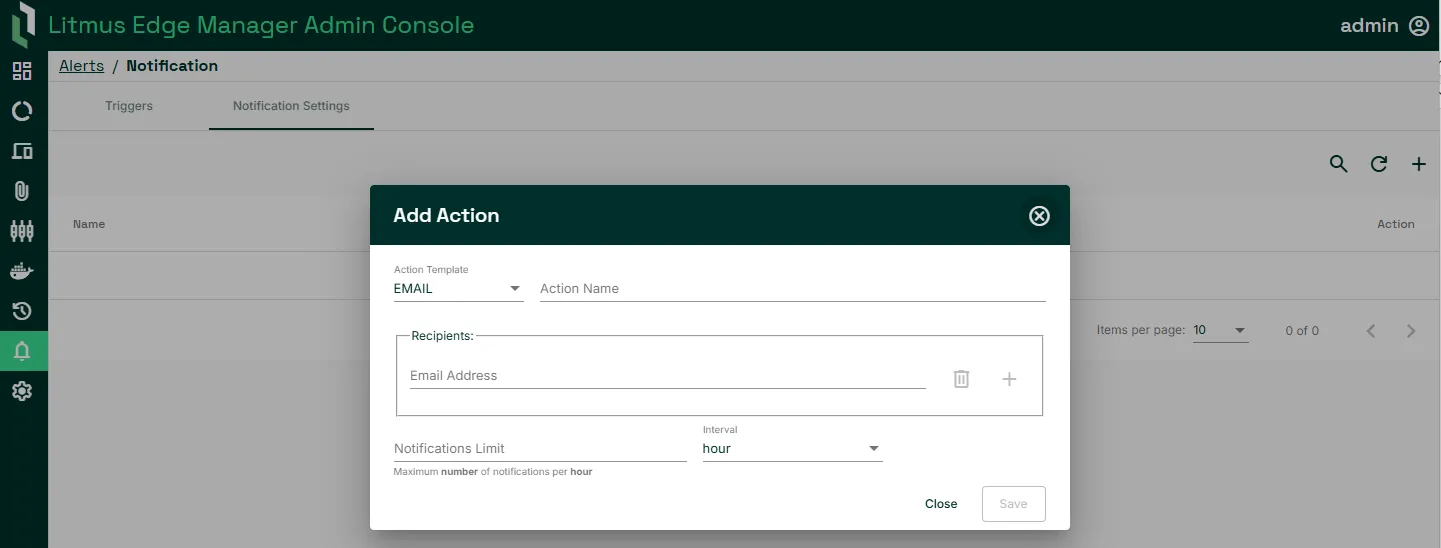
- To create an email notification:
- In Action Template, select Email.
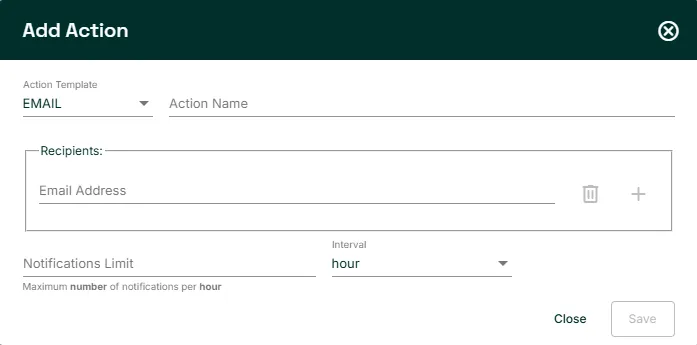
- Provide the action name.
- In Recipients, add the email addresses of the users who will receive the notification.
- Specify the maximum number of notifications to deliver by time period in Notification Limit and Interval.
- To create an webhook notification:
- In Action Template, select Webhook.
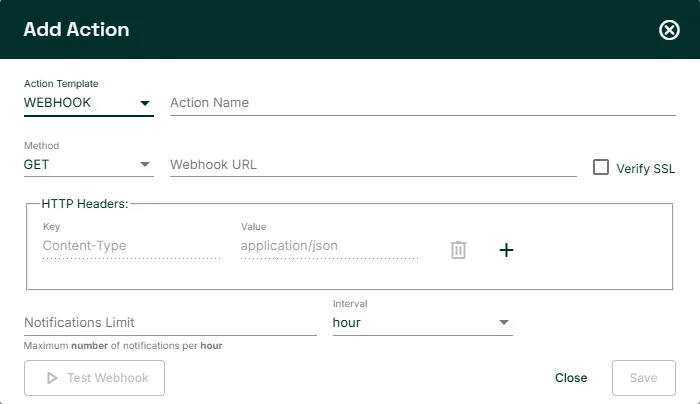
- Provide an action name.
- In Method, select Post.
- In Webhook URL, specify the URL to deliver the JSON payload to.
- Specify the maximum number of notifications to push by time period in Notification Limit and Interval.
- To test the webhook, click Test Webhook and click Details in the notification message to view the payload.