Activate an Edge Device
6 min
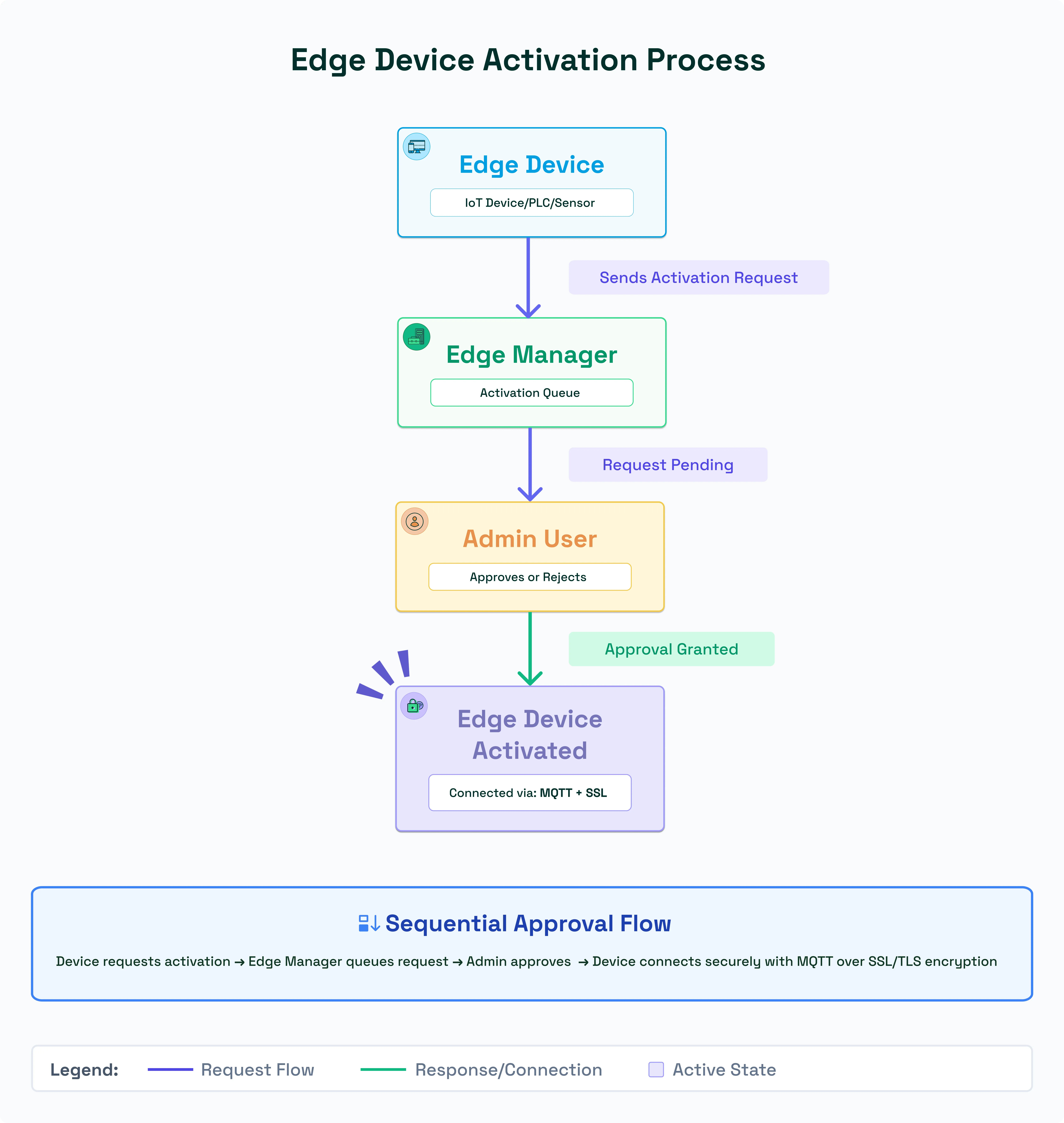
Before an Edge device can be managed centrally, it must be activated. Activation establishes:
- Secure communication between Litmus Edge and Litmus Edge Manager
- License compliance (node-locked or site-based)
- Centralized control of device configurations
Think of activation as the handshake that allows your Edge device to join the Litmus ecosystem.
Step 1: Verify Compatibility
- Ensure your Litmus Edge version matches the Edge Manager version. See Step 1: Verify Litmus Edge- Litmus Edge Manager Compatibility.
- Incompatible versions may cause API errors or missing features.
Step 2: Create Activation Configuration
- Navigate to Edge Manager > Devices > Activation Config.
- Fill in required parameters:
- Device ID
- License key
- Server URL/port
- This configuration file acts as the identity card for your device.
Step 3: Request Activation
- Upload the activation config from your Edge device. The device sends a request to Edge Manager.
- Pending requests appear in the Activation Queue.
Step 4: Approve Request
- An administrator reviews and approves the request.
- Approval ensures only trusted devices join the network.
- Once approved, the device is officially recognized.
Step 5: Verify Activation
- Confirm the device appears in the Active Devices list.
- Check connectivity status (green indicator).
- Run a quick test: send sample data to Edge Manager.
Step 6: Enable MQTT SSL Connector
- Go to Connector Settings and enable MQTT with SSL.
- MQTT is the default protocol for data transfer, and SSL ensures encryption.
- This step secures all communication between Edge and Manager.
Troubleshooting
- License mismatch: Double-check license type and key.
- Firewall blocking port: Ensure server port is open.
- SSL certificate error → Verify certificates are valid and not expired.
Best Practice: Always sync device time with NTP before activation to avoid certificate issues.
Video