Triggers
1 min
When you create a trigger, you create the trigger message contents, source for the trigger, and actions to start when the triggers is activated. When you create a trigger you define the:
- trigger source.
- trigger subject and message content that is sent to recipients. The subject and message fields can contain a combination of text and variables.
- response action that occurs after the alert triggers.
To specify the trigger source:
- Navigate to Alerts > Triggers.
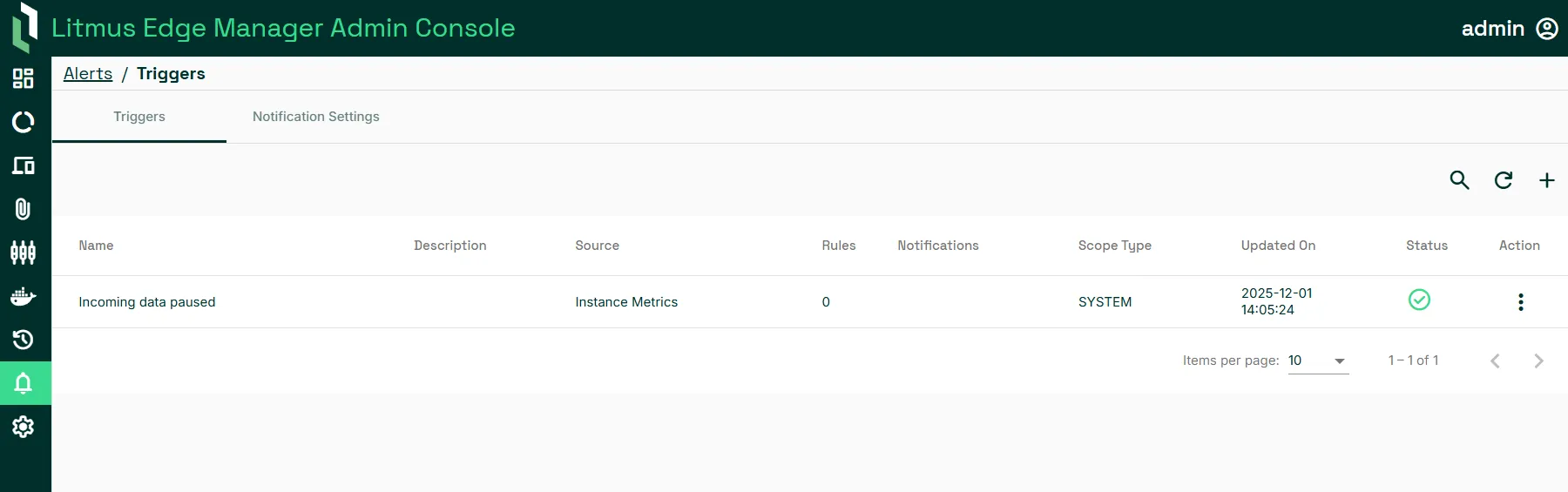
- Click add trigger at the right of the page.
- In Source, create trigger rules.
- To create a rule based on an edge device instance metric:
- Select Instance Metrics.
- Select an alert template from the list. For example, select Disk space is low.
- Select additional values to create the rule. In this case, select the minimum free disk space percentage and the time to wait between the event occurring and sending the notification, as shown below.

- To create a rule based on an edge device instance event:
- Select Instance Events.
- In Component, select the component source, for example, Project.
- In Event ID, select an event ID trigger. For example, select from project.deleted, project.created, or project.updated.
Next create the trigger message
To create the trigger message:
- In the Trigger section:
- Provide a trigger name and description.
- In Subject, create the notification subject by entering text and selecting one or more variables.
- In Message, create the notification message by entering text and selecting one or more variables.
Next, specify the response action that occurs immediately after the alert triggers.
To specify the trigger action:
- In Actions, select an action from the action list.
- To specify that the notification is delivered repeatedly, select Continuously and define the notification frequency in minutes.
- Click Save.