Application Details
You can view a selected application's details from the Applications pane. Viewing an application's details opens the selected Application Details pane.
From the Application Details pane, you can deploy the selected application. You can start and stop an application, update an application, and view the application logs for a selected edge device from the application details pane. You can select an edge device ID link to view its details. You can select a group and filter the edge devices to narrow the list.
Access Application Details UI
To access the Application Details UI:
- Log in to Litmus Edge Manager.
- Select a company. The Projects pane appears.
- Do one of the following:
- Click a project from the Project pane. The Dashboard pane appears for the project.
- Click the Actions icon for a project, and then select View. The Dashboard pane appears for the project.
- From the Navigation panel, select Applications. The Applications pane appears.
- Click the Actions icon next to an application, and then select Details. The Application Details pane appears.
Litmus Edge Manager version 2.31.0 and later
The following image shows Litmus Edge Manager version 2.31.0.
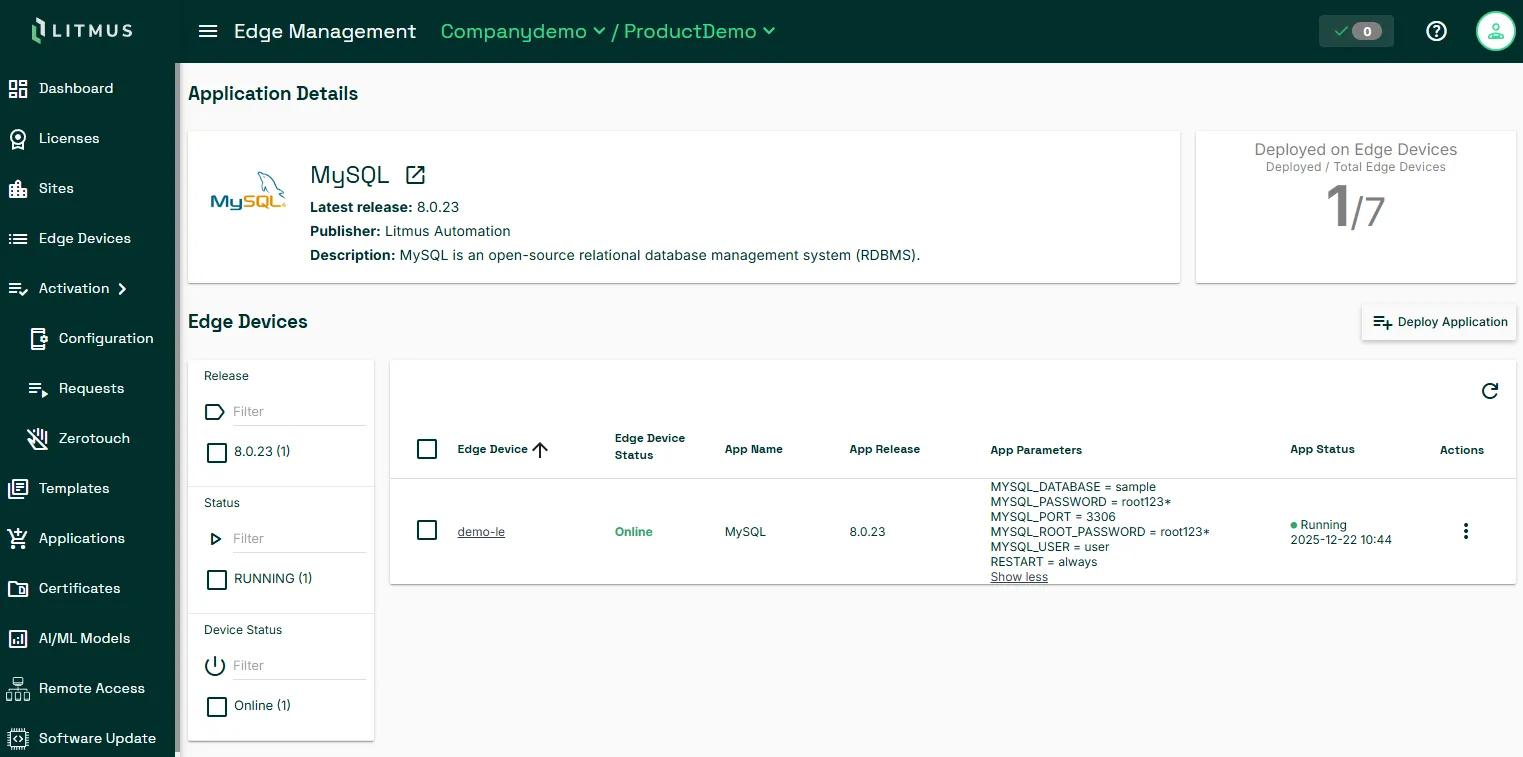
In the Application Details page, you can:
- View the app See Application Releases for more details.
- Deploy the app Click Deploy Applications at the right. See Deploy an Application to Edge Devices for details.
- Filter edge devices Filter by release, edge devices status, and app status.
- View edge device details View the edge device and app status, app name and release version, and the parameters set when the app was deployed.
- Start, stop, update, and delete app and view logs In the Actions menu, select:
- Start Application Start the application.
- Stop Application Stop the application.
- Update Application: After updating an application (deploy a new image of that application to an edge device), you must remove the previous version of that application from the Litmus Edge device. See Manage Images for removal. Obsolete images do not interfere with the new image operations but they do occupy significant disk space.
- Delete Application: The application does not need to be stopped first to delete it. This delete operation terminates the Docker container and does not remove the Docker image from the Litmus Edge instance. If needed, manually delete the Docker image from the Litmus Edge instance as it does occupy significant disk space. See Delete image of Manage Images for details.
- Logs View logs.
Litmus Edge Manager version 2.8.0 and later
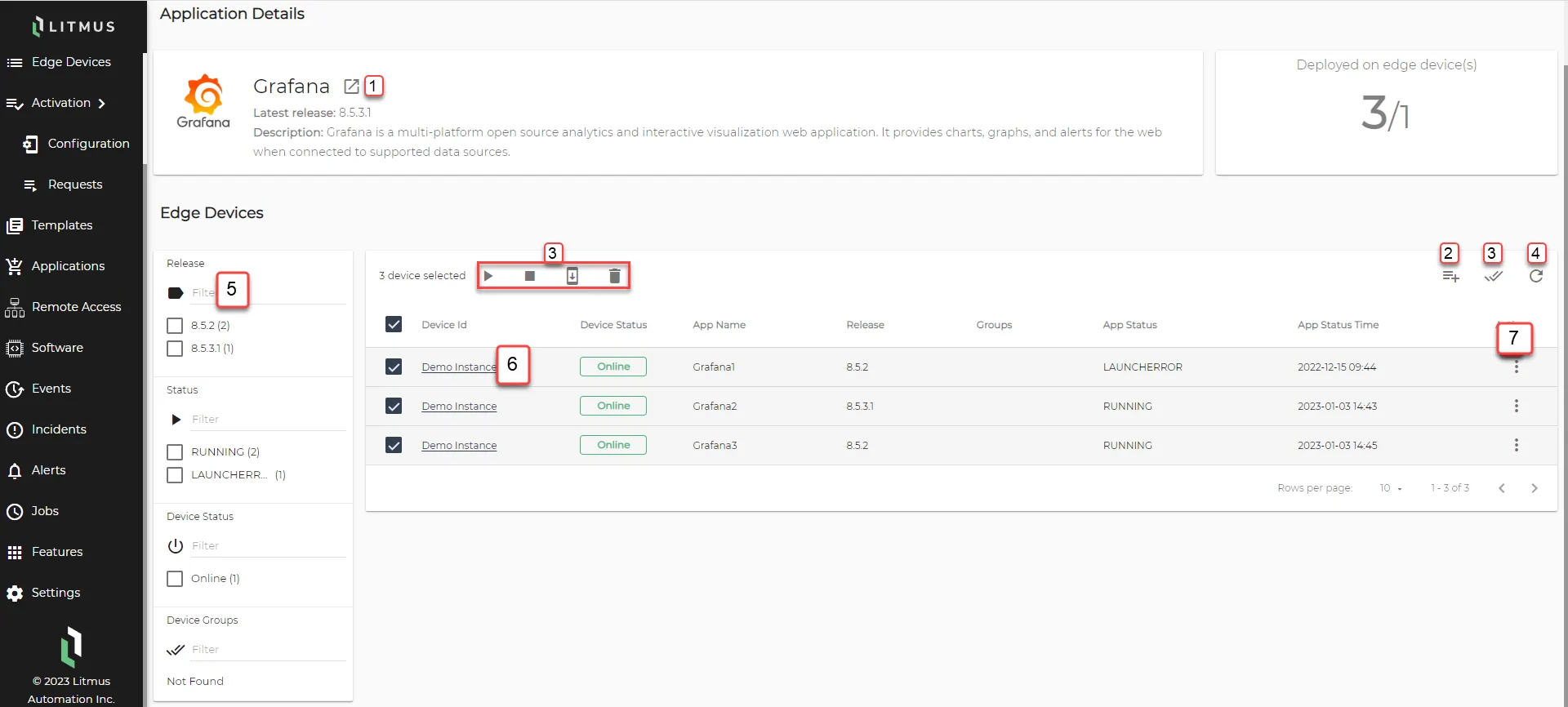
Refer to the following actions you can take on the Application Details pane. The user interface below is for Litmus Edge Manager version 2.8.0 and later.
Action | Details |
|---|---|
[1] View Application | See Application Releases for details. |
[2] Deploy application to device(s) | See Deploy an Application to Edge Devices for details. |
[3] Multiple Select |
|
[4] Refresh | Update the list. |
[5] Filter Edge Devices by Group | Select specific devices based on conditions. |
[6] View Edge Device Details | Apps |
[7] Action menu | Only available for the applications deployed from the Marketplace Catalog.
|