Configure an External DataHub Source
When you Configure the Timeseries DB in DataHub, you have the option of selecting an internal or external source. This guide will show you how to configure an external DataHub source with an InfluxDB database.
Video
User Scenario
In this guide you will deploy InfluxDB from the same computer (Windows-based) running Litmus Edge and then configure the InfluxDB database for the DataHub Timeseries DB.
For your specific scenario, you can deploy an external InfluxDB database and connect to it from Litmus Edge DataHub.
Before You Begin
- You will need to set up your computer so that it can run Docker commands.
- Follow the steps to Connect a Device (with Enable Data Store selected) and Add Tags in DeviceHub. The data from the tags will be used to test the connection of the Timeseries DB.
Step 1: Set up InfluxDB
You will first need to pull an InfluxDB image file and then run it on your computer.
To set up InfluxDB:
- On your computer, open the command prompt window.
- Run the following command. docker run --name influxdb -p 8086:8086 influxdb:2.0.9 The command will create the InfluxDB container with the name "influxdb", on port 8086, and install InfluxDB version 2.0.9. If you are using a different version of InfluxDB, update the version number.
Once the pulling and running of InfluxDB is complete, open a browser window and enter http://localhost:8086 in the address window. The setup screen for InfluxDB displays.
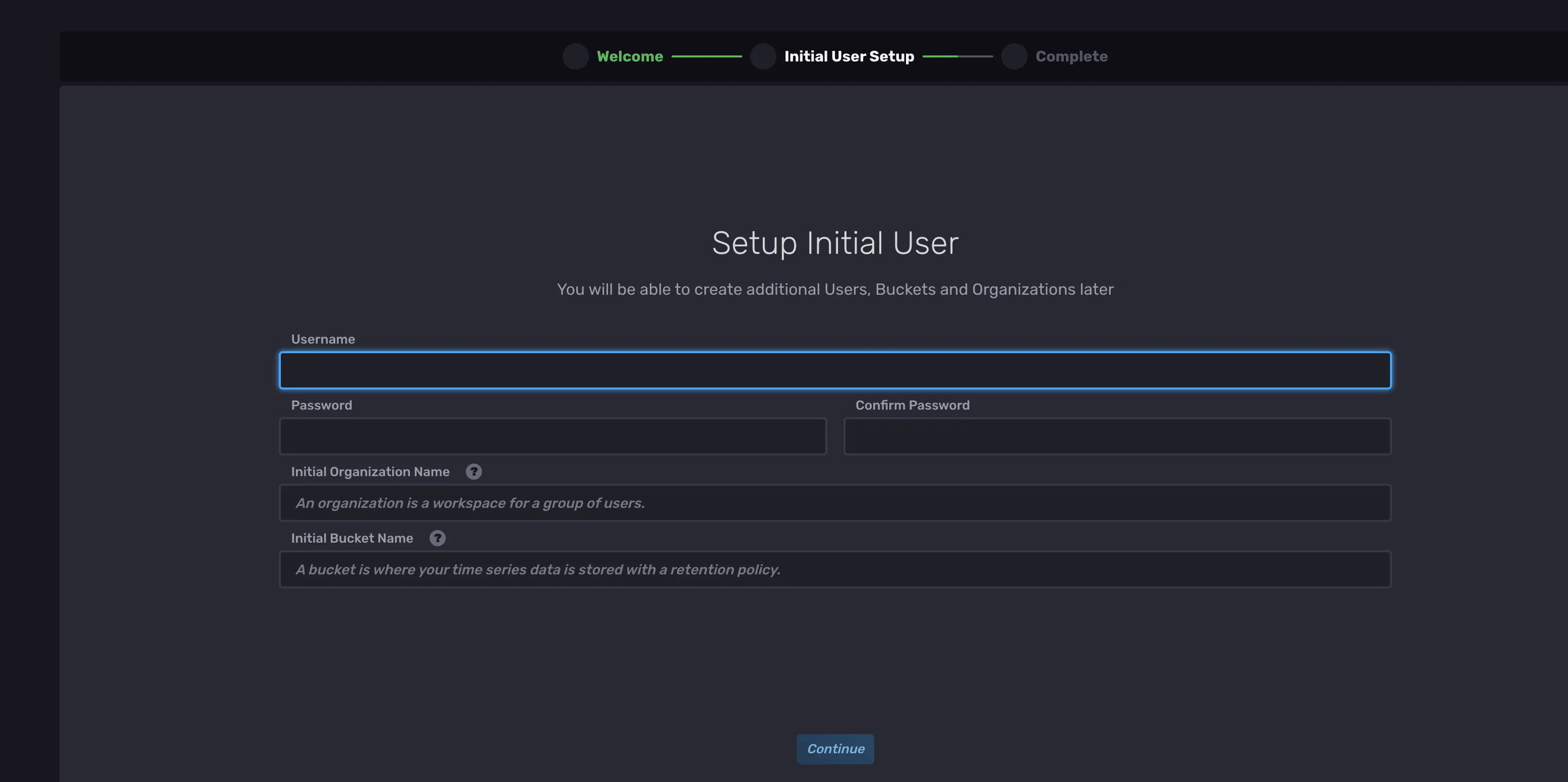 InfluxDB initial setup screen
- Configure the details for the initial user. You will need to refer to the organization name when configuring the Timeseries DB in Litmus Edge.
- Username
- Password
- Initial Organization Name
- Initial Bucket Name
- Click Continue.
- Continue setting up the database as needed.
- Return to the homepage of InfluxDB.
Navigate to Data > Tokens. Then, click the token name already created. Details for the token display.
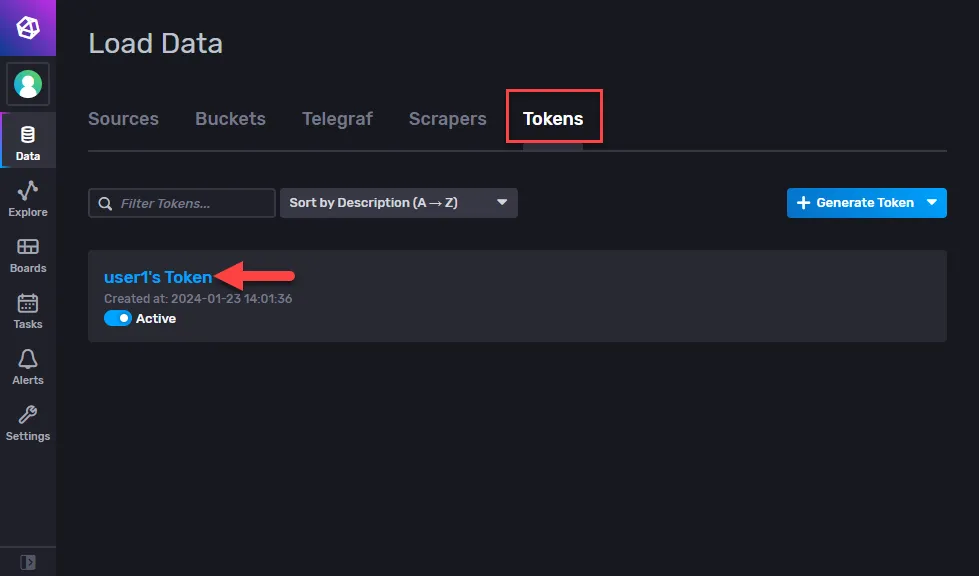 The Tokens page
Click Copy to Clipboard and store the token somewhere securely. You will refer to this when setting up the Timeseries DB in Litmus Edge.
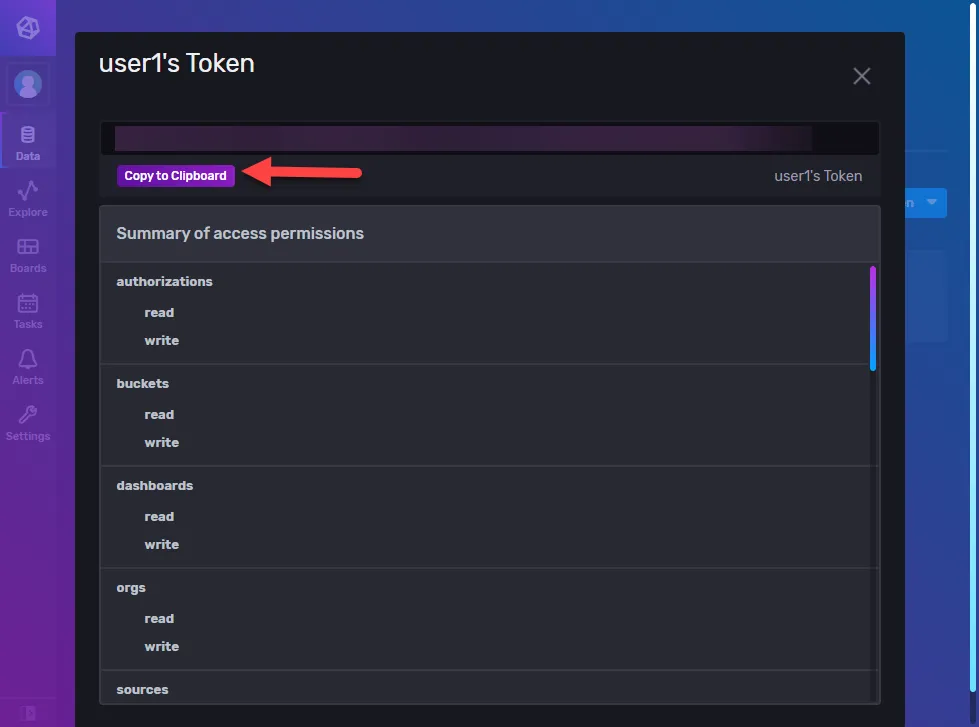 Token details
Now that InfluxDB is configured to your specific requirements and you've collected the parameters needed to set up the connection, you can complete the setup in Litmus Edge.
Step 2: Configure DataHub Timeseries DB
You can now configure the DataHub Timeseries DB and use the InfluxDB database as the source.
To configure the DataHub Timeseries DB:
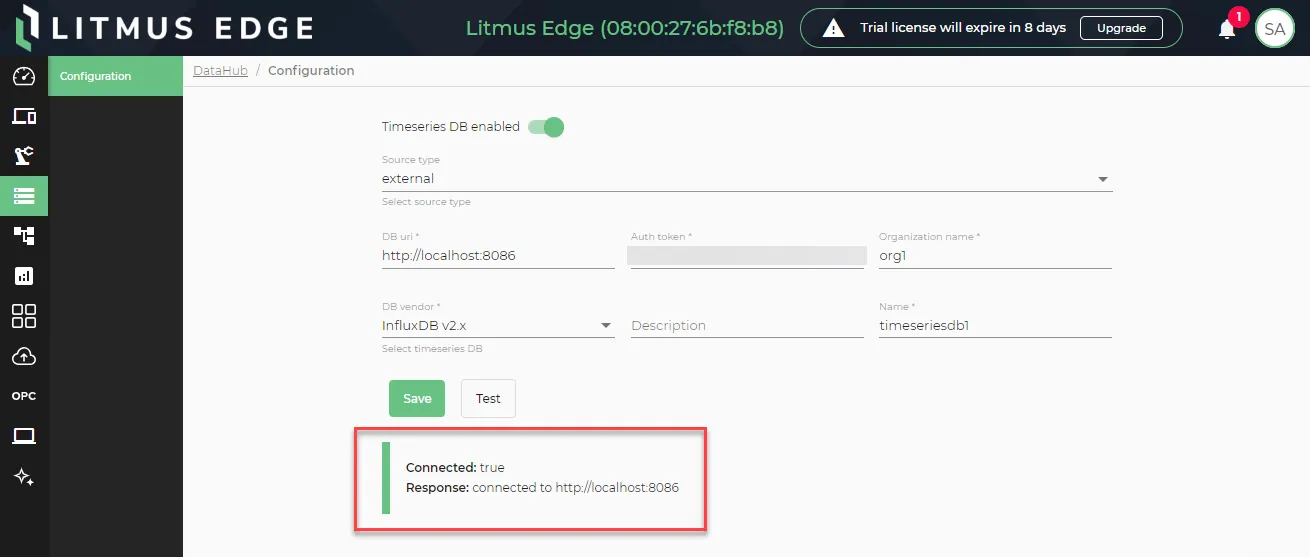
- Navigate to DataHub > Configuration.
Click the toggle to enable the Timeseries DB and select the Source type of External.
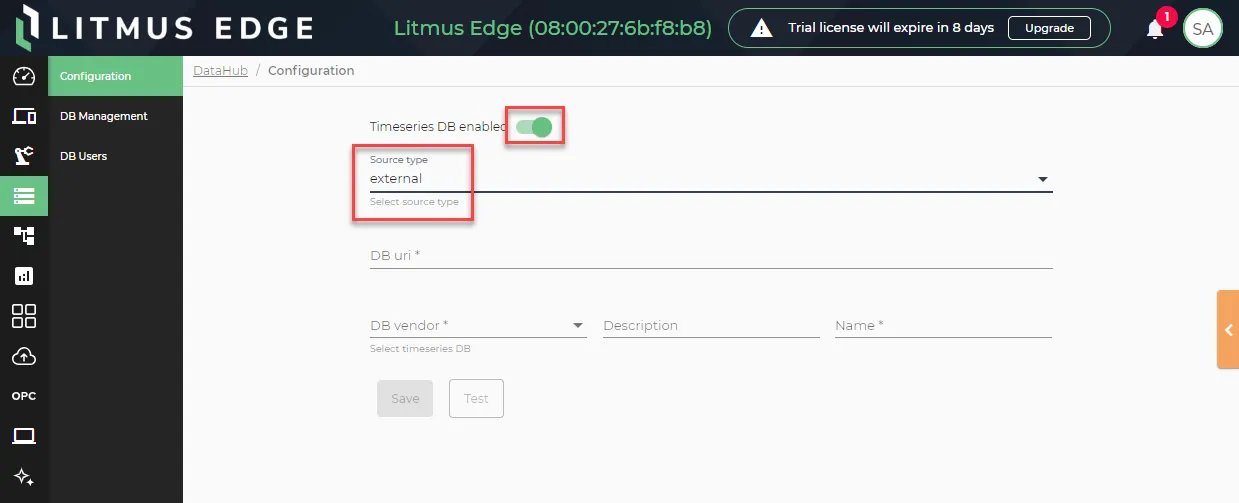
- Configure the parameters.
- DB uri: Enter http://localhost:8086.
- Auth token: Paste the token copied in Step 1, number 9.
- Organization name: Enter the organization name configured in Step 1, number 4.
- DB vendor: Select InfluxDB v2.x.
- Description (Optional): Enter a description.
- Name: Enter a name for the configuration.
- Click Save.
Click Test and review the result.
Step 3: Verify Connection in InfluxDB
Return to the InfluxDB browser window and explore the metrics to ensure that data is being successfully sent from Litmus Edge to InfluxDB.