Subscribe to Topics with Flows
You have the following options for subscribing to topics in Flows.
Subscribe to a Single Topic
The following steps describe how to subscribe to a single topic from a connected DeviceHub device. See the following to learn more:
To subscribe to a single topic:
- Get the topic name to configure the DataHub Subscribe node in Flows.
- Go to DeviceHub and select the Tags pane from the navigation menu.
Click the Copy icon next to the RAW Topic from which you wish to receive data.
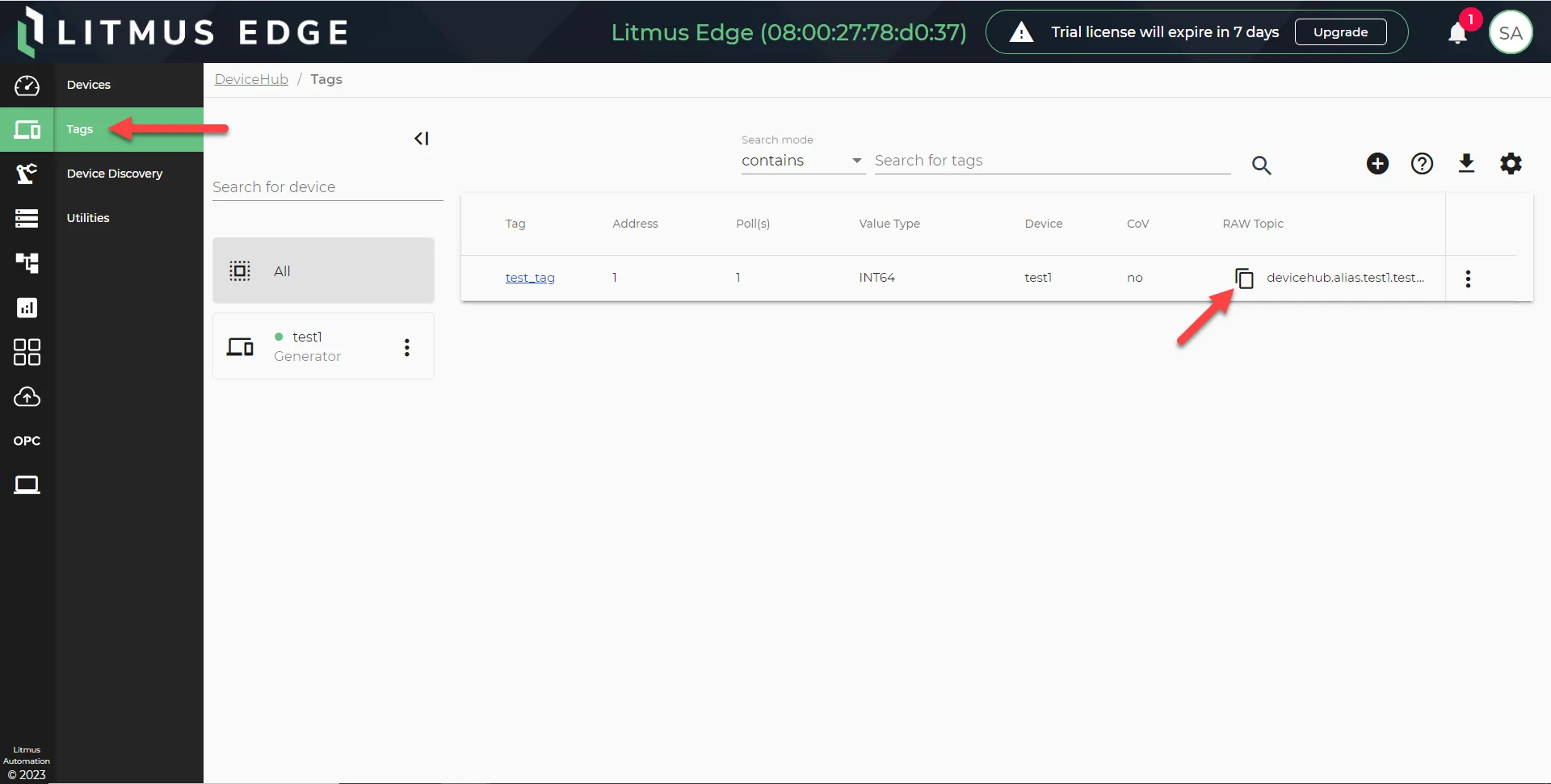 Litmus Edge DeviceHub Page
- In the navigation menu, click Flows Manager.
To access an existing flow canvas, click the Go To Flow Definition icon next to the flow status. For creating a new flow, refer to Step 2: Create Individual Flow in Create a Flow to learn more. The Flow canvas opens in a new browser tab.
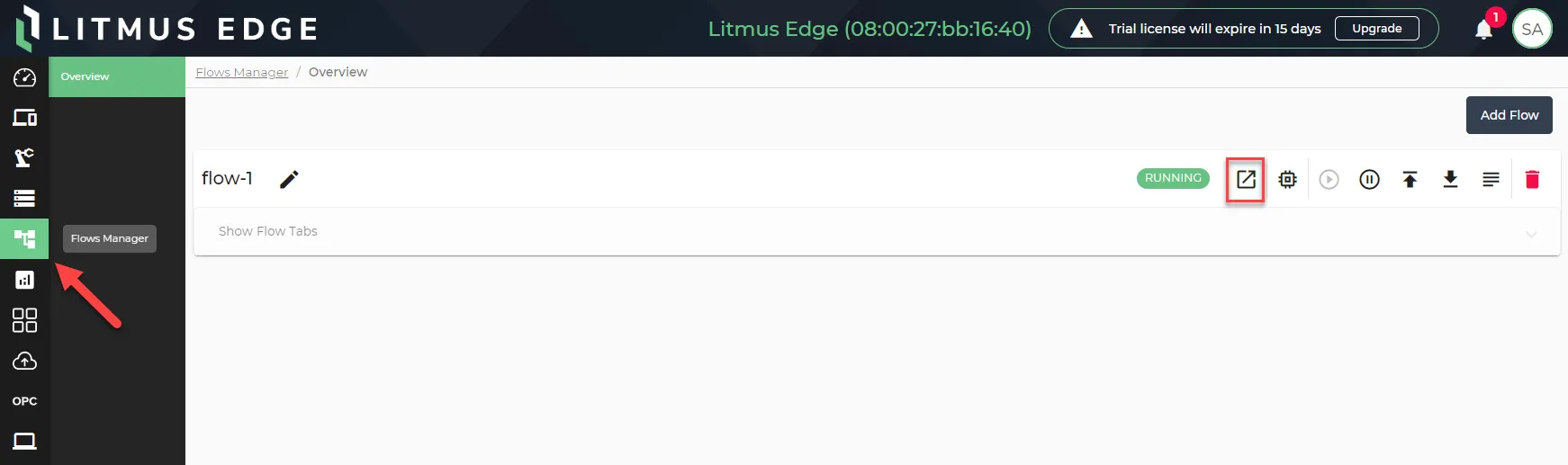 Go To Flow Definition icon
Drag the DataHub Subscribe node and debug node on the canvas and connect them.
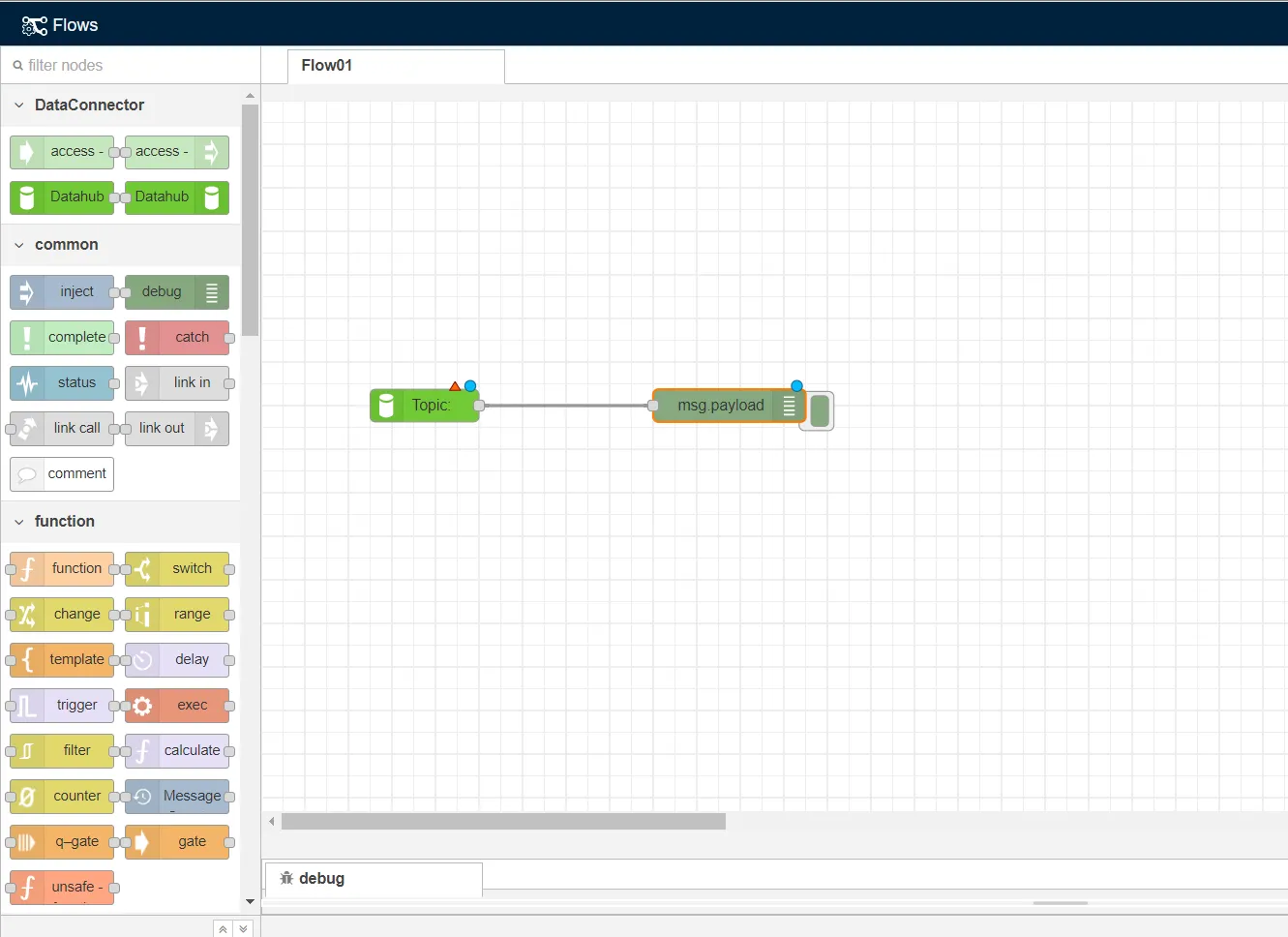 The Debug and DataHub Subscribe nodes
- Double-click the DataHub Subscribe node to open the Edit DataHub Subscribe node dialog box. Configure the node by following these steps:
- Paste the topic name previously copied into the Topic field.
- If needed, configure the Datahub Subscribe connection. See the Step 3: Configure Connector Nodes section in Create a Flow to learn more.
Enter a name in the Name field and click Done.
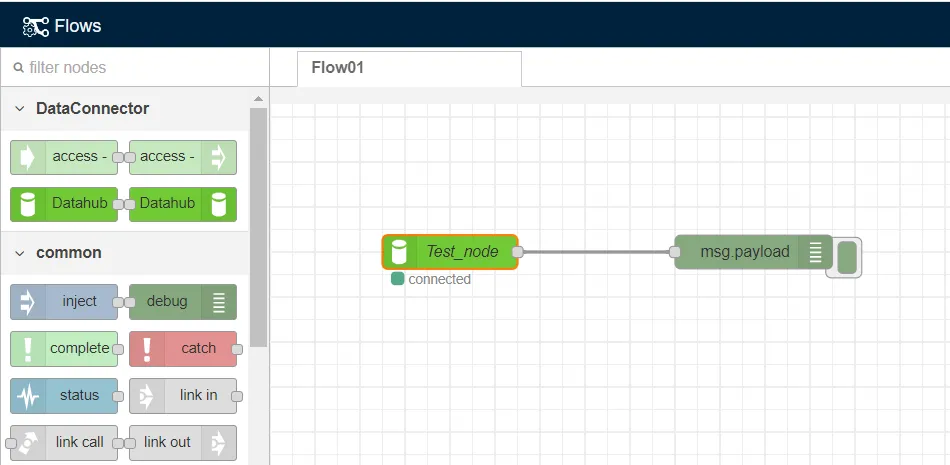 The debug node connected to existing flow
- To save the flow, click Deploy.
Expand the message window beneath the flow.
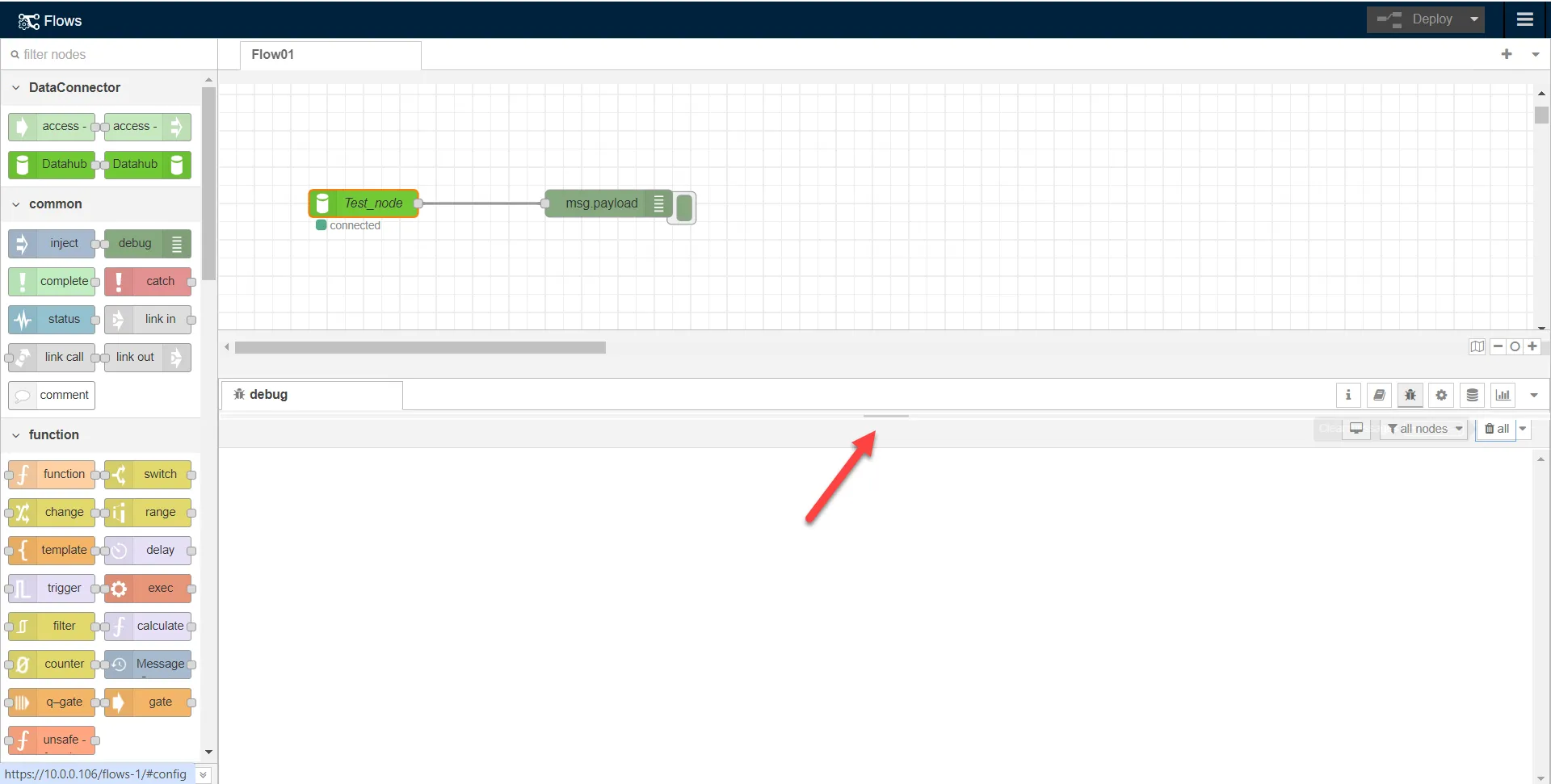 The message window
Click the Debug icon to view the data output.
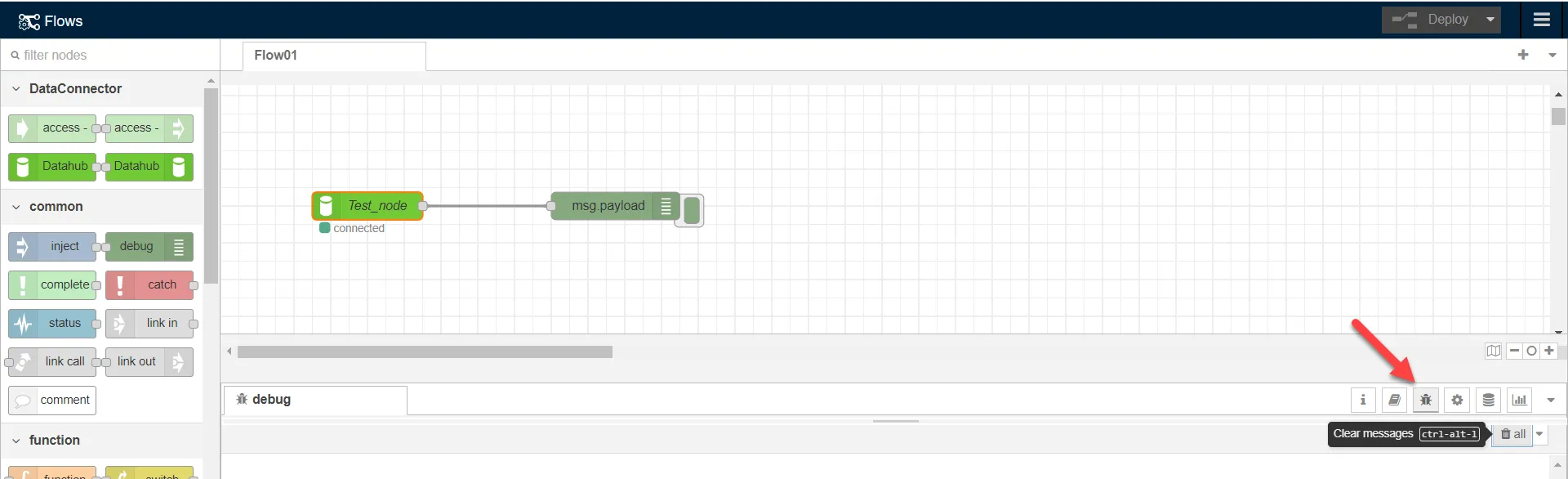 The debug icon
Review the data payload in the message window.
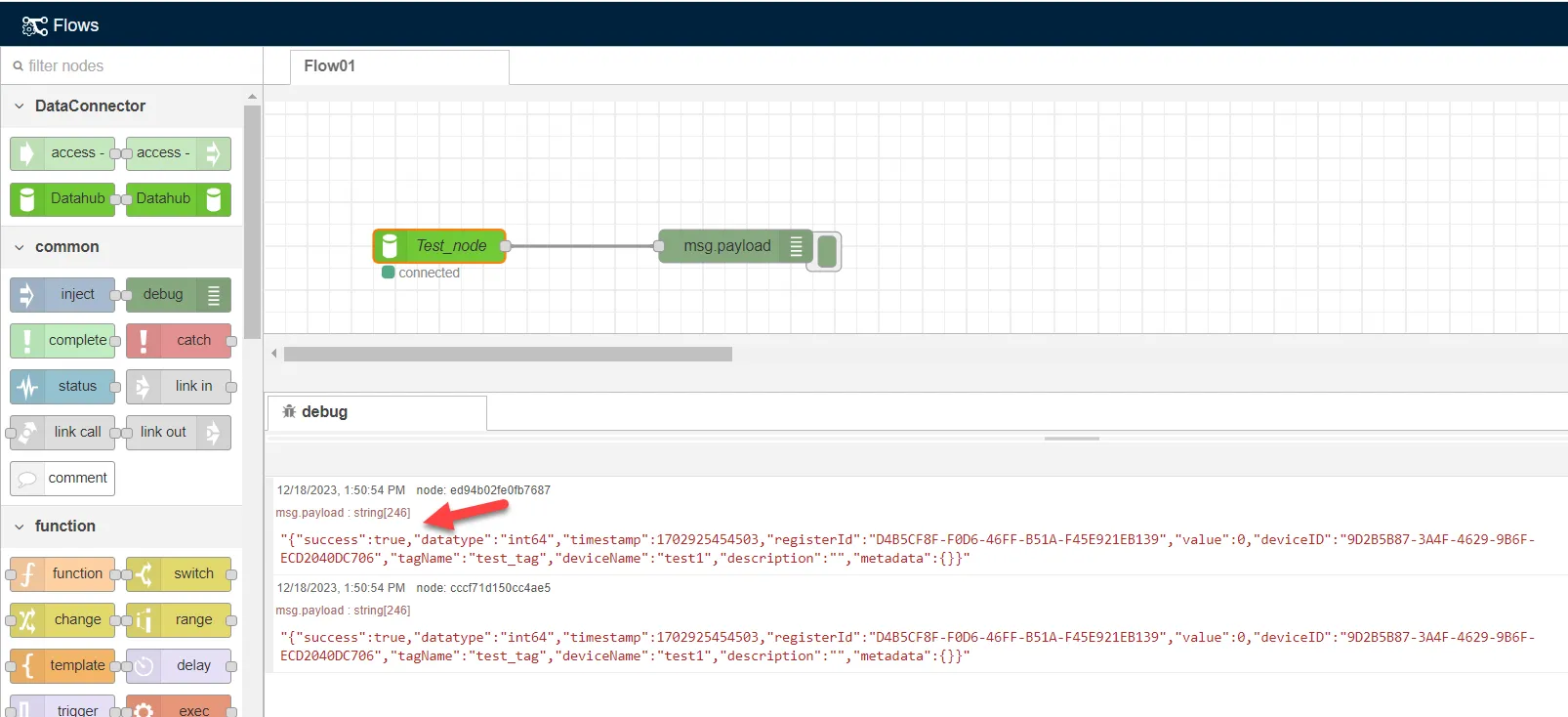 Successful write message
Subscribe to Multiple Topics using Wildcards
Use Wildcards to subscribe to multiple topics at once.
Wildcard Usage
> Wildcard Character: Use the > wildcard character to subscribe to messages from multiple tags. Example: devicehub.alias.> will subscribe to every topic in the DeviceHub.
* Wildcard Character: Use the * wildcard character to match a single topic between . characters in tags. Example: devicehub.alias.*.* matches topics with two-character sequences after each of the two. characters.
Note: Using just the > wildcard character subscribes to all topics, which can cause slowdowns when sending data to databases or clouds. Consider using Function Nodes to trim data or file nodes for efficiency.
Use Wildcards to Subscribe to Multiple Topics
To subscribe to multiple topics in flows, replace the topic name in step five of "Subscribe to a Single Topic" with the information about topic wildcards as below.
To use wildcards to subscribe to multiple topics:
- Complete steps 1-5 from "Subscribe to a Single Topic" above.
Replace the topic name with the desired wildcard-based topic. Syntax Examples: devicehub.alias.> (Subscribe to all topics in DeviceHub) devicehub.alias.{Device_ID}.> (Subscribe to all tags from a specific DeviceHub device) devicehub.alias.*.test_tag (Subscribe to all tags named test_tag from every DeivceHub device)
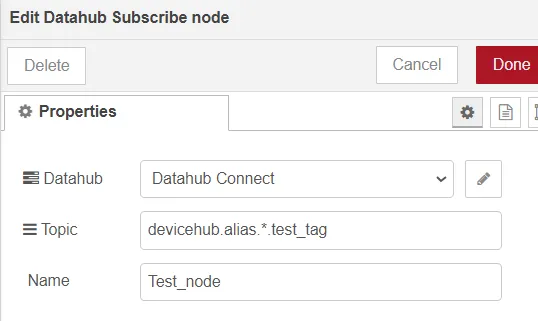 Edit Datahub Subscribe node dialog box
- Click Done and save the flow by clicking the Deploy button at the top-right corner of the screen.
Expand the message window beneath the flow.
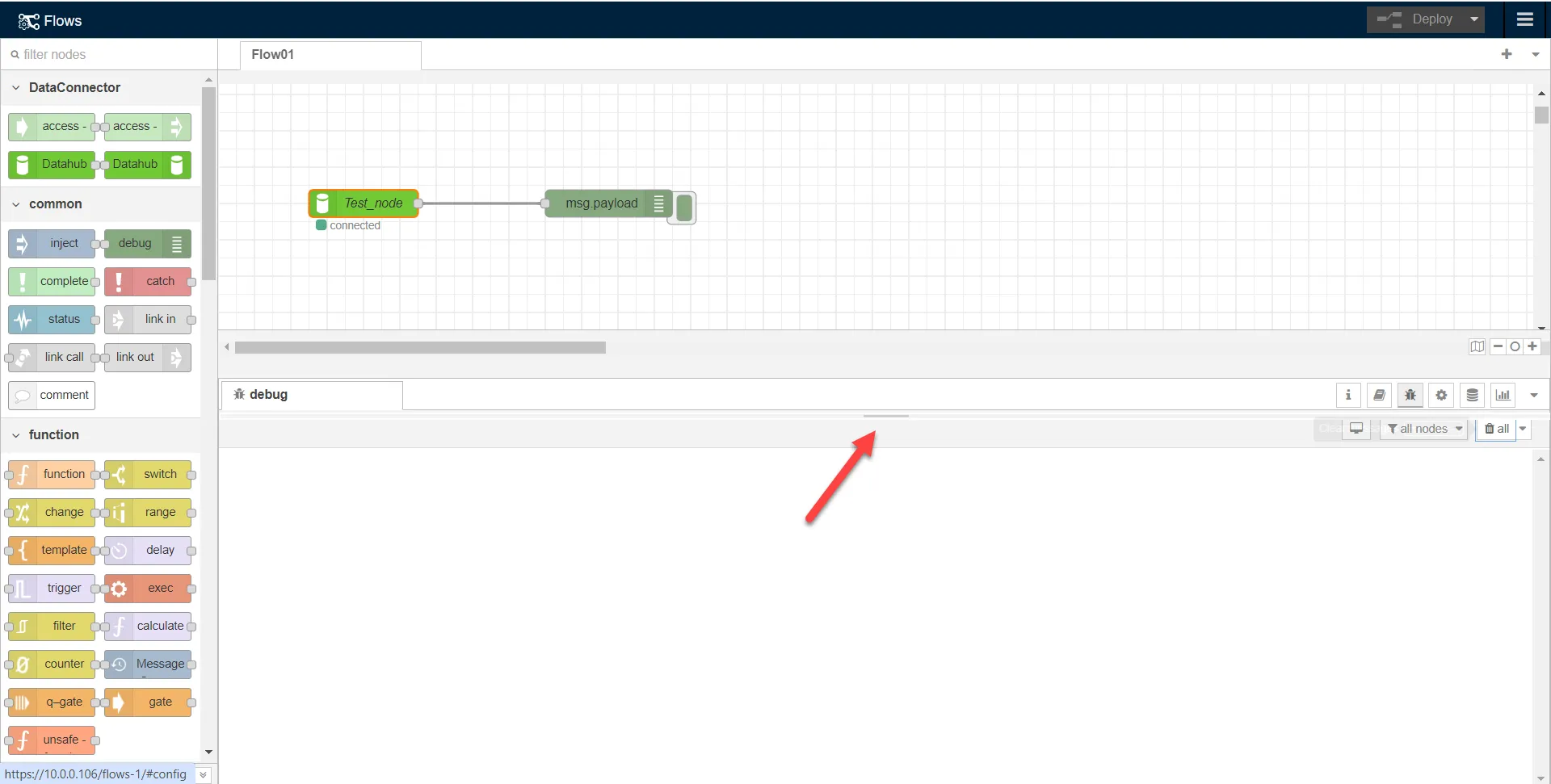 The message window
Click the Debug icon to view the data output.
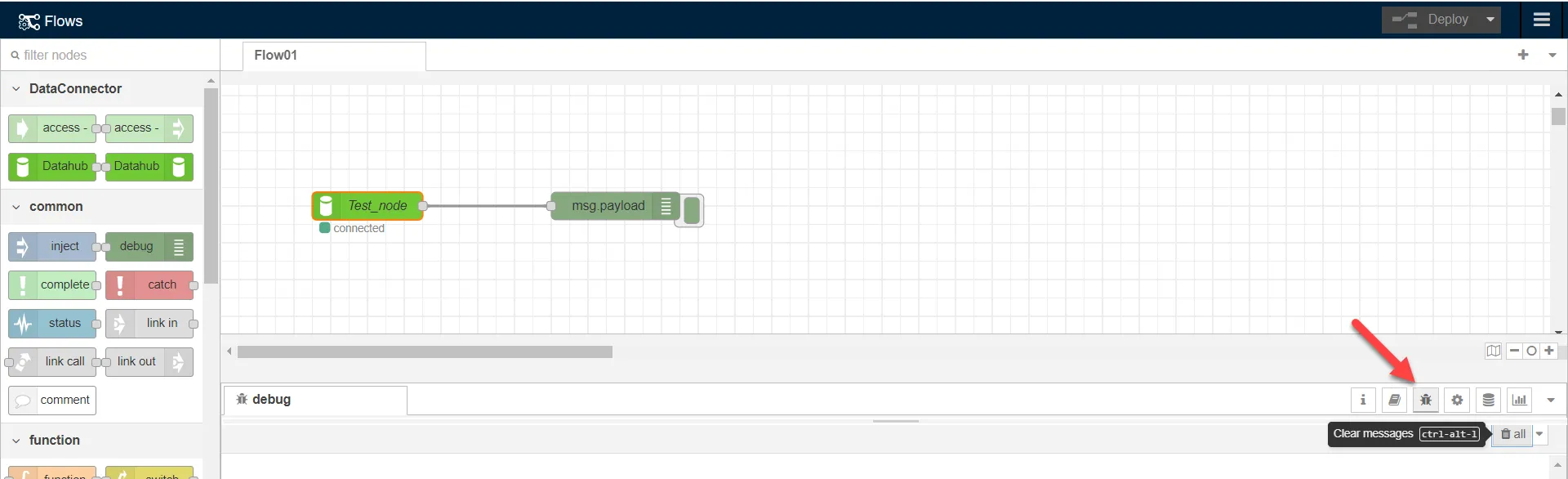 The debug icon
Review the data payload in the message window.
 Data output from all Topics