Use Access to Read from a Topic
You can use Flows to read a topic from a tag through the local message broker using an Access Subscribe node.
Before you Begin
Make sure you create an Access API account. See Create an API Account and Manage API Accounts for more information.
Step 1: Add a Device
Follow the steps to Connect a Device and configure the following parameters:
- Device Type: Simulator
- Driver Name: Generator
- Enable Alias Topics: Select the checkbox.
Step 2: Add Tags
After connecting the device, add the following tag. See Add Tags to learn more.
Tag 1
- Name: Select S - Random value generator.
- Value Type: Select int64.
- Polling Interval: Enter 5.
- Tag Name: Enter tag 1.
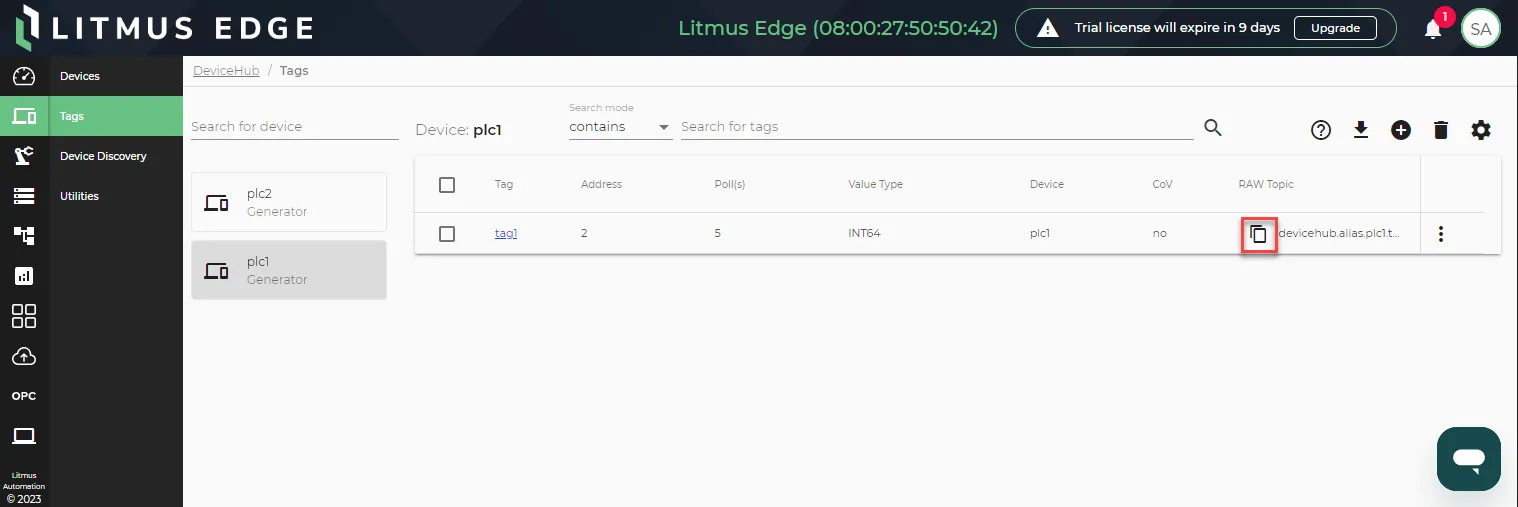
After the tag is created, click the Copy icon for the topic name for the tag. You will refer to this later.
Step 3: Create Access Flow
To read a topic from a tag using Access:
- In Litmus Edge, navigate to the Flows Manager and create a new flow. See Create a Flow to learn more.
Drag the Access Subscribe and Debug nodes to the canvas and wire them together.
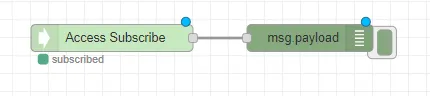 Access Subscribe node
- In Litmus Edge, navigate to System > Tokens.
Click the Action menu for the API account you created previously and select Edit topics.
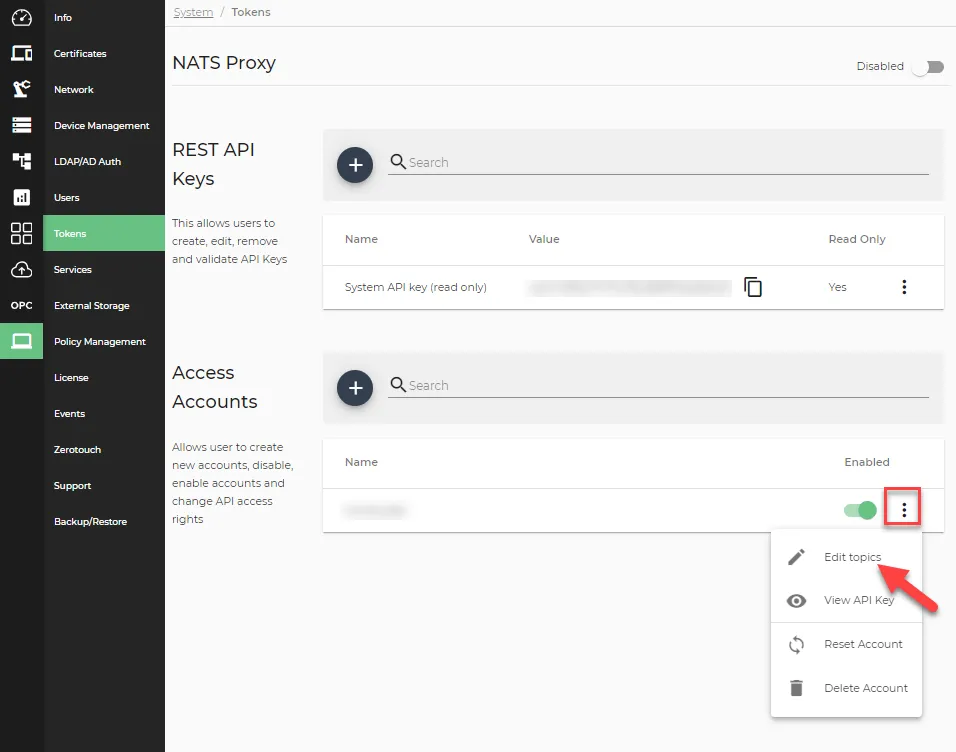 System Tokens page
- From the Edit topics dialog box, do the following:
- Paste the topic name from Step 2 in the Read Topics field, and click Add Read Topic. The topic name appears below the Topic Name field.
Click Update.
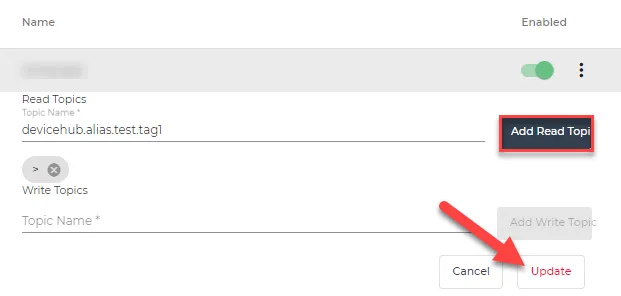 Edit topics dialog box
- Return to the Flows browser tab and double-click the Access Subscribe node. The Edit access-subscribe node dialog box appears.
- Topic Name: Paste the topic name from Step 2. If you paste a topic from the Tags pane that has not been added to the Access Read Topic field, you will get an error.
Click the Edit icon next to the Access field.
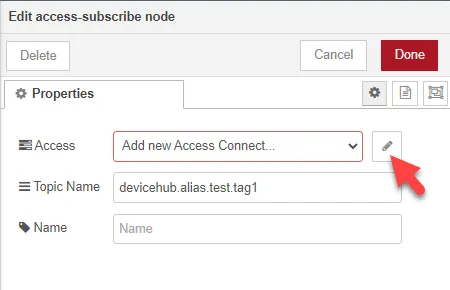 Edit access-subscribe node dialog
- Return to the System > Tokens browser tab and do the following:
- Click the Action menu for the API account and select View API Key.
Click the Copy icon next to the API Key.
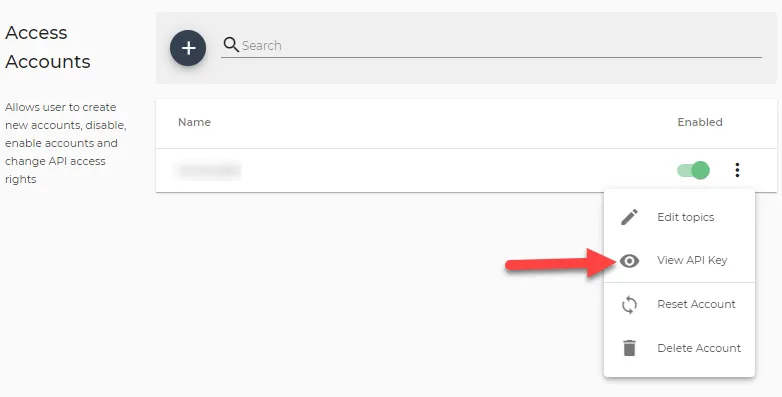 Access accounts table
- Return to the Add new Access Connect config node dialog box in the Flows browser tab and do the following:
- API Key: Paste the API key you copied.
Click Add or Update.
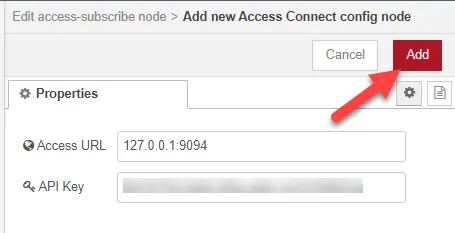 Add new Access Connect config node dialog box
Click Done and then click Deploy.
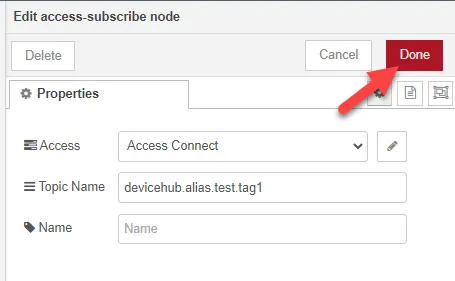 Edit access-subscribe node dialog box
Expand the message window beneath the flow and click the Debug icon.
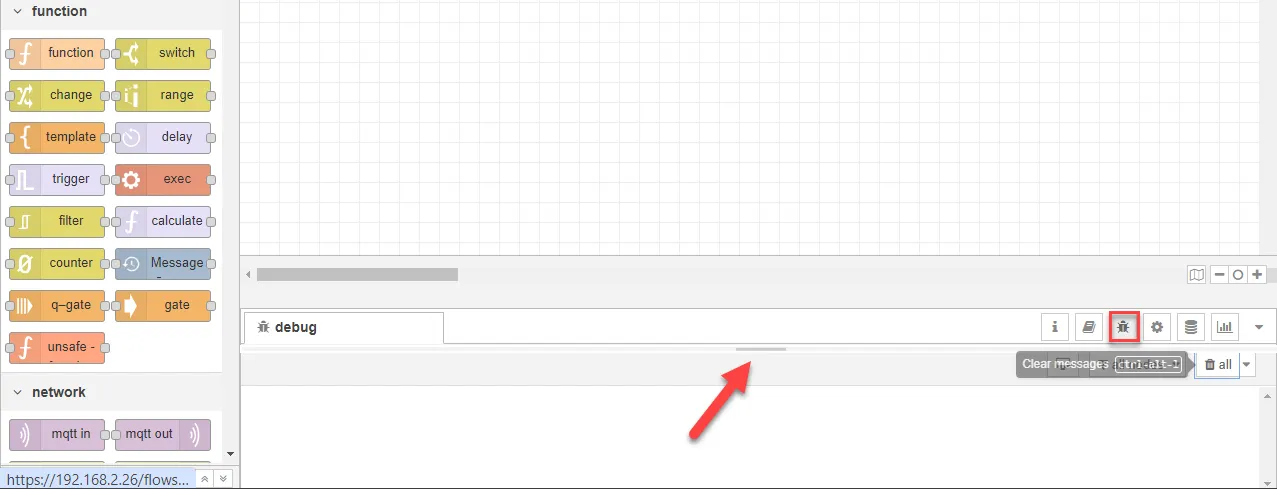 Flows canvas debug section
Click the Debug node button to view the output in the Debug message window.
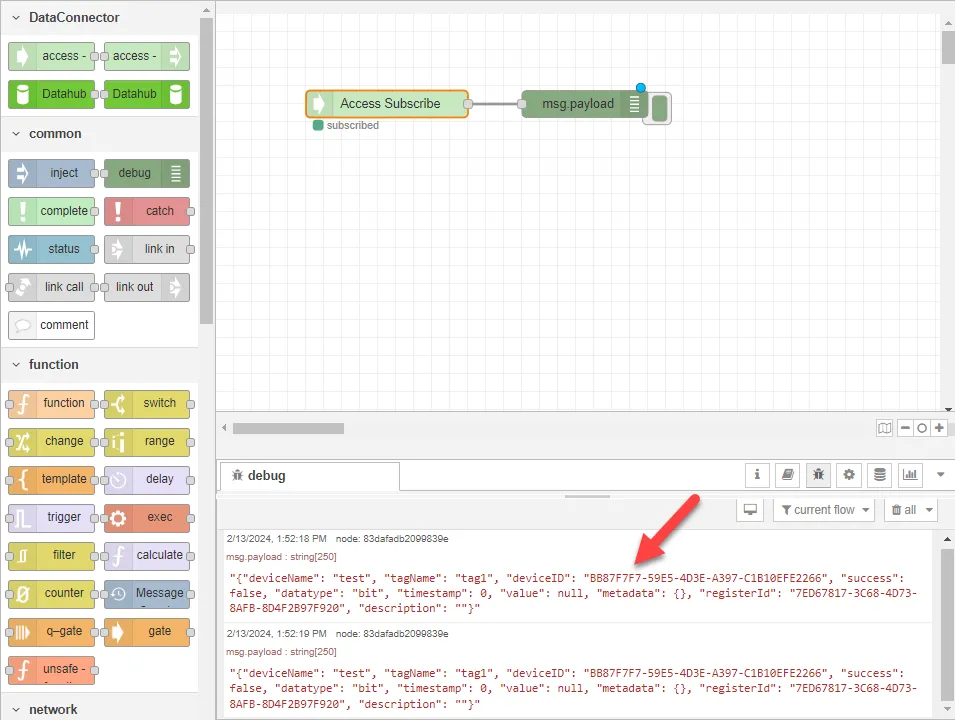 View the output for Access Subscribe node