Beckhoff TwinCAT3 Ethernet (Gen1)
Review the following information for setting up and configuring the Beckhoff TwinCAT3 Ethernet (Gen1) driver.
Litmus Edge Compatible Series
Compatibility parameter | Compatible items |
|---|---|
Driver type | Ethernet |
Validated devices/series | When configuring tags for this driver, you must enter the case-sensitive register name exactly as it is defined in the PLC. See the Free Tags section below to learn more. |
To set up and configure this device in Litmus Edge, you will need to do the following:
- Step 1: Set up and Configure the PLC Device
- Step 2: Set up the PLC Device in Litmus Edge DeviceHub
- Step 3: Configure the List of Registers
Step 1: Set up and Configure the PLC Device
If the device is configured for Ethernet access, find its network parameters. Otherwise, follow the steps below.
Notes:
- Make sure the Litmus Edge IP address is configured in TWINCAT.
- The Beckhoff PLC is also a PC with its own OS, and an IP address can be set up like a PC.
To configure your device:
- Note down the following information and refer to it as needed. Device: TwinCAT 3 Beckhoff PLC Communication I/F: Ethernet
- Launch a new project in TcXaeShell.
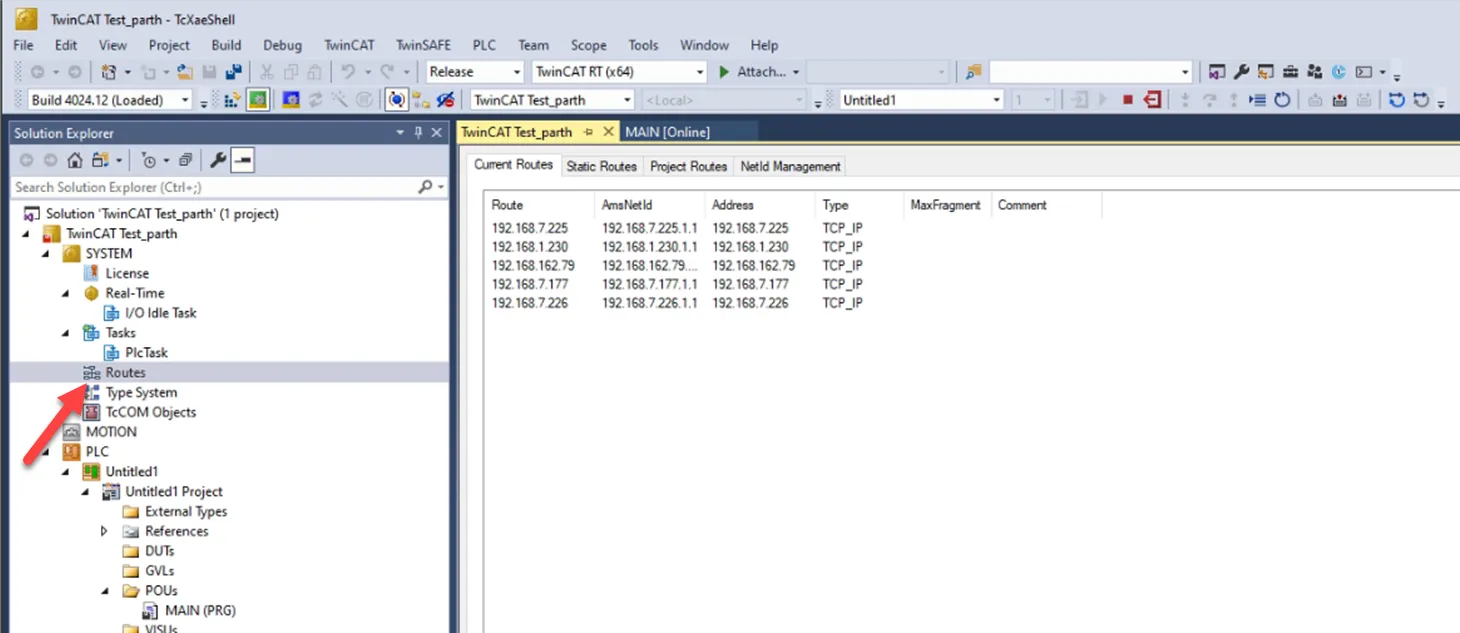
Click Routes to add the target that is going to connect to the PLC.
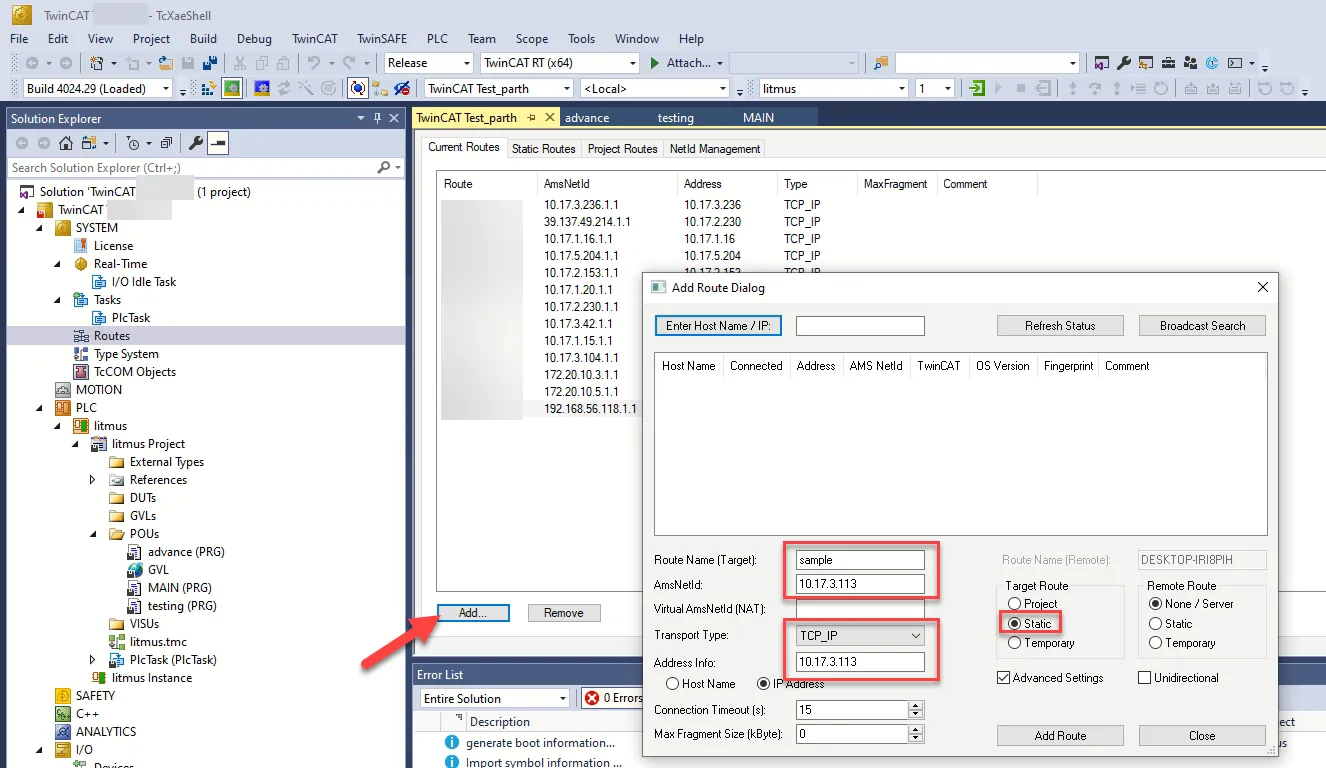
Click Add...Configure the following parameters. Please note that only clients in the Routes list can connect to the simulator. Route Name (Target): Enter a name for the route. AmsNetId: Enter the AmsNetId for the route. If the PLC is running as a soft connection, and Litmus Edge and the panel PC are on the same network, the AmsNetId and Address info values should be the same with .1.1 at the end. Transport Type: Review and confirm the transport type for the route. Address Info: Enter the IP address of the corresponding target system in the network. If the PLC is running as a soft connection, and Litmus Edge and the panel PC are on the same network, the AmsNetId and Address info values should be the same with .1.1 at the end. Target Route: Select Static.
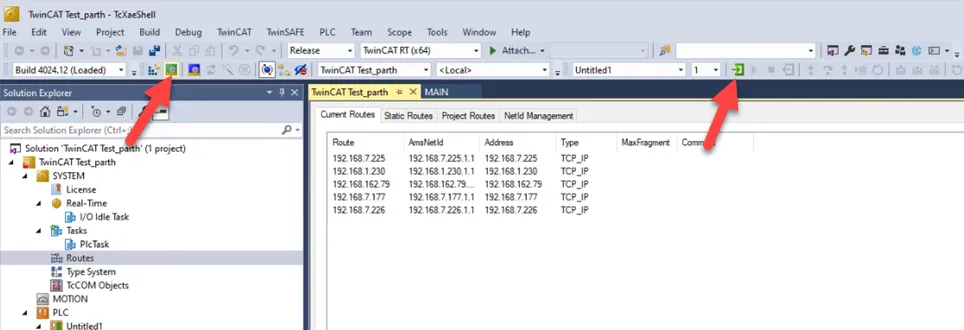
Click the Restart TwinCAT icon. Then, click the Login icon to start the simulator.
Step 2: Set up the PLC Device in Litmus Edge DeviceHub
Configure the following parameters when you Connect a DeviceConnect a Device with this driver. Update default values to the specific setup of your device.
Parameter | Value |
|---|---|
Type | Beckhoff |
Driver | Beckhoff TwinCAT3 Ethernet (Gen1) |
Network Address | The device address you defined in Step 1 |
Network Port | 48898 Enter the network port for the Beckhoff device defined in Step 1 |
Ads port | 851 |
Ams ID | AMS ID for the Beckhoff device Enter the following: [Beckhoff device Ams ID].1.1 For example, if your Beckhoff Ams ID is 37.136.43.210, enter 37.136.43.210.1.1. |
Local Ams ID | Local AMS ID for the Litmus Edge device Enter the following: [Litmus Edge IP address].1.1 For example, if your Litmus Edge IP address is 192.168.0.152, enter 192.168.0.152.1.1. |
Step 3: Configure the List of Registers
When you Add Tags to the connected device, refer to the following tag parameters and available value types.
Refer to the following additional resources:
Free Tags
This driver doesn't have a list of available register names in the DeviceHub Add Tag form.
To add tags, you must enter the case-sensitive register name exactly as it is defined in the PLC.
A Connected status for the device won't display until a tag with a correct register name is created.
Available Value Types
- bool
- sint
- byte
- int
- word
- dint
- dword
- lint
- lword
- real
- lreal
- ltime
- string
- wstring
- date
- time
- dateandtime
- timeofday
Tag Parameters
- Name: Enter the case-sensitive register name exactly as it is defined in the PLC.
- Value Type: Select a data type from the drop-down list. The available options depend on the register name selected.
- Polling Interval: Enter a value in seconds. This determines how often the tag should poll the register for data.
- Tag Name: Enter a name for the tag.
- Description (Optional): Enter a description for the tag.
- Count: Enter the number of register values to read. A count higher than 1 will generate an array of values from the address value configured and respective subsequent address values.
- Tag Formula: Enter a formula for the tag to process the generated data. Two variables are permitted: value (current tag value) and timestamp (current tag UNIX time in milliseconds). The following math functions are available:
- sin
- cos
- sqrt
- tan
- power: power(x) performs the operation 10^x.
- log: log(x) is the natural logarithm (the logarithm is in base e).
- exp: exp(x) performs the operation e^x.
- Only Publish on Change of Value: Select the checkbox to customize NATS messages to be published only when the value parameter changes from a previous value to a new one. Change of Value only applies to boolean, numeric (such as int or float), and simple string data types. It does not apply to complex types, such as JSON or array. Poll-once topics will not be affected by Change of Value settings. These topics will still only see a single message.
- Meta Data: Metadata summarizes basic information about data. This feature allows you to define key-value pair data for the device output payload later on. It can then be used to find, use, and reuse particular instances of data.
Note: If you use special characters in meta data key names, the special characters are replaced with underscore characters in the payload. This can cause two key names to be combined into one. For example, configuring the key names a**b and a&&b will cause only one key name to be created (a__b).