AI Suite
AI Suite is the instance-wide store for AI resources: written instructions, reference files, tool definitions, MCP server registrations, and the memory the model maintains for itself. One set of resources serves every AI processor on the instance, so you upload a file once and then select it in each processor that needs it.
Uploading a file adds it to a section. It affects nothing until you select it in a processor.
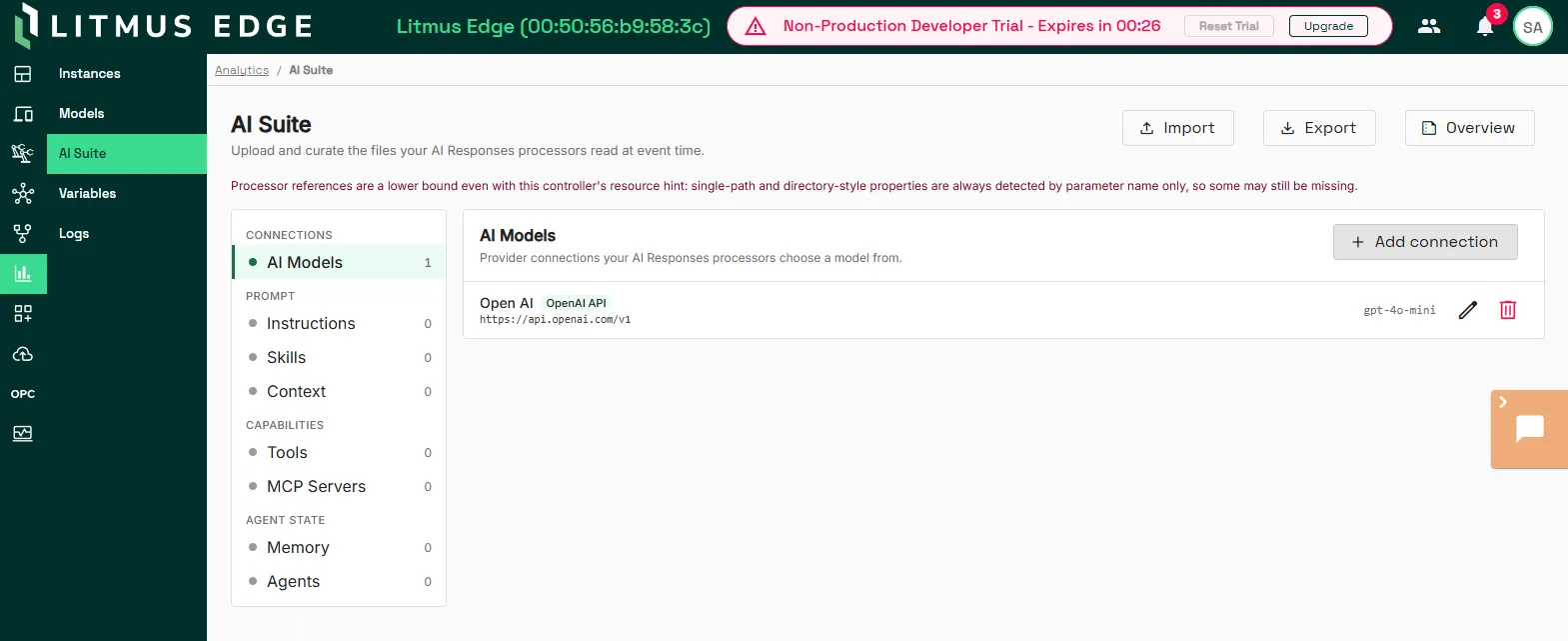
Access AI Suite UI
To access the AI Suite page:
Navigate to Analytics > AI Suite.
Resource types
The left panel groups the resource types by the job they do. Each entry shows its file count.
Models
Section | What it does |
|---|---|
AI | Add connections to your desired AI models. Once defined, you select which model to use for your Analytics AI processors. |
TensorFlow | Upload your TensorFlow models to be used by Analytics TensorFlow processors. |
Prompt
Content that shapes what information the model has for your AI Analytics flows. Instructions, Skills, and Context all accept files, and they differ in what you use them for. Put standing rules that apply to every prompt in Instructions. Put a procedure for one kind of job in Skills. Put reference material the model reads in Context.
Section | File types | What it does |
|---|---|---|
Instructions | .md, .txt | Always-on guidance prepended to the prompt on every prompt |
Skills | .md, .txt | Content appended to the system prompt. A folder containing SKILL.md and its resources counts as one skill |
Context | .jpg, .jpeg, .png, .gif, .webp, .pdf, .md, .txt | Images and PDFs sent as vision content. Text files are added to the prompt |
Capabilities
Things the model can call during a prompt.
Section | File types | What it does |
|---|---|---|
Tools | .json | Tool definitions. Local HTTP tool definitions, validated when you save them. |
MCP Servers | .json | Streamable HTTP server registrations. One file can register several servers. |
Agent state
Agent files are stored, listed, previewed, and included in an export, but no processor uses them yet. Agent runtime behavior arrives in a later release.
Section | File types | What it does |
|---|---|---|
Memory | .md, .json | Storage the model manages itself. An AI Responses processor with Enable Memory set owns a subfolder here, named by its identifier, so no two processors share a memory |
Agents | Any | Agent definition files |
Working with files
Each section offers two ways to add a file. Select Upload to add one from your computer, or New file to write one directly on the page. Select a file to open its details panel and preview its contents.
Caution: MCP registration files contain credentials in their request headers. Anyone who can preview the file can read them. Treat access to this page as access to those credentials.
Example
A processor that answers questions about pump maintenance needs three files:
- A skill file describing the maintenance log format, uploaded to Skills
- The pump manual as a PDF, uploaded to Context
- An MCP server registration for the work order system, uploaded to MCP Servers
You upload each file to its section once, then select all three in the AI Responses processor. A second processor on the same instance can select the manual alone.
How resources reach a processor
Litmus Edge (LE) stores these files in a single folder tree, with a subfolder per resource type. Every resource is identified by its file path, so renaming a file produces a new path rather than moving an existing one.
When you configure an AI Responses processor, each resource type appears as a list of checkboxes populated from these sections. Selecting a file stores its path in the processor configuration, and the processor reads the selected paths each time it runs.
Every section is optional. A processor with nothing selected sends its own prompt and the conversation history, and nothing else.
Two consequences follow from paths being the identifier:
- Selection is opt-in. A file you upload applies to nothing until a processor selects it.
- If you rename or delete a selected file, the processor skips the missing path and continues without failing.
Validation
LE validates files when you save them, and what it checks depends on the section.
Section | Checked on save |
|---|---|
Tools | The JSON parses and matches the tool definition schema |
MCP Servers | The JSON parses and matches the registration schema |
Instructions, Skills, Context, Memory, Agents | The file extension is allowed for that section |
Notes: Saving an MCP registration validates the JSON but does not contact the server, so you can register a server before it is reachable.
MCP servers
A registration names the server, its URL, the headers to send, an optional list of allowed tools, a timeout, and whether to accept insecure TLS. LE connects over Streamable HTTP.
After a registration saves, LE tests the connection and shows the result on the page. A successful test lists the tools the server currently offers, each with the description it reports. If the server cannot be reached, the page shows a warning naming the error. The registration is still saved.
Select Test connection to run the test again at any time.
Read the tool descriptions. They come from the remote server and go into the model's context, so they shape what the model does.
Use Allowed tools in a registration to expose only some of a server's tools. Without it, every tool the server offers is available to any processor that selects the file.
Export and import
Export packages the whole resource tree as a ZIP file. Use it to back up a configuration or to move one to another instance.
Import merges a suite ZIP into the existing tree. Files that already exist are overwritten, and the import reports which entries it wrote and which it skipped, with a reason for each.
Considerations
- Every selected tool costs tokens on every request. Each tool's name, description, and schema goes to the model provider with each prompt. A single MCP server can expose dozens of tools, so select the ones a processor needs rather than the whole file.
- An unreachable MCP server does not stop a prompt. Its tools are skipped, a warning is logged, and the prompt proceeds without them.
- Memory contents change without you. The model writes to its memory folder as it runs, so the section differs from what you last saw before the latest prompt.
- Memory content reaches the model as prompt input. Anyone who can edit a memory file on this page or over FTP can change what the model is told. Treat memory content as untrusted input.
- Files added over FTP appear here. You can preview and delete them like any other file, but a file whose name or extension does not meet the upload rules cannot be uploaded back through the page.