Edge Cascading v2 Configuration
This guide explains the configuration options available for Edge Cascading v2. For complete setup examples, see the Single Hub and Multi-Spoke Deployment Scenario topic.
Prerequisites
Before configuring Edge Cascading v2:
- Litmus Edge Version: All instances must be on version 4.0.5 or newer
- Network Connectivity: Ensure network connectivity between hub and spoke instances
- Firewall Access: Port 7422 must be accessible on hub instances for incoming connections
Enable Edge Cascading v2
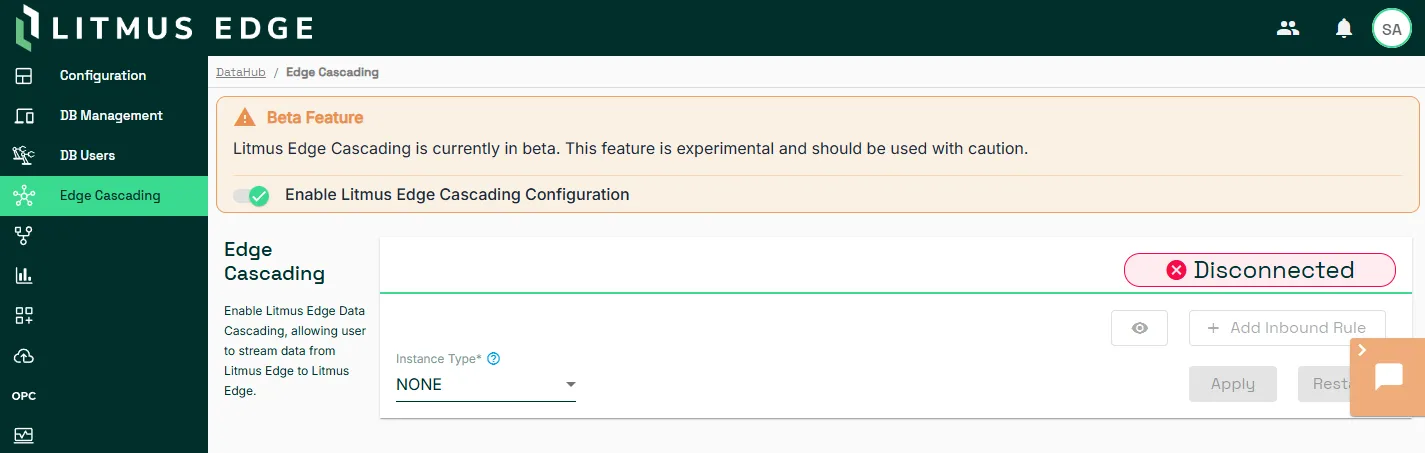
Before configuring any instance, enable the Edge Cascading v2 beta feature:
- Navigate to DataHub > Edge Cascading.
- Set Enable Litmus Edge Cascading Configuration to enabled.
Instance Types
Hub
Accepts incoming connections from spoke instances and aggregates data.
When to use: Deploy at aggregation layers (DMZ and IT) where data from multiple sources converges.
Configuration access:
- Manage incoming connections in the Accounts tab
- Monitoring activity in the Logs tab
Spoke
Initiates outbound connections to hub instances and streams data upward.
When to use: Deploy at edge collection points (OT layer) where data originates.
Configuration access:
- Manage outbound connections in the Streams tab
- Monitor activity in the Logs tab
Both (Hybrid)
Acts as both hub and spoke simultaneously, accepting incoming connections and initiating outbound connections.
When to use: Deploy at intermediate layers (DMZ) that aggregate data from lower levels and stream to higher levels.
Configuration access:
- Manage incoming connections (Hub mode) in the Accounts tab
- Manage outbound connections (Spoke mode) in the Streams tab
- Monitor activity in the Logs tab
Hub Configuration
Accounts
Accounts define authentication and permissions for spoke instances connecting to a Hub.
To create an account:
- Navigate to DataHub > Edge Cascading > Accounts.
- Click Add Account.
- Enter an account name and click Apply.
- Click the Action menu (three dots) for the account and select Edit.
- Add topics and prefix as needed.
- Click Apply to save the configuration.
- Click Restart to activate the account.
Account Settings
Account Name
- Descriptive identifier for the account
- Alphanumeric characters only, no spaces, and a maximum 100 characters
- Must be unique within the hub instance
Topics
- Defines which data streams the spoke can access
- You can add multiple topics per account
- Supports standard topic naming: alphanumeric, hyphens, underscores, periods
- Use the forward slash > wildcard at the end to match all subtopics (for example, devicehub.alias.Device1.>)
- Each topic is evaluated independently
Prefix
- Automatically prepended to all topics from this account
- Helps identify data source when aggregating from multiple spokes
- Cannot contain wildcard characters
- Example: Prefix from_Line1 transforms devicehub.alias.PLC1.Temp to from_Line1.devicehub.alias.PLC1.Temp
Account Tokens
After creating an account, generate and copy the authentication token:
- Click the Action menu (three dots) for the account.
- Select View Token.
- Click Copy to copy the token.
- Provide the token to the spoke instance administrator.
Token security
- Tokens are encrypted and contain connection details
- Store tokens securely and share tokens only with authorized spoke administrators
- Tokens remain valid until manually reset
Token Management
To reset a token:
- Navigate to Accounts tab.
- Click the Action menu for the account.
- Select Reset Token.
- Copy the new token and update all connected spoke instances.
Important: Resetting a token immediately disconnects all spoke instances using the old token.
Firewall Configuration
Hub instances require inbound access on port 7422.
Manual configuration:
- Navigate to System > Network > Firewall > Inbound Rules.
- Click Add Rule.
- Configure:
- Port: 7422
- Protocol: TCP
- Interface: Select your network interface
- Description: Edge Cascading Hub inbound access
Spoke Configuration
Streams
Streams define outbound connections from a spoke instance to hub instances.
To add a stream:
- Navigate to DataHub > Edge Cascading > Streams.
- Click Add Stream.
- Configure stream settings.
- Click Validate and click Save.
- Click Restart to establish the connection.
Stream Settings
Token
- Authentication token from the hub instance account
- Contains hub connection details and permissions
- Paste the complete token provided by the hub administrator
Enable TLS
- Optional encryption for data in transit
- When enabled, provide TLS certificates
- Must match hub TLS configuration
- Recommended for production deployments
Stream Status
After applying the configuration, verify the connection status:
- Connected (green): Active connection to hub
- Disconnected (yellow): Connection lost, attempting reconnection
- Failed (red): Connection error that requires intervention
Connection validation checklist:
- Hub instance is online and accessible
- Firewall rules allow port 7422 access to hub
- Token is valid and not reset
- Network connectivity between spoke and hub
Multiple Streams
A spoke instance can connect to multiple hub instances simultaneously.
Use cases:
- Redundant data paths for high availability
- Streaming different topics to different hubs
- Multi-site data distribution
Each stream operates independently with its own token and permissions.
Hybrid Configuration
Hybrid instances combine hub and spoke functionality:
- Configure the Accounts tab for incoming spoke connections (Hub mode)
- Configure the Streams tab for outgoing hub connections (Spoke mode)
- Restart to activate all configurations
Both sets of connections operate independently and can be configured in any order.
Monitoring and Verification
Connection Logs
View detailed logs for troubleshooting and monitoring:
- Navigate to DataHub > Edge Cascading > Logs.
- Review connection events, authentication results, and data flow.
- Use time range selector for historical logs.
- Click Download Logs for offline analysis.
Connection Dashboard
Monitor real-time status and metrics:
- Navigate to DataHub > Edge Cascading > Dashboard.
- Review connection status for all streams and accounts with these metrics:
- Connection uptime
- Data throughput
- Authentication events
- Error counts
Data Flow Verification
Verify data is flowing correctly on hub instances:
- Navigate to Flows Manager or Analytics.
- Subscribe to prefixed topics. For example, if prefix is from_LEColl1 and original topic is devicehub.alias.Device1.Tag1, subscribe to from_LEColl1.devicehub.alias.Device1.Tag1
- Verify data appears with correct prefixes.
Advanced Configuration
TLS Encryption
Hub TLS Configuration
Perform the following on the instance enabled as a hub.
- Navigate to DataHub > Edge Cascading.
- Select the Enable TLS checkbox.
- In the Enable TLS dialog, confirm that you want to enable TLS by clicking Enable TLS.
- Click the lock icon 🔒to view the CA Certificate.
- Copy and save the CA certificate in a secure location. You will apply the certificate on all spoke instances.
- Click Restart.
Spoke TLS Configuration
When adding a stream connection, you can enable TLS for the connection to the Hub instance.
- Click the Add Stream button in the Stream Configuration section.
- In the Stream Configuration dialog, select Enable TLS.
- After saving the Stream connection, the CA Certificates section displays. Click the Add Certificate button.
- Paste the CA certificate that you copied from the Hub instance.
- Click Save.
- Copy the hub hostname and connection URL IP address. For example:
- Hub Hostname: litmus-edge-005057b908d7
- Connect URL IP: 10.17.10.20
- Navigate to System > Network > DNS/NTP Servers.
- In the Host File section, click Add a new host binding.
- Enter the IP address and host name of the hub instance.
- Navigate back to DataHub > Edge Cascading and restart by clicking the Restart button.
For more information on host file mapping, see Host Files.
Note: Hub and spoke TLS settings must be compatible. Host File entry on Spoke Instance with details to Hub instance is required for successful connection.
Configuration Restart
Most configuration changes require restarting the message broker.
- Click Restart on the Edge Cascading page.
The message broker restarts with new configuration. Connections re-establish automatically and no system reboot is required.
Restart triggers:
- Instance type changes
- New or modified accounts (hub)
- New or modified streams (spoke)
- TLS configuration changes