Use the Poll-Once Topic to Manually Retrieve Register Values
Notes:
- When publishing structured data such as JSON, you must convert to a byte array (string) first. To do this in a flow, you can use the json node.
You can use the Poll-once topic to retrieve a register value when an event occurs. The Poll-once topic will manually trigger the polling of register values.
Video
User Scenario
You don’t need to have real-time monitoring for a PLC, and you only need to get register values when a specific event is triggered, thereby reducing unnecessary network traffic. You therefore use the Poll-once topic to retrieve these event-triggered register values.
Set Up and Use the Poll-Once Topic
To set up and use the Poll-once topic:
- Follow the steps to Connect a Device. For this user scenario, a Simulator Generator device is used.
- Name: S - Random value generator
- Value Type: int64
- Polling Interval: 0
- Tag Name: Enter a name for the tag.
- Address: 1
Click the Copy icon for the tag's RAW Topic. Save (paste) this RAW Topic somewhere secure. You will refer to this later.
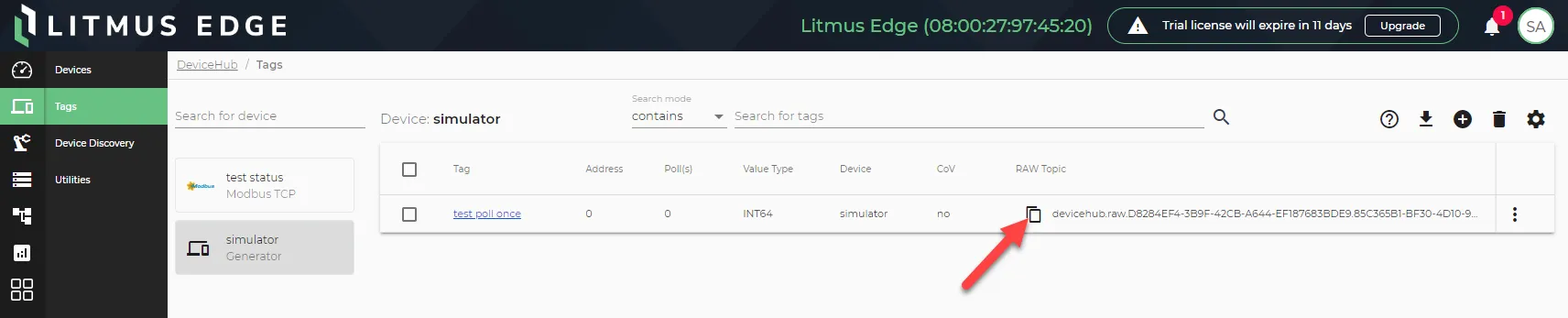 Copy RAW Topic icon
Click the Action menu for the tag and select View Poll Topic. The Poll Once dialog box displays.
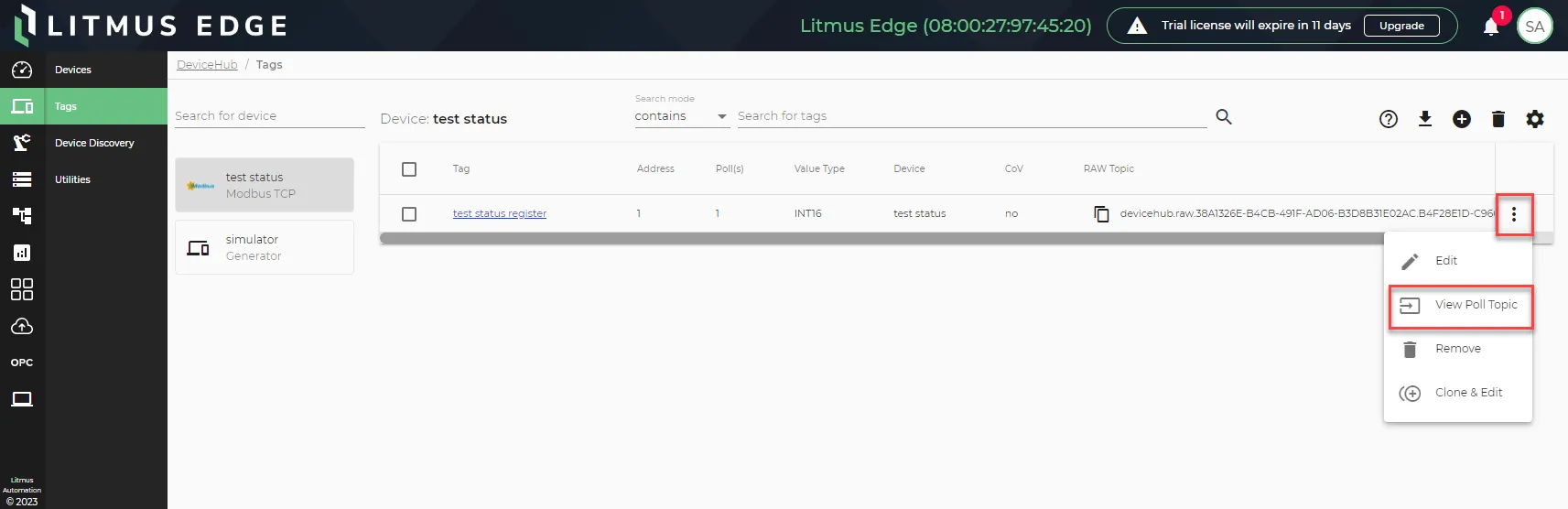 The View Poll Topic option
Click the Copy icon for the tag. You will refer to this later.
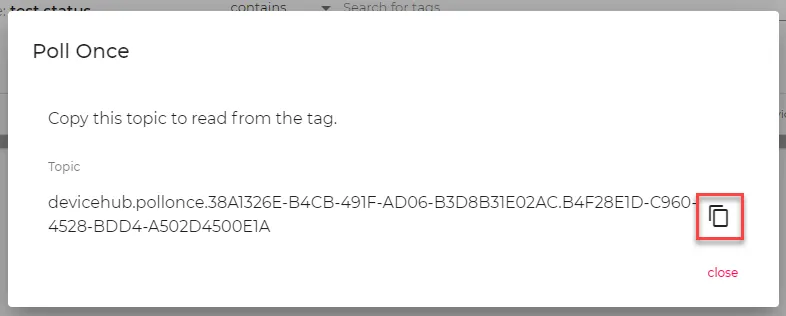
- Navigate to Flows Manager.
For a Flows Manager, click the Go To Flow Definition icon. The Flow canvas opens in a new browser tab.
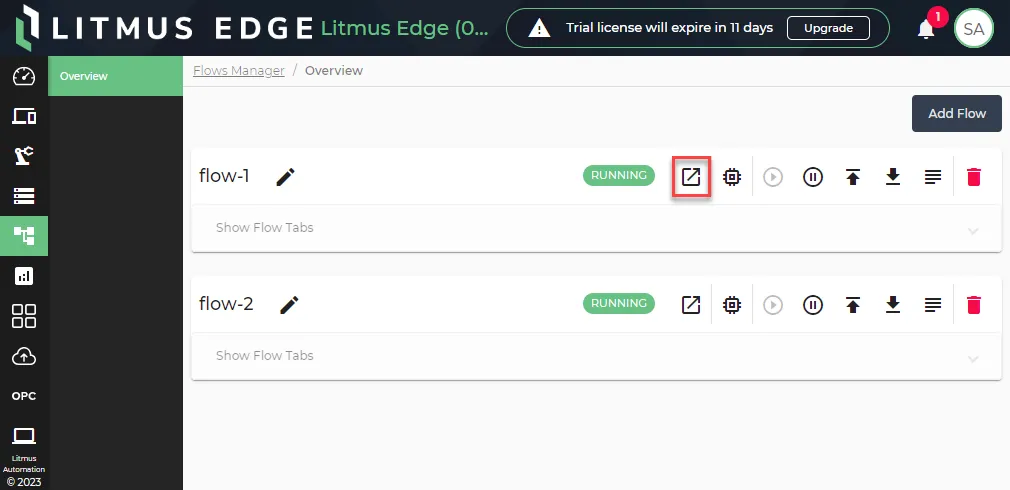 Go To Flow Definition icon
On the Flow canvas, drag the inject node and DataHub Publish node onto the canvas. Then, connect the two nodes.
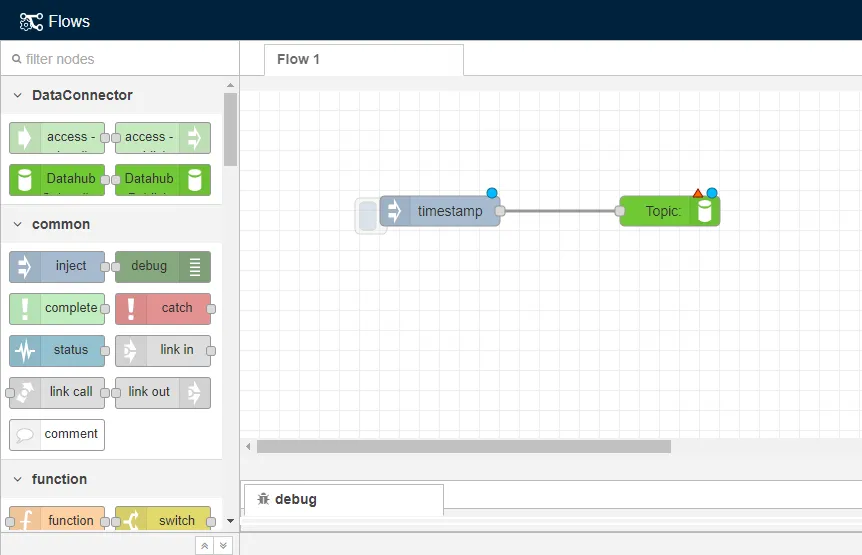 The inject and DataHub Publish nodes
- Double-click the DataHub Publish node. The Edit DataHub Publish node dialog box displays.
- In the Topic field, paste the Poll-once topic you copied in step 5.
- If needed, configure the Datahub Publish connection. See the Step 3: Configure Connector Nodes section in Create a Flow to learn more.
- Click Done.
Drag the DataHub Subscribe node and debug node onto the canvas.
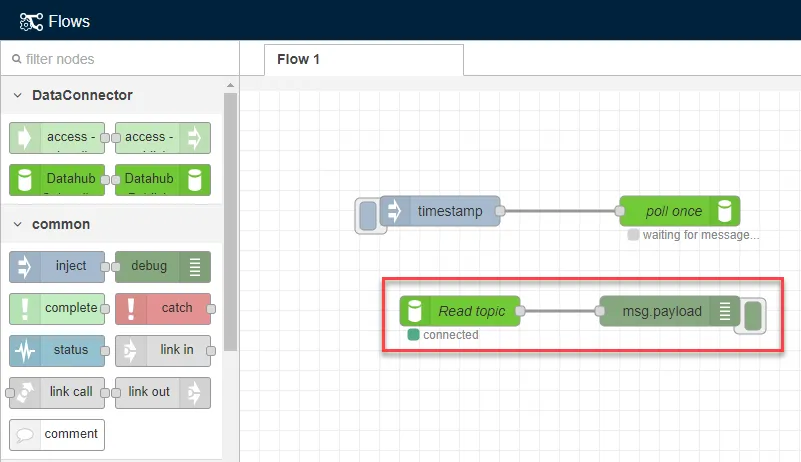 The DataHub Subscribe and debug nodes
- Double-click the DataHub Subscribe node. The Edit DataHub Subscribe node dialog box displays.
- In the Topic field, paste the Raw Topic you copied in step 2.
- Click Done, and then Deploy.
Expand the message window beneath the flow.
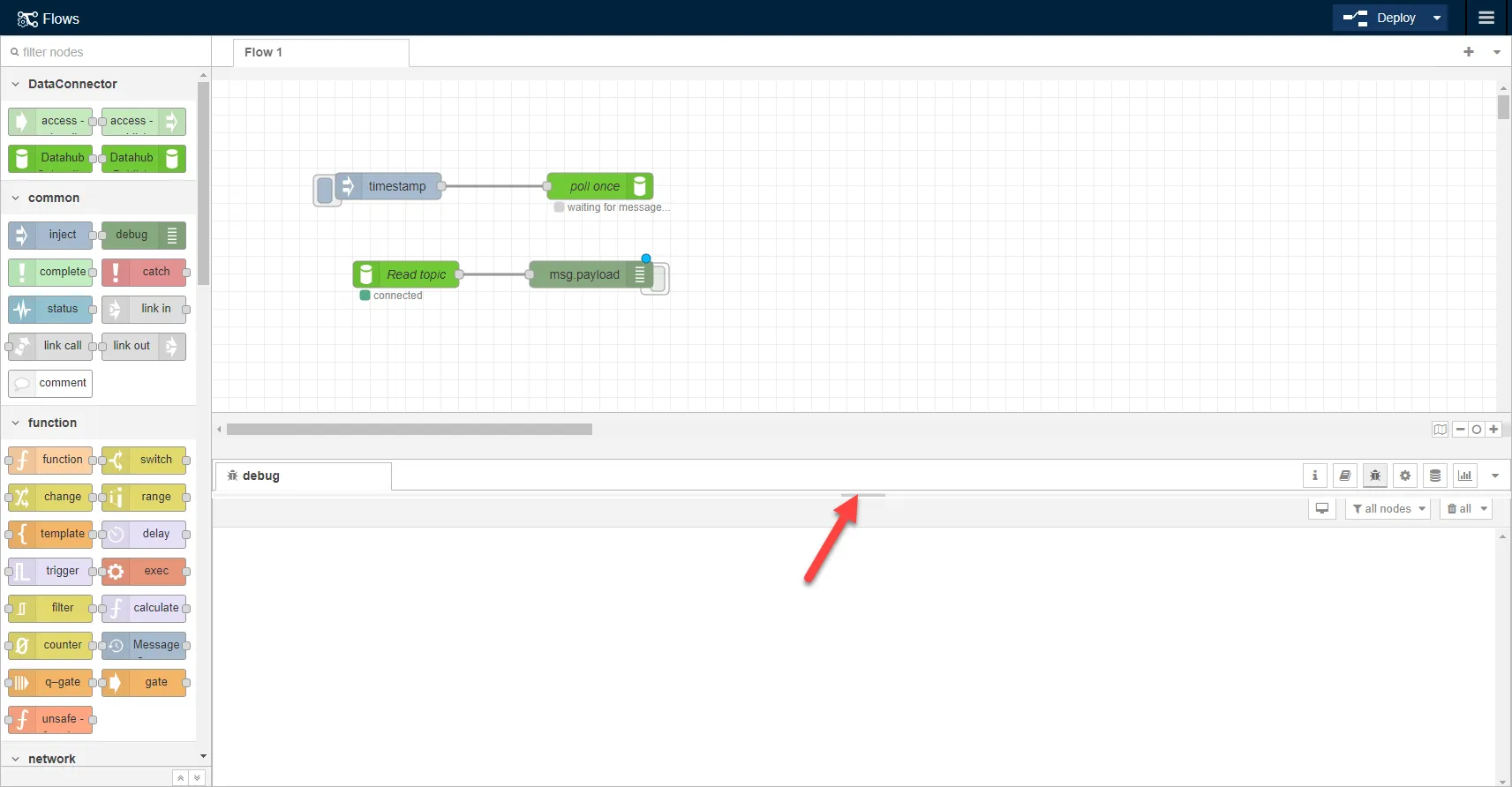 The message window
Click the Debug icon to view messages from the debug node.
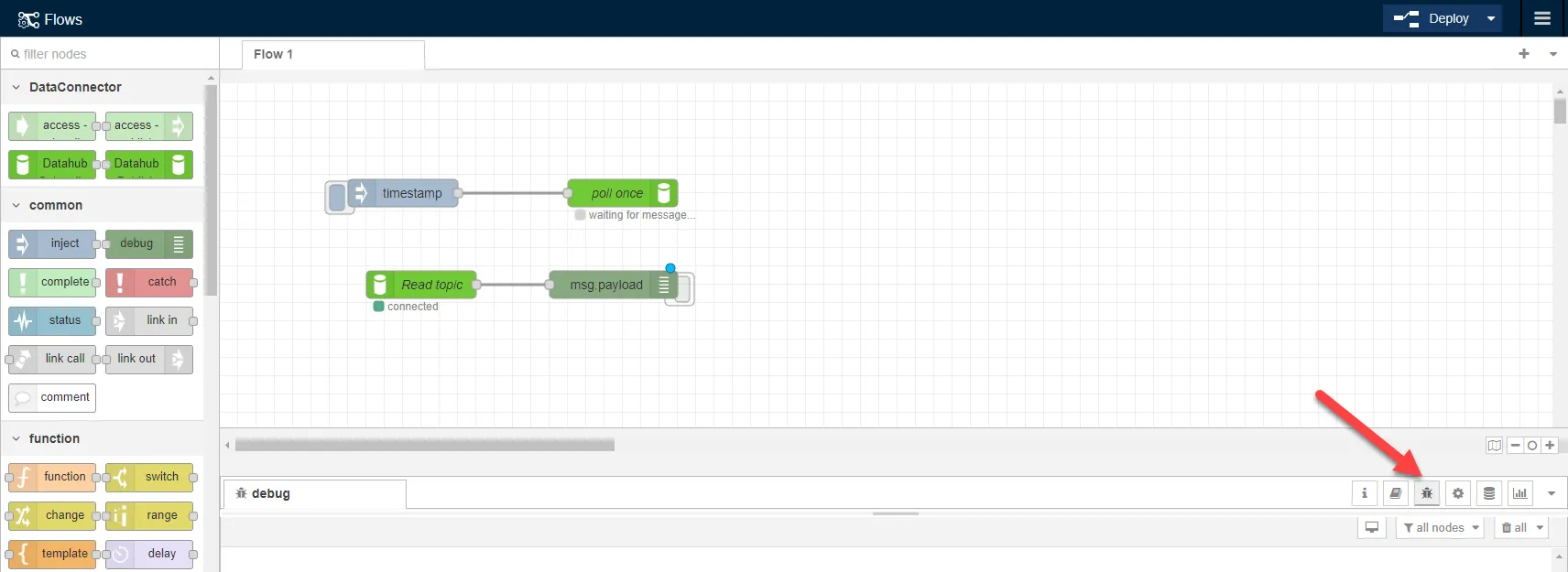 The debug icon
Click the Inject button. This triggers the timestamp message, which will then trigger the poll-once tag to be activated.
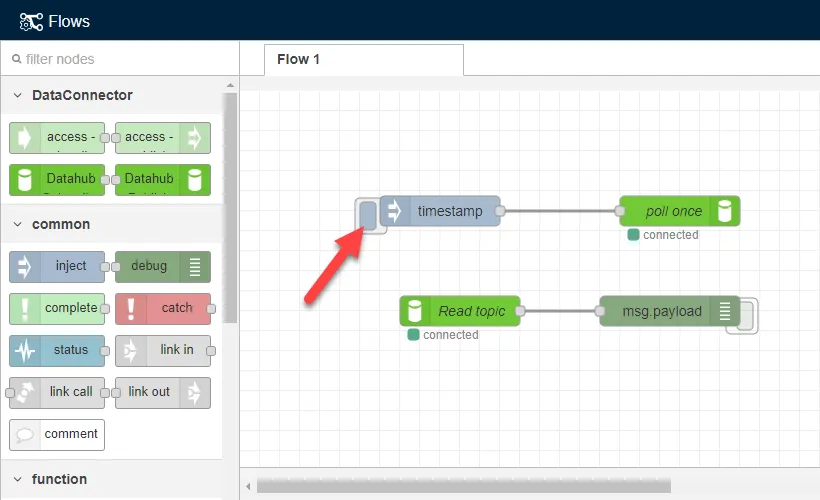 The Inject button
Confirm the Debug node is activated.
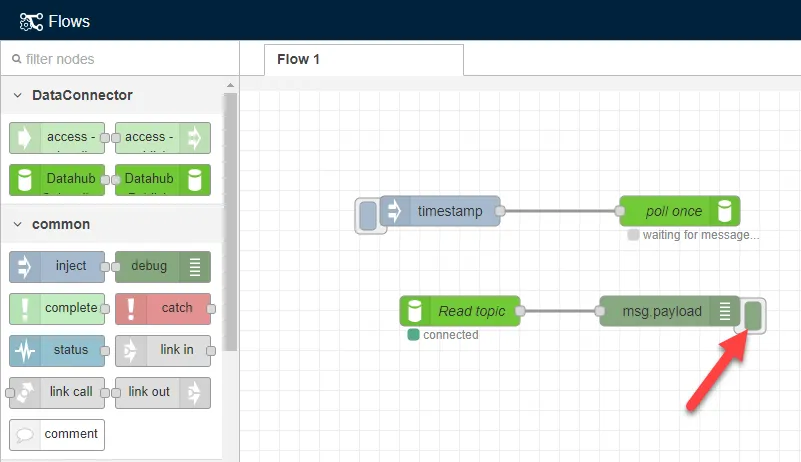 The Activate Debug button
The debug window displays a "success" :true message, which means the poll-once tag successfully polled the device and displayed the data for the tag.
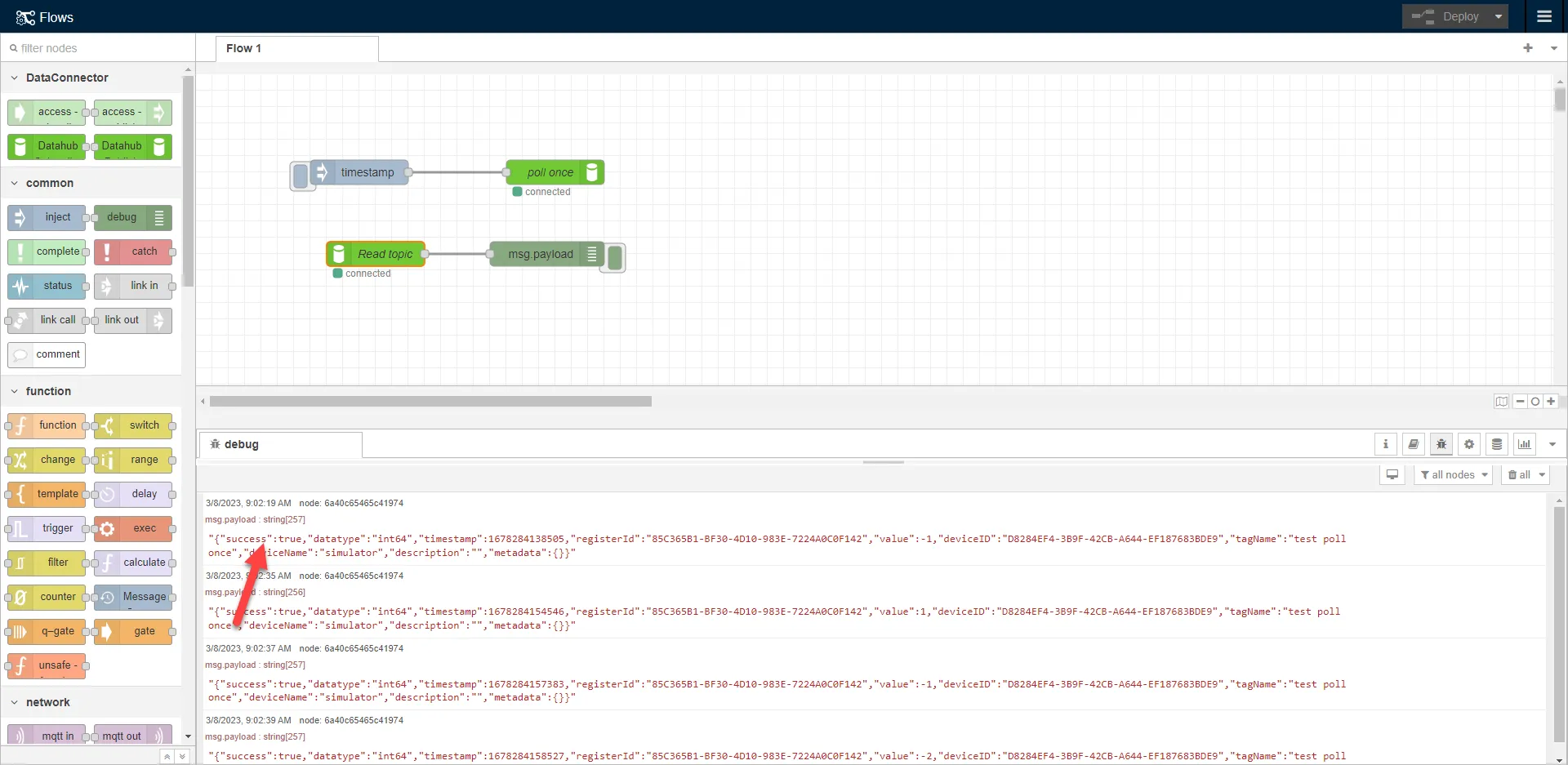
The rest of the payload displays the following information for the tag:
- Data Type: The data type configured for the tag you created in step 1.
- Timestamp: Date and time data for the poll-once message.
- Register ID: The register ID for the tag generated in Litmus Edge.
- Value: The value generated for the tag when the poll was triggered. Since the tag was configured with S - Random value generator, a random value is generated.
- Device ID: The device ID for the DeviceHub device generated in Litmus Edge.
- Tag Name: The name you configured for the tag.
- Device Name: The name you configured for the device.
- Description: The description you entered for the tag. Since no description was entered for the tag in this use case, no value was displayed.
- Metadata: The meta data configured for the tag. Since no meta data was configured for the tag in this use case, no value was displayed.