How to Create and Use OAuth 2.0 Tokens in Litmus Edge
3 min
You can create and use OAuth 2.0 tokens for accessing Litmus Edge APIs.
Generating an OAuth 2.0 Token in Litmus Edge
To create an OAuth 2.0 token:
- Navigate to System > Access Control > Tokens.
- In Add API Credentials, click Add OAuth Client.
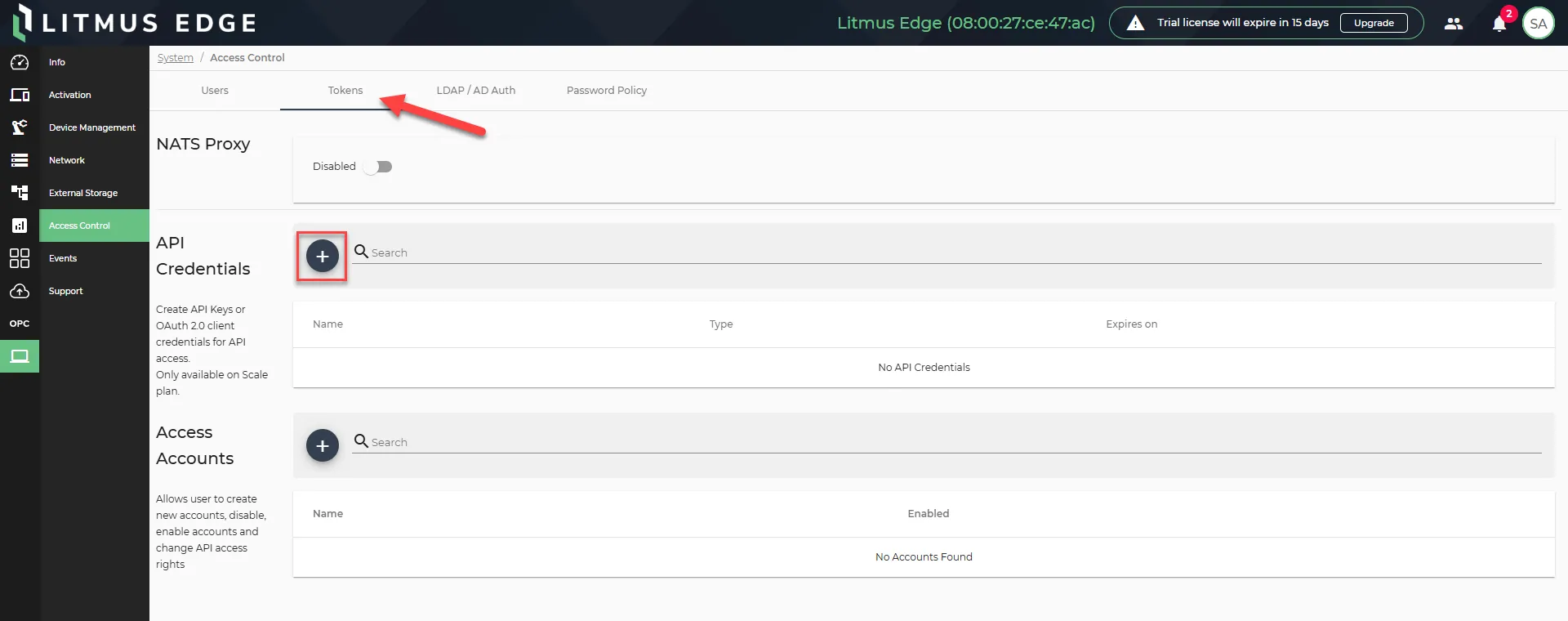
Tokens menu
- Select OAuth 2.0 Client as the credential type.
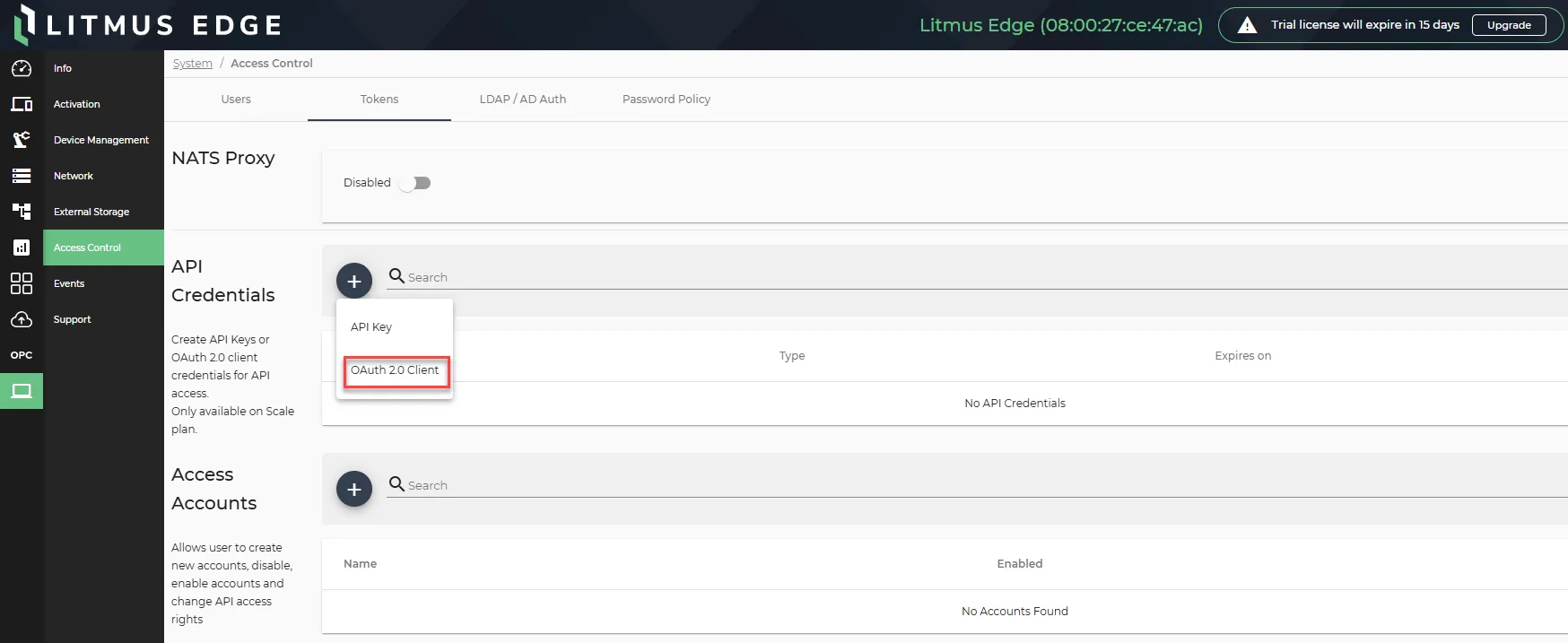
API Credentials Pane
- Configure the following token settings:
- Provide a Token Name.
- Assign the token to appropriate RBAC (Role-Based Access Control) groups.
- (Optional) Set an Expiration Date for the token.
- Define the Access Token Lifespan in minutes.
- Click Add.
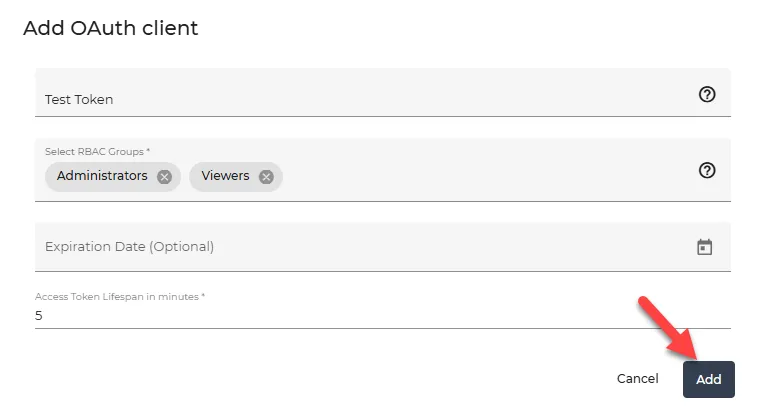
Add OAuth client dialog box
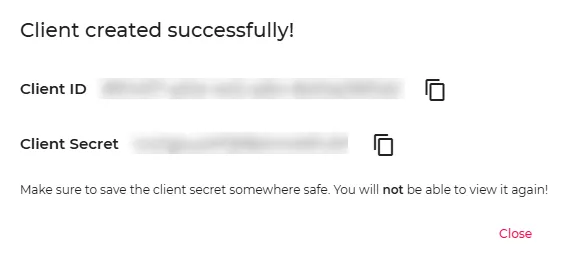
- Litmus Edge will generate Client ID and Client Secret.
- Copy and securely store the Client ID and Client Secret. These values are shown only once.
Using OAuth 2.0 Token with Postman
To use OAuth 2.0 token with Postman:
- Open Postman.
- Click New Request.
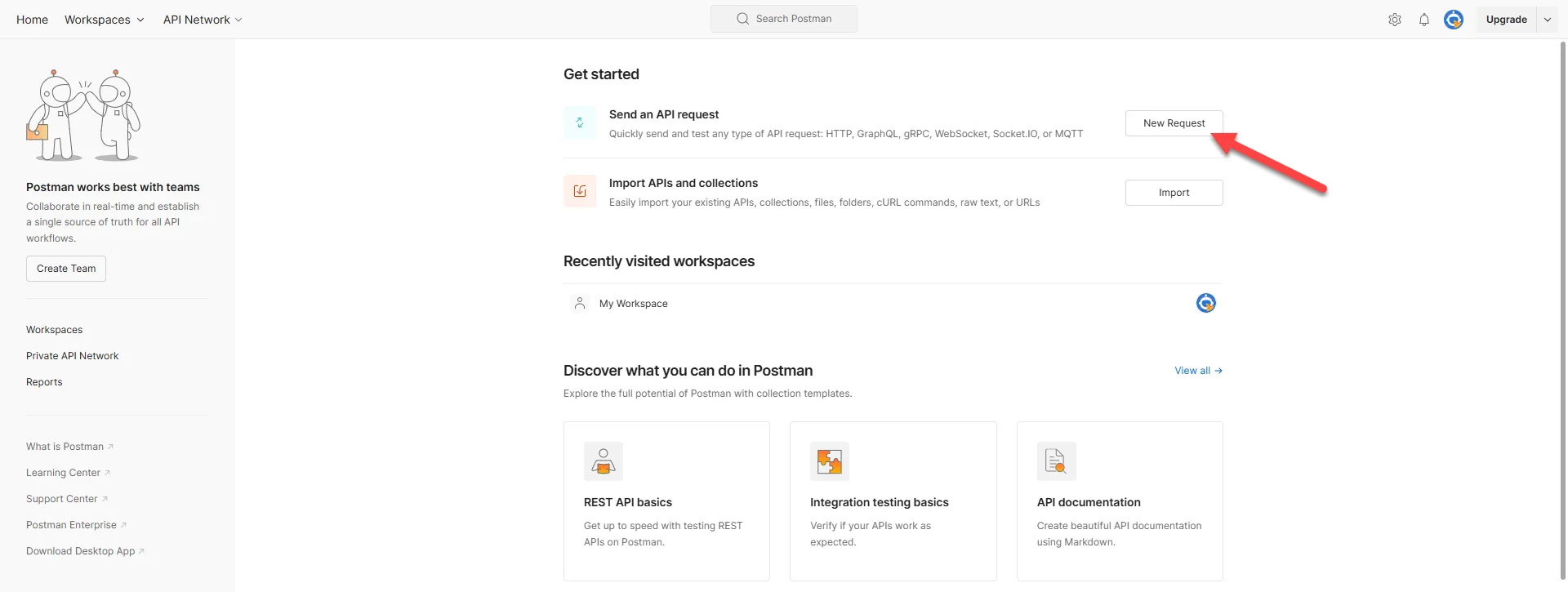
Postman home
- Create a new request and select either GET or POST based on your needs.
- Navigate to the Authorization tab.
- Select OAuth 2.0 from the Auth Type dropdown.
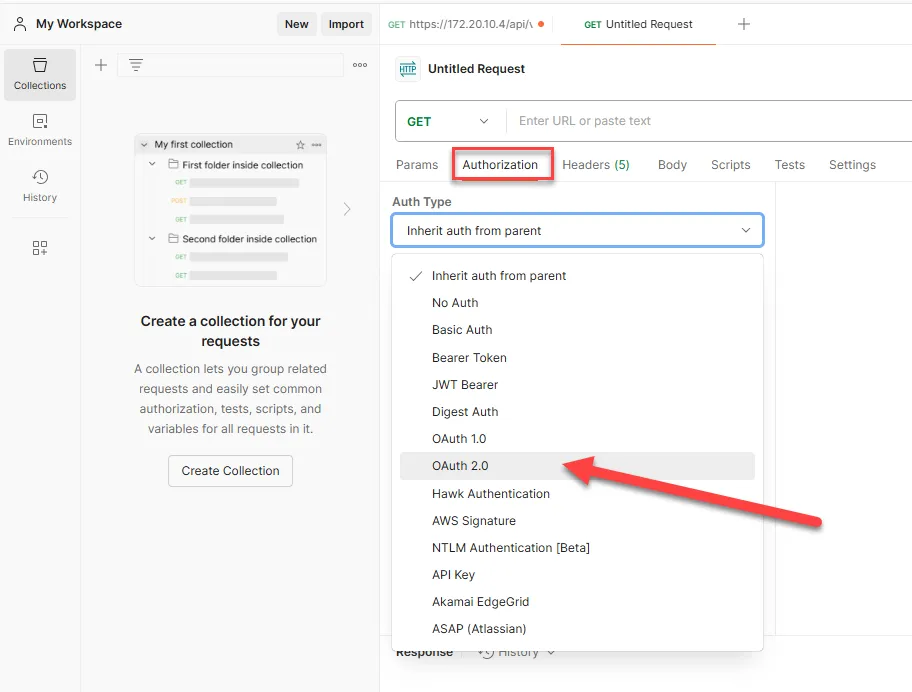
Postman > Authorization
- Under Configure New Token:
- Token Name: Enter a name for this token configuration.
- Grant Type: Select Client Credentials.
- Access Token URL: Enter the token endpoint: https://<Litmus Edge URL>/auth/v3/oauth/token.
- Client ID: Enter the Client ID generated in Litmus Edge.
- Client Secret: Enter the Client Secret generated in Litmus Edge.
- Scope: Leave this field empty (if not required).
- Client Authentication: Choose Send as Basic Auth header.
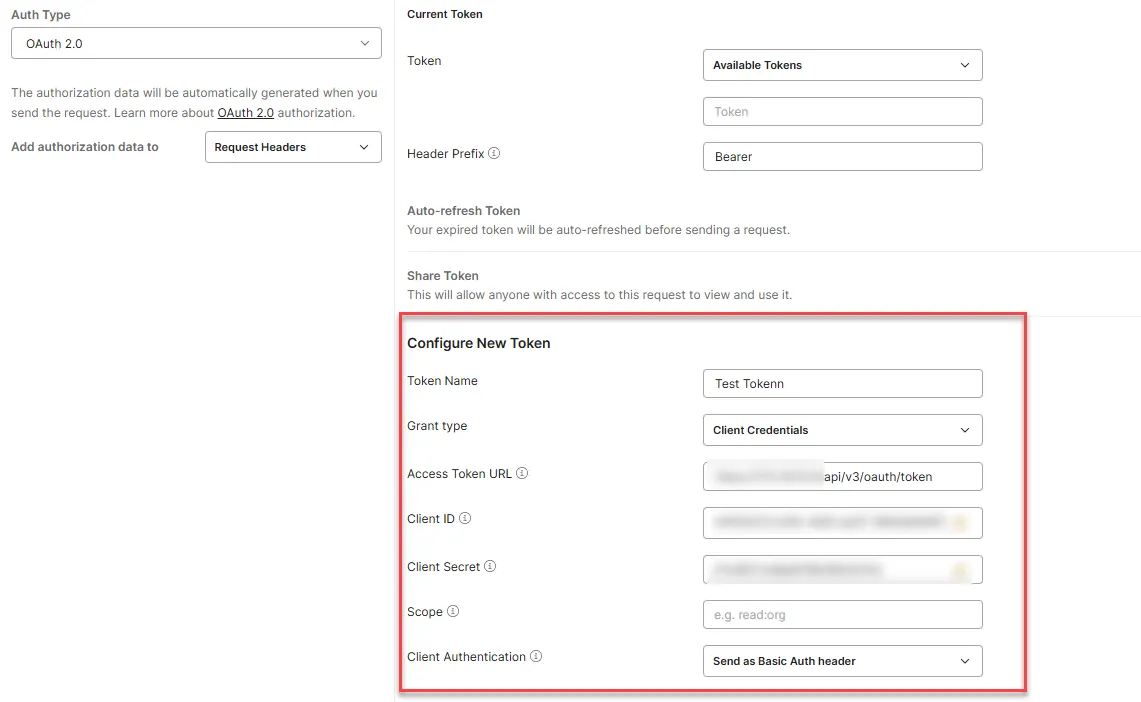
Configure New Token tab
- Click on Get New Access Token. Postman retrieves the token and displays it in the Access Token field.
- Add the Authorization Token to your request. The token is automatically added to the headers by Postman.
- Click Send to execute the API request.
- Verify the response from the server.