Beckhoff TwinCAT3 Ethernet Symbolic
Review the following information for setting up and configuring the Beckhoff TwinCAT3 Ethernet Symbolic driver.
Note: This driver is experimental. Some features might not work as expected.
Litmus Edge compatible series
Compatibility parameter | Compatible items |
|---|---|
Driver type | Ethernet |
Validated devices/series |
The driver connects to the PLC as an ADS client over AMS/TCP. It reads and writes PLC variables, batching requests with ADS sum commands, and can browse the PLC symbol table, including arrays and structure members. You address tags by their PLC symbol path. See the Free tags section.
To set up and configure this device in Litmus Edge (LE), do the following:
- Step 1: Set up and configure the PLC device
- Step 2: Set up the PLC device in Litmus Edge DeviceHub
- Step 3: Configure the list of registers
Step 1: Set up and configure the PLC device
If the device is configured for Ethernet access, find its network parameters. Otherwise, follow the steps below.
The PLC accepts connections only from systems in its route table. Add a route for Litmus Edge before you connect the device. The PLC rejects a connection whose LocalAmsId does not match a route.
Note: The Beckhoff PLC is also a PC with its own operating system, and you can set up its IP address in the same way as a PC.
To add a route on the PLC:
- Note down the following information and refer to it as needed. Device: TwinCAT 3 Beckhoff PLC Communication I/F: Ethernet
- Launch a new project in TcXaeShell.
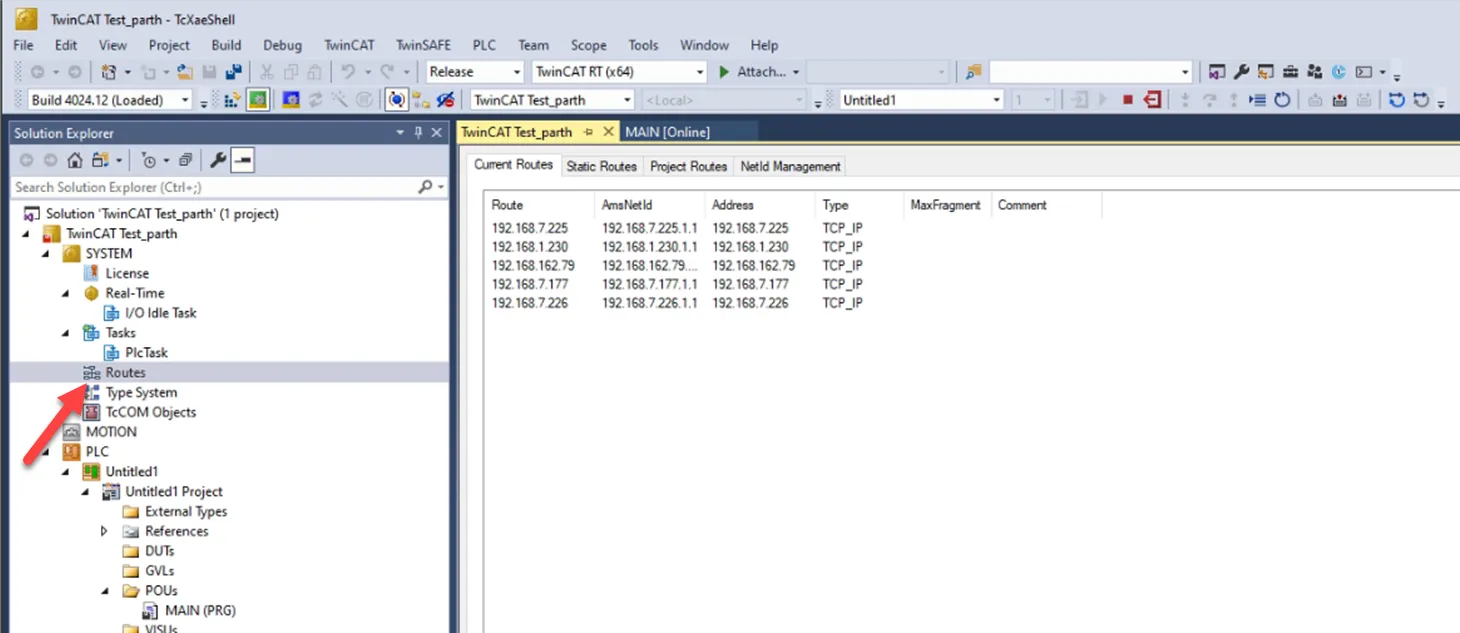
- Click Routes to add the target Litmus Edge that connects to the PLC.
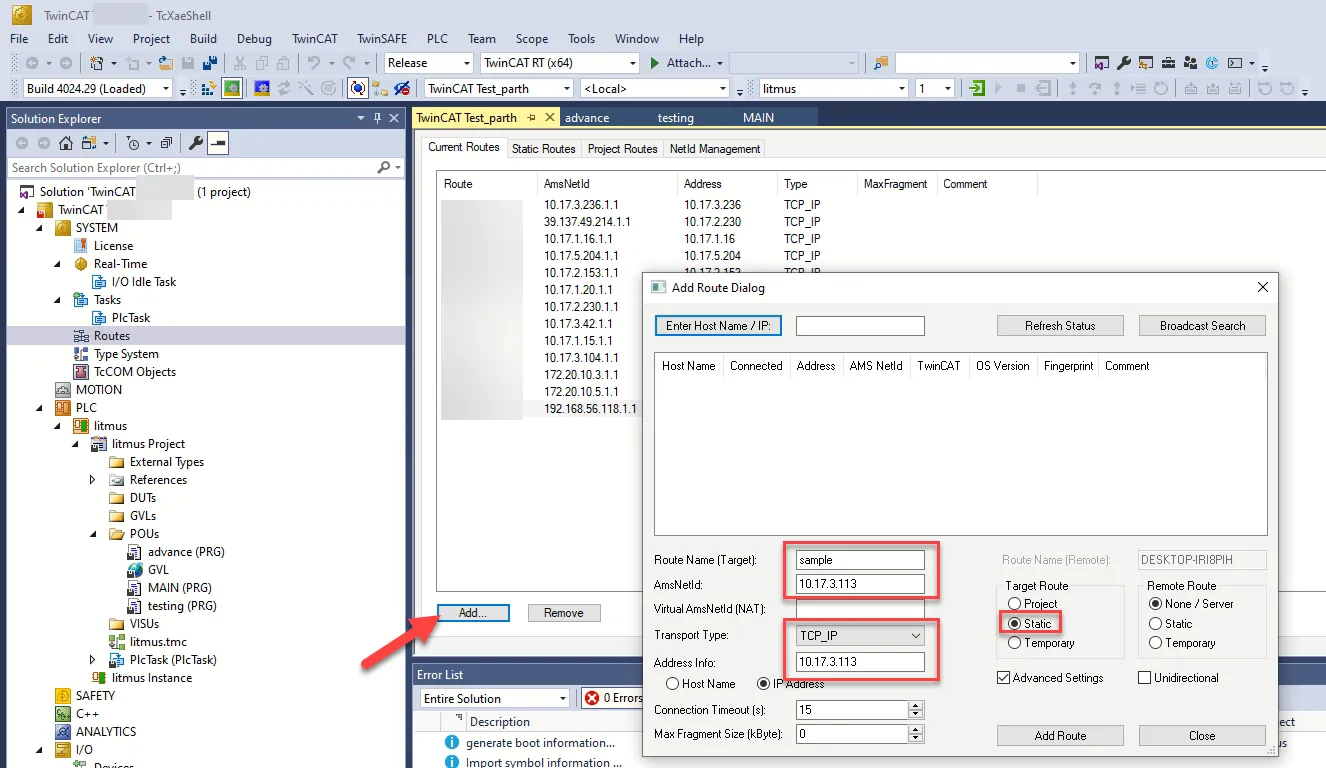
- Click Add... and configure the following parameters: Route Name (Target): Enter a name for the route. AmsNetId: Enter the AMS NetId for the route. If the PLC is running as a soft connection, and Litmus Edge and the panel PC are on the same network, the AmsNetId and Address Info values are the same, with .1.1 at the end. Transport Type: Review and confirm the transport type for the route. Address Info: Enter the IP address of the target Litmus Edge in the network. Target Route: Select Static.
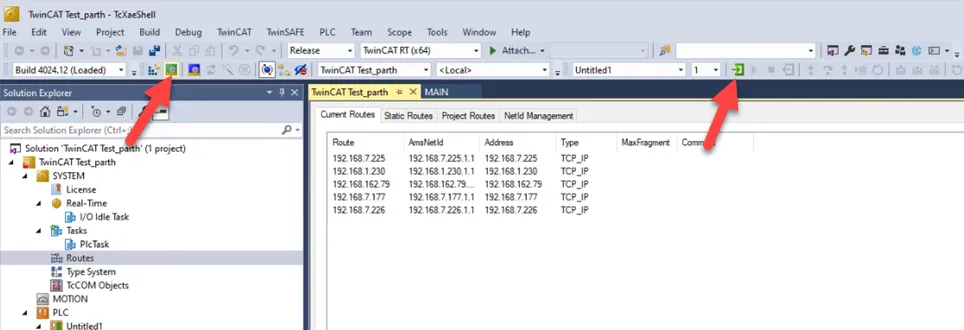
- Click the Restart TwinCAT icon. Then, click the Login icon to start the PLC runtime.
Step 2: Set up the PLC device in Litmus Edge DeviceHub
Configure the following parameters when you Connect a DeviceConnect a Device with this driver. Update default values to the specific setup of your device.
Parameter | Value |
|---|---|
Type | Beckhoff |
Driver | Beckhoff TwinCAT3 Ethernet Symbolic |
NetworkAddress | The IP address of the PLC you defined in Step 1. Default value 192.168.0.1 |
NetworkPort | The TCP port of the PLC. This must match the port configured on the PLC. Default value 48898 |
AdsPort | The ADS port of the PLC runtime: 851 for PLC runtime 1. Use 852, 853, or 854 for runtimes 2 to 4. Default value 851 |
LocalAmsId | The AMS NetId of the Litmus Edge device: [Litmus Edge IP address].1.1 For example, if the Litmus Edge IP address is 192.168.0.152, enter 192.168.0.152.1.1. This value must match a route on the PLC. Default value 0.0.0.0.1.1 |
The following parameters are under Advanced Parameters.
Parameter | Value |
|---|---|
AmsId | The AMS NetId of the PLC, as six dotted octets, for example 172.16.17.10.1.1. If you leave it empty, Litmus Edge uses the PLC's IP address with .1.1 at the end. This is correct only when the PLC's AMS NetId matches its IP address. |
MaxRequestSize | The maximum number of bytes retrieved in one request. Enter a value from 128 to 65536. Default value 4096 |
ReadTimeout | How long the driver waits for a response, in milliseconds. Enter a value from 1000 to 60000. Default value 5000 |
For the Meta Data, Status Register, and Optional Settings options, see Connect a DeviceConnect a Device.
Step 3: Configure the list of registers
When you Add a TagAdd a Tag to the connected device, see the following sections. You can also Browse and Add Tags from a DeviceBrowse and Add Tags from a Device for this device. Browsing reads the PLC symbol table, including arrays and structure members.
See the following additional resources if necessary:
- Organize Device and Tag Data by Using MetadataOrganize Device and Tag Data by Using Metadata
- Tag Formula VariablesTag Formula Variables
Free tags
This driver doesn't have a list of register names in the DeviceHub Add Tag form. In the Name field, enter the PLC symbol path of the variable, exactly as it is defined in the PLC. Symbol paths are case-sensitive. For example:
- MAIN.counter
- GVL.arr[3]
- MAIN.fb.member
You can also enter an absolute address in the form [<indexGroup>:<indexOffset>]. Both values are decimal, and the colon is required. For example:
- [16448:389583], where 16448 is Index group and 389583 is Index offset
The device doesn't show a Connected/disconnected status accurately until you create a tag with a correct symbol path. Driver supports browsing. So it is recommended to browse and add tags to avoid syntax errors
Available value types
- BOOL
- SINT
- BYTE
- INT
- WORD
- DINT
- DWORD
- LINT
- LWORD
- REAL
- LREAL
- STRING
- WSTRING
- TIME
- LTIME
- DATE
- DATEANDTIME
- TIMEOFDAY
Tag parameters
- Name: Enter the PLC symbol path of the variable, exactly as it is defined in the PLC. See the Free tags section.
- Value Type: Select a data type from the drop-down list.
- PollingInterval: Enter how often the tag polls for data, in seconds. Enter 0 to disable polling. Default value 1
- Tag Name: Enter a name for the tag.
- Description (Optional): Enter a description for the tag.
- Tag Formula: Enter a formula for the tag to process the generated data. You can use two variables: value (current tag value) and timestamp (current tag UNIX time in milliseconds). The following math functions are available:
- sin
- cos
- sqrt
- tan
- power: power(x) performs the operation 10^x.
- log: log(x) is the natural logarithm (the logarithm is in base e).
- exp: exp(x) performs the operation e^x.
- Only Publish on Change of Value: Select the checkbox to publish NATS messages only when the value parameter changes. Change of Value only applies to boolean, numeric (such as int or float), and simple string data types. It does not apply to complex types, such as JSON or array. Poll-once topics are not affected by Change of Value settings, and still receive a single message.
- Meta Data: Define key-value pairs to add to the device output payload.
Note: If you use special characters in metadata key names, the special characters are replaced with underscore characters in the payload. This can cause two key names to be combined into one. For example, configuring the key names a**b and a&&b creates only one key name (a__b).
The following parameter is under Advanced Parameters:
- Communication mode: Select Polling or Subscribe. Default value Polling.