Mitsubishi Q Serial
Review the following information for setting up and configuring the Mitsubishi Q Serial driver. The driver connects to MELSEC Q-series CPUs over RS-232. The Q family uses two serial protocols, which you select with the Model device setting. The driver does not detect the protocol automatically.
Model | CPUs | Protocol |
|---|---|---|
Q00 / Q00J / Q01H | Q00J, Q00, and Q01H built-in RS-232 port, or a QJ71C24N serial module | MC protocol (QnA-compatible 4C frame, format 5, binary) |
Q02 / Q02H / Q06H | Q02, Q02H, and Q06H built-in RS-232 port | MELSOFT (GX Developer programming port protocol) |
This driver replaces the Mitsubishi Q00-01H Serial, Mitsubishi Q02-02H Serial, and Mitsubishi Q06 Serial drivers.
Note: This driver is experimental. Some features might not work as expected.
Litmus Edge compatible series
Compatibility parameter | Compatible items |
|---|---|
Driver type | Serial (RS-232) |
Validated devices/series | MELSEC-Q: Q00J, Q00, Q01H Q02, Q02H, Q06H QJ71C24N serial module |
To set up and configure this device in Litmus Edge (LE), do the following:
- Step 1: Set up and configure the PLC device
- Step 2: Set up the PLC device in Litmus Edge DeviceHub
- Step 3: Configure the list of registers
Step 1: Set up and configure the PLC device
Record the serial communication parameters for the device, and note which model group the CPU belongs to. The driver connects to one PLC for each serial port. Multidrop is not supported.
Q00 / Q00J / Q01H
Refer to the following parameters:
- Online simulator: Yes
- Extend address mode: No
- Broadcast command: No
To configure your device:
- Note down the following information and refer to it when needed.
- Device: Mitsubishi Q03UDCPU and QJ71C24N
- Communication I/F: RS232. Refer to the following figure.
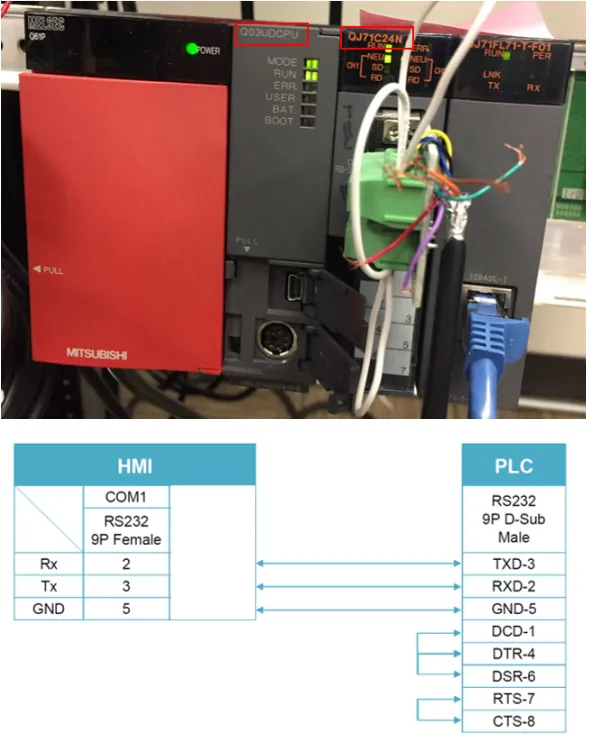
- Launch GX Works2 v1.560 software, and then click Online > Read from PLC.
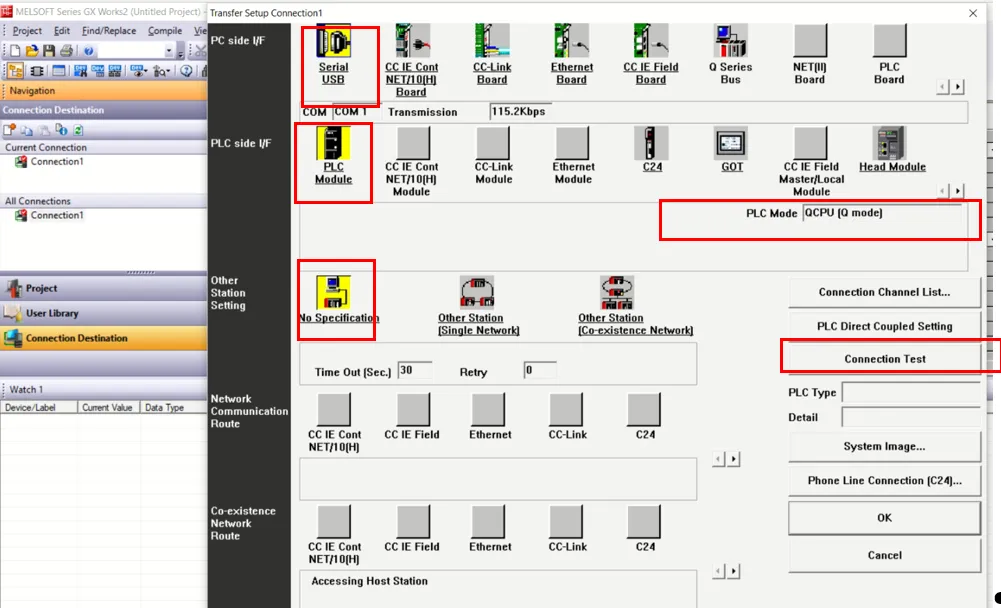
- From the PLC Series Selection dialog box, select QCPU (Q Mode) from the PLC Series drop-down list, and then click OK.
- Set up the communication parameters, and then click Connection Test.
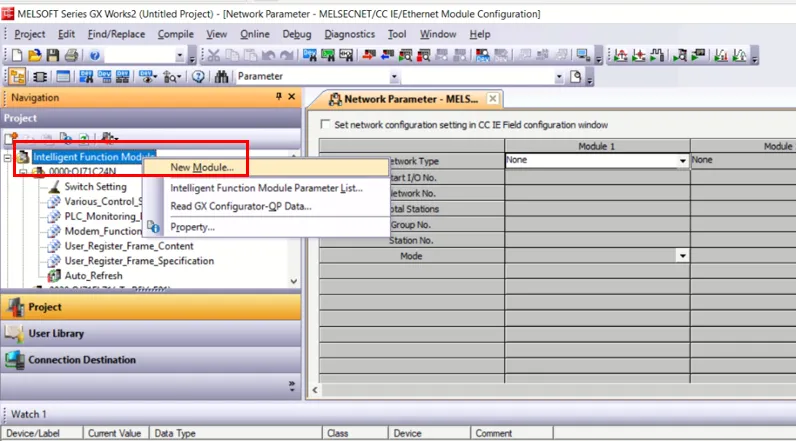
- Right-click Intelligent Function Module > New Module.
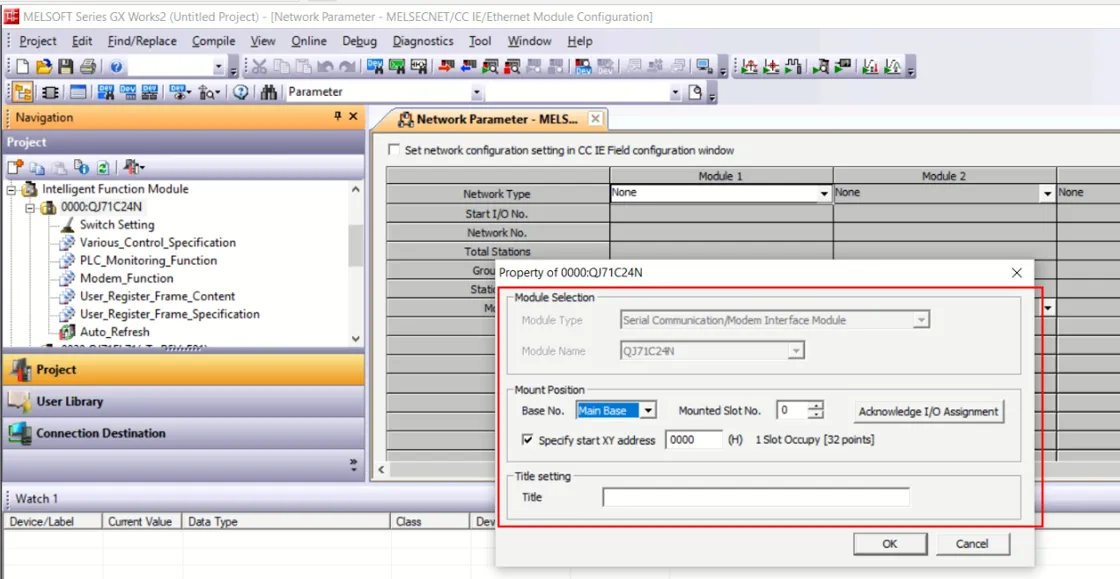
- Set up the module parameters as shown below.
- Click Switch Setting and set up the communication parameters as shown below.
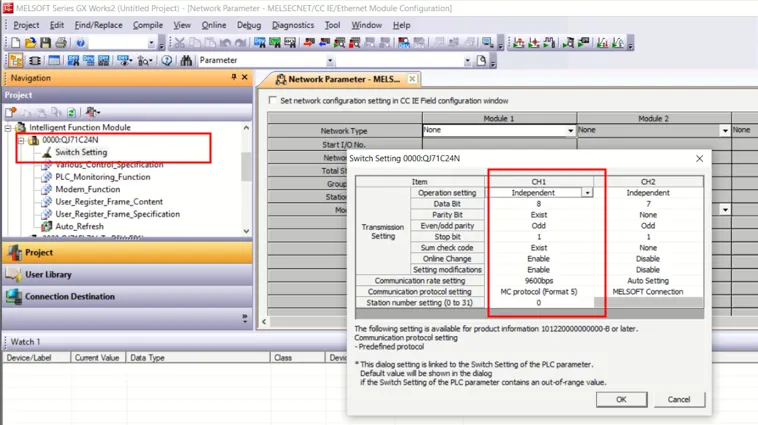
Q02 / Q02H / Q06H
To check the connection to your device:
- Record the following information and refer to it as needed.
- Device: Mitsubishi Q02CPU
- Communication I/F: RS232. Refer to the following figure.
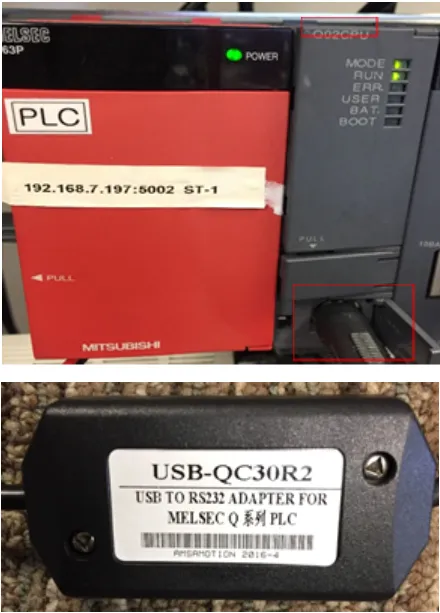
- Launch GX Works2 v1.560J software, click Create a Project, and then click Connection 1 in the navigation panel.
- Set up the communication parameters, and then click Connection Test.
Step 2: Set up the PLC device in Litmus Edge DeviceHub
Configure the following parameters when you Connect a DeviceConnect a Device with this driver. Update default values to the specific setup of your device.
Parameter | Value |
|---|---|
Type | Mitsubishi |
Driver | Mitsubishi Q Serial |
DeviceFile | The serial port path used to communicate with the device, for example /dev/ttyS1 or /dev/ttyUSB0. Default value /dev/ttyS0 |
BaudRate | Must match the baud rate configured on the device. Select a value from 1200 to 921600. Default value 9600 |
DataBits | 5, 6, 7, or 8. Must match the device. Default value 8 |
Parity | None, Odd, or Even. Must match the device. Default value Odd |
StopBits | 1, 1.5, or 2. Must match the device. Default value 1 |
Model | The CPU model group, which sets the serial protocol. Select Q00 / Q00J / Q01H or Q02 / Q02H / Q06H. Default value Q00 / Q00J / Q01H |
The following parameters are under Advanced Parameters.
Parameter | Value |
|---|---|
ReadTimeout | How long the driver waits for a response, in milliseconds. Enter a value from 10 to 10000. Default value 2000 |
RetryCount | The number of times a failed request is retried. Enter a value from 0 to 5. Default value 0 |
PauseBetweenRetries | The pause between retries, in milliseconds. Enter a value from 0 to 2000. Default value 0 |
The driver reads up to 128 words in one request on Q00 / Q00J / Q01H, and up to 32 words on Q02 / Q02H / Q06H. A full 128-word request takes about 0.4 seconds at 9600 baud. Below about 2400 baud, a full request takes longer than the default ReadTimeout, so increase ReadTimeout on slow links.
For the Meta Data, Status Register, and Optional Settings options, see Connect a DeviceConnect a Device. By default, the status register is D, value type word, address 0.
Step 3: Configure the list of registers
When you Add a TagAdd a Tag to the connected device, see the following register table and tag parameters. This driver does not support browsing tags.
See the following additional resources if necessary:
- Organize Device and Tag Data by Using MetadataOrganize Device and Tag Data by Using Metadata
- Tag Formula VariablesTag Formula Variables
Register table
All addresses start at 0. Enter addresses the way GX Developer displays them:
- X, Y, B, SB, DX, DY, W, SW, ZR, and ZR_bit: hexadecimal (H in the address format).
- All other registers: decimal.
For D_bit and ZR_bit, the address is the word number followed by the bit number, from 00 to 15. For example, D_bit address 12503 is bit 3 of D125. The driver writes a bit by reading the whole word, changing the bit, and writing the word back.
R addresses file register block 0 only. Use ZR for file registers above block 0. R and ZR share the same memory, so R address n and ZR address n are the same register.
Name | Value Types | Access Type | Address Format | Min Address | Max Address | Description |
|---|---|---|---|---|---|---|
SM | bit | R/W | DDDD | 0 | 2047 | Special relay |
X | bit | R/W | HHHH | 0 | 8191 | Input relay |
Y | bit | R/W | HHHH | 0 | 8191 | Output relay |
M | bit | R/W | DDDDD | 0 | 65535 | Internal relay |
L | bit | R/W | DDDDD | 0 | 32767 | Latch relay |
F | bit | R/W | DDDDD | 0 | 32767 | Annunciator |
V | bit | R/W | DDDDD | 0 | 32767 | Edge relay |
B | bit | R/W | HHHH | 0 | 61439 | Link relay |
SB | bit | R/W | HHH | 0 | 2047 | Special link relay |
S | bit | R/W | DDDD | 0 | 8191 | Step relay |
DX | bit | R/W | HHHH | 0 | 8191 | Direct input |
DY | bit | R/W | HHHH | 0 | 8191 | Direct output |
TS | bit | R/W | DDDDD | 0 | 25471 | Timer contact |
TC | bit | R/W | DDDDD | 0 | 25471 | Timer coil |
SS | bit | R/W | DDDDD | 0 | 25471 | Retentive timer contact |
SC | bit | R/W | DDDDD | 0 | 25471 | Retentive timer coil |
CS | bit | R/W | DDDDD | 0 | 25471 | Counter contact |
CC | bit | R/W | DDDDD | 0 | 25471 | Counter coil |
D | word | R/W | DDDDDDD | 0 | 4212735 | Data register |
D_bit | bit | R/W | DDDDDDDdd | 0 | 421273515 | Data register bit |
SD | word | R/W | DDDD | 0 | 2047 | Special register |
R | word | R/W | DDDDD | 0 | 32767 | File register (block 0) |
ZR | word | R/W | HHHHH | 0 | 1042431 | Serial number file register |
ZR_bit | bit | R/W | HHHHHh | 0 | 104243115 | Serial number file register bit |
W | word | R/W | HHHH | 0 | 25983 | Link register |
SW | word | R/W | HHH | 0 | 2047 | Special link register |
TN | word | R/W | DDDDD | 0 | 25471 | Timer current value |
SN | word | R/W | DDDDD | 0 | 25471 | Retentive timer current value |
CN | word | R/W | DDDDD | 0 | 25471 | Counter current value |
Z | word | R/W | DD | 0 | 15 | Index register |
Note: The CPU scan refreshes X, so a value written to X is overwritten on the next scan cycle.
Tag parameters
- Name: Select a register name from the drop-down list. The available options depend on the names in the register table.
- Value Type: Select a data type from the drop-down list. The available options depend on the register name selected.
- Address: Enter the register address in the format shown in the register table, within the min and max range. Omit leading zeros. For D_bit and ZR_bit, add the bit number at the end.
- PollingInterval: Enter how often the tag polls for data, in seconds. Enter 0 to disable polling. Default value 1
- Tag Name: Enter a name for the tag.
- Description (Optional): Enter a description for the tag.
- Tag Formula: Enter a formula for the tag to process the generated data. You can use two variables: value (current tag value) and timestamp (current tag UNIX time in milliseconds). The following math functions are available:
- sin
- cos
- sqrt
- tan
- power: power(x) performs the operation 10^x.
- log: log(x) is the natural logarithm (the logarithm is in base e).
- exp: exp(x) performs the operation e^x.
- Only Publish on Change of Value: Select the checkbox to publish NATS messages only when the value parameter changes. Change of Value only applies to boolean, numeric (such as int or float), and simple string data types. It does not apply to complex types, such as JSON or array. Poll-once topics are not affected by Change of Value settings, and still receive a single message.
- Meta Data: Define key-value pairs to add to the device output payload.
Note: If you use special characters in metadata key names, the special characters are replaced with underscore characters in the payload. This can cause two key names to be combined into one. For example, configuring the key names a**b and a&&b creates only one key name (a__b).