Add a Node
The OPC UA hierarchy is the address space Litmus Edge (LE) exposes to OPC UA clients. Each node you add becomes part of that address space. Folder and device nodes define the structure. Tag nodes subscribe to a topic and expose its value. Folder and device nodes are structural. Only a tag node returns a value to a client.
Adding a node takes effect immediately. You do not need to restart the OPC UA server and connected OPC UA clients retain their existing sessions and subscriptions. Changes to security policy, network and endpoint settings, or other server configuration parameters do require a restart. See Manage the OPC UA Server to learn more.
LE adds a new node under whichever node is selected in the Hierarchy pane, or at the root when nothing is selected.
Node types
Type | Represents | Subscribes to a topic |
|---|---|---|
Folder | An edge device or a site, such as an industrial plant | No |
Device | A device on the plant floor, such as a boiler or a lathe PLC | No |
Tag | A specific register on a device, such as a temperature or pressure sensor | Yes |
How a tag receives data
A tag node subscribes to the topic you give it. The value it returns to OPC UA clients is whatever that topic last published.
The topic does not have to come from a DeviceHub device. Any topic on the message broker works, including topics published by flows, connectors, and Digital Twins instances.
The payload must be a JSON object containing at least value and success.
{
  "value": 11.11,
  "success": true
}
If the payload also includes a statusCode field, the OPC UA server uses that value for the node's status instead of success. Otherwise, the OPC UA server continues to use success. DeviceHub tags publish statusCode when Publish Additional Attributes is enabled on a device . Currently supported on Gen2 C++ drivers only. See Connect a Device to learn more.
Add a node
To add a node:
- Navigate to OPC > Hierarchy.
- In the Hierarchy pane, select the parent node for the new node. To add the node at the root, select nothing.
- Click the Add icon.
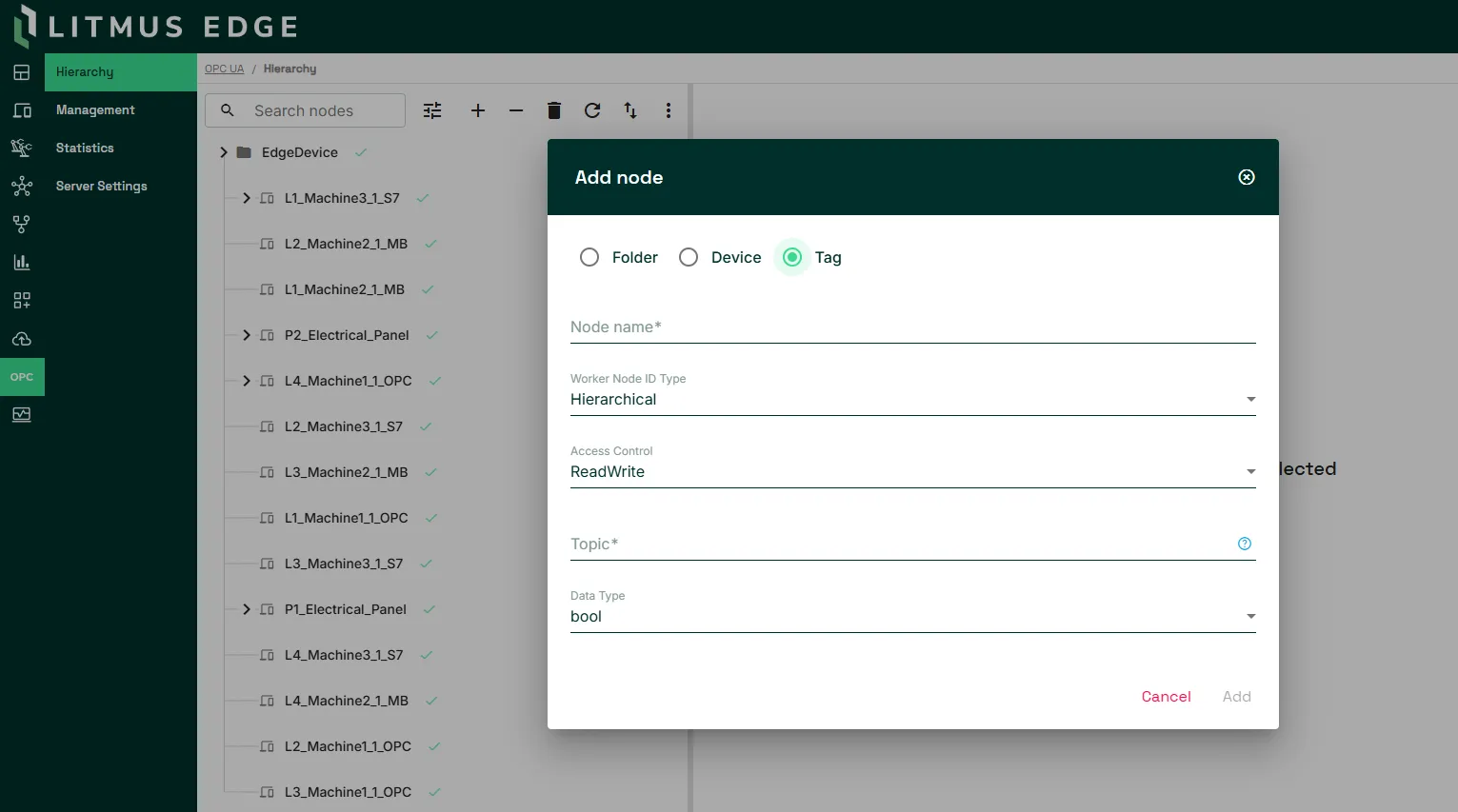
- Select Folder, Device, or Tag.
- Enter the node details. A folder or device node needs a name only. For a tag node, see the field table below.
- Click Add.
- Click the Save icon.
Tag node fields
Field | Description |
|---|---|
Node name | A descriptive name. This is what an OPC UA client sees when it browses the hierarchy. |
Topic | The topic that feeds this node. |
Data Type | The OPC UA data type the node presents to clients. See Data Type Mapping. |
Access Type | The access clients have on the node. R allows clients to read the value, W allows them to write to it, and RW allows both. |
Considerations
- Removing a node removes everything under it. Deleting a folder or device node also deletes its child nodes and their configurations.