Meta Data Wizard
The user can provide a specifically formatted JSON Object for the Meta Data they want to add to the Tag.
To assist with the definition of the JSON Object, the Tag Management Tool provides a Meta Data Wizard.
Access the Meta Data Wizard
Notes:
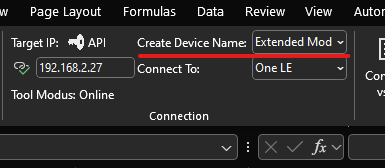
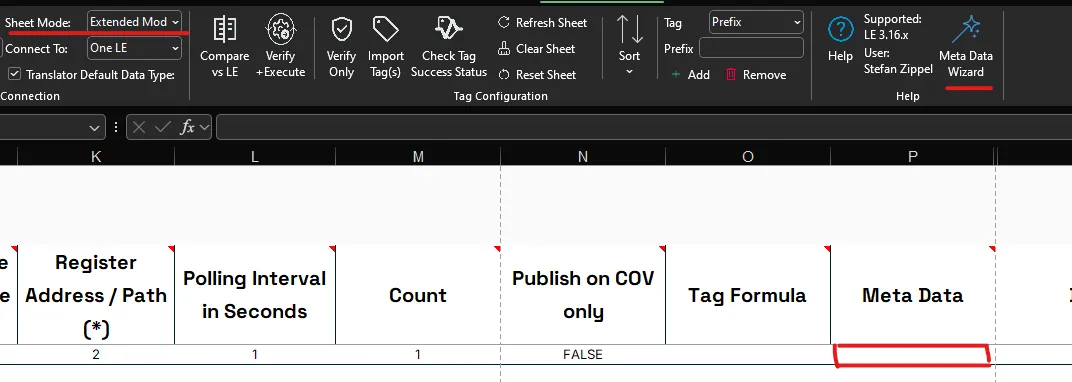
To access the Meta Data Wizard it is required that the tool is set to Extended Mode for the Create Device Name option.
Select the respective cell in Column Meta Data for the Tag you want to define Meta Data for.
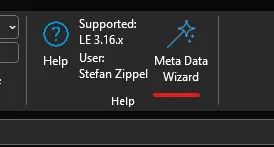
If all conditions are met, the Meta Data Wizard button is shown in the Help section of the LitmusConfiguration ribbon.
Open the Meta Data Wizard by pressing the Meta Data Wizard button.
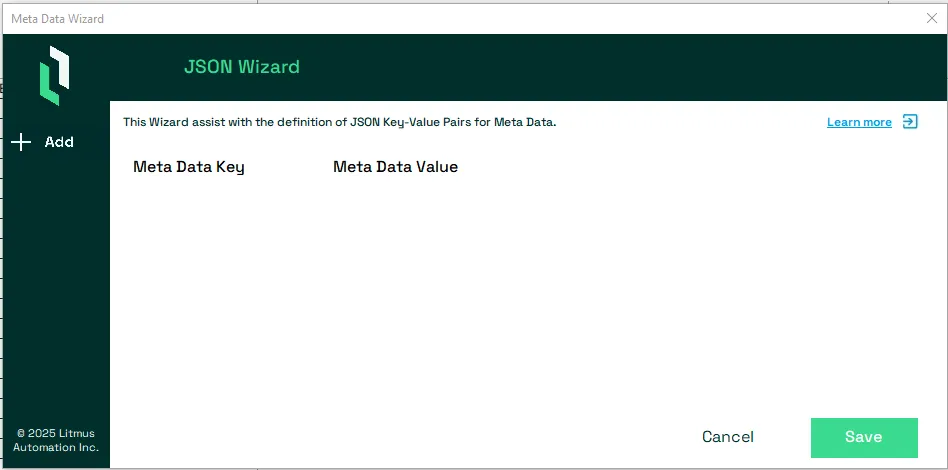
The Meta Data wizard will show.
Notes:
If the Tag has already Meta Data defined, they will be shown in the List.
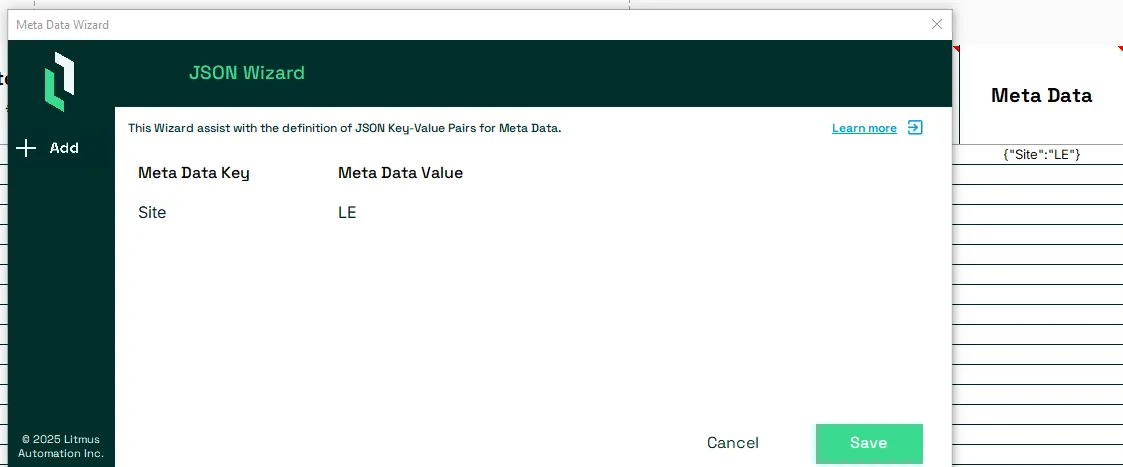
Add a new Meta Data Key-Value Pair
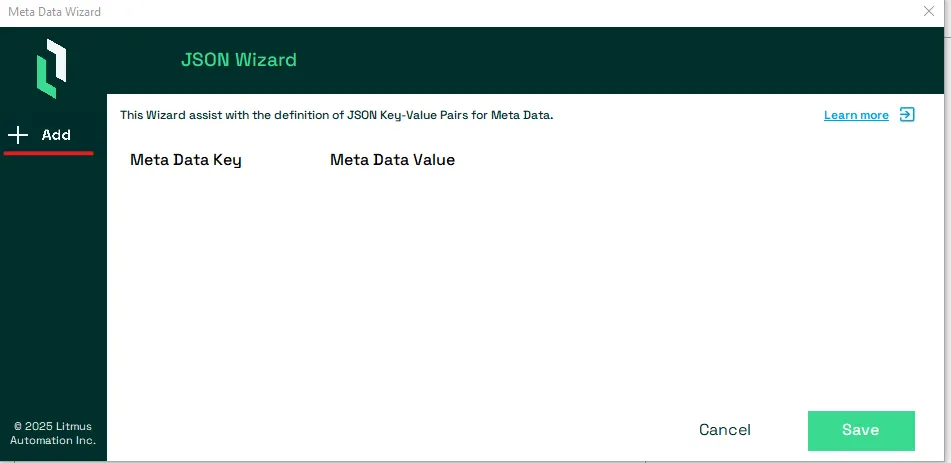
To add a new Key-Value pair, press the Add option from the left panel.
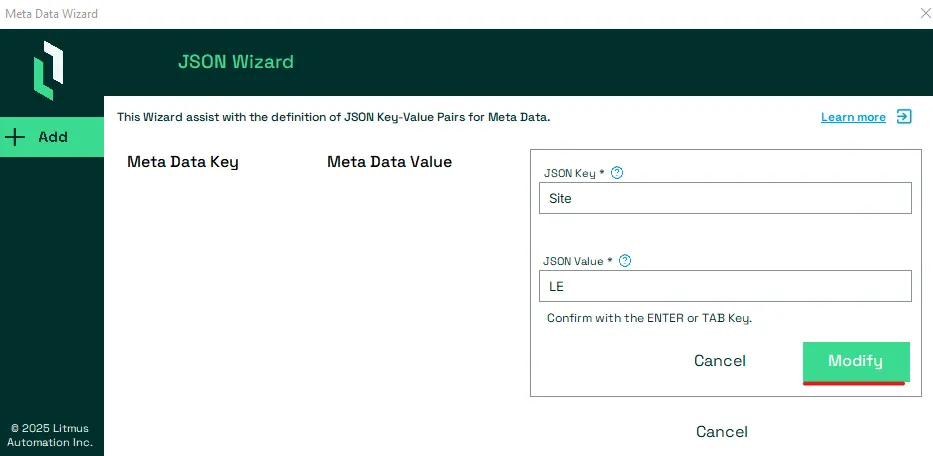
Provide both the JSON Key and the JSON Value, which are mandatory, for the Key-Value pair. To accept the entry press the green Modify button.
Notes:
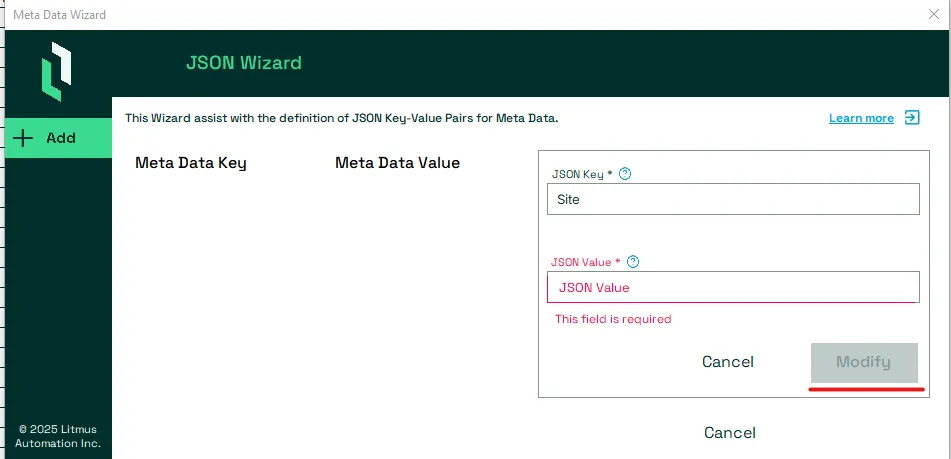
If not both Name and Value are provided, the Modify button will remain grayed out and the Key-Value pair can not be saved.
The wizard also performs a verification for each entry and will show any violation in red. In this case the Modify button will also be grayed out to prevent the saving of any invalid Key-Value pair.
Edit a Meta Data Key-Value Pair
Select the Key-Value pair you want to edit to open its Edit screen.
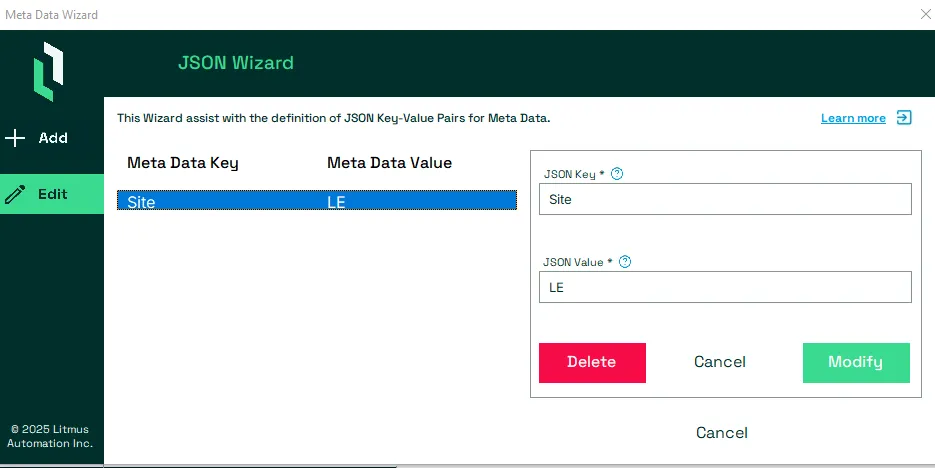
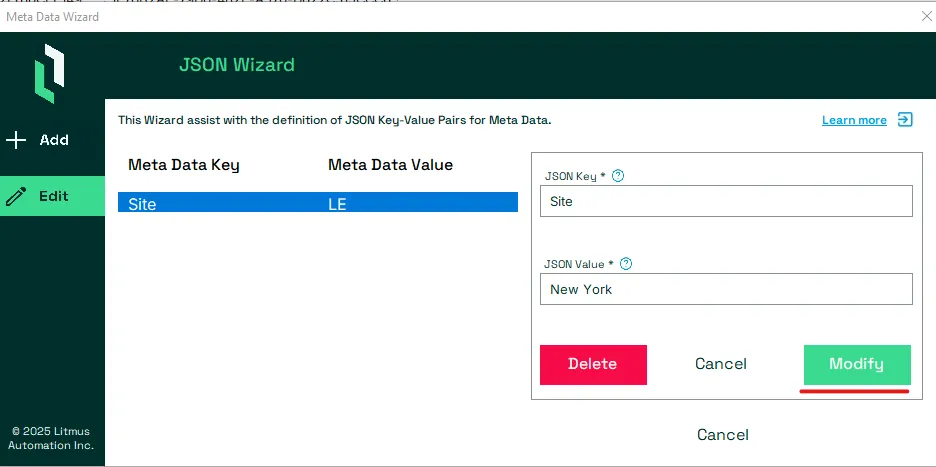
Edit the Name and/or Value and press the Modify button.
Notes:
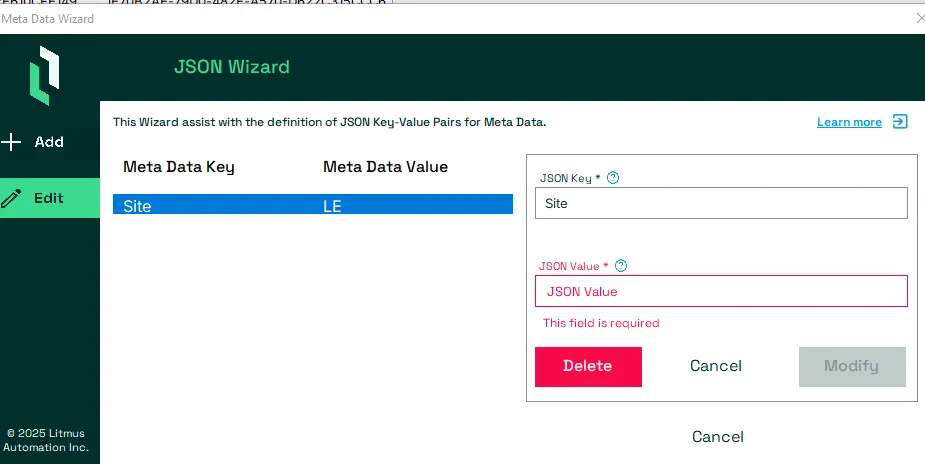
If not both Name and Value are provided, the Modify button will remain grayed out and the Key-Value pair can not be saved.
The wizard also performs a verification for each entry and will show any violation in red. In this case the Modify button will also be grayed out to prevent the saving of any invalid Key-Value pair.
Delete a Meta Data Key-Value Pair
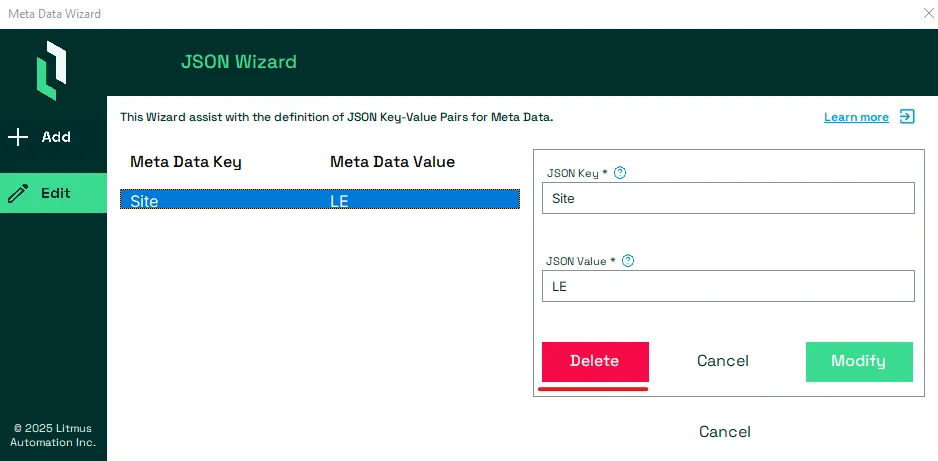
Select the Key-Value pair you want to delete to open its Edit screen.
To delete the Key-Value Pair press the Delete button.
Save the Meta Data
To save all the defined Key-Value pairs as a new Meta Data JSON Object, press the Save button.
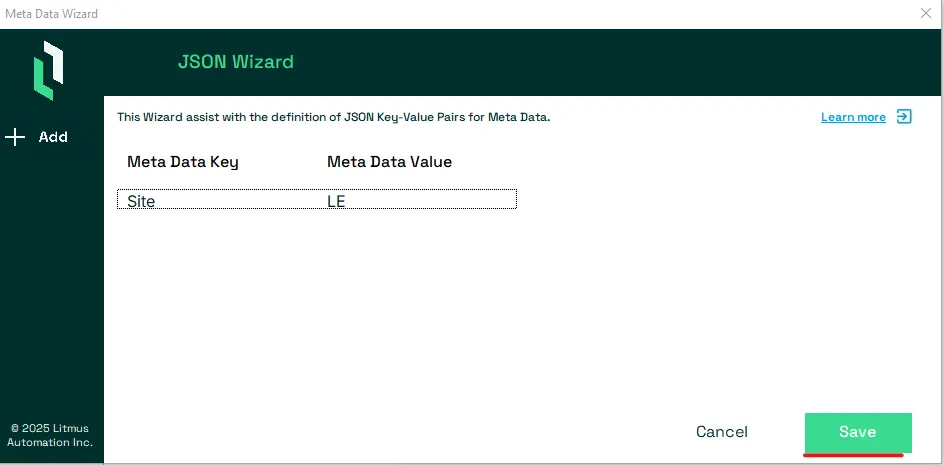
This will create the correctly formatted Meta Data JSON Object and store it in column Meta Data for the tag.

Important: This will overwrite the current value in column Meta Data.
Cancel the Meta Data Wizard
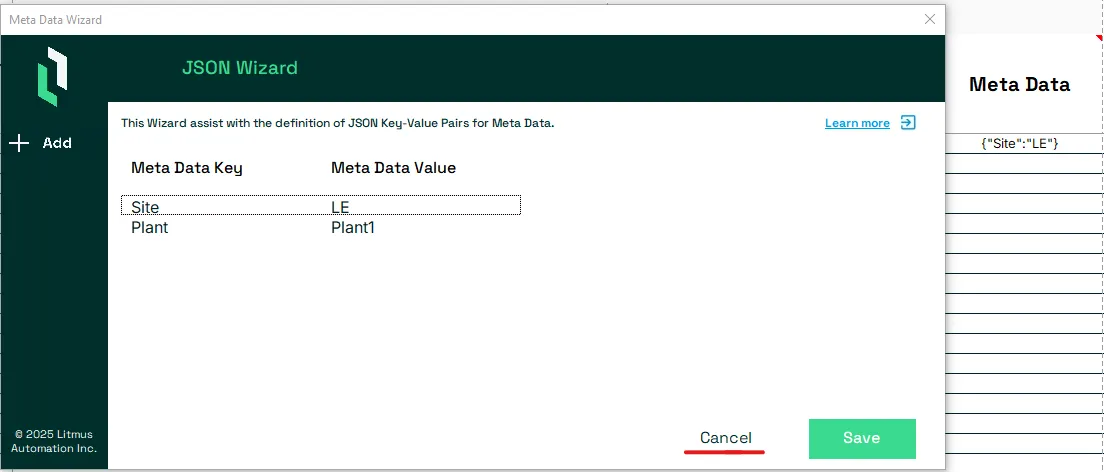
If a user decides to not save the current Meta Data Wizard configuration, they can press the Cancel button.
Notes:
This will not overwrite the current value in column Meta Data.