Digital Factory Demo via Portainer
7 min
Overview
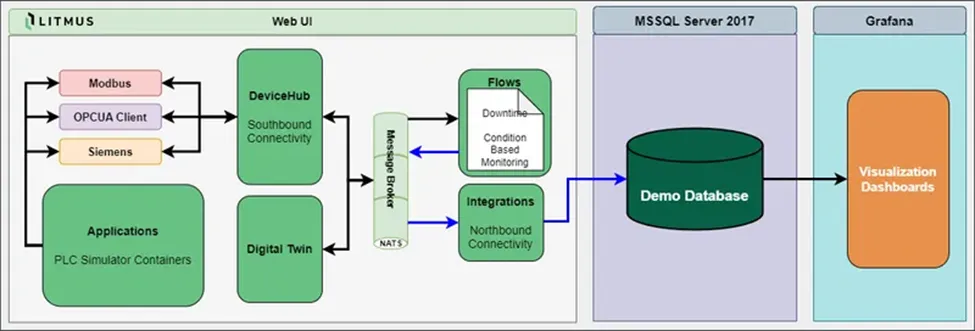
This introduces to run Litmus Edge with the Digital Factory preset as a docker application using Portainer. This preset is the fastest way to get Litmus Edge running with a complete Digital Factory environment
Minimum System Requirements
~5 GB disk space at least for installation
- ~100 MB for online docker upload tar file
- ~400MB for Simulation servers docker image
- ~500 MB for Demo Grafana dashboard docker image
- ~2.4 GB for MsSQL docker image
- ~1.2 GB for MySQL docker image
- Total Images ~4.3-5 GB
3GB RAM on the connected HOST
Prerequisites
- Portainer running on any environment (Docker Desktop, Kubernetes, Podman, Windows, Linux)
- Internet access to pull images from public listings.
Installation
In the following guide Portainer is running on Docker Desktop in Windows.
Note: Minimum Docker Desktop version requirements is 4.55.0.
- Login to portainer using your browser. Access https://localhost:<port number> portainer WebUI at available port. Once you log in you will see the home page with your available environments.
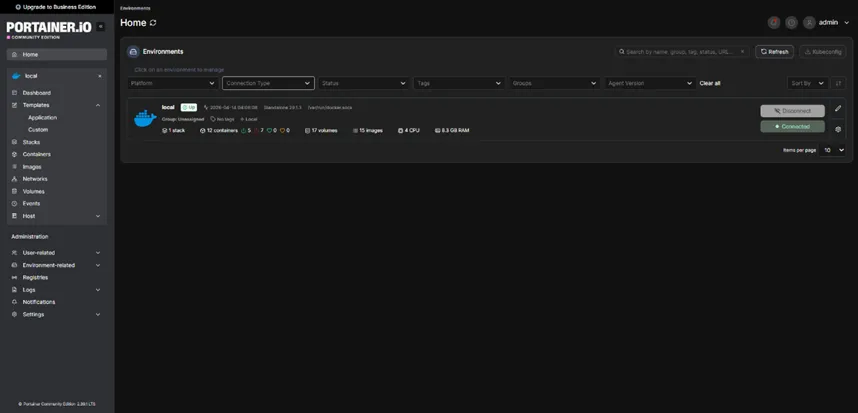
- Click on your local docker environment. That will take you to the dashboard.
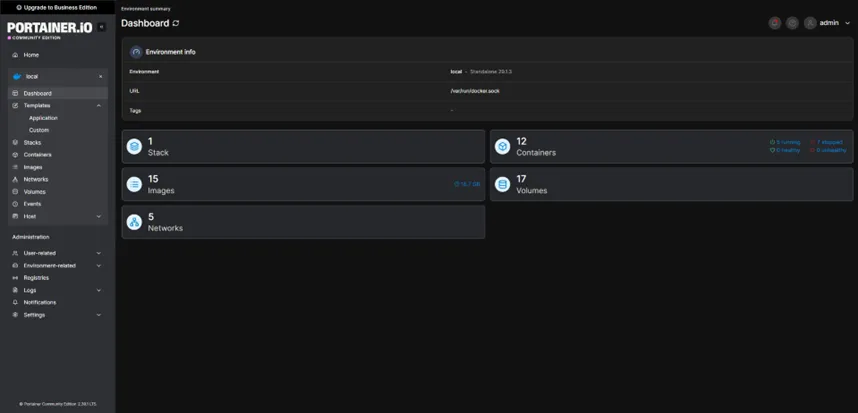
- You can find the application in the Templates->Application. Simply search for Litmus Edge Digital Factory Demo.
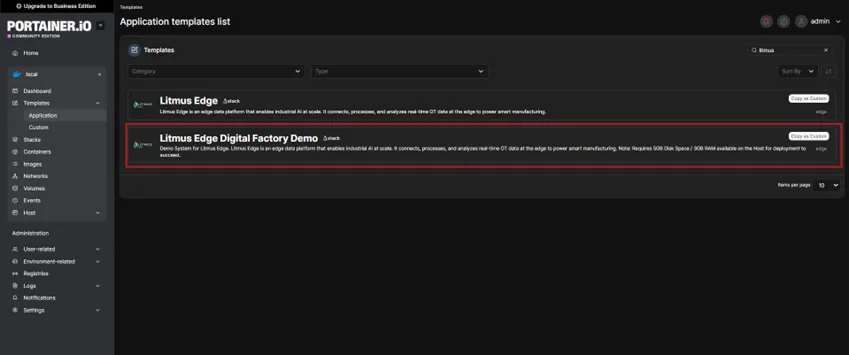
- Select it and review the pre-filled deployment settings.
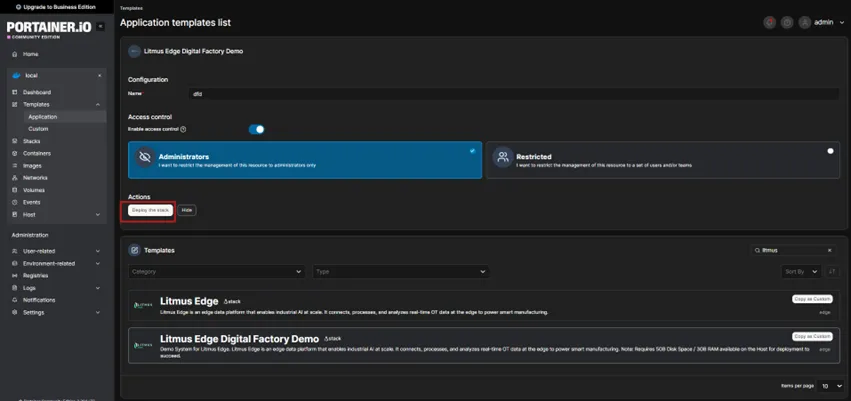
- Click on “Deploy the stack”. This preset includes Litmus Edge container and all the additional containers required for Digital Factory Demo. Portainer will pull all the required images which may take a few minutes. The template deployer will run automatically and complete in about 2 minutes automatically.
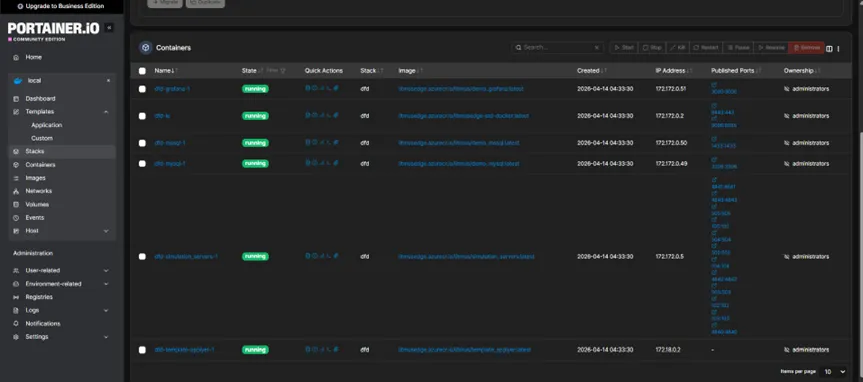
- Wait for the deployment to be completed. When the deployment finishes and the template-applyer container exits, you can access Litmus Edge on localhost port 8443.
- On you first login use the default credentials and set a new password. Default credentials Username: admin Password: Litmus@1
- You will be prompted to activate 2-hour trial, which automatically redirects you to Litmus Central Portal. If you have not already registered, you will be asked to sign up. Otherwise, once you are logged in, you will see the homepage with access to downloads, license management, and our academy site.
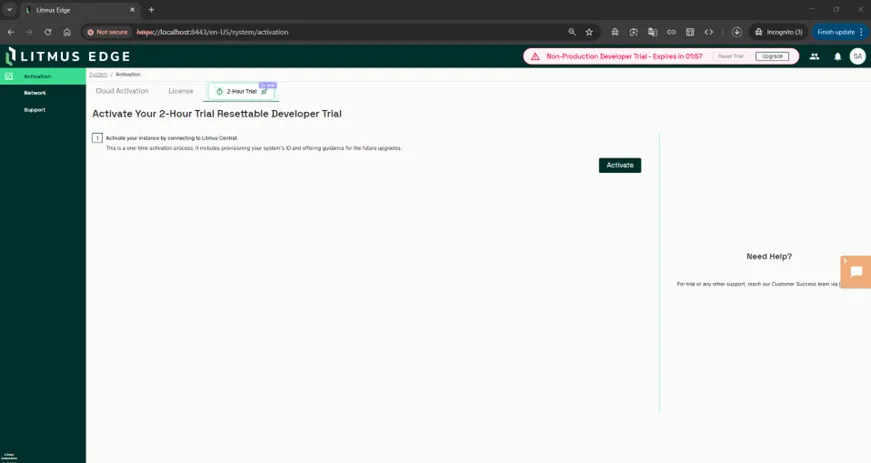
- After activating the 2-hour trial, you can go back to Litmus Edge and confirm that the dashboard is unlocked and ready to use.
- At this point Litmus Edge with the Digital Factory preset is ready with the components.
Post-Installation configuration
Authenticate the components using the following guide Authenticate Database Access