Manage DataHub Queries
You can modify and delete queries in the Litmus DataHub Queries.
Before You Begin
- At least one query exists in the table. See Define DataHub Queries for more details.
- Ensure that connections have been previously created and are visible in the connection table. See Define DataHub Connections for details.
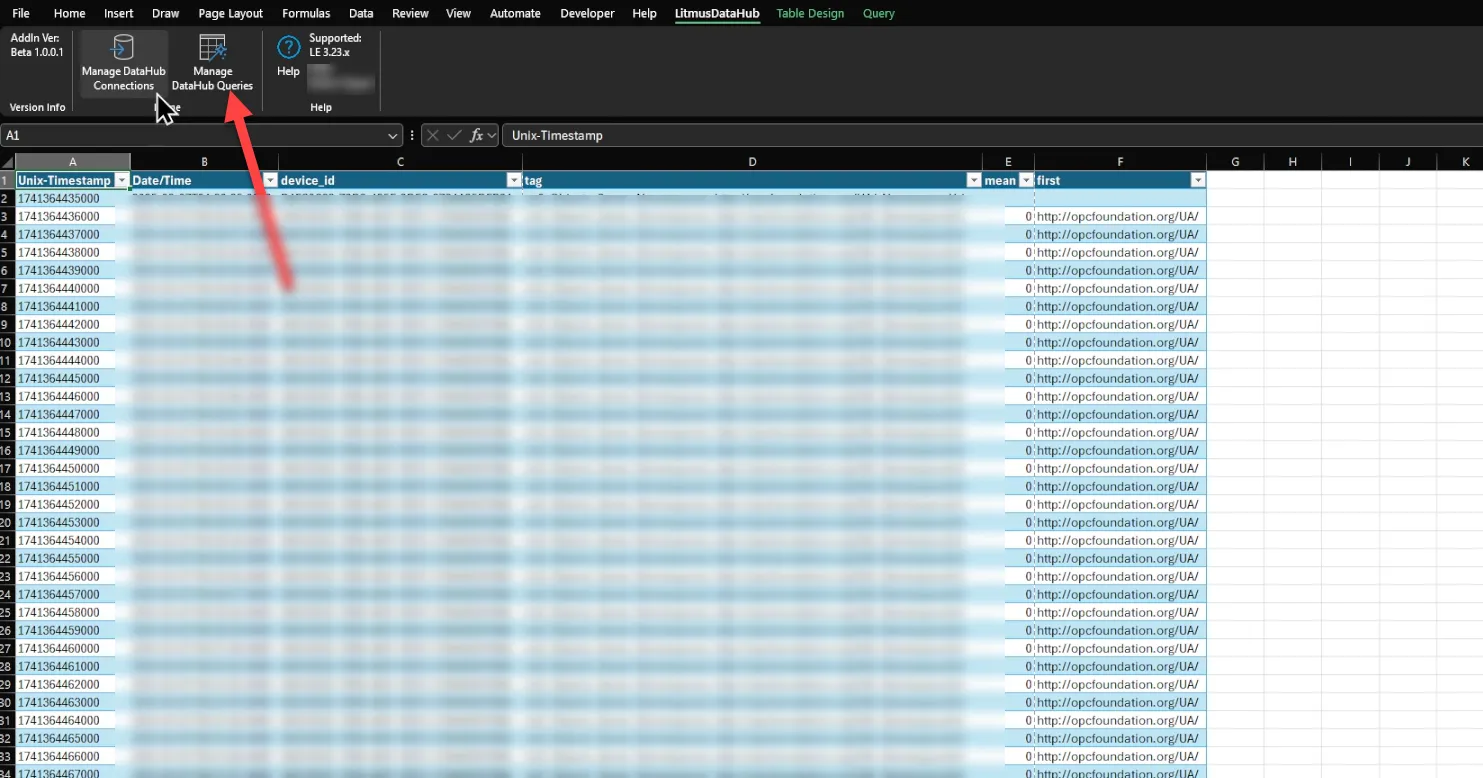
Step 1: Access the Manage DataHub Queries Form
- Navigate to the Manage Data Queries section to view a table listing all existing queries. The Litmus DataHub Queries window pop-up appears.
Step 2: Review the Query Table
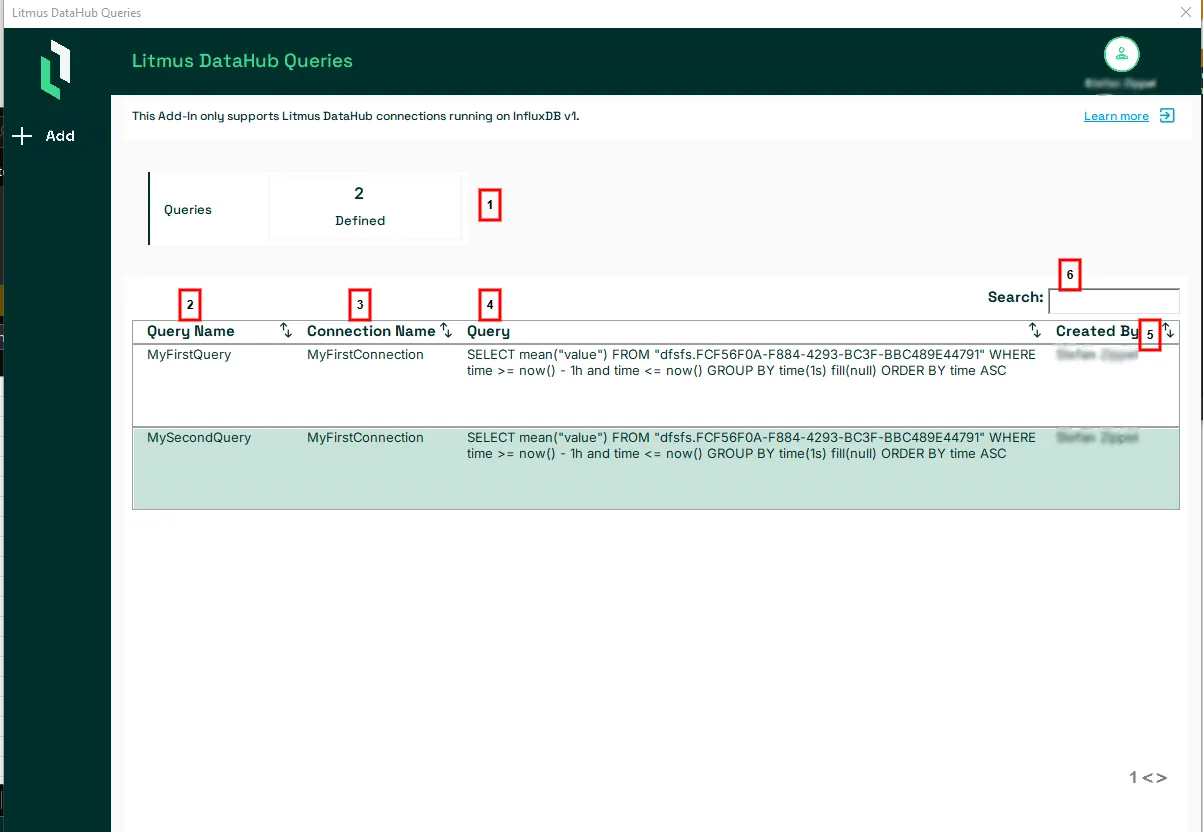
You will see a table or list displaying your available queries. Refer to the following actions you can take from this page:
Action | Details |
|---|---|
[1] Queries | Shows the total number of defined queries. |
[2] Query Name | Displays the defined query name. Click on the query name to open the query edit dialog box. |
[3] Connection Name | Displays the defined connection name. |
[4] Query | Displays the details of your query. |
[5]Created By | Shows the creator of the query, which is useful in multi-user scenarios. |
[6] Search | Allows to filter the List based on the provided filter. |
Step 3: Edit a Query
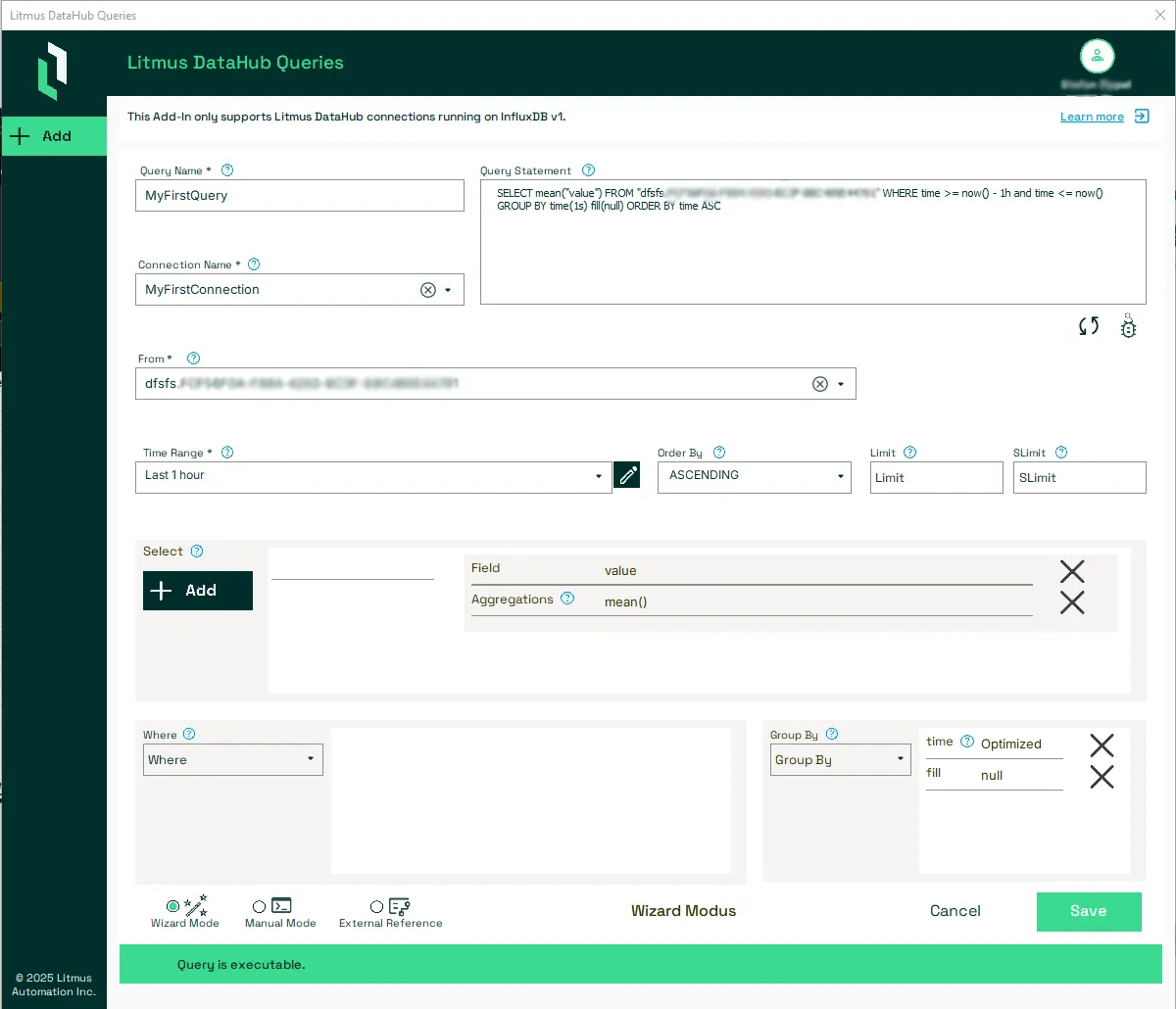
To enter the edit mode, you select the row of the Query. When the row is highlighted, the available actions are shown in the left upper corner. For editing select the View icon to open the query details.

- In edit mode, make necessary changes to the query parameters. For example: to sort data in descending order, adjust the sort parameter accordingly.
- After modifications, click Save to apply the updates.
- The system will confirm that the query has been updated.
Note: The changes are immediately reflected in the query list.
Step 4: Delete a Query
To delete a query, you select the row of the Query. When the row is highlighted, the available actions are shown in the left upper corner. For deletion you select the Delete icon.
