Deploy CA certificates to edge devices
A custom CA certificate allows edge device connectors to trust services signed by a private or internal Certificate Authority (CA). This is necessary in enterprise environments where Deep Packet Inspection (DPI) appliances or SSL proxies intercept and re-sign traffic using internal CAs that edge devices do not recognize by default. To deploy custom CA certificates, you upload them centrally in the Litmus Edge Manager (LEM) Admin Console, then sync them to your edge devices from the User UI.
Note: Also see CA CertificatesCA Certificates and CertificatesCertificates for overview and background information.
Before you begin
Before you manage CA certificates, ensure you have:
- Administrative access to the Litmus Edge Manager Admin Console
- A CA certificate file in .pem, .crt, or .cer format
- One or more edge devices connected to LEM
- Litmus Edge Manager version 2.34.0 or later
Step 1: Upload a CA certificate in the Admin Console
To add a CA certificate to the LEM instance:
- In the LEM Admin Console, select Edge Devices > CA Certificates. The CA Certificates page appears.
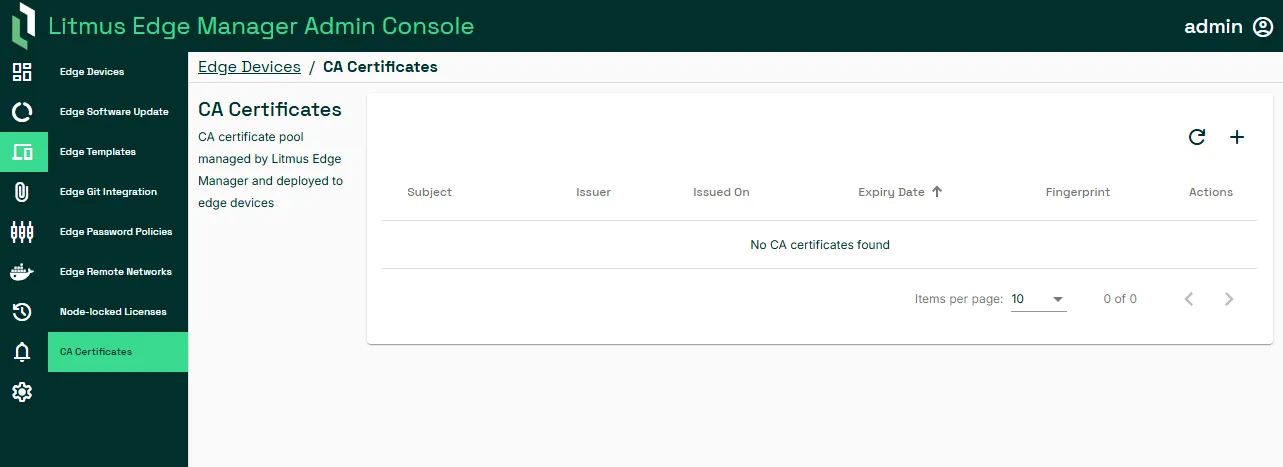
- Click the Upload CA Certificate + icon.
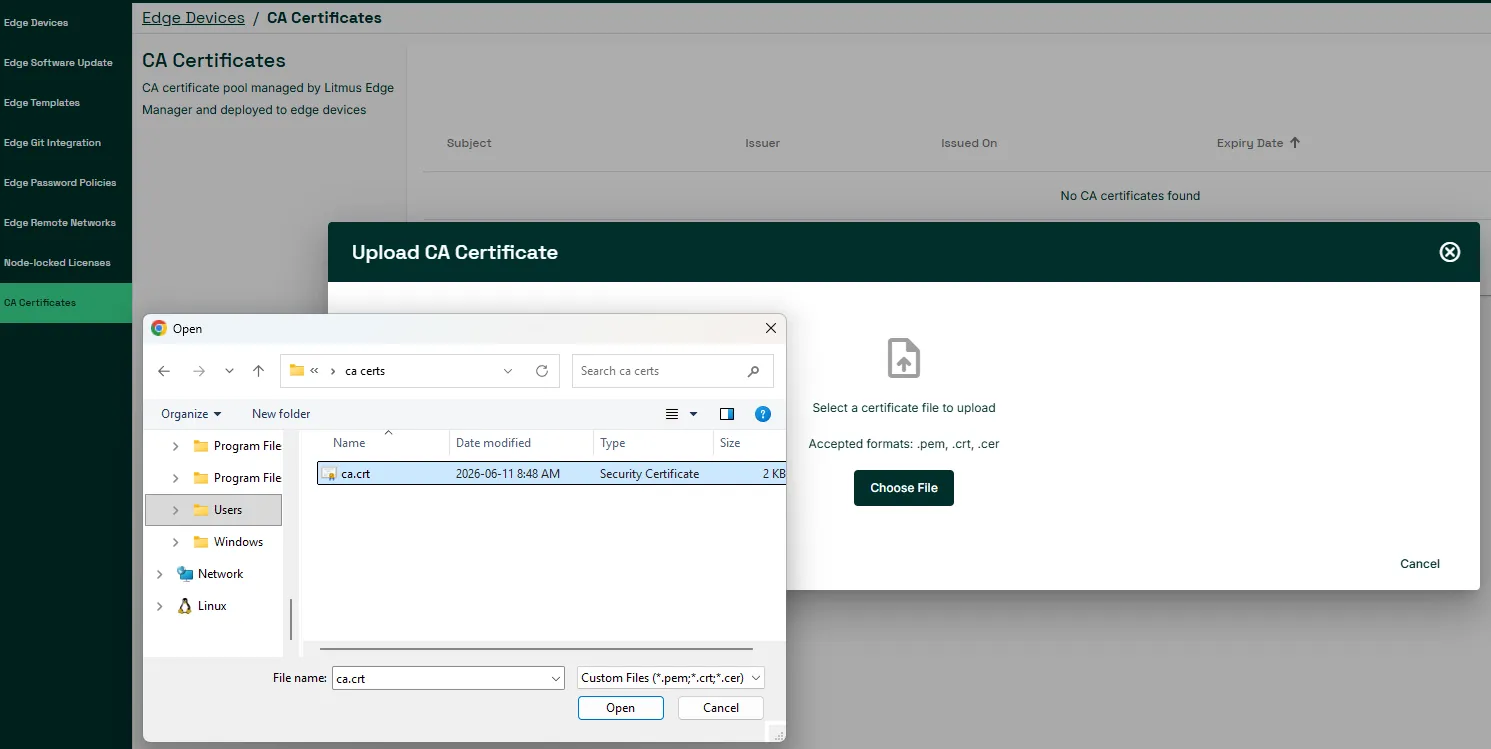
- The Upload CA Certificate dialog, click Choose. Navigate to and select your certificate file.
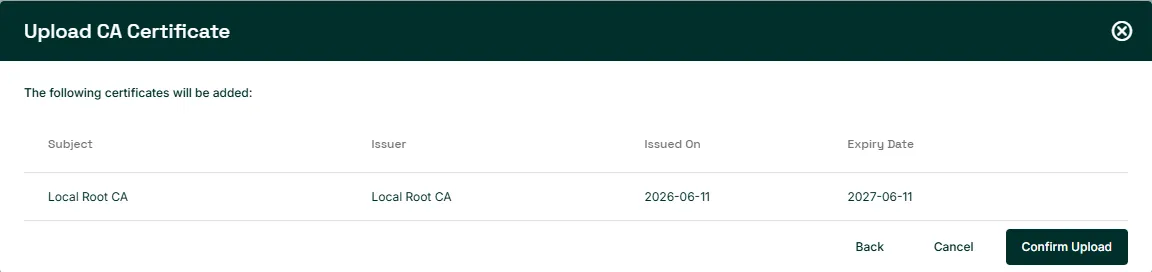
- Review the certificate information displayed in the dialog.
- Click Confirm Upload.
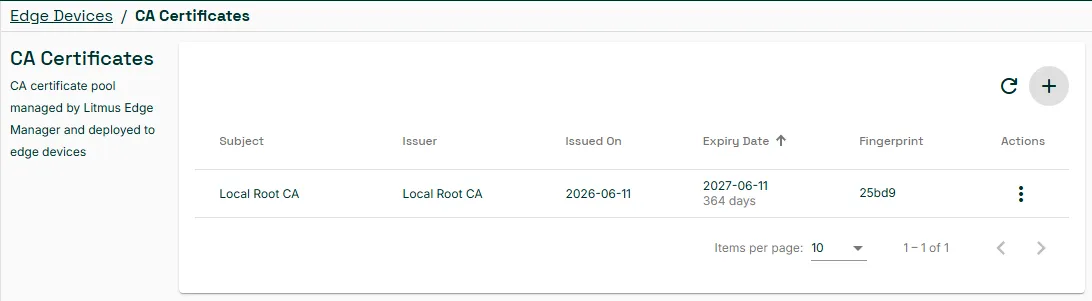
The certificate appears in the CA Certificates list and is queued for deployment to connected edge devices.
Note: Newly activated devices receive the current CA bundle automatically during provisioning and do not require a manual sync.
Step 2: Sync CA certificates to edge devices
After uploading a certificate, you must sync it to your edge devices. Syncing is managed at the project level from the User UI.
To sync CA certificates to your edge devices:
- In Litmus Edge Manager, select a company and project.
- From the navigation panel, select Certificates..
- In the Certificates Management page, a message displays indicating that devices are not synced.
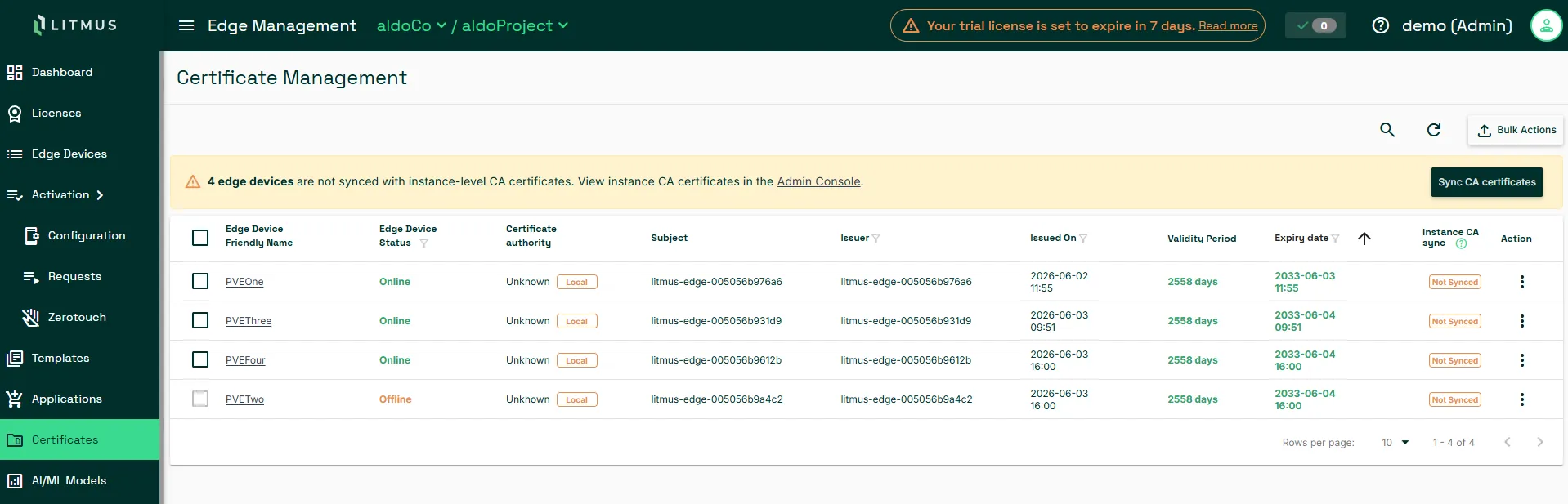
- Click Sync CA Certificates.
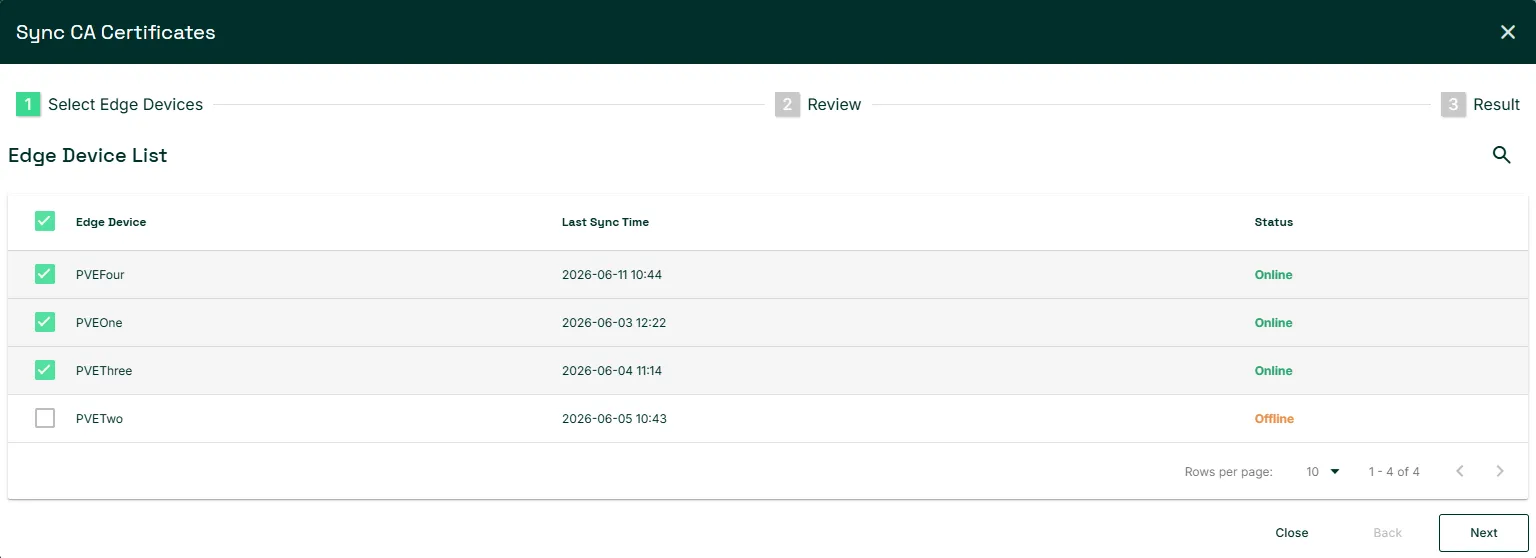
- The Sync CA Certificates dialog, select one or more devices to sync. Click Next.
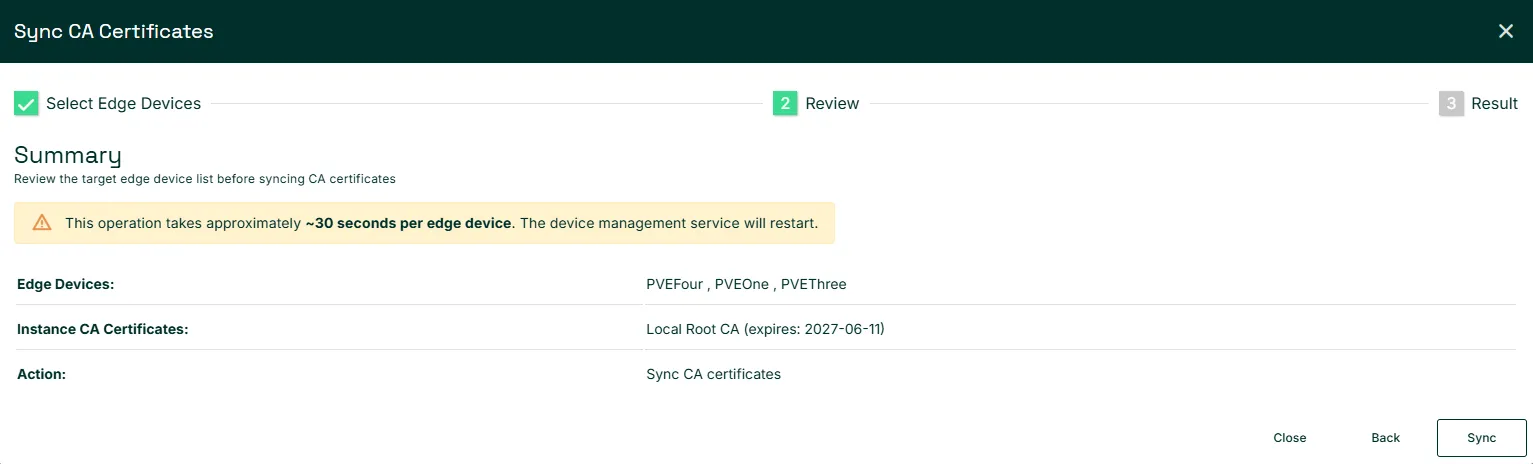
- In the Review tab, click Sync. Synchronization runs in the background.
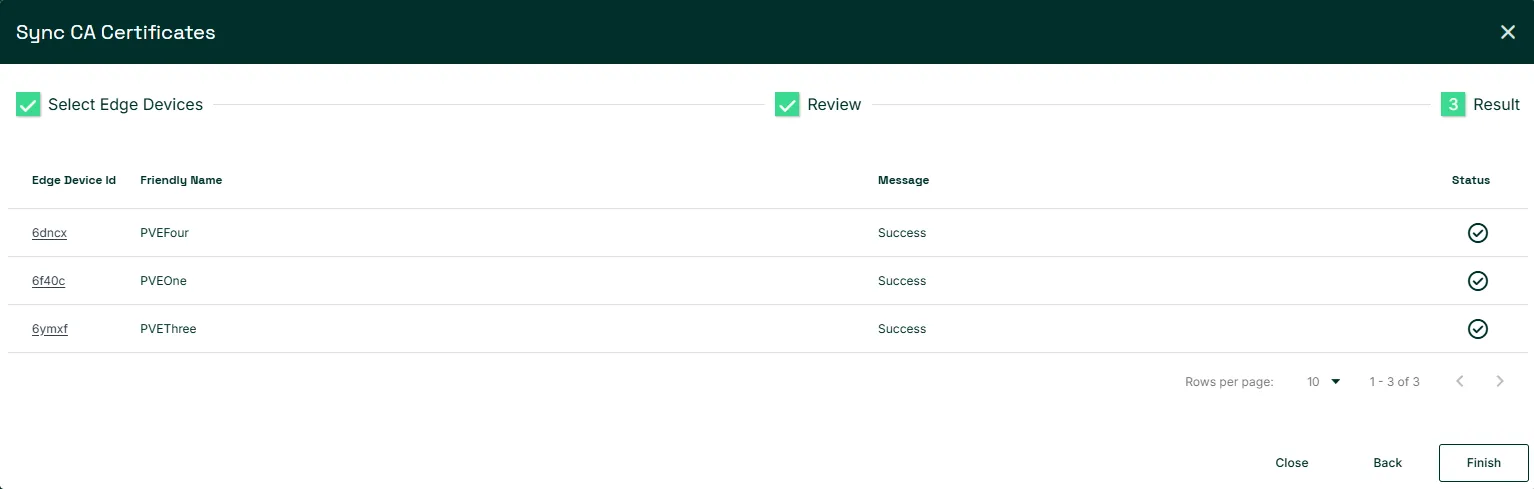
- Click Finish to close the dialog.
Caution: Syncing CA certificates restarts the device management service on each device. This takes approximately 30 seconds per device and causes a brief interruption to connectors during restart.
Verify CA certificate sync
To confirm that your certificates have been successfully synced to your devices:
In the Instance CA sync column, confirm that the status for each target device no longer shows Not Synced.
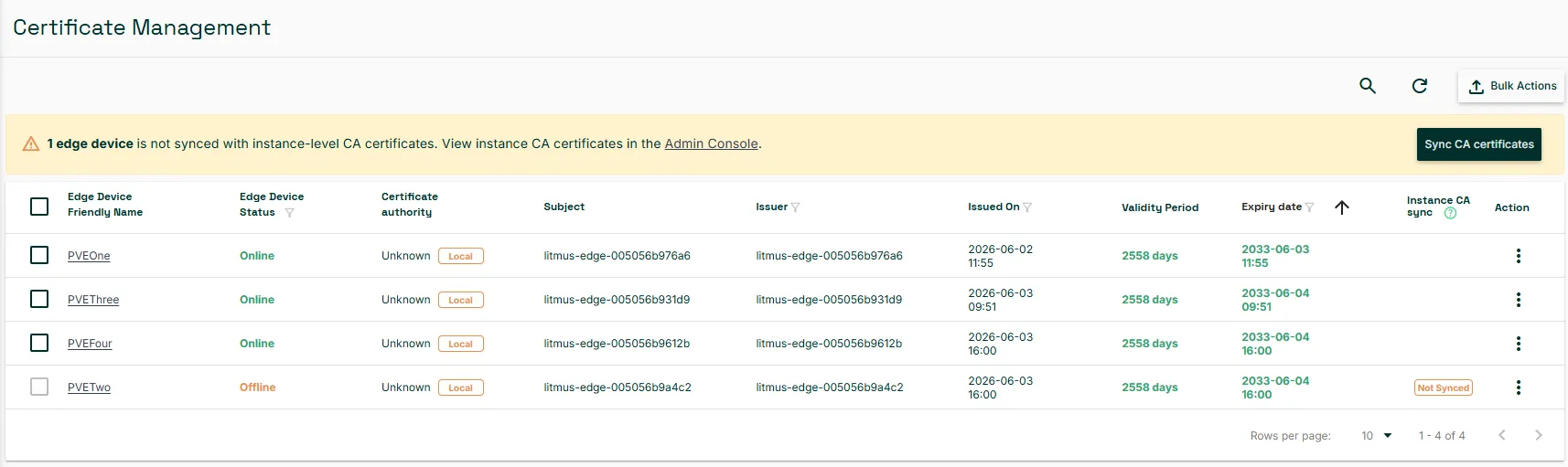
The following statuses may appear during and after a sync:
Status | Description |
|---|---|
Pending | A sync has been triggered and is queued. |
In Progress | The sync is running on this device. |
Failed | The sync failed. Retry by selecting the device and clicking Sync again. |
Related topics
- CA CertificatesCA Certificates