Domain and SSL
Use the Settings > Domain/SSL pane to configure the domain name, SSL settings, and Edge Remote endpoint for Litmus Edge Manager (LEM). This pane includes the following sections:
- Domain
- SSL settings
- Edge Remote
SSL certificate workflow
You can use either of the following methods to add an SSL certificate to Litmus Edge (LE) or Litmus Edge Manager (LEM):
- Manual request process
- DigiCert IoT Trust Manager integration
Method 1: Manual request process

- Step 1: You will need to request an SSL certificate from your IT team.
- Step 2: Your IT team will make a request for the SSL certificate from a certificate authority (CA) (for example, Let's Encrypt, DigiCert).
- Step 3: The CA will return the following to your IT team.
- The root CA certificate file
- Any required intermediate certificates
- The SSL certificate file
- Step 4: The IT team will send you the following.
- The root certificate file
- Any required intermediate certificates
- The SSL certificate file
- The private key file
- Step 5: You will apply the following in either Litmus Edge Manager (see SSL Settings section below) or Litmus Edge (see Add a Device Certificate).
- The CA chain file (root CA file and all intermediate certificates)
- The SSL certificate
- The private key file
Method 2: DigiCert IoT trust manager integration

- Step 1: Set up DigiCert IoT Trust Manager integration through the Litmus Edge Manager Admin Console.
- Step 2: Access DigiCert IoT Trust Manager to retrieve the URL, Profile ID, and Passcode, then configure the CA for Litmus Edge Manager (LEM) and Litmus Edge (LE).
- Step 3: DigiCert IoT Trust Manager Handles the Entire Certificate Management Process including:
- Issuing the SSL certificate
- Managing the CA chain file
- Private key file
- Step 4: Apply and issue certificates to your edge devices through Litmus Edge Manager.
Domain settings
Use the domain name to access Litmus Edge Manager without knowing the IP address. This helps when you configure settings:
- Base domain name: The basic domain name is used by clients accessing the Litmus Edge Manager Admin Console, Litmus Edge Manager Application, and Keycloak application.
Before you begin
Ensure a DNS server exists to handle requests by clients using the domain name.

Action | Details |
|---|---|
[1] Edit Base Domain Name | Changing the domain name can cause connection issues such as disconnecting all previously connected edge devices. It is recommended that you make DNS changes prior to configuring the rest of your settings. The domain name also causes an update to the certificates. It may be necessary to accept new certificates after reloading the current browser tab. See Browser Access Restrictions for more information.
|
[2] Copy |
|
[3] View Domain Log | Enabling auto-scroll is helpful when running an import process. |
[4] Save base domain name | Save the base domain name |
SSL settings
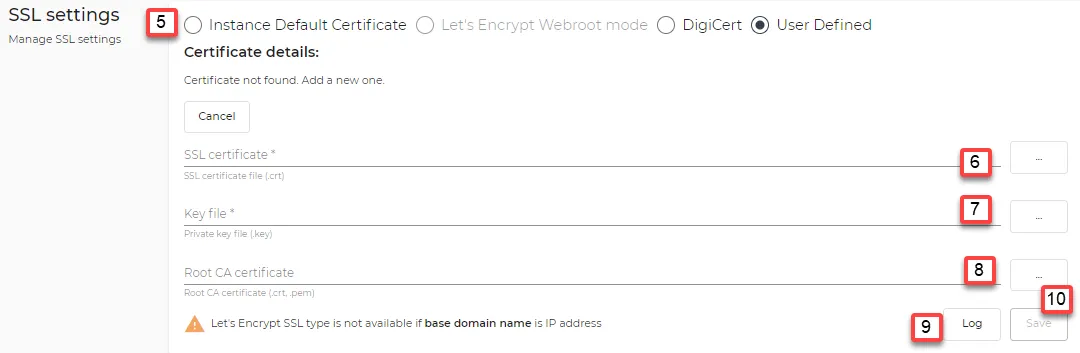
Select one of the following SSL settings:
- Instance Default Certificate: Use the default self-signed SSL certificate that Litmus Edge Manager creates during deployment for HTTPS and MQTT SSL.
- Let's Encrypt Webroot mode: Use Let's Encrypt Webroot mode. Enter your web server domain name in the Domain section. You cannot use an IP address. This option is intended for publicly exposed web servers and is not recommended for private networks.
- DigiCert: Use the DigiCert option with a unique passcode for each LEM instance. Store this passcode securely in the admin interface to manage the certificate process reliably.
- User Defined: Use a self-signed certificate file (.crt or .pem) and a private key file (.key or .pem) that you upload to Litmus Edge Manager. Upload the same certificate to the connected edge device. When you upload the certificate and key together, LEM validates that they match. If they do not match, the upload is rejected, and the existing certificate remains in place.
Action | Details |
|---|---|
[5] Select SSL Setting |
|
[6] (User-Defined Only) Upload SSL Certificate | Upload the SSL certificate file. LEM validates the certificate against the uploaded private key before it accepts the new certificate. |
[7] (User-Defined Only) Key file | Upload the private key file. If the uploaded key does not match the certificate, the upload is rejected, and the previous certificate remains active. |
[8] (User-Defined Only) Root CA Certificate | Upload a CA chain file. Creating a CA (Certificate Authority) chain file involves consolidating the required certificates to establish a trust hierarchy for secure communication. Usually, you need the intermediate certificates that link your SSL certificate to the root certificate. Combine all required certificates into a single file. See the example below. |
[9] View SSL Log | Enable auto-scroll to make the log easier to review during an import. |
[10] Save SSL Settings | Save the SSL settings for future use. |
Example: You have the following intermediate certificates: intermediate1.pem and intermediate2.pem. You create a CA chain file by combining the intermediate certificates with the root certificate (root.pem) with the following command: cat intermediate1.pem intermediate2.pem root.pem > ca-chain.pem. The CA chain file is named ca-chain.pem.
Edge Remote
The Edge Remote endpoint is the location of the Litmus Edge Manager remote service that forms a private secured connection between this Litmus Edge Manager instance and all of its associated Litmus Edge devices. This endpoint can be used for a DNS or an IP address.
By default and in most circumstances, the Edge Remote endpoint will be identical to the Litmus Edge Manager instance's IP address/DNS.
The only exception is when the Litmus Edge Manager is deployed on Google Kubernetes Engine. In this deployment situation, the IP address of the Litmus Edge Manager and the IP address of the LEM remote service will differ. The IP address of the Litmus Edge Manager remote service will be generated by Kubernetes and should be set as the Edge Remote endpoint accordingly. If a DNS is associated with the IP address received from Kubernetes, then the DNS should likewise also be set as the Edge Remote endpoint accordingly. Setting the DNS this way prevents the need to reactivate Litmus Edge devices when the Litmus Edge Manager IP address changes.
Refer to the following actions you can take on Litmus Edge Manager Admin Console's Domain/SSL pane.

Action | Details |
|---|---|
[11] Edit Edge Remote | Edit the Edge Remote option. |
[12] Copy | Copy Edge Remote endpoint. |
[13] Save Edge Remote endpoint | You can only save when the DNS/IP address is valid. |