Audit log
Overview
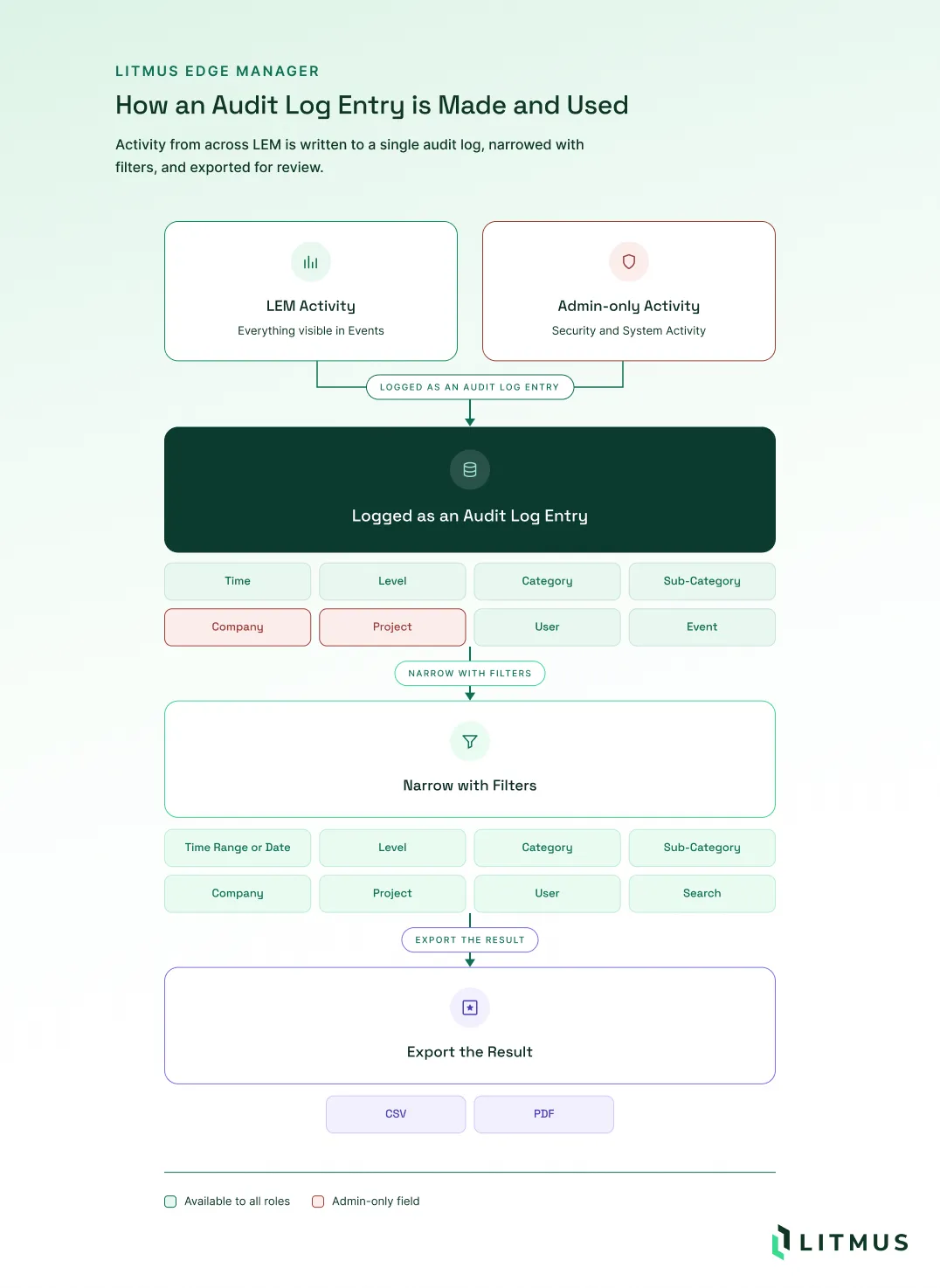
The Audit Log in Litmus Edge Manager (LEM) provides visibility into platform activity. The Audit Log in Litmus Edge Manager (LEM) is the administrator's searchable record of activity across the whole platform. It records administrator-level activity and activity that is not tied to any company, such as logins, user and role changes, license changes, software updates, and system backups, in addition to the activity that users see in Events in the Edge Management app.
Use the Audit Log to review activity across companies and projects, investigate unexpected changes, and see who did what and when. It shows more detail than non-administrator users see in Events.
Whether an entry appears in Events depends on the entry, not on its category. Events shows one company at a time. Users without administrator access see only user-level entries for their company, and administrators also see administrator-level entries for it. Entries that are not tied to a company appear only in the Audit Log.
Audit log categories
Each entry has a category and a sub-category. In addition to the categories visible in Events (Device Lifecycle, Data Pipeline, Applications, and AI/ML), the Audit Log includes categories that only administrators can see, such as:
- AI/ML: Activity for AI/ML models and for AI/ML models on edge devices. Sub-categories: AI/ML model, Edge device AI/ML model.
- Alerts: Alert rules, triggers, notifications, and responses. Sub-categories: Alert rule, Alert trigger, Notification, Alert acknowledgement, Alert resolution, Automated response, Platform rule override.
- Applications: Marketplace applications, Grafana, edge device system services, and templates. Sub-categories: Marketplace application, MPCS, Grafana, Edge device system service, Template applied, Template updated, Template parameterized, Template variable mapping updated.
- Asset Management: Industrial asset hierarchy and Digital Twins activity. Sub-categories: Industrial Asset Hierarchy, Digital Twins.
- Certificates: Certificates on edge devices, and SSL certificates. Sub-categories: Edge device certificate, Edge device CA certificate update, SSL certificate.
- Data Pipeline: Data collection and forwarding, integrations, configuration export and import, Git synchronization, Docker registries, data lifecycle, and audit log forwarding. Sub-categories: Edge device analytics, Edge device log forwarding, Edge device events forwarding, Data pipeline integration configuration, Git synchronization, Instance configuration export, Instance configuration import, Database dump download, Docker registry image, Docker registry configuration, Data lifecycle policy, Audit log forwarding to remote syslog.
- Device Lifecycle: Edge device activation, deactivation, connectivity, and high availability. Activation codes, including when a code is used, and administrators approving or declining activation requests are recorded here. Sub-categories: Edge device, Edge device activation, Edge device deactivation, Edge device connectivity, Edge device high availability, Batch edge device management.
- Licenses: License and license server activity. License actions include activating a license online or offline, upgrading, removing, generating, or applying a license to a device, and changing the license type. Sub-categories: LEM instance license, License server configuration, Edge device license pool, Edge license generation, Edge license provisioning.
- Security: Sign-in and access activity, and sessions that an administrator ends in the Keycloak admin console, for one user or for all users. Sub-categories: User login, User logout, Failed login attempt, Unauthorized access attempt.
- Software Updates: Upgrades of Litmus Edge (LE) firmware and of LEM, including the previous version and the new version. Sub-categories: LE firmware upgrade, LEM self-upgrade.
- System: System configuration and maintenance, including system backups. Sub-categories: System configuration, System backup, Cloud provider credentials, VPN configuration, Password policy, Experimental feature, Instance reboot, Support bundle, Audit Settings, Audit Report, GCP SA keys rotation, Files, Report stats, Async subtask.
- User Management: Changes to companies, projects, teams, users, roles, and identity settings. Sub-categories: Company, Project, Project grant permissions, Project revoke permissions, Team, Team member, MQTT account, MQTT DM account, Edge device OAuth client, User, Role, User password, API token, OIDC configuration, Identity provider, Audit.
The Audit Log also records changes made in the Keycloak admin console to users, to role assignments for a user, to realm and client roles, and to identity providers and their mappers.
Note: The Audit Log does not record changes made in the Keycloak admin console to realm settings, clients, client scopes, groups, or group and client-scope role mappings.
Use the filters to narrow the entries by time range or date, level, category, sub-category, company, project, or user. Use the search field to find entries by message text, user, source IP, or the ID of the affected object, such as a device ID, username, backup file name, or project ID. Search covers all matching entries, not only the entries on the page you see. The ID of the affected object does not appear in the list or in exports.
Audit Log entry details
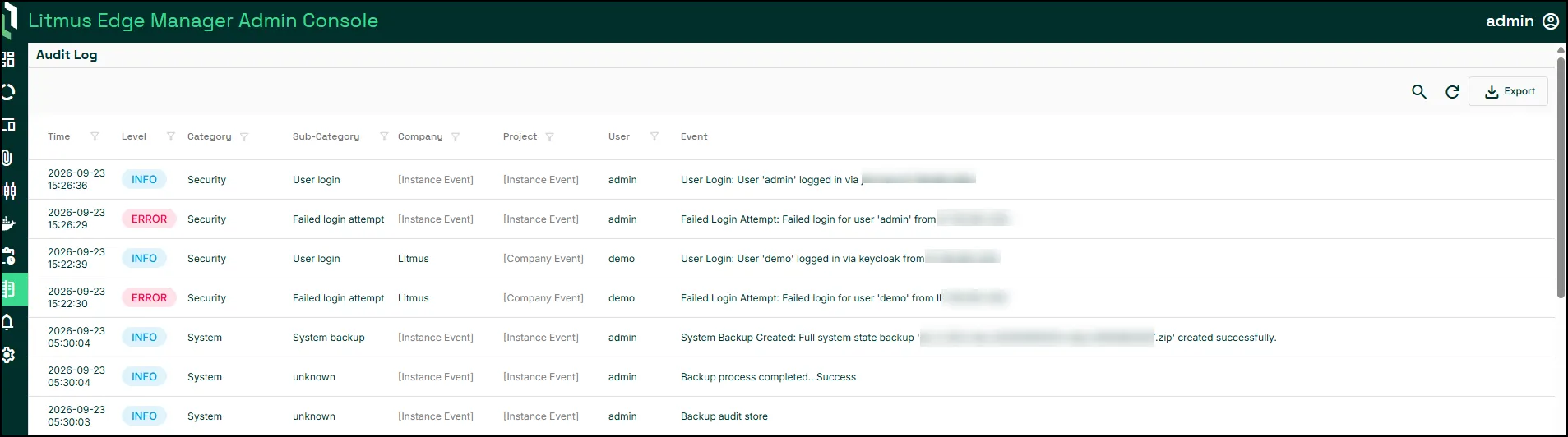
Each audit log entry includes the following columns.
Field | Description |
|---|---|
Time | The date and time shown for the entry. |
Level | The severity shown for the entry, for example INFO or ERROR. |
Category | The category associated with the entry, for example Security. |
Sub-Category | The specific type of event within the category, for example User login. |
Company | The company the entry belongs to, when applicable. |
Project | The project the entry belongs to, when applicable. |
User | The user shown for the entry, when available. |
Event | The description shown for the entry. |
An entry that is not tied to a specific company or project shows a placeholder in the Company or Project column, such as Instance Event or Company Event.
Export Audit Log entries
Use Export to save audit log entries as a CSV or PDF file. The exported file includes a source IP column that the page does not show. For steps, see View the audit log.