Deploy on Google Kubernetes Engine (GKE)
You can deploy Litmus Edge Manager on Google Kubernetes Engine (GKE).
Before you begin
Before you begin, ensure that you have:
- A valid Google Cloud Platform (GCP) project with permissions to create and manage Kubernetes clusters. See Creating and managing projects and Access control in GKE for details.
- Familiarity with the Google Cloud Console and Cloud Shell.
- The Litmus Google registry credential key file (e.g., LEM_pull_Key_file.json) available and uploaded to your working environment
To manually deploy Litmus Edge Manager on Google Kubernetes Engine (GKE), you will need to do the following.
- Step 1: Setup Your GKE Cluster in Your GCP Project
- Step 2: Connect to Your Cluster
- Step 3: Execute Kubectl and Helm Commands
- Step 4: Access the Litmus Edge Manager UI using the obtained IP address
Step 1: Setup your GKE cluster in your Google Cloud Platform (GCP) project
To set up your GKE cluster in your Google Cloud Platform (GCP) project:
- Log in to your Google Cloud Console.
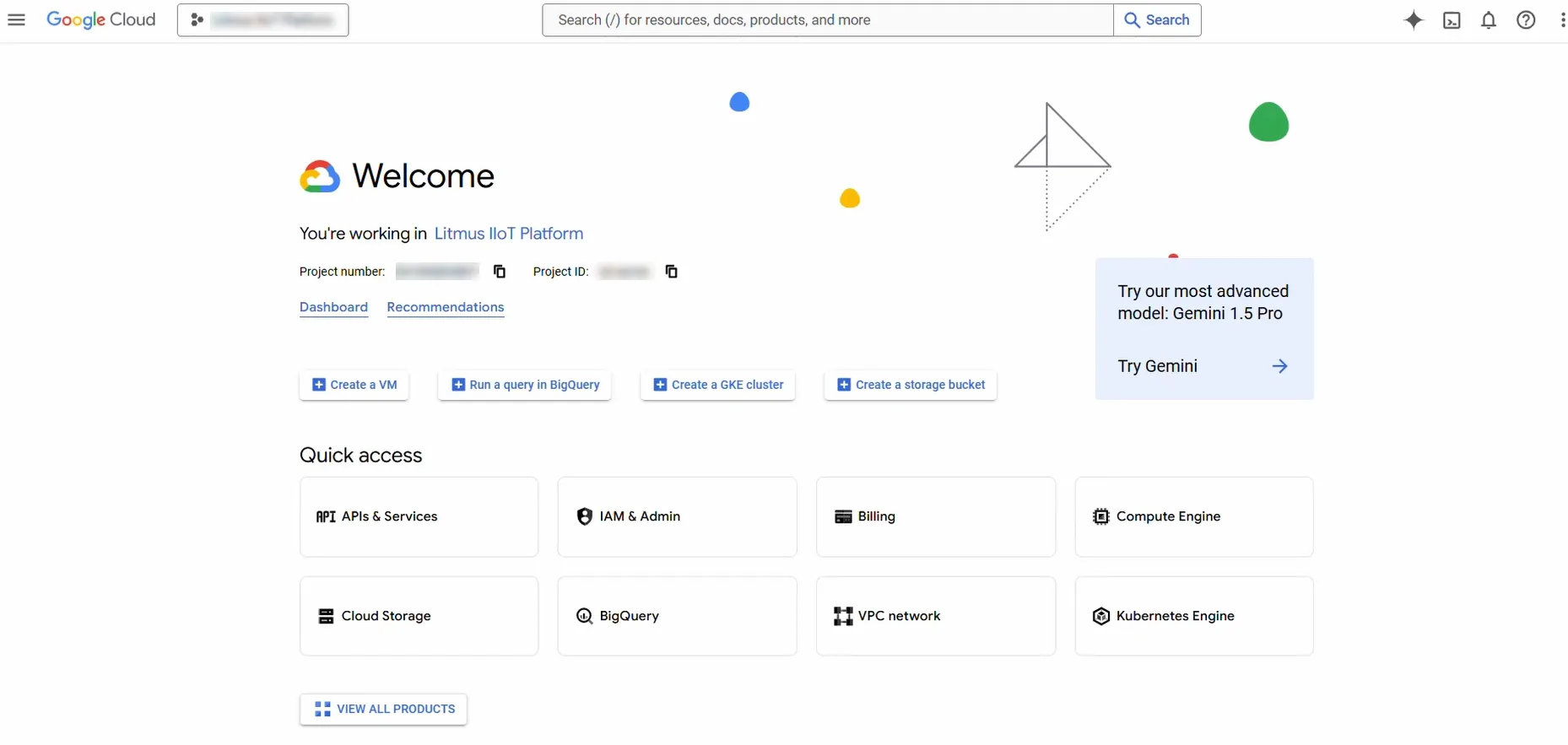
- Select your GCP project, then navigate to Kubernetes Engine from the main menu. You will land on the Overview page of Kubernetes Engine.
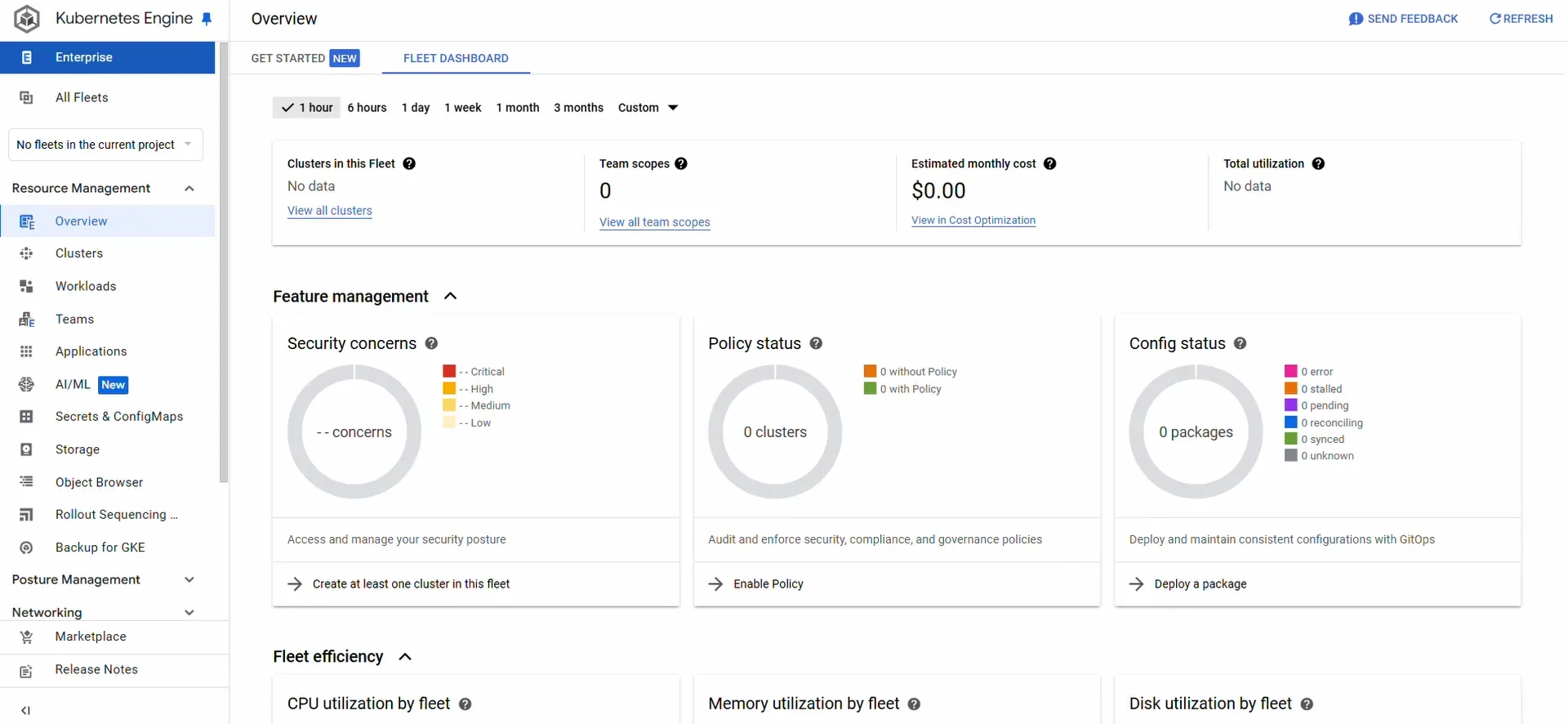
- Click on Clusters from the side menu and then click Create to configure a new Kubernetes cluster.
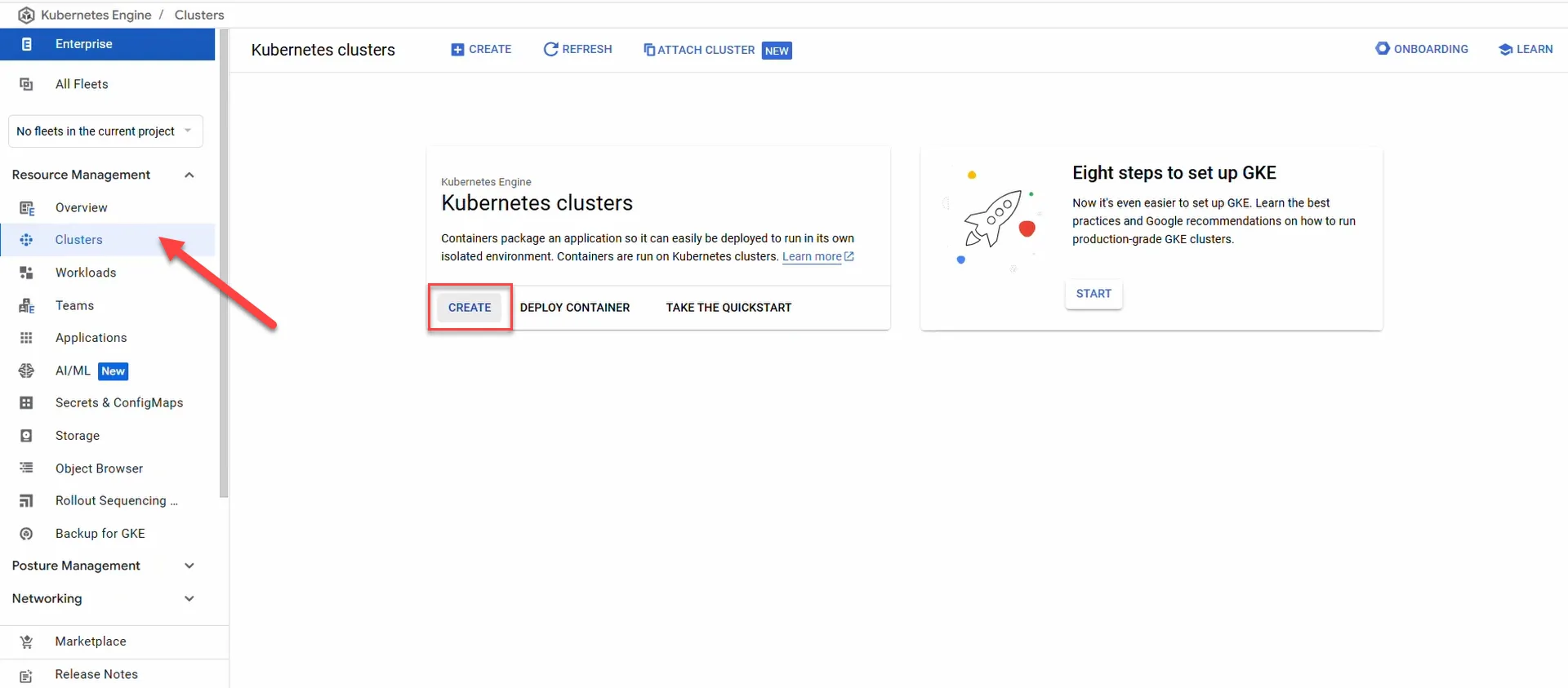
- On the Create an Autopilot cluster page, configure the following.
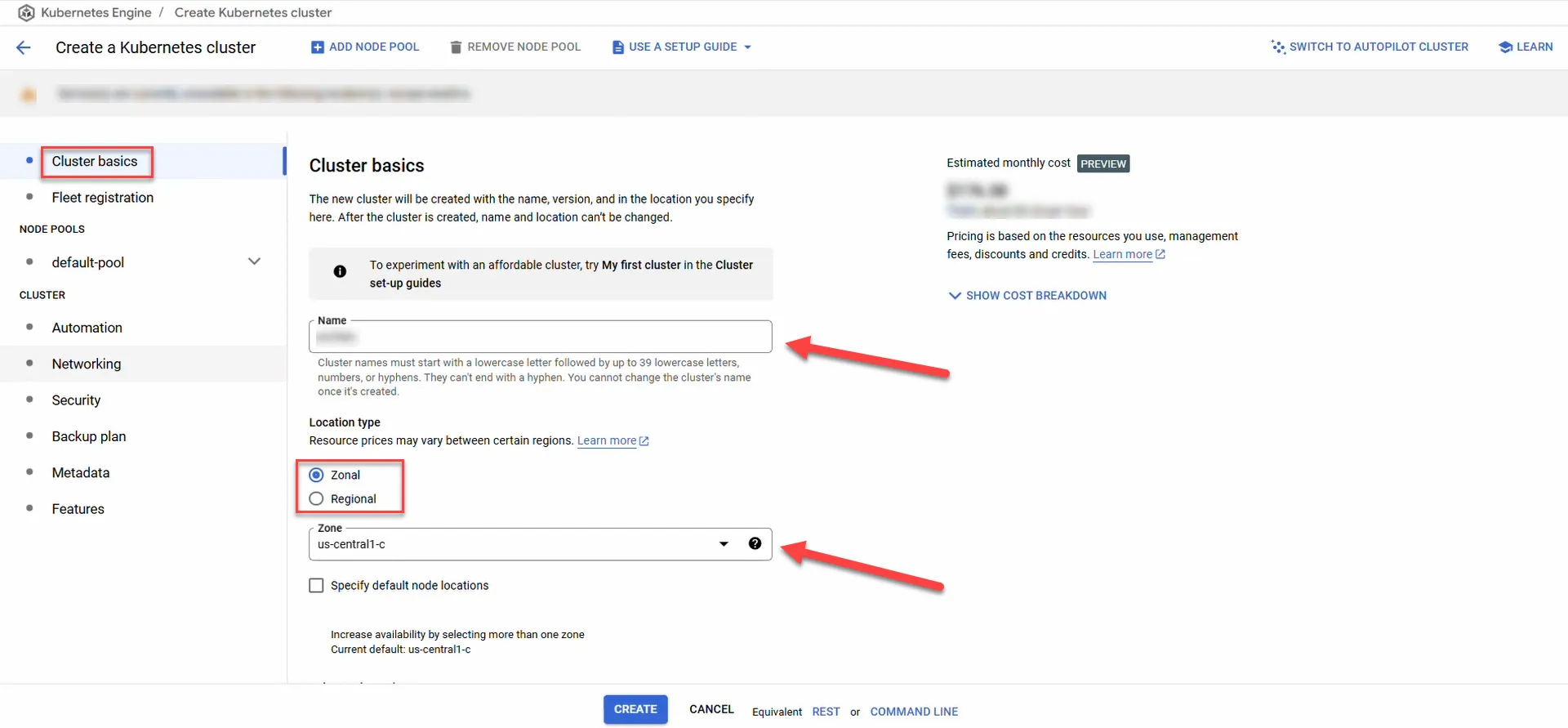
- Cluster basics:
- Switch to Standard Cluster option (if not already selected).
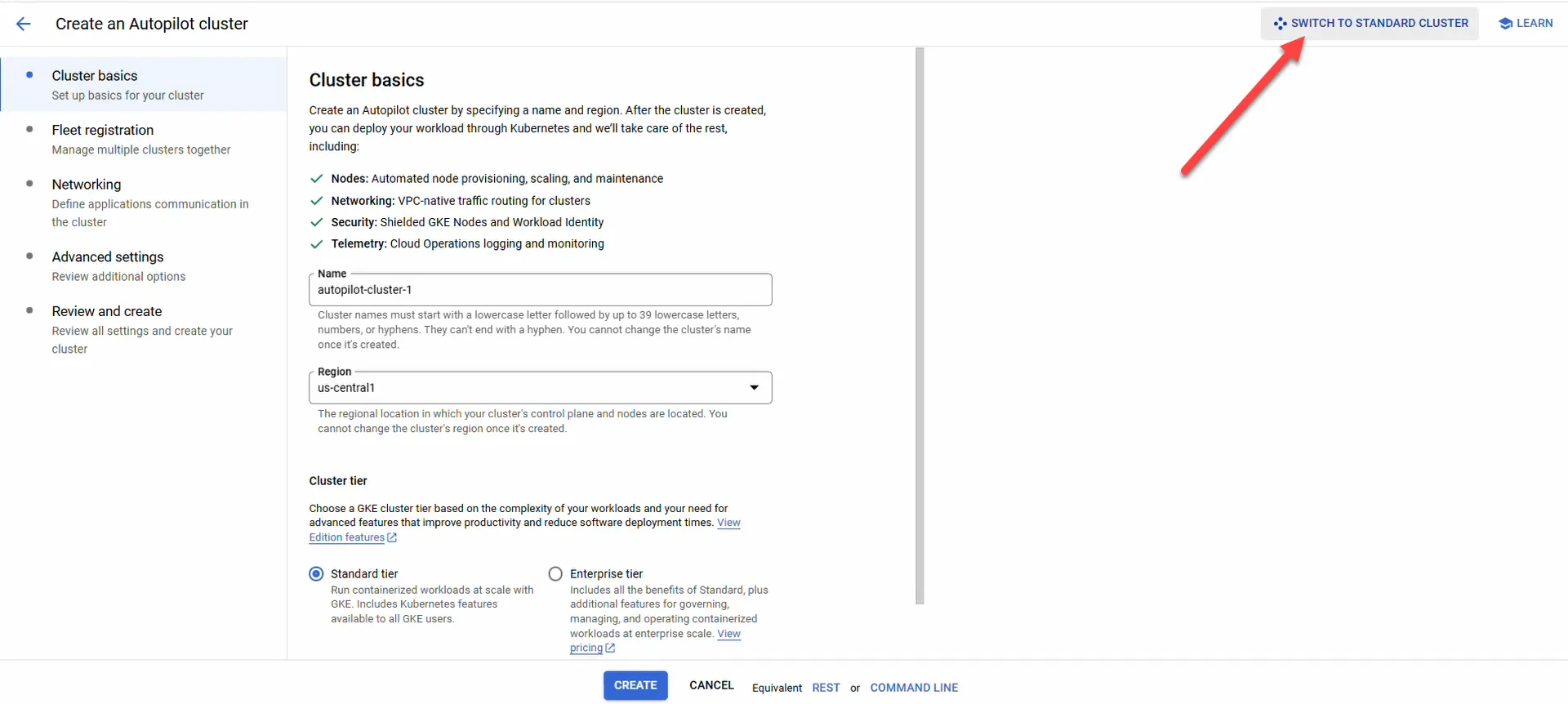
- Provide a name in lowercase (e.g., gke-cluster).
- Choose an appropriate region (e.g., US-Central) and select a Zonal location type.
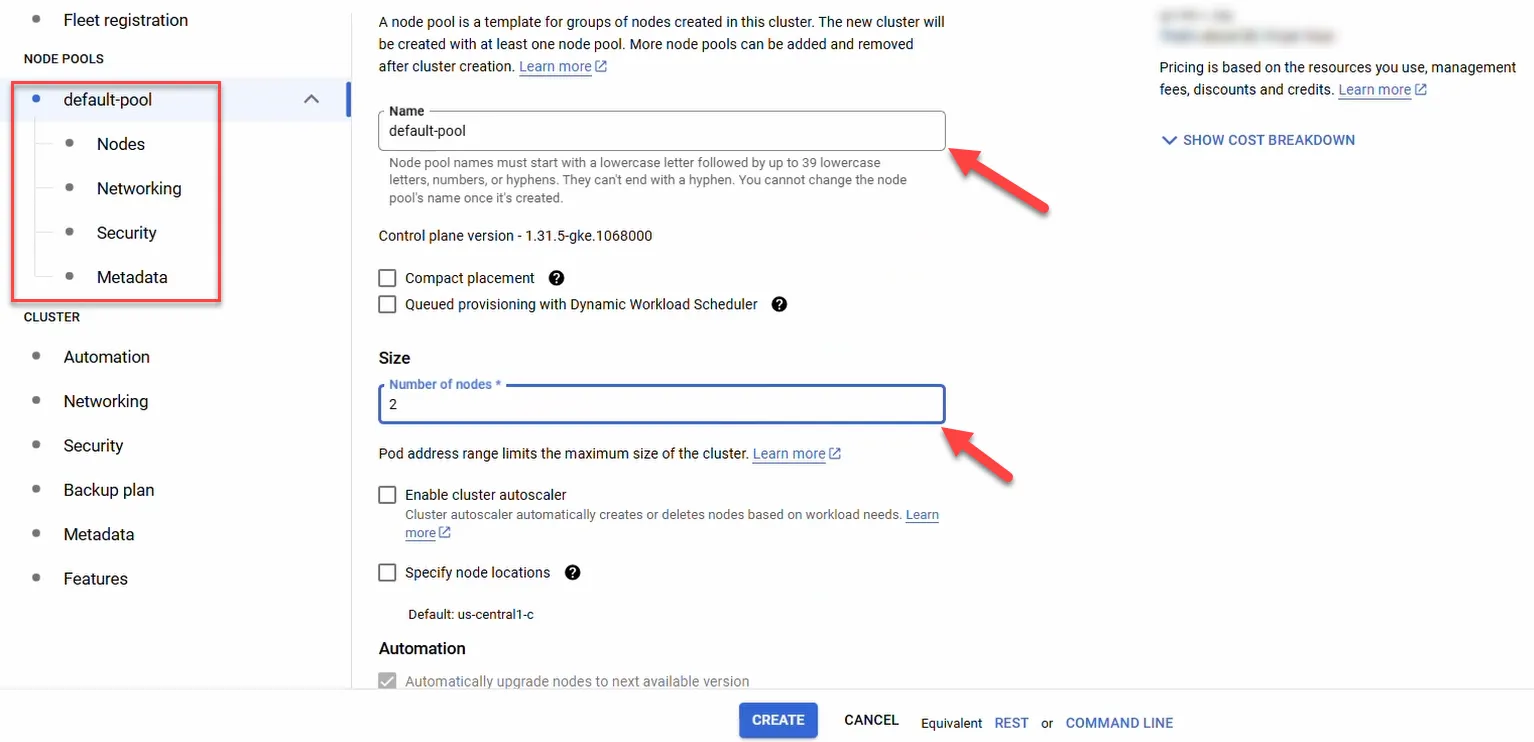
- Default Pool Configuration:
- Keep the default-pool name or modify as needed.
- Keep the Number of nodes at 2.
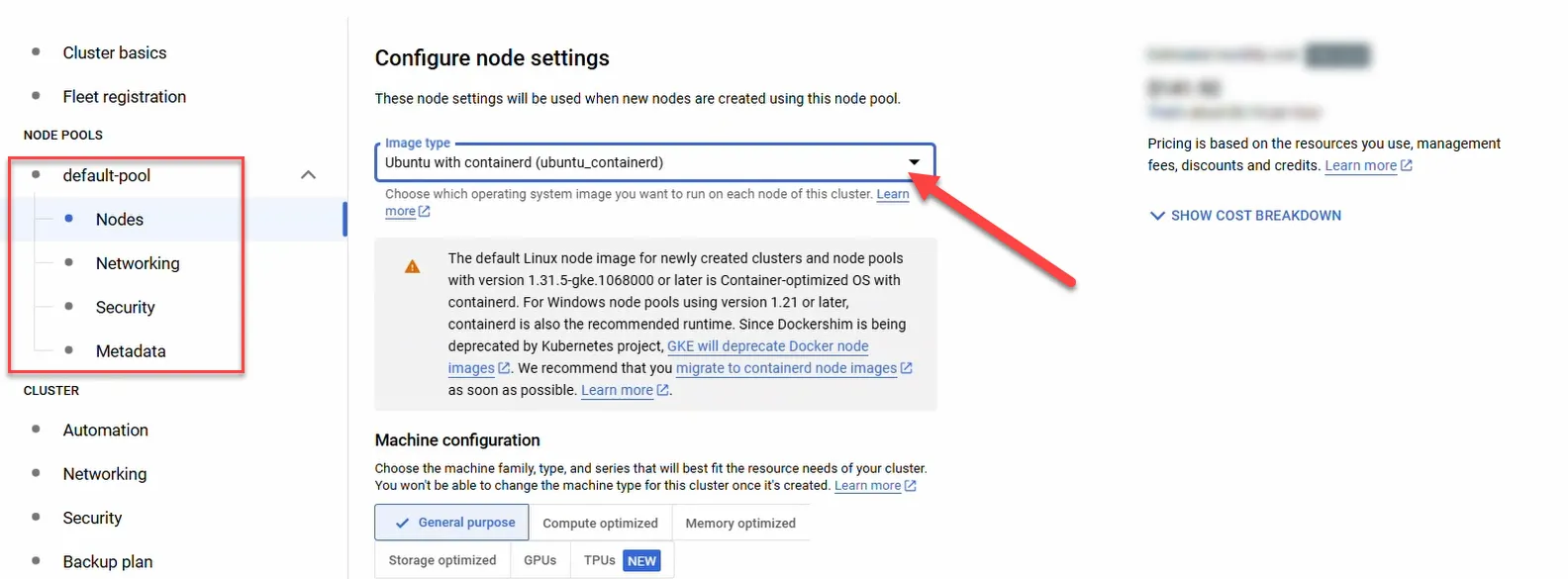
- For image type, select Ubuntu with containerd (ubuntu_containerd).
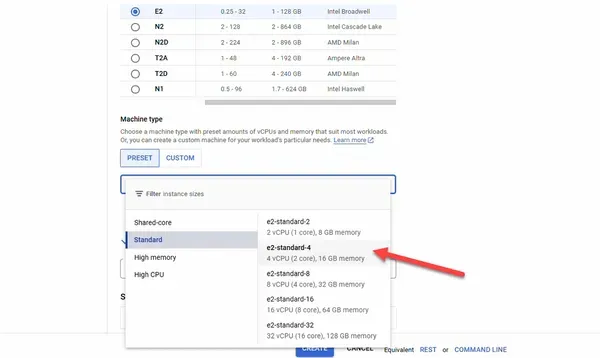
- Choose a machine type with at least 2 cores and 16 GB memory.
- Network & Security:
- Leave the default settings unless specific adjustments are required.
- Once configured, click Create to initiate the cluster provisioning. Cluster creation may take several minutes.
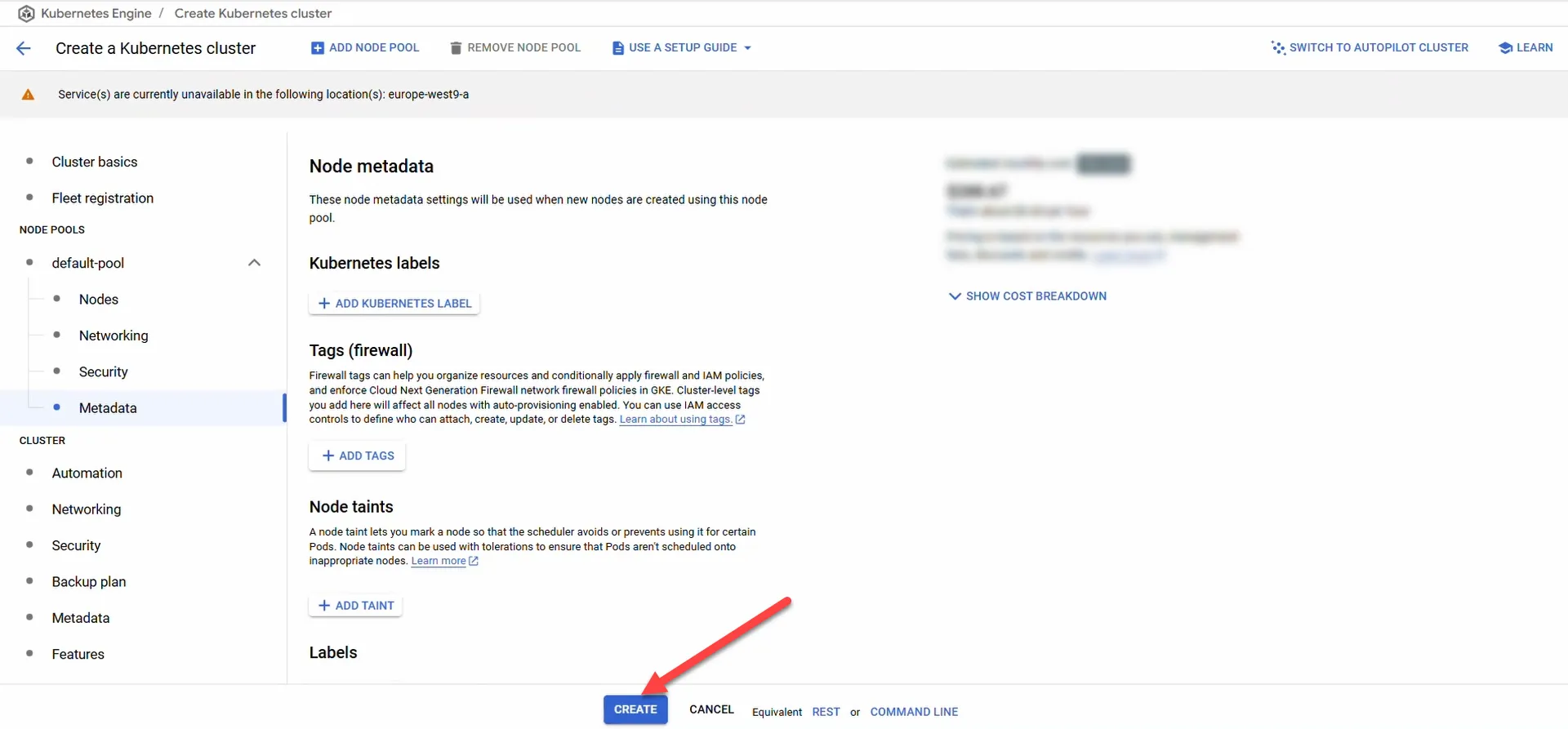
Note: Creating a cluster takes a few minutes, depending on the settings you choose. Please check the status or notifications for the latest information about your cluster.
Step 2: Connect to your cluster
Once your cluster is successfully created:
- In the GKE Clusters page, click on the Action button and then select Connect.
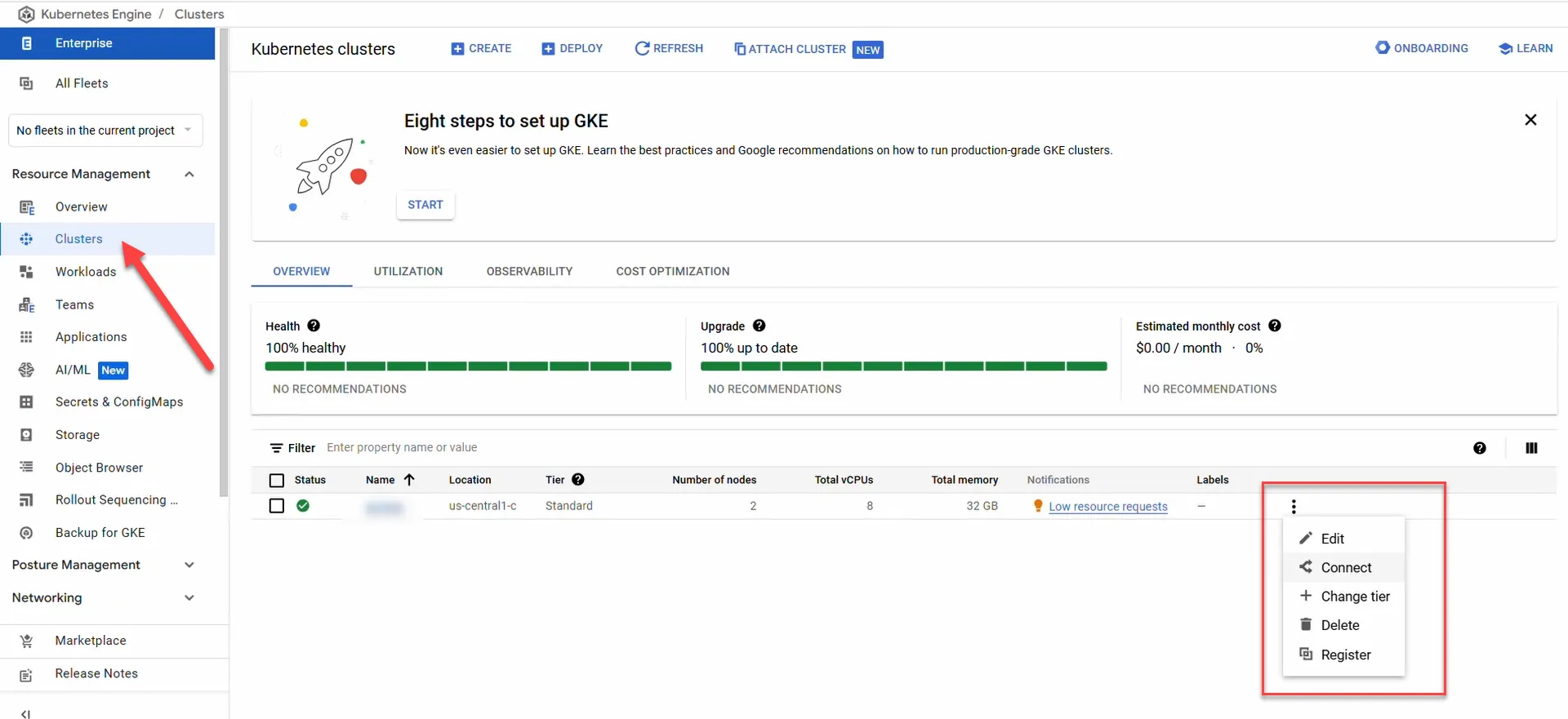
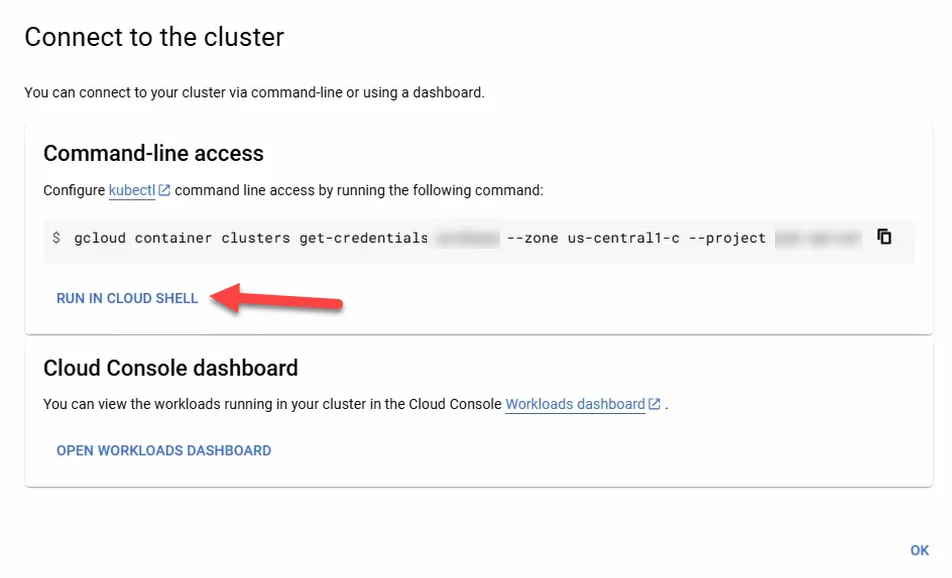
- You will be provided with the command-line instructions to connect your local Terminal or use the Cloud Shell option in GKE. Copy the provided command and run it in your terminal, or click RUN IN CLOUD SHELL to open the GKE. For this guide, we use the Cloud Shell in GKE.
Step 3: Execute Kubectl and helm commands
With your connection established, use the following commands to deploy Litmus Edge Manager from GKE:
Note: Keep your Google Registry Credential Key file in your workspace, as it's essential for authentication in deployment steps.

If you don't have the Google Registry Credential Key file in your workspace, click the Action button in the panel menu. Then select Upload. A dialog box will appear, prompting you to upload the file.

Click on File and then Choose Files to find the file on your computer.
After that, click Upload to send it to GKE.

1. Execute the following command to create a namespace for Litmus Edge Manager:
kubectl create namespace lem
2. Create Kubernetes secrets using Helm to securely store credentials. For example:
kubectl --namespace lem create secret docker-registry lem-helm-secret --docker-server=us-east1-docker.pkg.dev \
   --docker-username=_json_key --docker-password="$(cat lem-pull-key.json)" [email protected]
3. Install the Litmus Edge Manager using Helm. Adjust the version number (e.g., 2.25.0) as needed:
helm install lem oci://us-east1-docker.pkg.dev/litmus-public/lem-chart-ga/lem --version 2.25.0 --namespace lem
Important Notes:
- The command initiates the pull of the necessary container images. This process may take several minutes.
- After the deployment is completed, wait approximately five minutes before applying the Litmus Edge Manager(LEM) URLs and credentials.
- Instructions for accessing these URLs and credentials will be printed out for you.
4. To get the Litmus Edge Manager's external IP, run the following where <release_name>-nginx is your service name.
export LEM_URL=$(kubectl get svc litmus-edge-manager -n <release_name>-nginx -o jsonpath='{.status.loadBalancer.ingress[0].ip}')
echo $LEM_URL
5. To get the Username and Password, run:

Step 4: Access the Litmus Edge Manager using the obtained IP address
See Access Web User UI for details.
Note: Obtain the Site License key from your Litmus account executive to activate your license.
Conclusion
Litmus Edge Manager is deployed and operational on your GKE cluster. You can now access the manager’s UI using the external IP address and proceed with any additional configuration, such as license activation, via the admin console.
Review the below documents to learn more: