Modify Digital Twins model
You can customize a Digital Twins model before you deploy it, but customization is optional. Open the model from the Models pane to configure its static attributes, dynamic attributes, transformations, parameters, and schema.
Configure the model
After creating the model and defining a name, you can configure it with static and dynamic attributes and schema to represent your assets or data structures.
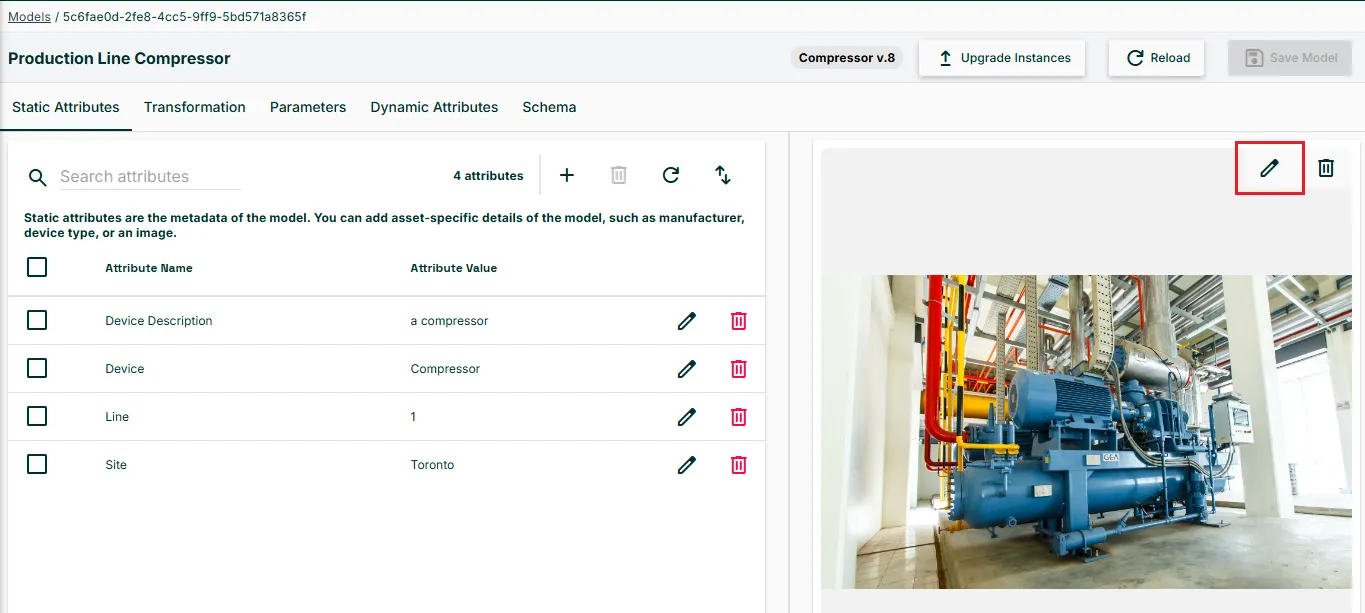
Model image
Select a model and click the Upload image icon to choose an image for the model. The image displays in the model tile on the Models pane.
Static attributes
When you create static attributes, you define default attribute values as placeholders. Later, you change the default values in model instances. For example, you might define Manufacturer , Device Description, Model and Plant attributes and change the static attribute values later in instances.
Manage the metadata for the model from the Static Attributes tab.
Add static attributes
If you need to filter existing attributes, you can use the search field.
To add static attributes:
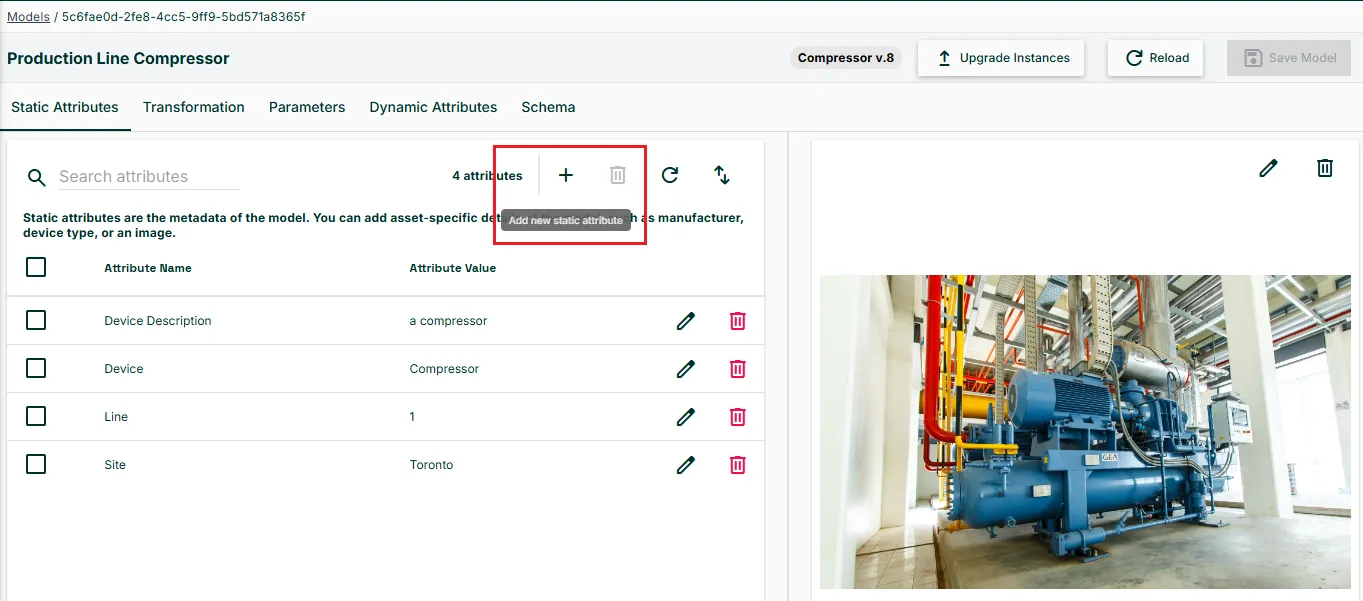
- From the Static Attributes tab, click Add new static attribute.
- In the Attribute Name field, either select an attribute from the drop-down list or enter a new attribute name.
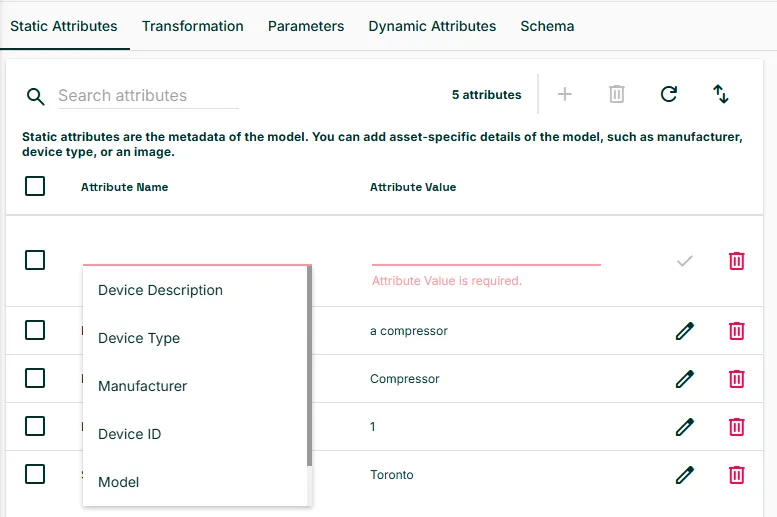
- In the Attribute Value field, enter a value for the attribute.
Import static attributes
Before importing, create a CSV file with the following headers, then add rows with attribute names and values.
Required Headers
- ModelName
- Key
- Value
Optional Headers
- InstanceName
After creating the file:
- Navigate to Static Attributes, and select Import Attributes.
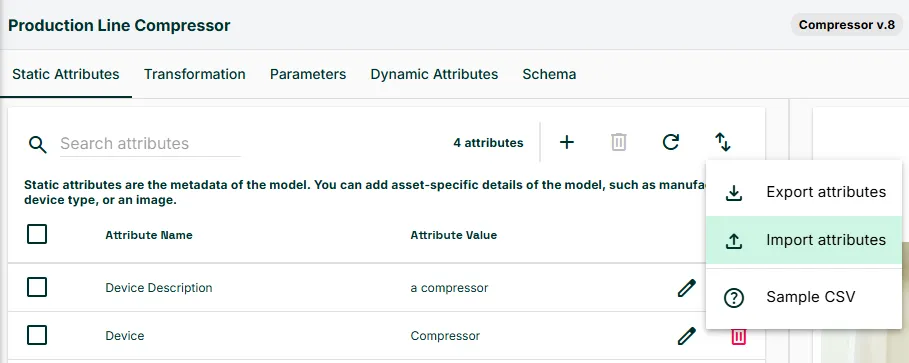
- In the dialog your browser opens, navigate to and open the CSV file.
Export static attributes
You can export all attributes to a CSV file, modify them offline, and import them again.
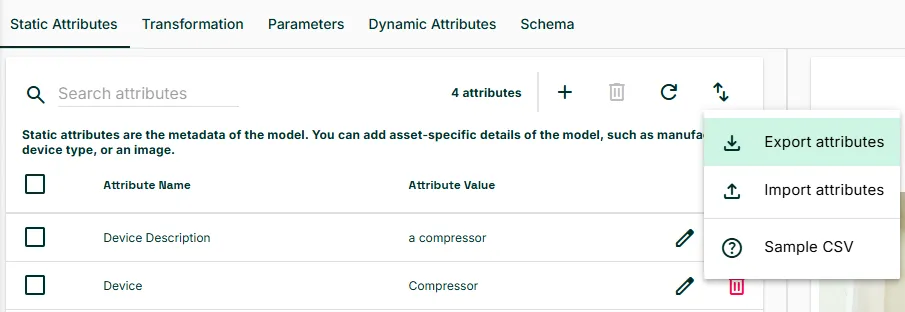
To export a CSV file with existing static attributes:
Navigate to Static Attributes, and select Export Attributes. Attributes export to a CSV file.
Dynamic attributes
Next, define dynamic attributes that represent real-time data for your asset. Dynamic attributes can be JSON, boolean, array, string, or number data types. A Nested Model data type is also available, which you add with its own icon. Each dynamic attribute can have an associated transformation.
Add dynamic attributes
To add a dynamic attribute:
- Click the Add item icon.
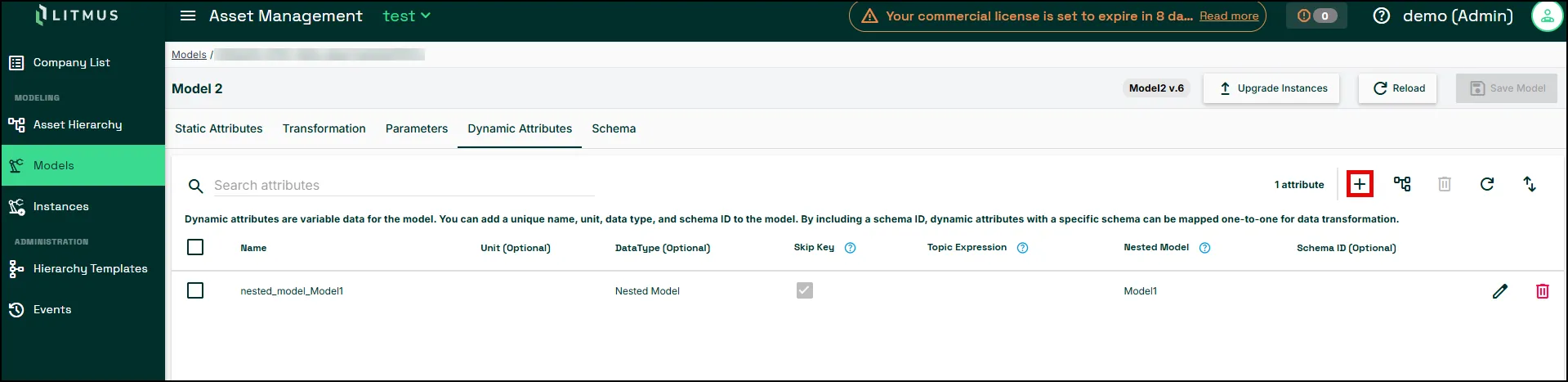
- In the Name field, enter a name for the attribute.
- Optionally, enter a value for Unit and select a Data Type. JSON applies if you do not specify a data type.
- The Skip Key option is only available when the data type is JSON or Nested Model. Select Skip Key to exclude a specific attribute from the payload. Note that the value persists in the payload, for example, as value='20'. For the effect on a Nested Model attribute, see Add a Nested Model attribute.
- Optionally, define a topic expression consisting of static string values and parameters by surrounding the expression in curly brackets {}. For example, devicehub.alias.{device}.tagname.
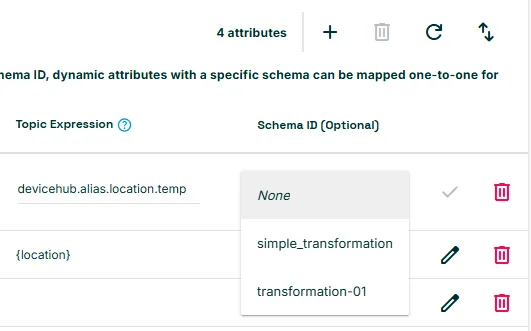
- Optionally, if you've created data transformation schemas, select one from the SchemaID field.
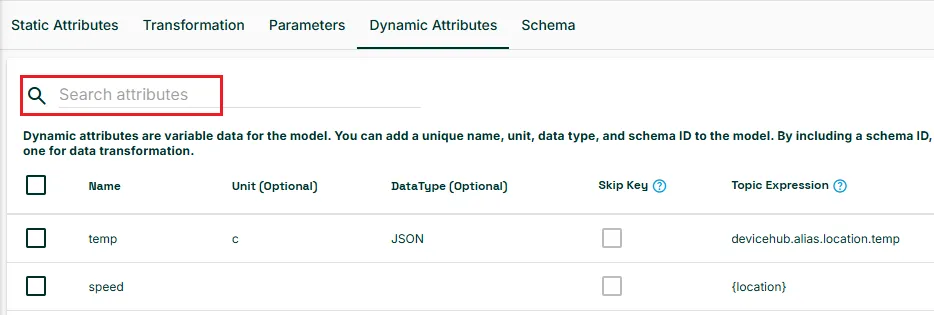
- If you need to filter existing attributes, you can use the search field.
Add a Nested Model attribute
A Nested Model attribute points at another Digital Twins instance instead of at a message broker topic. In the model, you choose the model that the attribute points at. The output of the instance that you bind is republished inside the parent payload. To splice the nested instance's keys directly into the parent payload instead, select Skip Key.
Note: Nested Model attributes require Litmus Edge 4.3.0 or later.
To add a Nested Model attribute:
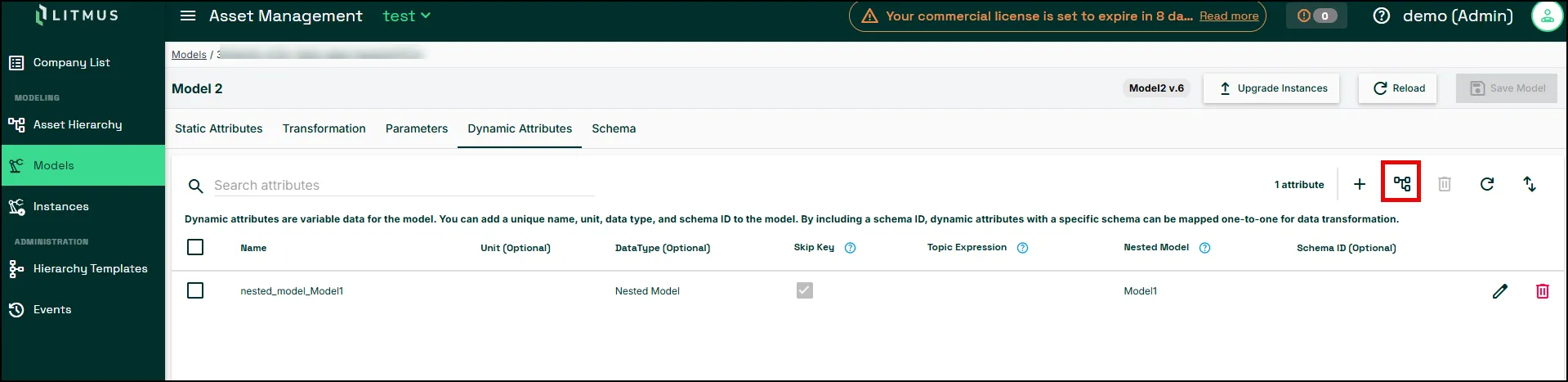
- From the Dynamic Attributes tab, click the Add Nested Model icon next to Add item. The Add Nested Model dialog appears.
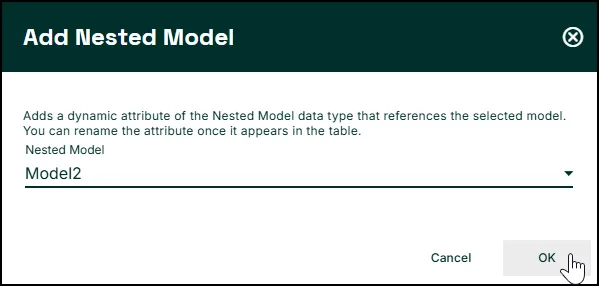
- From the Nested Model drop-down, select the model to reference.
- Click OK. A new row appears. Data Type is set to Nested Model, and the name defaults to nested_model_<model name>, for example nested_model_Model2.
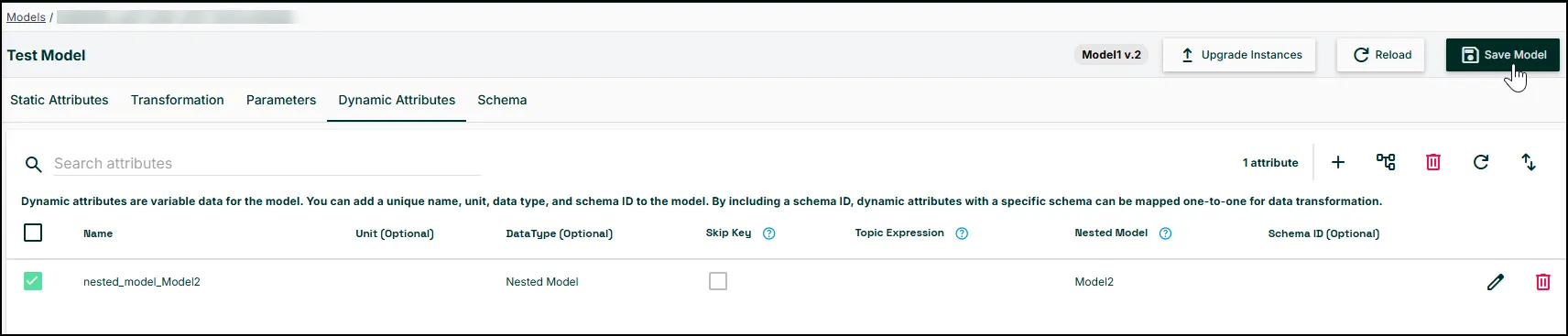
- Optionally, enter a new name in the Name field.
- Optionally, select Skip Key.
- Click the Apply changes icon at the end of the row.
- Click Save Model.
Import and export dynamic attributes
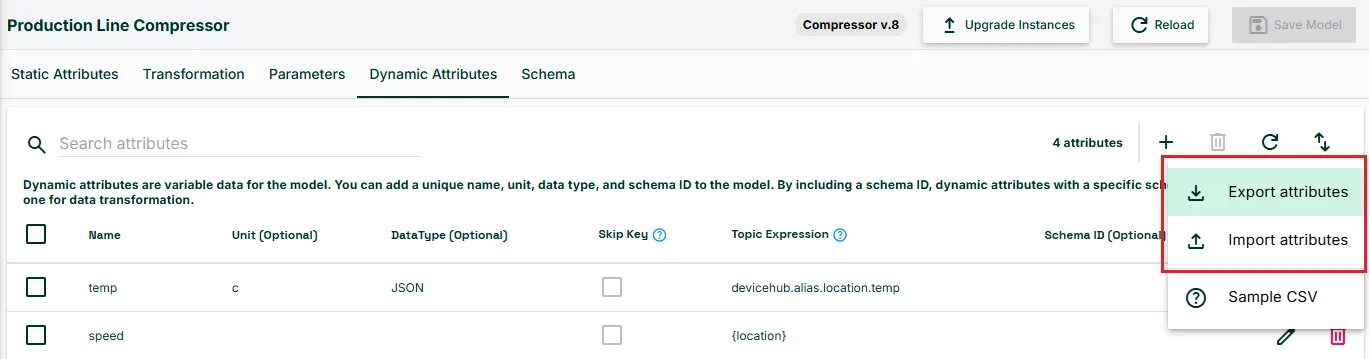
To import dynamic attributes, download the sample CSV file and populate it with your dynamic attributes. After creating the file, click the model tile, navigate to Dynamic Attributes, and click the Import Attributes icon.
To export a CSV file of existing dynamic attributes, click Export Attributes.
Transformations
Use transformations to convert the raw JSON data published on topics in the message broker to a desired format. Transformations apply to specific dynamic attributes and the resulting transformation is included in the full Digital Twins and Publish Attributes payloads. Transformations clean your data and make it easier for northbound systems to consume. For example, create a transformation that eliminates duplicate timestamps and register IDs in your payload.
Transformations parse and transform the payload and specify a payload structure as the model inherits data. See Use Digital Twins to Contextualize Data for information on formatting transformations.
With transformations, you can:
- Create a JSON transformation that filters specific key-value pairs . For example, this transformation only includes the following attributes in the payload.
}
  “value“: “$value“,
  “timestamp“: “$timestamp“:
}- Create a JSONata transformation to perform dynamic filtering. JSONata is a query language that allows logical conditions and computed outputs. For example, use JSONata to create an alert when a temperature tag exceeds a high or low threshold value.
{
  "asset": deviceName,
  "area": metadata.area,
  "line": metadata.line,
  "quality": success,
  "metric": "metric",
  "timestamp": $fromMillis(1510067557121, '[M01]/[D01]/[Y0001] [h#1]:[m01][P]'),
  "value": value
}- Use a playground to test out your transformations before adding them to a model.
You can also use the following system variables in transformations:
- {EDGE_DT_SYSTEM_TIME} device system time when the payload is published
- {EDGE_DT_MODEL_VERSION} version of the model the instance was created from
- {EDGE_DT_MODEL_NAME} name of model the instance was created from
- {EDGE_DT_MODEL_ID}unique identifier of the model.
- {EDGE_DT_INSTANCE_ID}unique identifier of the instance.
Configure transformations
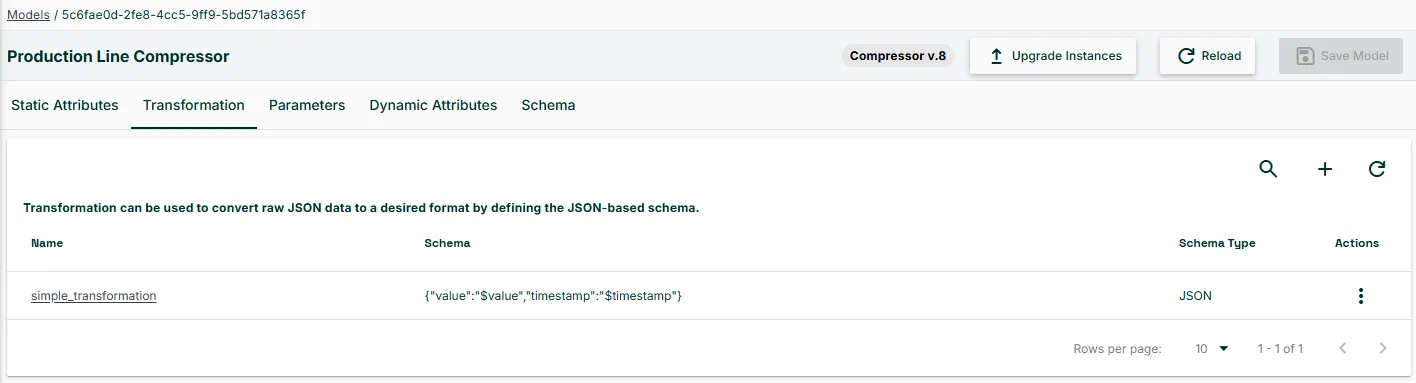
To add a transformation schema:
- Select the Transformation tab and click Add a Schema.
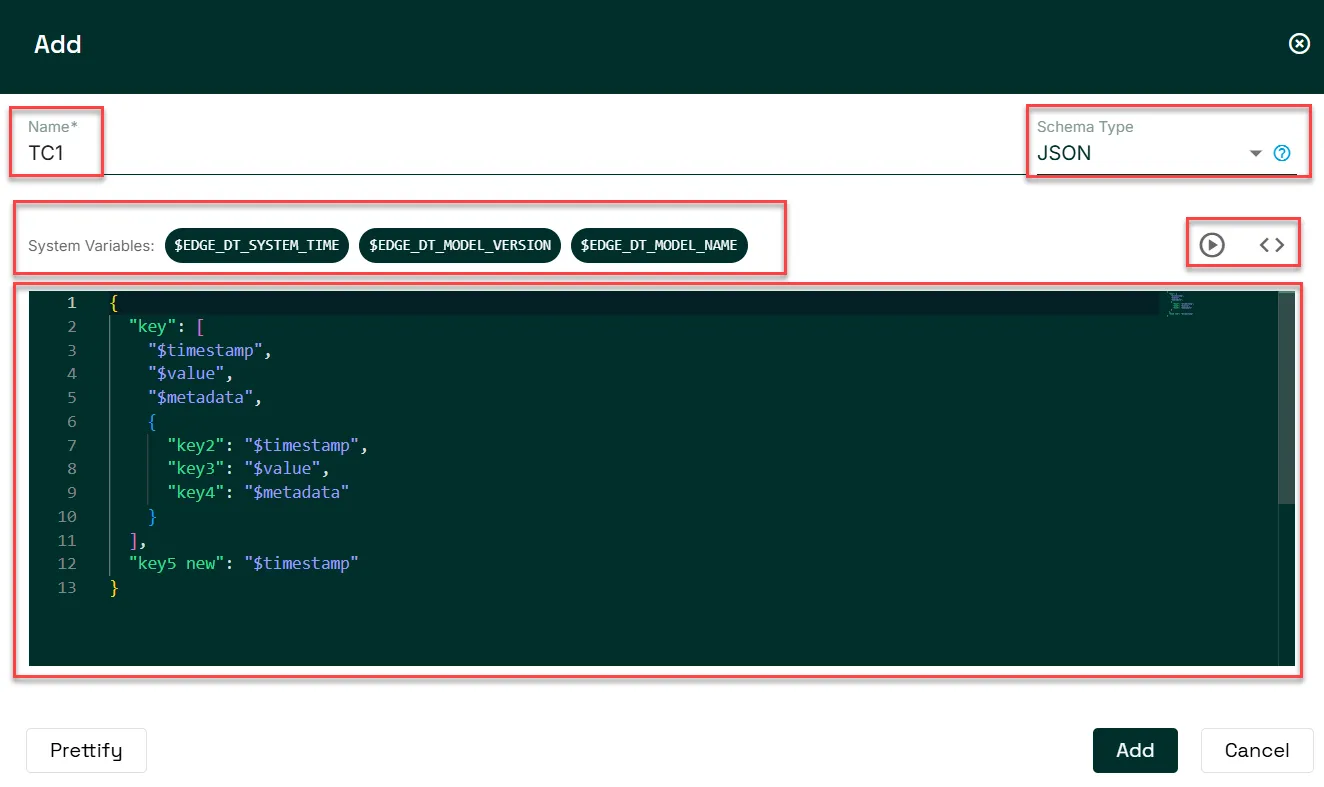
- Enter a name for the schema.
- Select from JSON or JSONata from Schema Type drop-down menu.
- In the code window, copy and paste the JSON-based or JSONata schema.
- (Optional) You can use the System Variables in the code drawer.
- Experiment in a playground.
- Click Add.
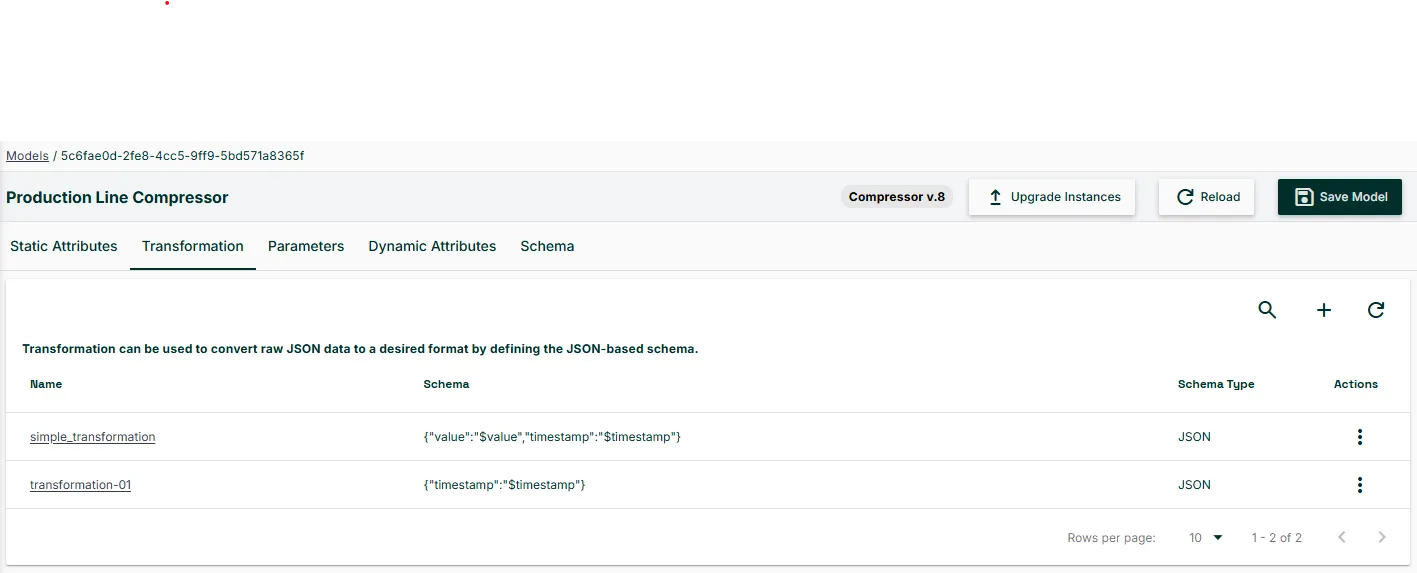
- To edit or delete a schema, click the Action menu for the schema and select an option.
- Apply the transformation to specific dynamic attributes.
Configure parameters
Parameters are variables that you can insert into topic expressions. Parameters help you save time when defining instances that have many attributes.
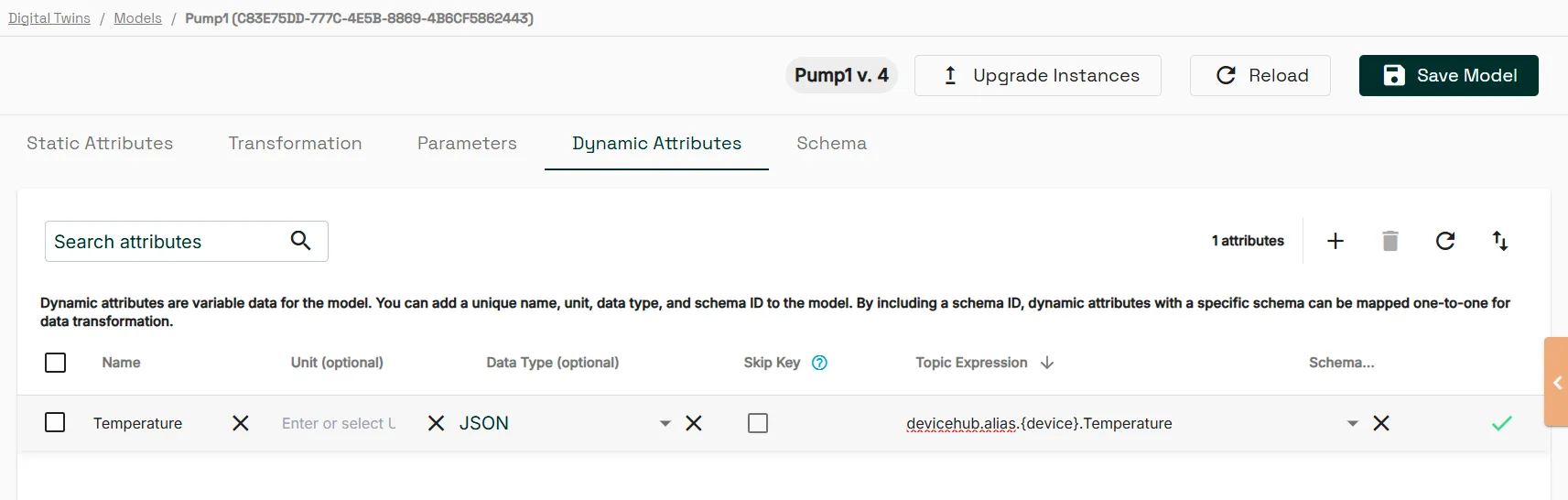
For example, define a device parameter and add it as a topic expression for a dynamic variable with the following syntax: devicehub.alias.{device}.tagname. Then modify the value for the device parameter for each instance on the Instance Parameters configuration page.
Note: Parameter names and values are case sensitive and cannot contain whitespaces. Allowed characters:
- A-Z in lowercase and uppercase
- 0-9
- Hyphen (-) and underscore (_) characters.
To create a parameter:
- Navigate to the Parameters tab and click Add Item.
- Enter a parameter name and a placeholder value.
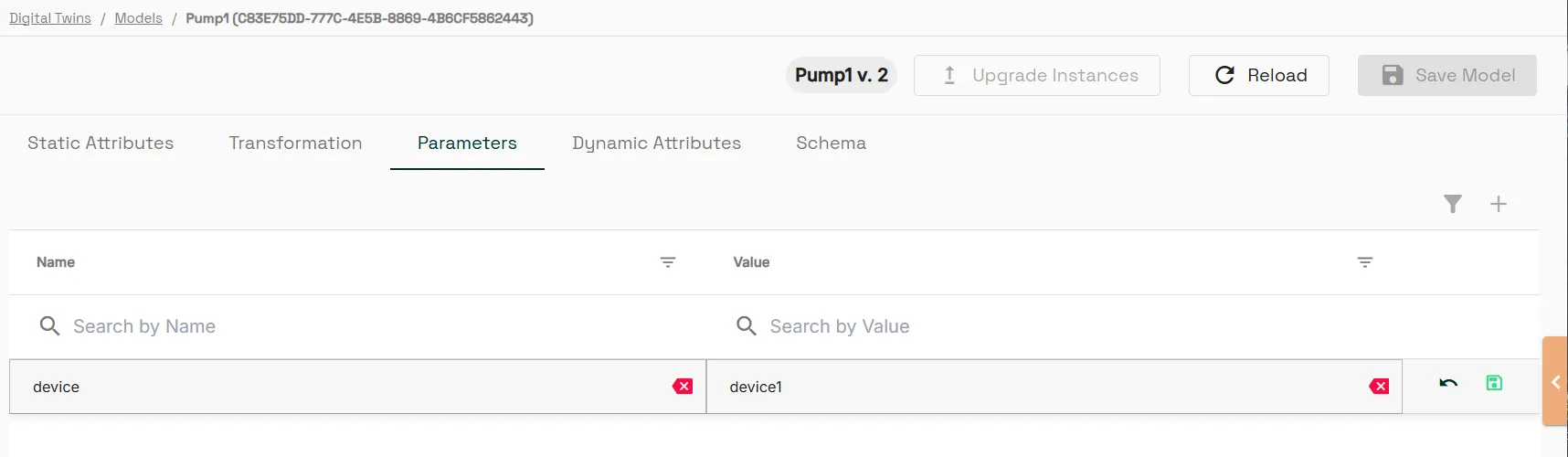
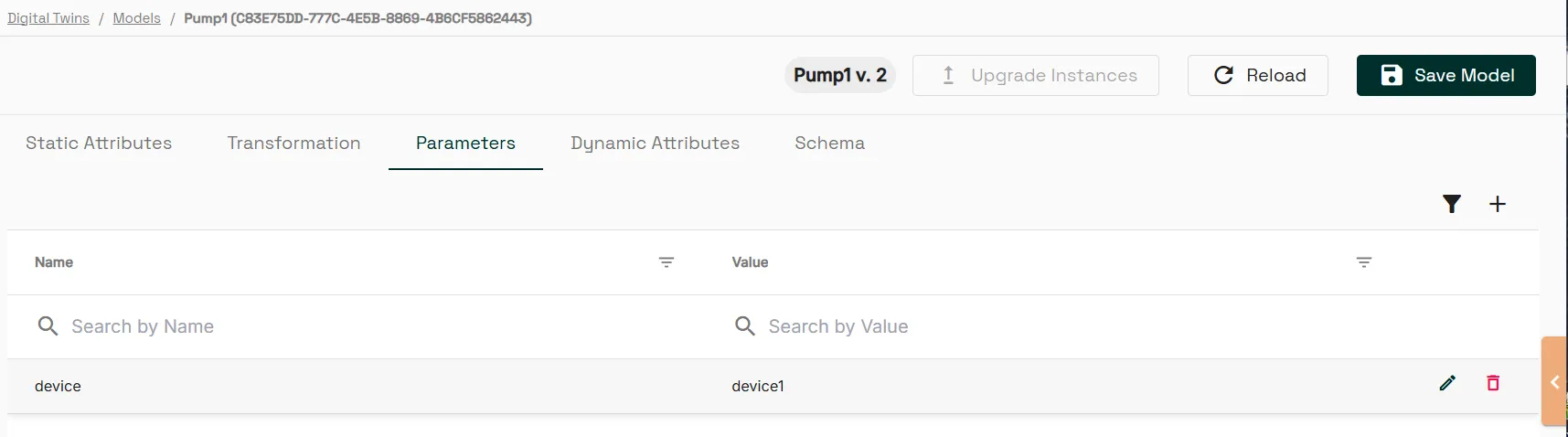
- Click Save Row. The new parameter saves.
- Add the parameter to a topic expression. In this example, devicehub.alias.{device}.Temperature is added to the Temperature attribute.
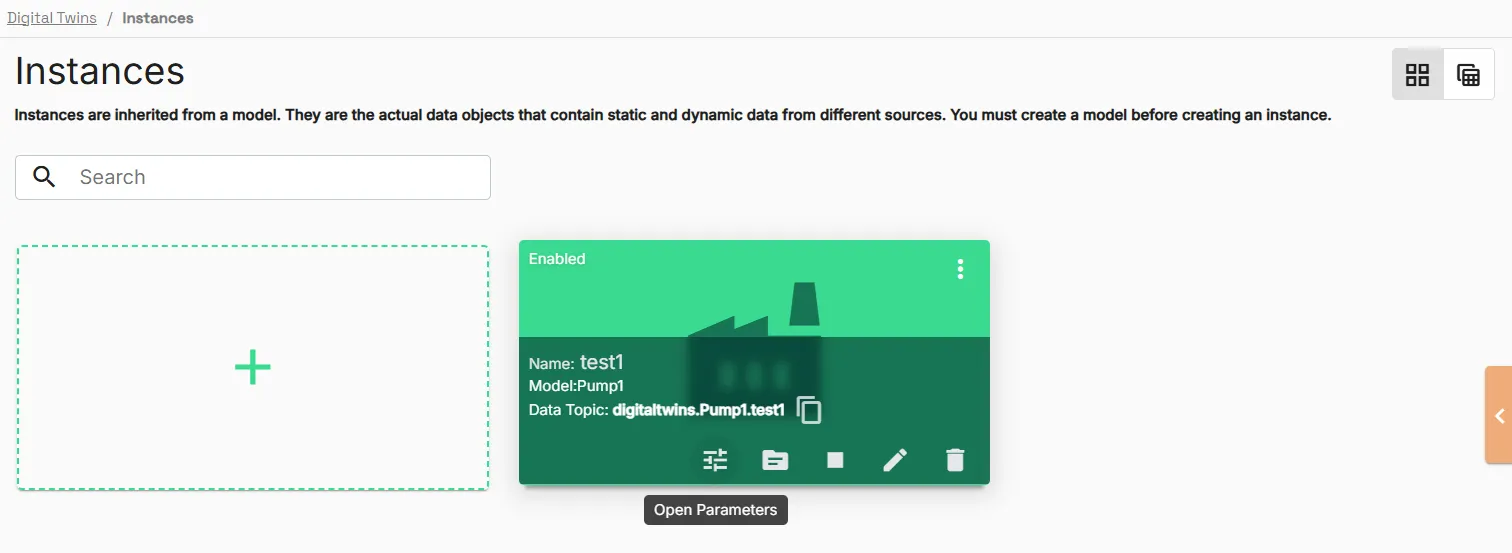
- Select an instance of the model and click Open Parameters.
- In the Instance Parameters dialog, edit the value for the device.
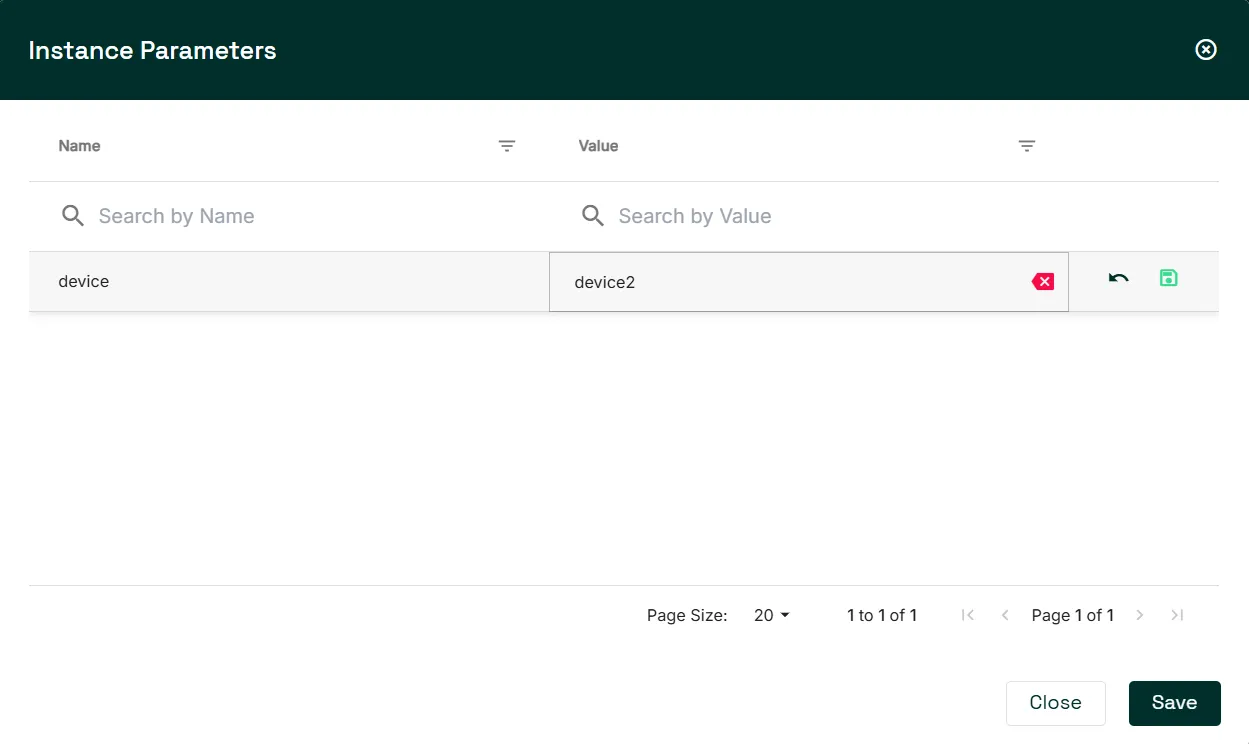
- Navigate to the Instance Dynamic Attributes page to see the topic defined for the dynamic attribute, based on your topic expression and parameter values.

Note: If a dynamic attribute has a topic expression defined, the topic for instances cannot be edited. To change the dynamic attribute topic, you must edit the model or parameter values.
Schema
Nested Model attributes appear in the list of dynamic attributes, and you add them to the schema the same way as other attributes.
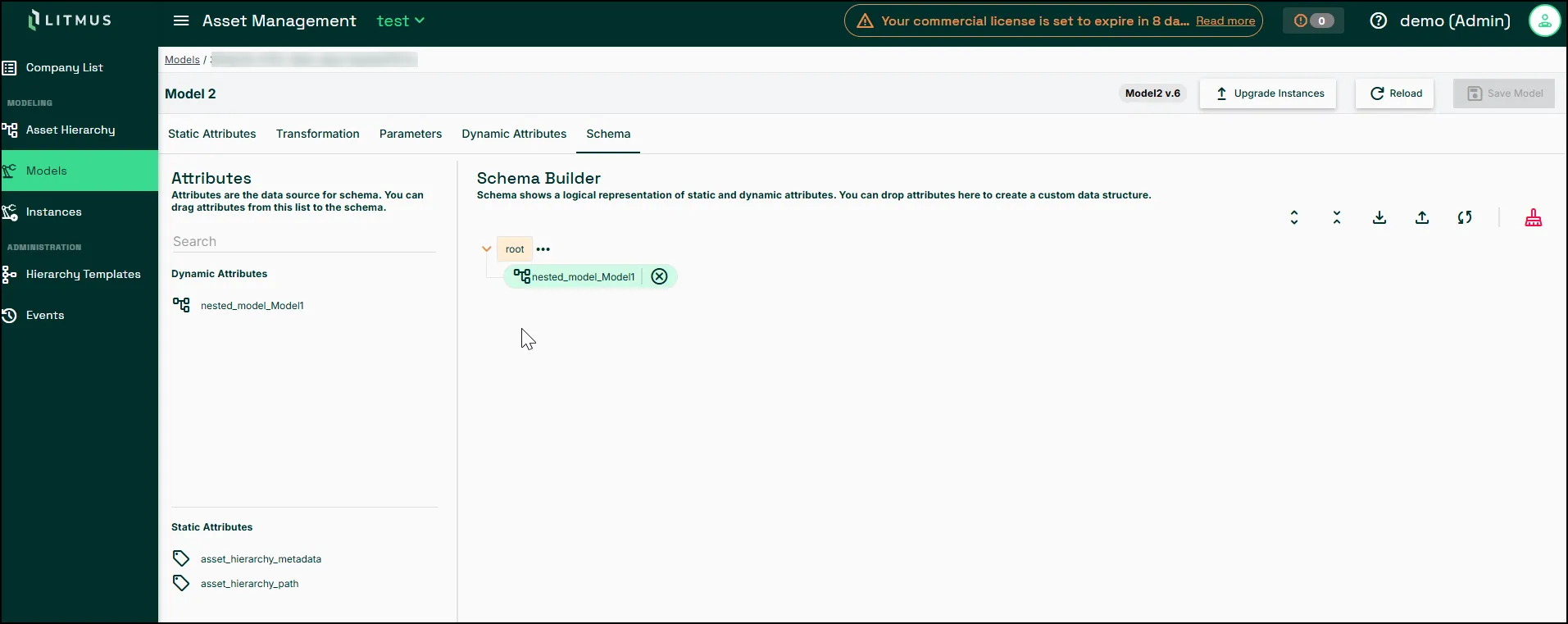
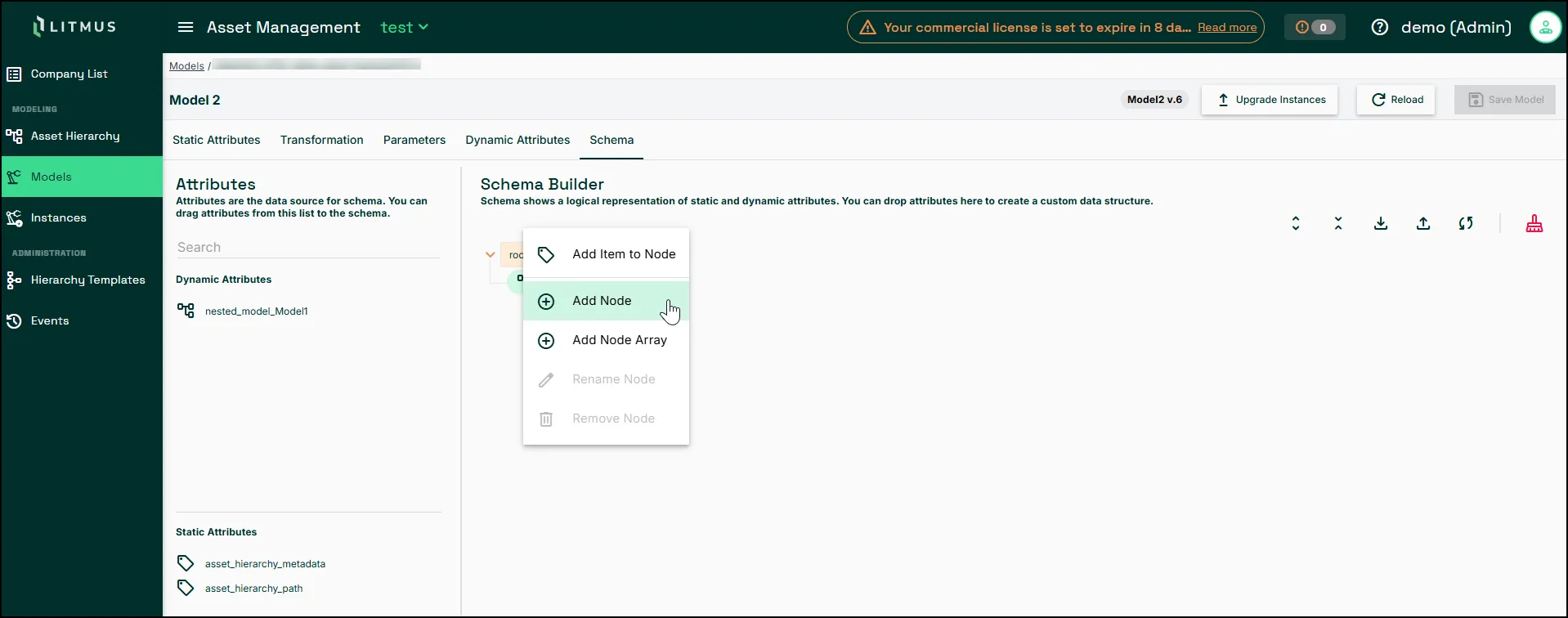
To create a category for the schema
- Click the Action menu icon for root and select Add Node.
- To add attributes to the schema, do one of the following:
- Drag and drop attributes from the left-hand list to the canvas under the appropriate category.
- Click the Action menu for a category and select Add item to Node. Then, select the attribute to add.
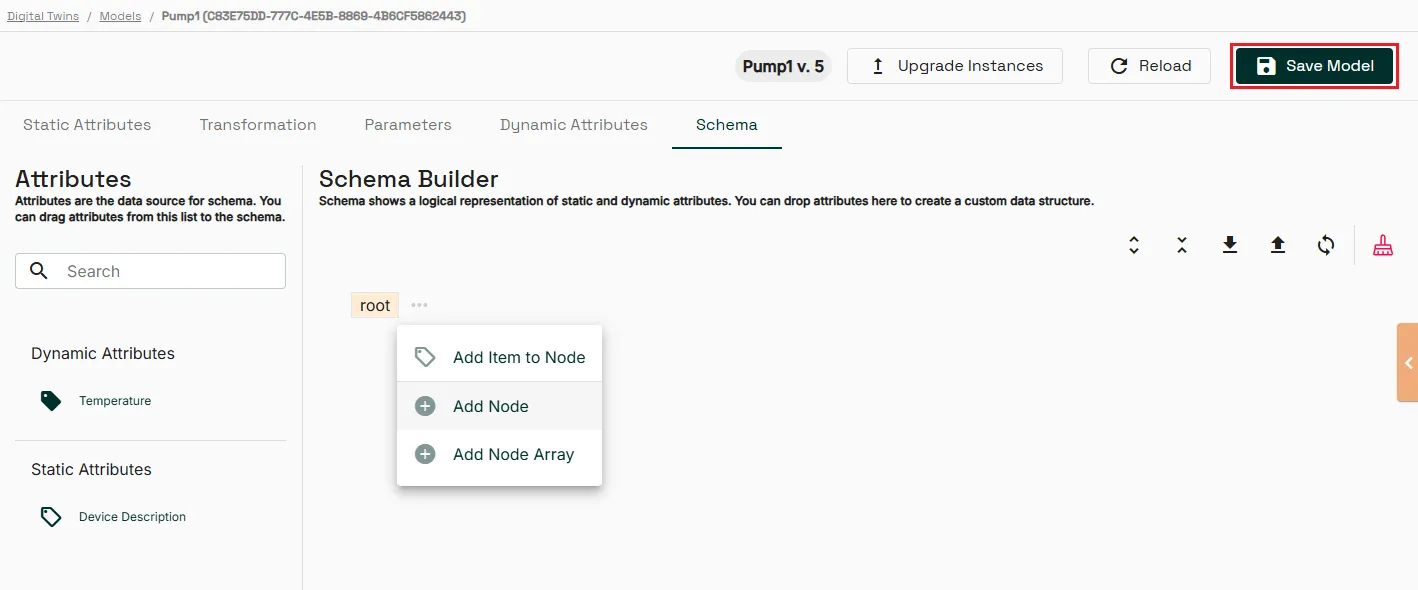
- When you have configured the schema, click Save Model.
Export schemas
To export an existing schema to a CSV file, click the Export Schema icon.
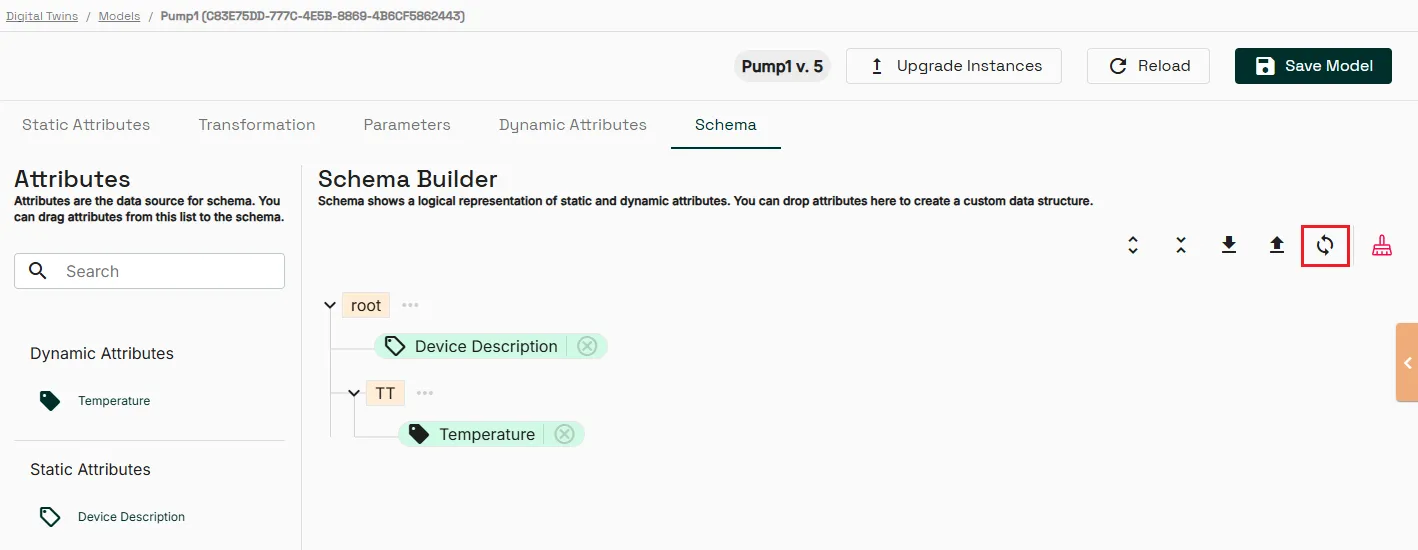
Sync attributes
To sync the existing schema
- Click the Sync Attributes icon. All attributes are appended to the current hierarchy. If they exist, the static_attributes and dynamic_attributes nodes are recreated.
- To confirm that you want to proceed, click Yes.
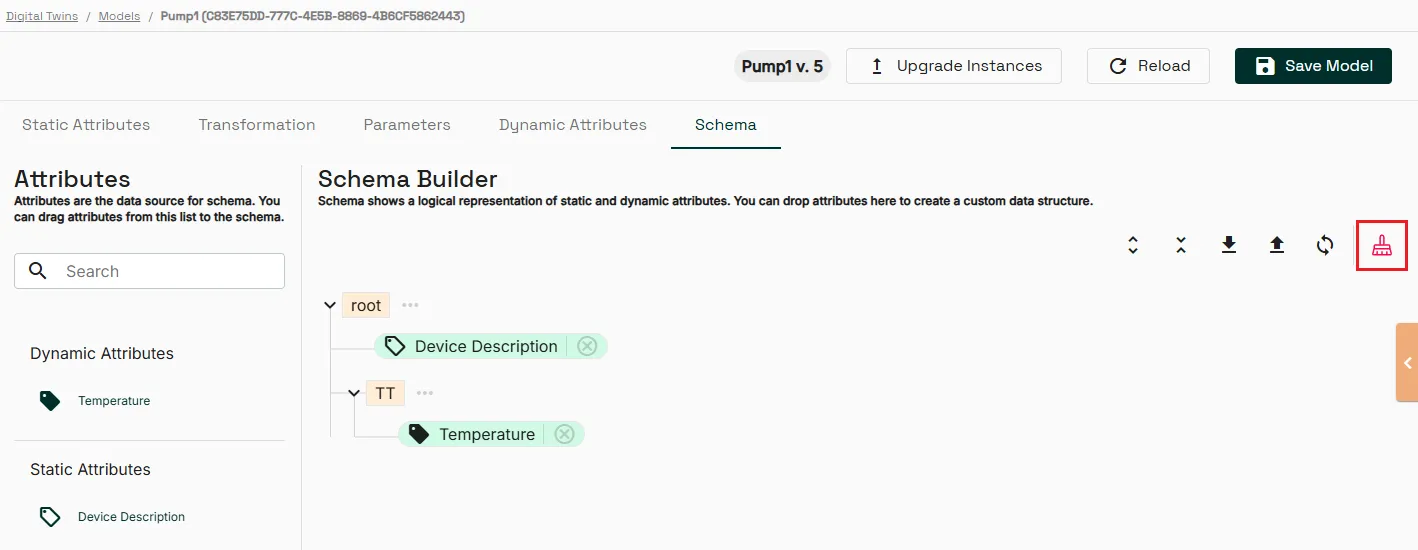
Clear schema
To clear the schema builder tree, click Clear Schema. Changes apply when you save the model.
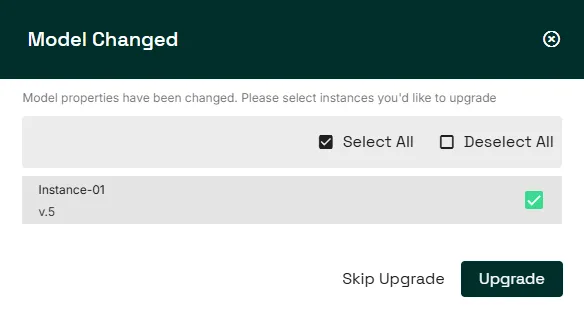
Apply model updates to instances
When you update your model, you can apply the changes to model instances.
To apply model updates:
- Click Upgrade Instances.
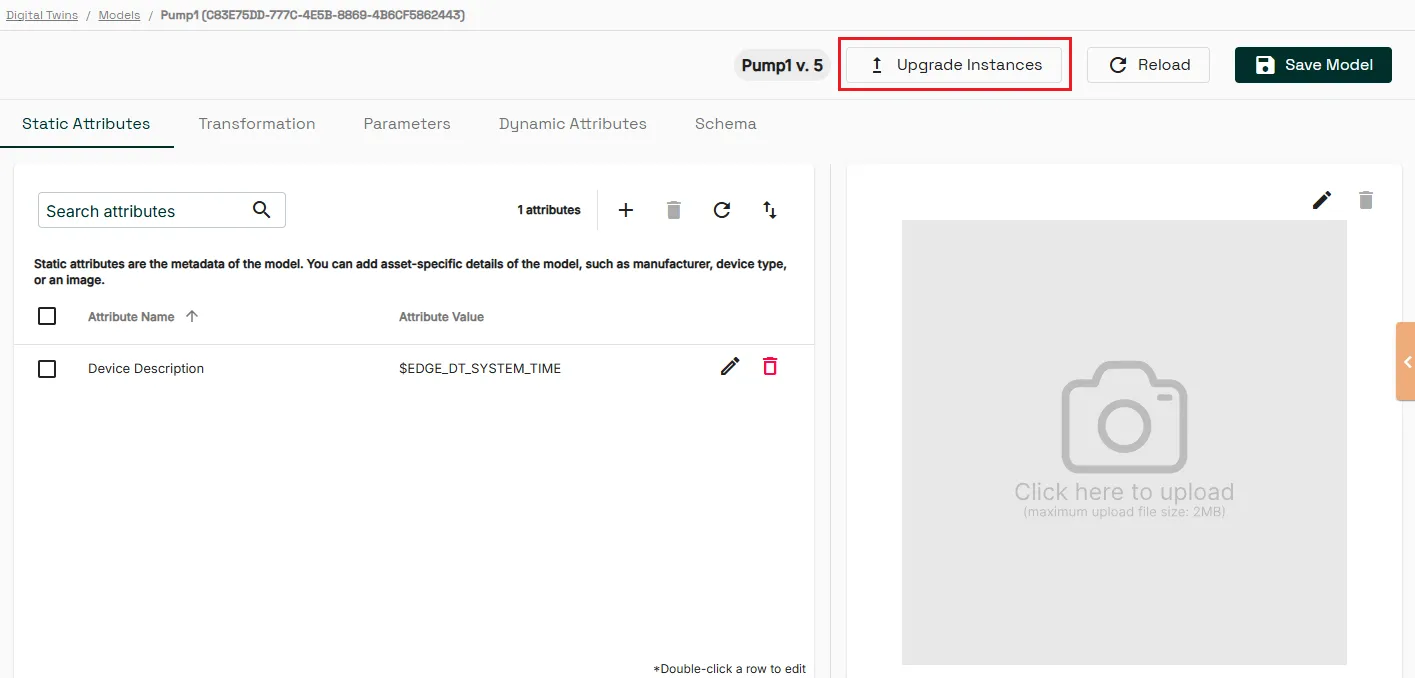
- Select the instances to upgrade and click Upgrade.