Adding ZeroTouch configuration
1 min
Follow the steps below to add a Zerotouch configuration:
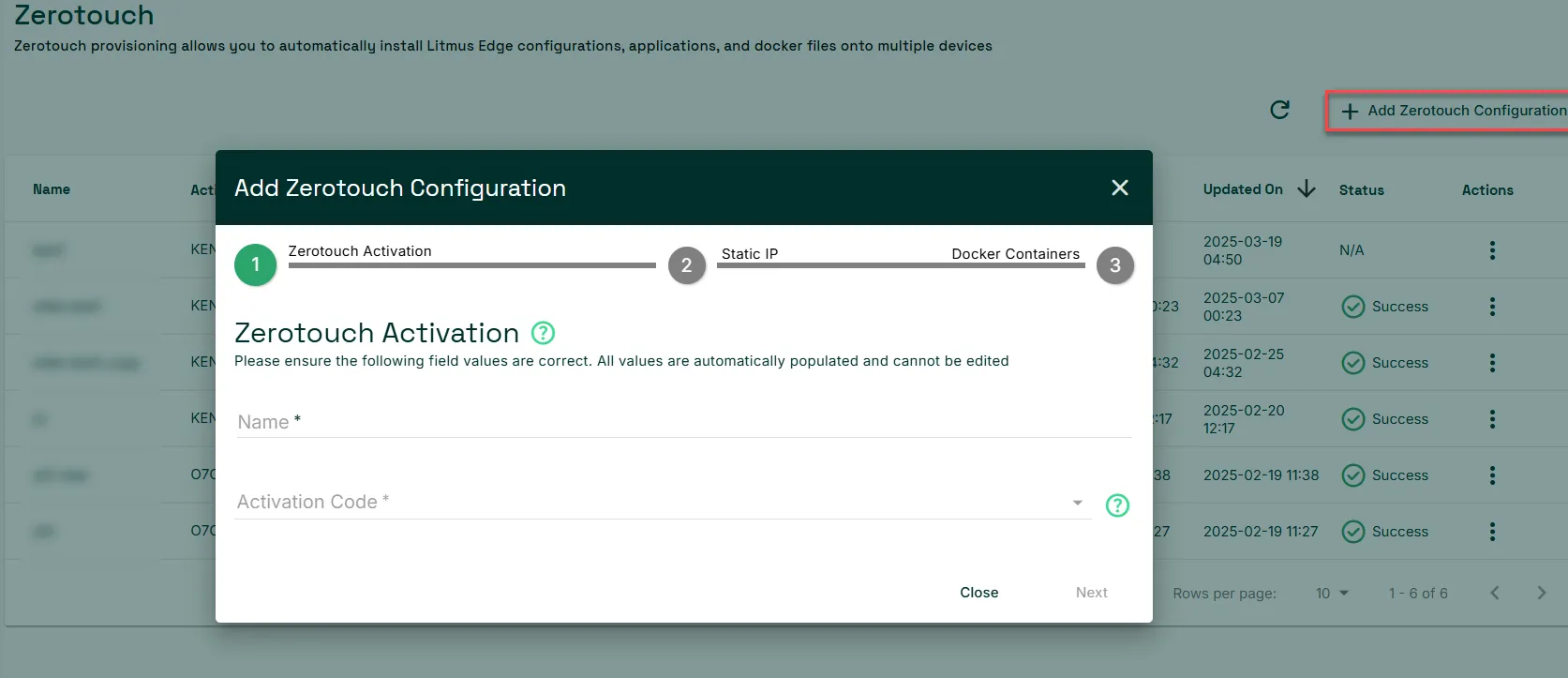
- Click Add Zerotouch Configuration on the Zerotouch page. The Add Zerotouch Configuration dialog box appears.
- From the Zerotouch Activation pane, take the following actions:
- Fill in the Name and Activation Code. Then, click Next.
- Static IP: Toggle to Enable/Disable. Accordingly, fill out the following fields to configure Static IP:
- Static IP Address: Enter the desired static IP address for the device.
- Network Interface: Select the appropriate network interface for the connection.
- Gateway: Specify the gateway IP address for network routing.
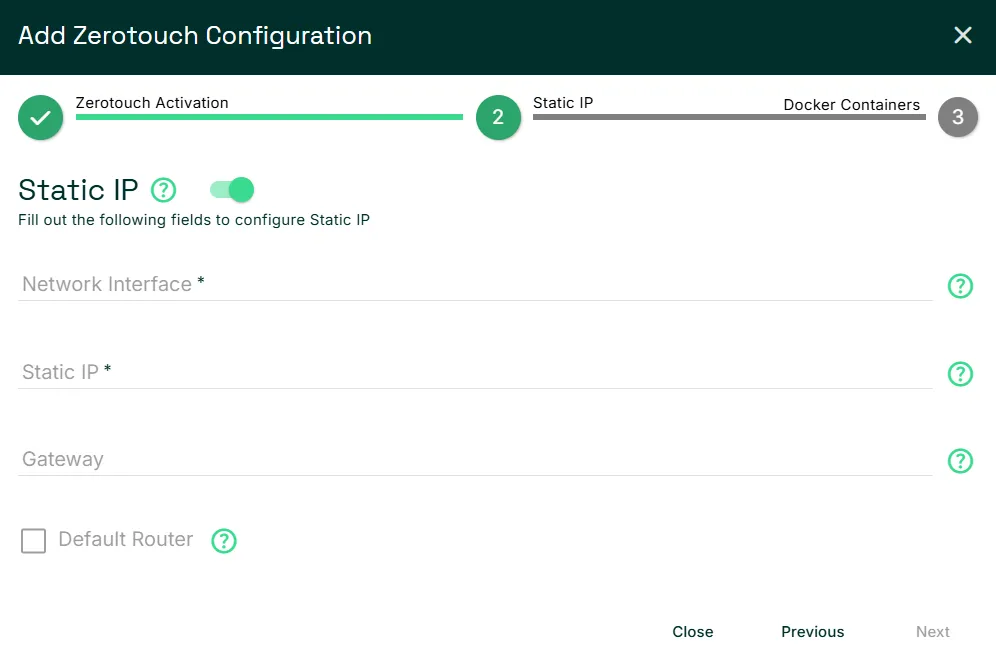
- (Optional) Enable/Disable Default Router option.
- Click Next.
- Docker Containers: Toggle to Enable/Disable. Display a table to list containers with Name and Run Command fields.
- Click + Add to include a new docker command.
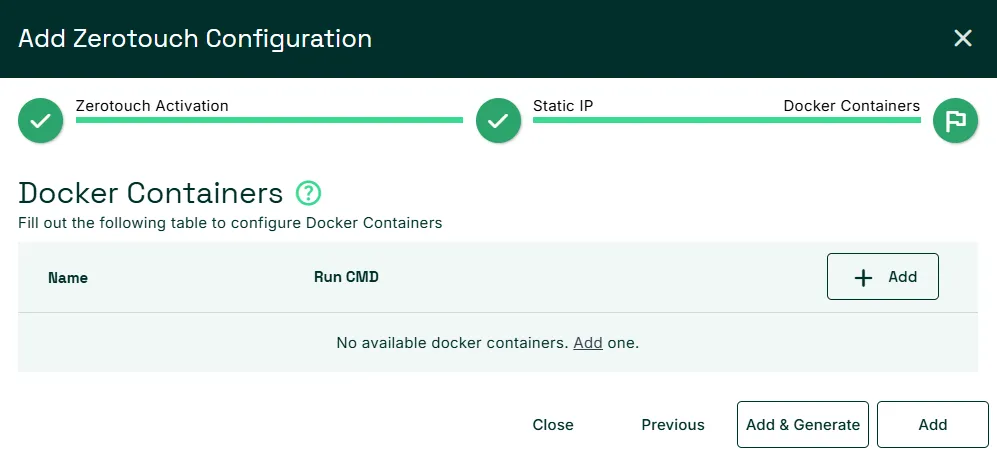
- Click Add & Generate or Add to generate the ZeroTouch TAR file.
- A progress message will appear until the configuration is ready.