Information
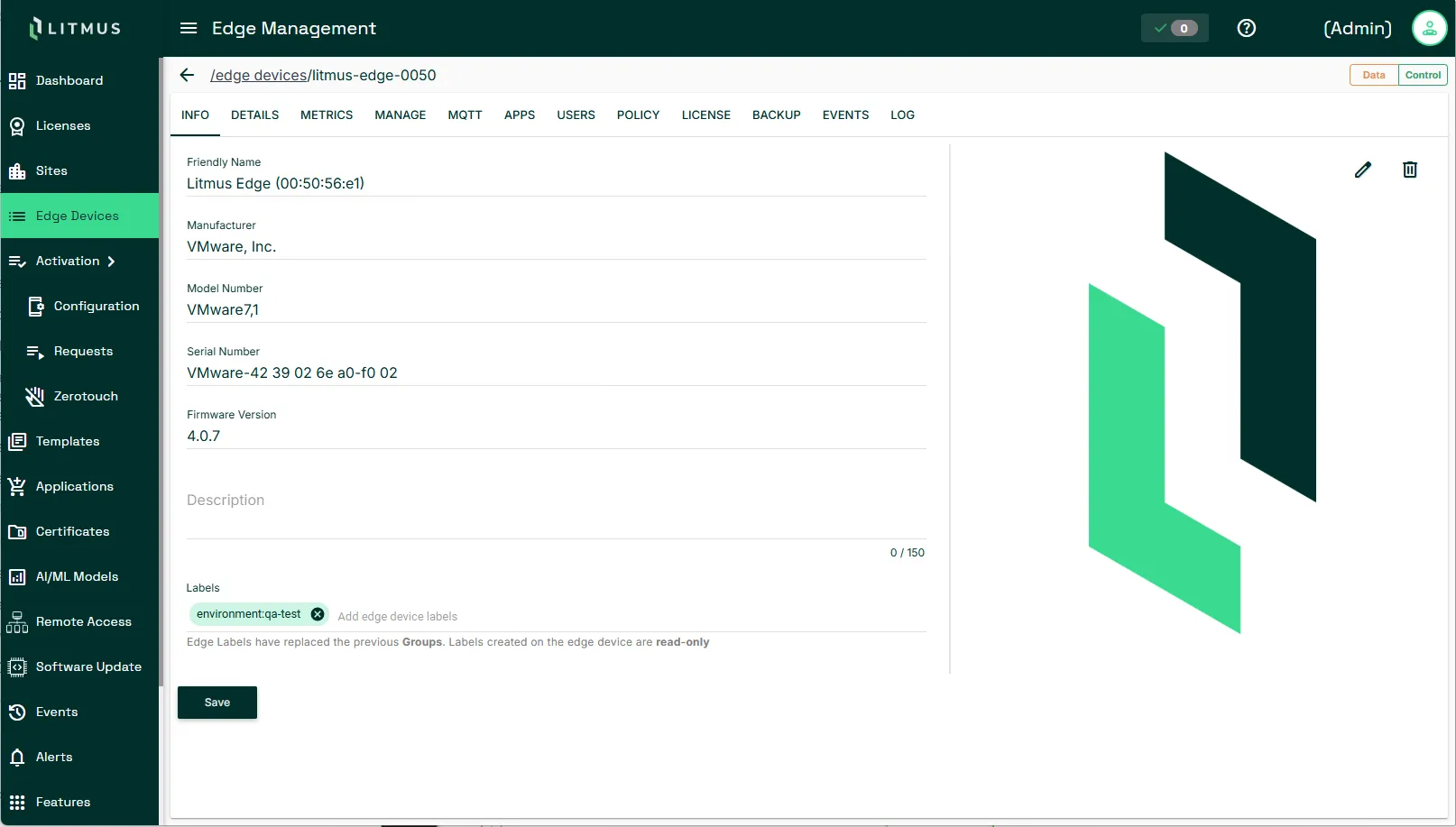
View hardware and software details for an edge device in the Info tab. Device information populates here when edge device start sending data to Litmus Edge Manager. Note that information is unavailable for manufacturers who do not expose device details to the software.
You can also assign labels to a device. Use labels organize and filter multiple edge devices.
Tip: If data does not display for a device:
- Check the device status from the Edge Devices pane to see if data is connected. See Step 7: Verify Edge device activation in Litmus Edge Manager.
- Check the device information in the edge device. See Info in the Litmus Edge documentation.
Refer to the following actions you can take on the Litmus Edge Manager User UI's Edge Devices Details Info tab.
Action | Details |
|---|---|
Modify Description | Update the description of the edge device. |
Labels > Add edge device labels | Assign or manage device labels. |
Change edge device image | At the top right, update the image associated with the device. |
Remove edge device image | At the top right, delete the current image from the device. |
Existing labels displays in the Labels field. You can apply these labels to additional devices to organize and group device. Use labels to create group alerts, firmware upgrades, and jobs. You can organize similar devices together and map them to a trigger or multiple jobs.
Labels
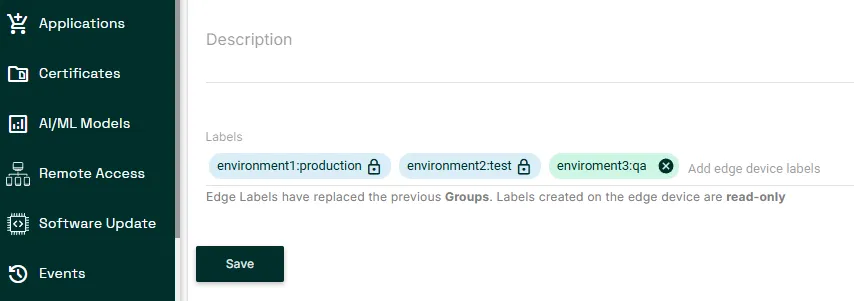
Labels are key-value pairs that you assign to an edge device to organize and filter devices in Litmus Edge Manager. Each label has a key and a value, for example, environment: production or site: plant1. You can define any combination of keys and values that fits your organization.
Common use cases include:
- Environment: environment: production or environment: test
- State: state: active or state: maintenance
- Team ownership: team: teamA or team: teamB
- Site: site: plant1 or site: plant2
Note: Labels replace groups in Litmus Edge Manager 2.32.0.
Label synchronization
Labels synchronize automatically between Litmus Edge and Litmus Edge Manager. Labels created in Litmus Edge are read-only in Litmus Edge Manager and display a lock icon. These labels can only be modified from the Litmus Edge instance in which they were created. Delete labels added in Litmus Edge Manager at any time.
Manage labels
Add a label
- In Edge Devices > Info > Labels, click Add Label.
- Enter a key and value in the following format and press Enter.
- Click Save.
Delete a label
- In Edge Devices > Info > Labels.
- Click the delete icon next to the label.
- Click Save.