Deployment of Litmus Edge Manager on AWS
6 min
You can deploy Litmus Edge Manager (LEM) directly from the Amazon Web Services (AWS) Marketplace. This topic shows how to perform a consumption model deployment. This model is designed for organizations that want a fully managed deployment with automatic licensing and usage-based billing. With this model:
- Your license is automatically activated when you deploy and is valid for five years from deployment.
- Tag usage by edge devices is tracked against your license and billed through AWS Marketplace.
Before you begin
Before you deploy, make sure you:
- Have access to AWS Cloud Console
- Review System Requirements for sizing guidance
Deploy Litmus Edge Manager
Follow these steps to deploy Litmus Edge Manager.
Step 1: Accept the LEM offering in AWS Marketplace
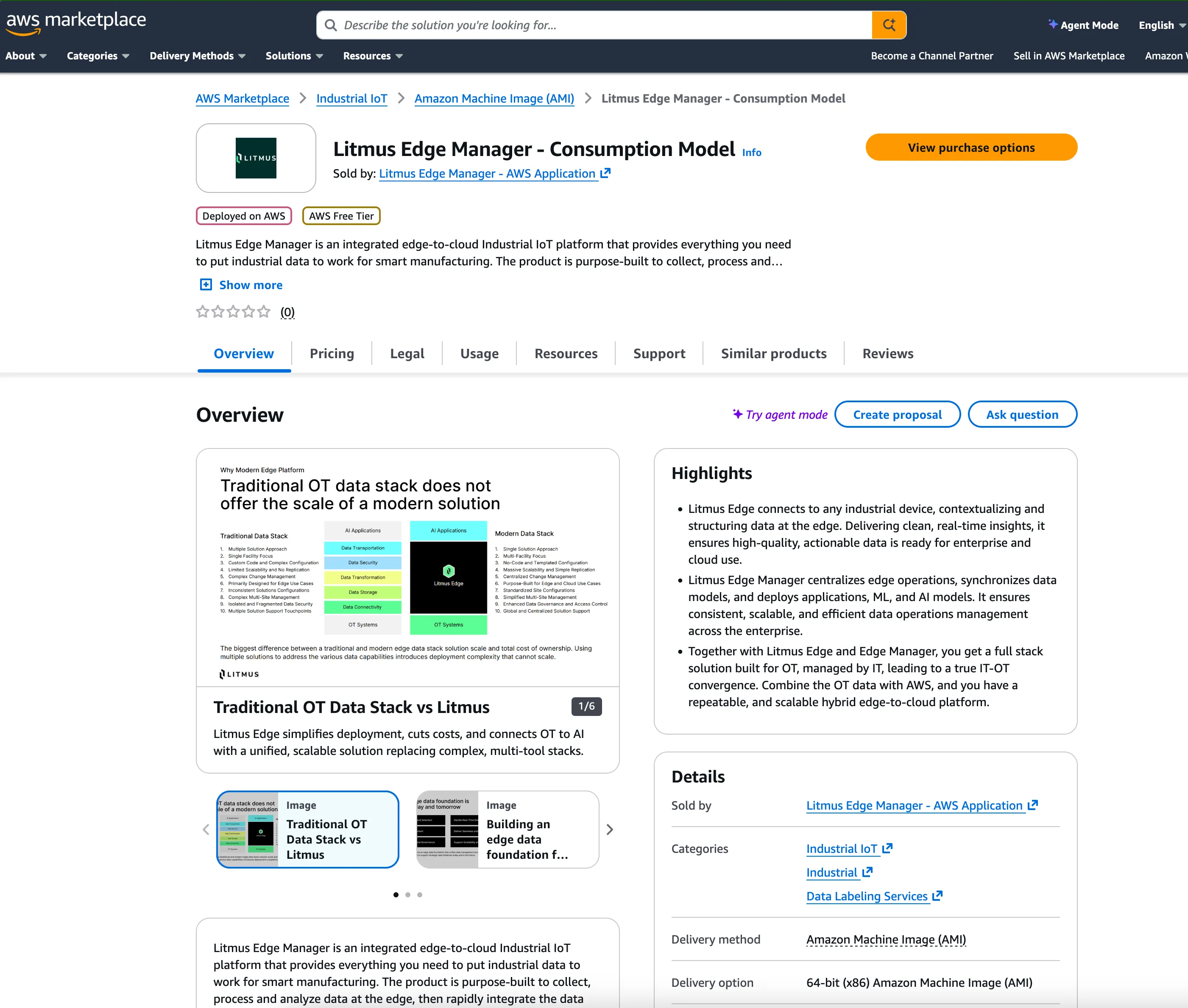
- On AWS Marketplace, locate the Litmus Edge Manager - Consumption Model offering. Click View Purchase Options.
- Under Your Offers:
- Select the Available to purchase offers checkbox under Offer availability.
- In the Available to purchase offers section, select the public offer or a private offer if one has been made available to you.
- Review the offer summary and price details.
- Click Next.
A purchase confirmation page displays.
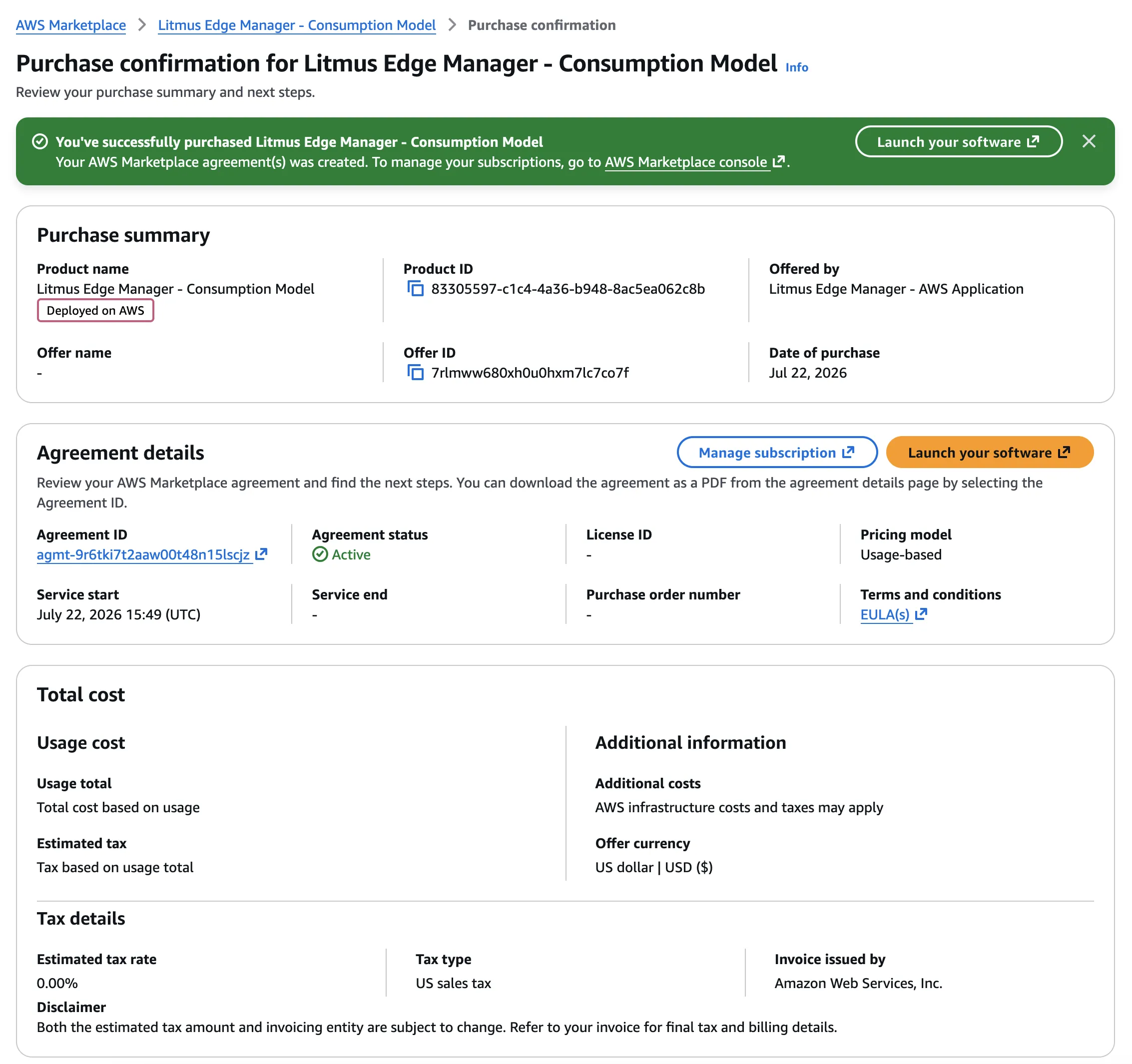
Step 2: Launch LEM as a consumption model
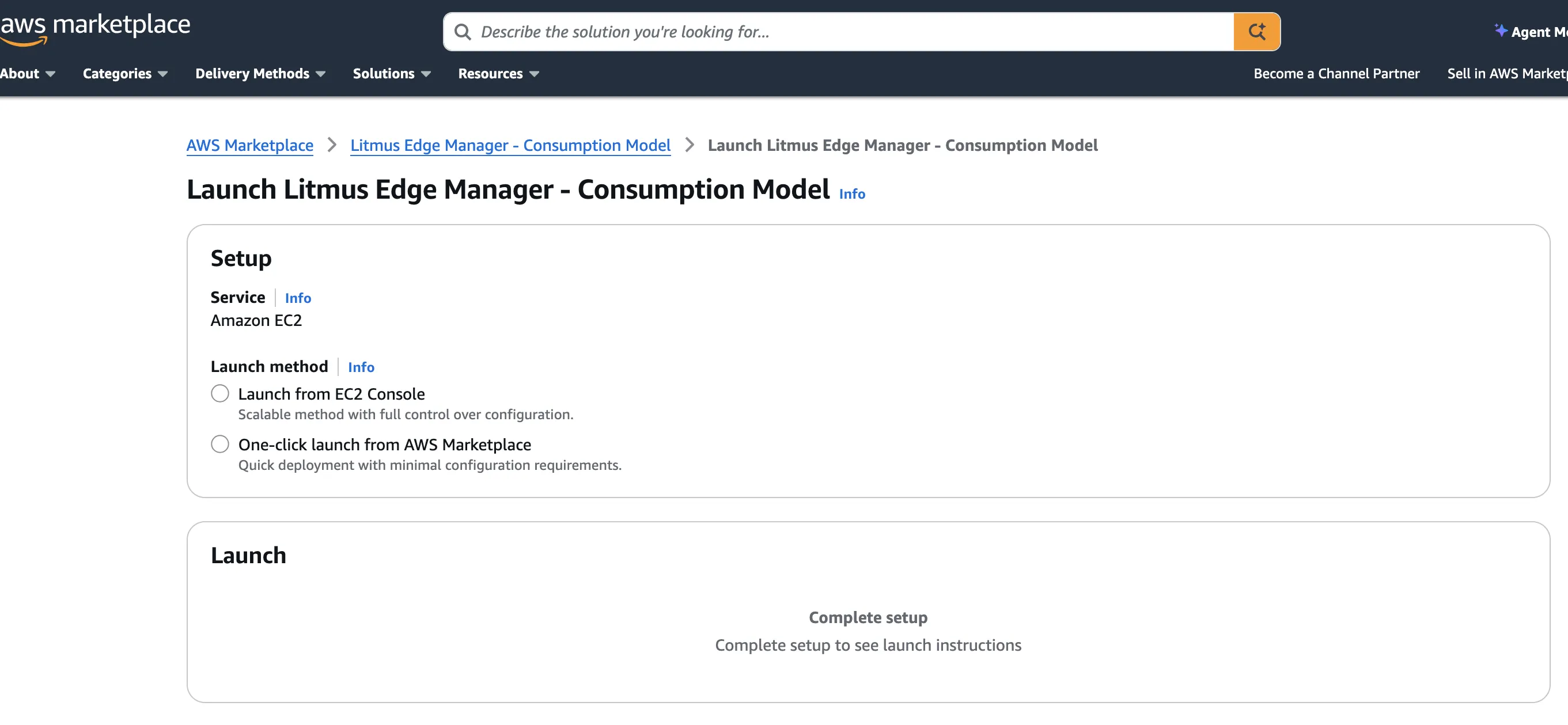
Next, launch LEM as a consumption model.
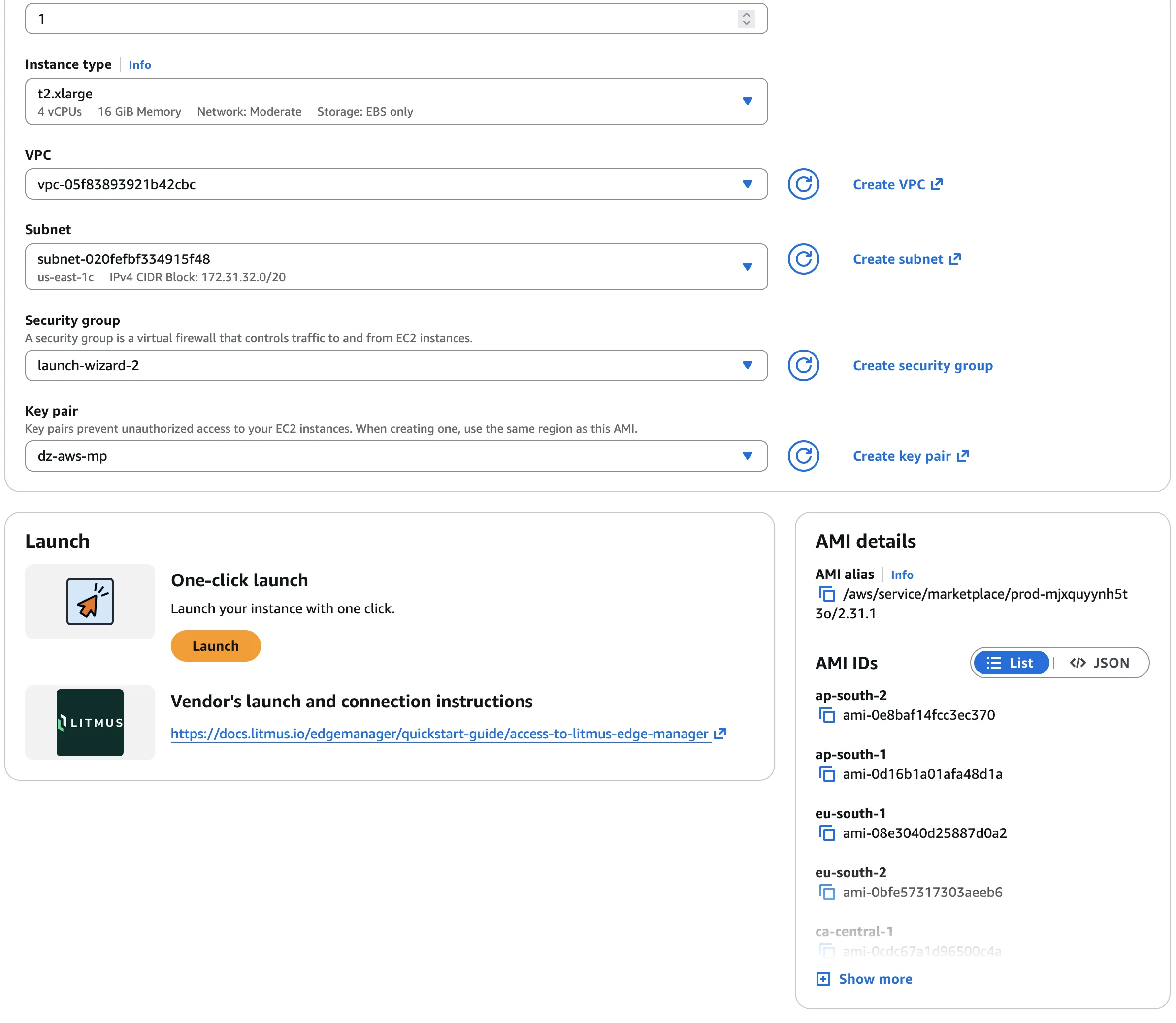
- In Launch method, select One-click launch from AWS Marketplace.
- In the Setup page, confirm setup details.
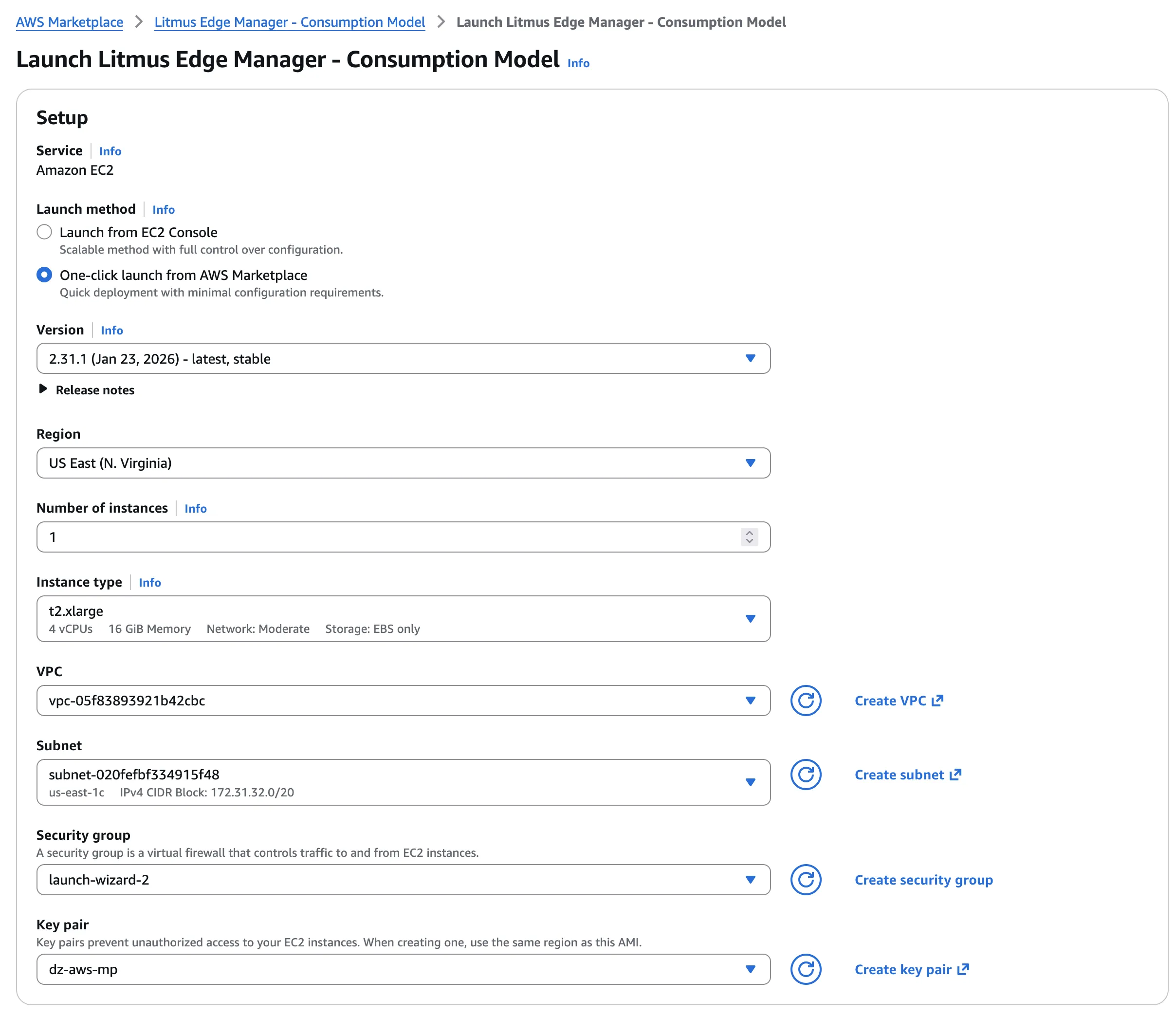
- In the Launch section, click Launch to open LEM.
A progress screen displays.
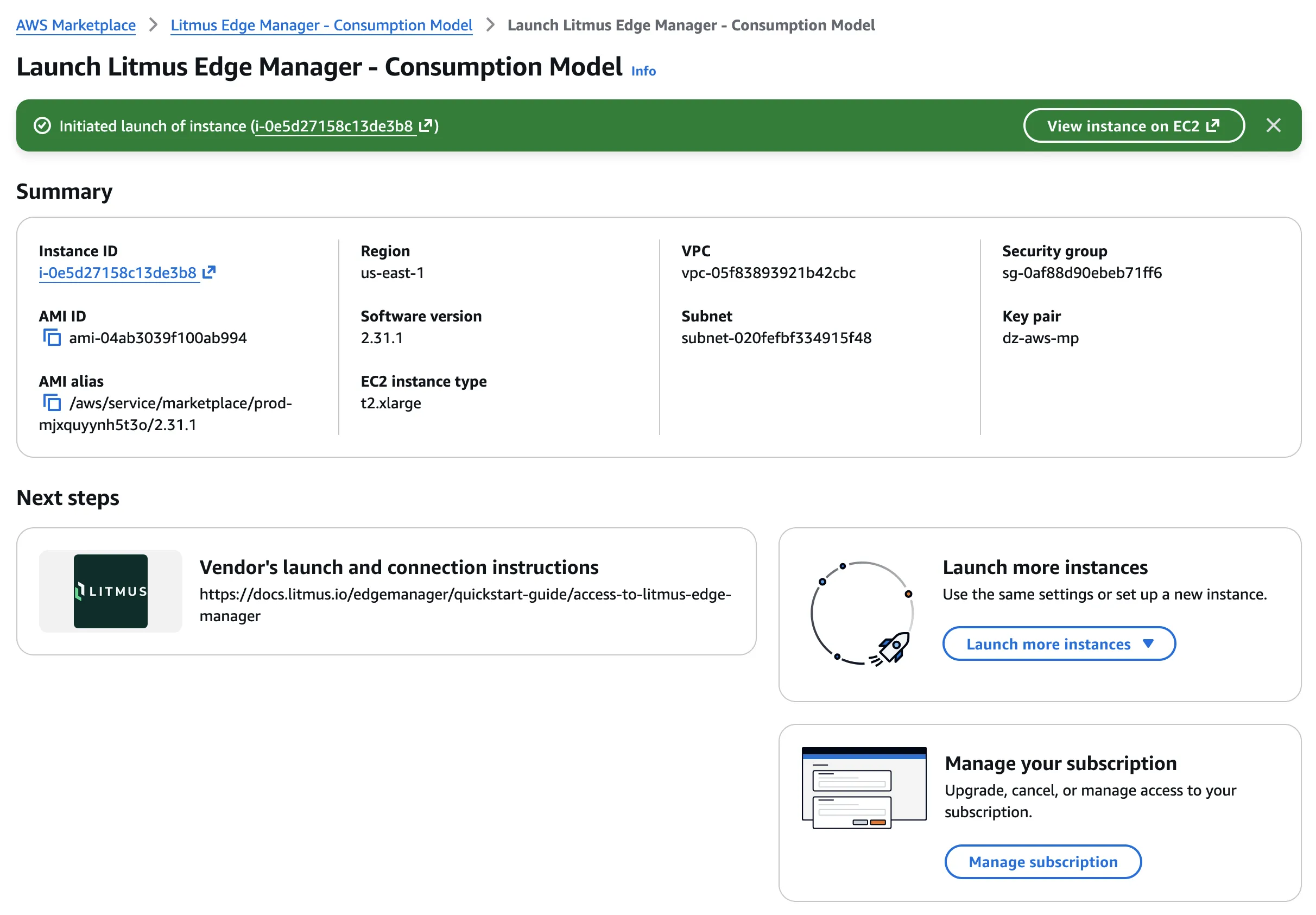
Step 3: Allow additional ports
After deployment, modify security groups to allow additional ports.
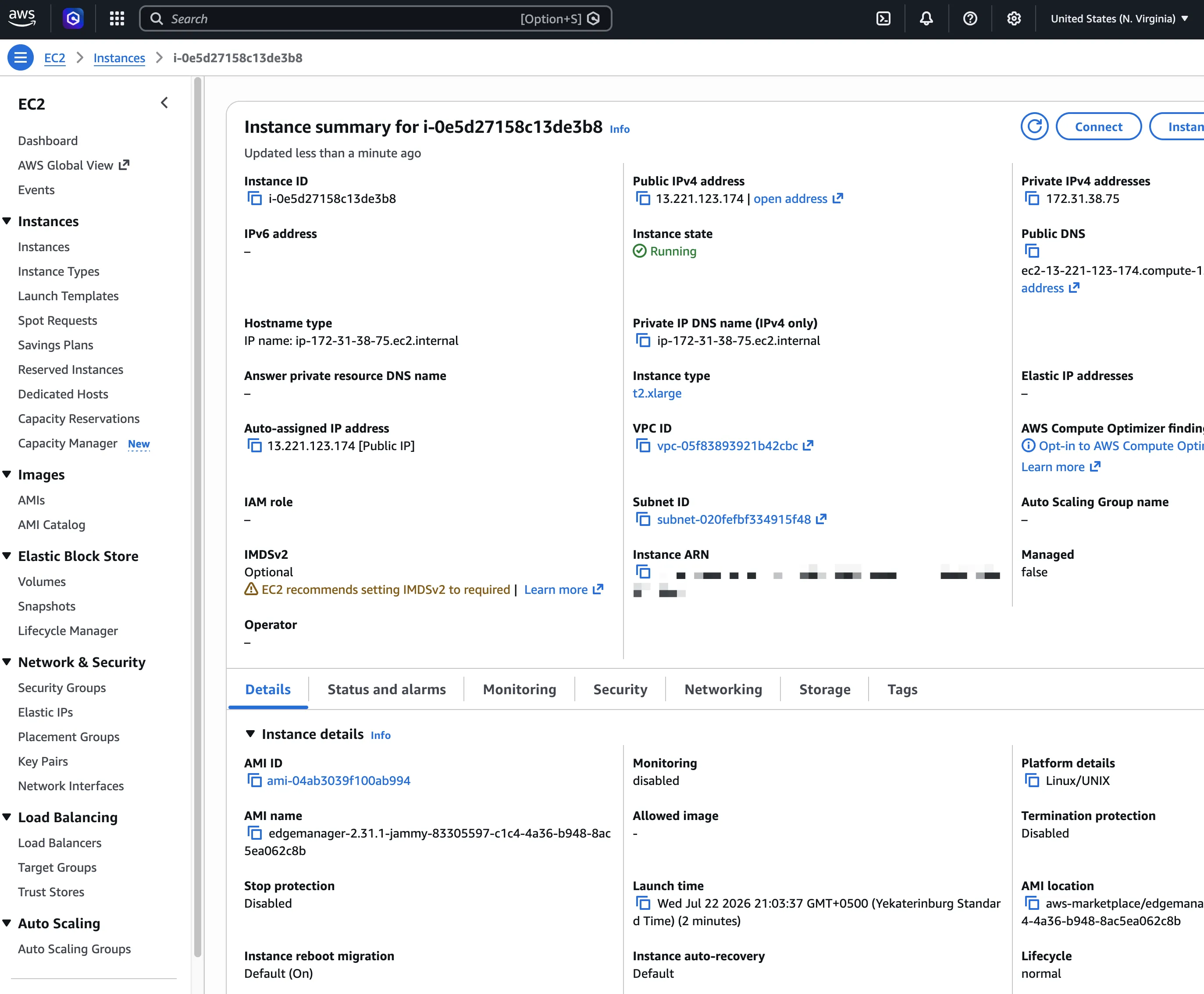
- In EC2, navigate to Instances.
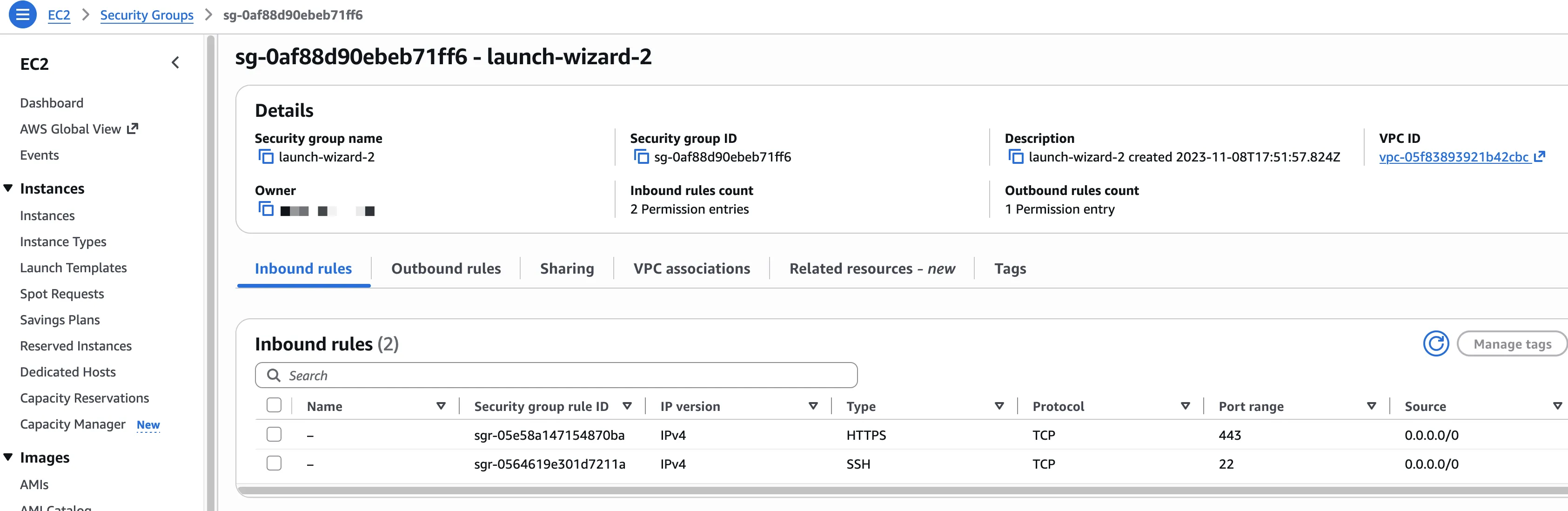
- Click the Security tab. In Security groups, click the link to launch the security groups wizard.
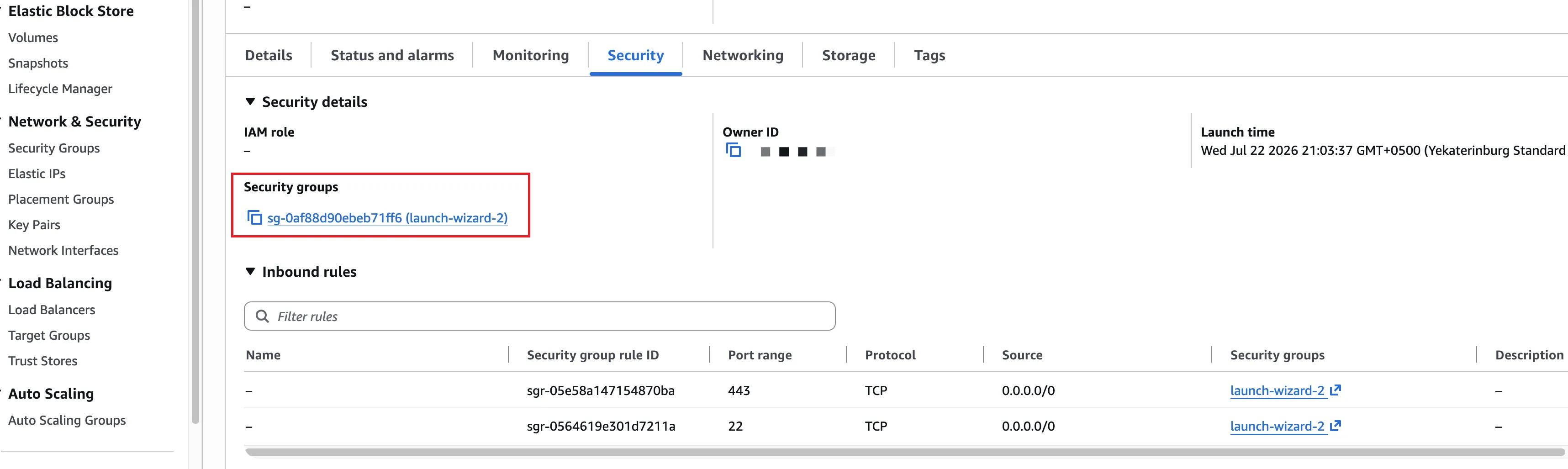
- In Security groups, select a rule to modify.
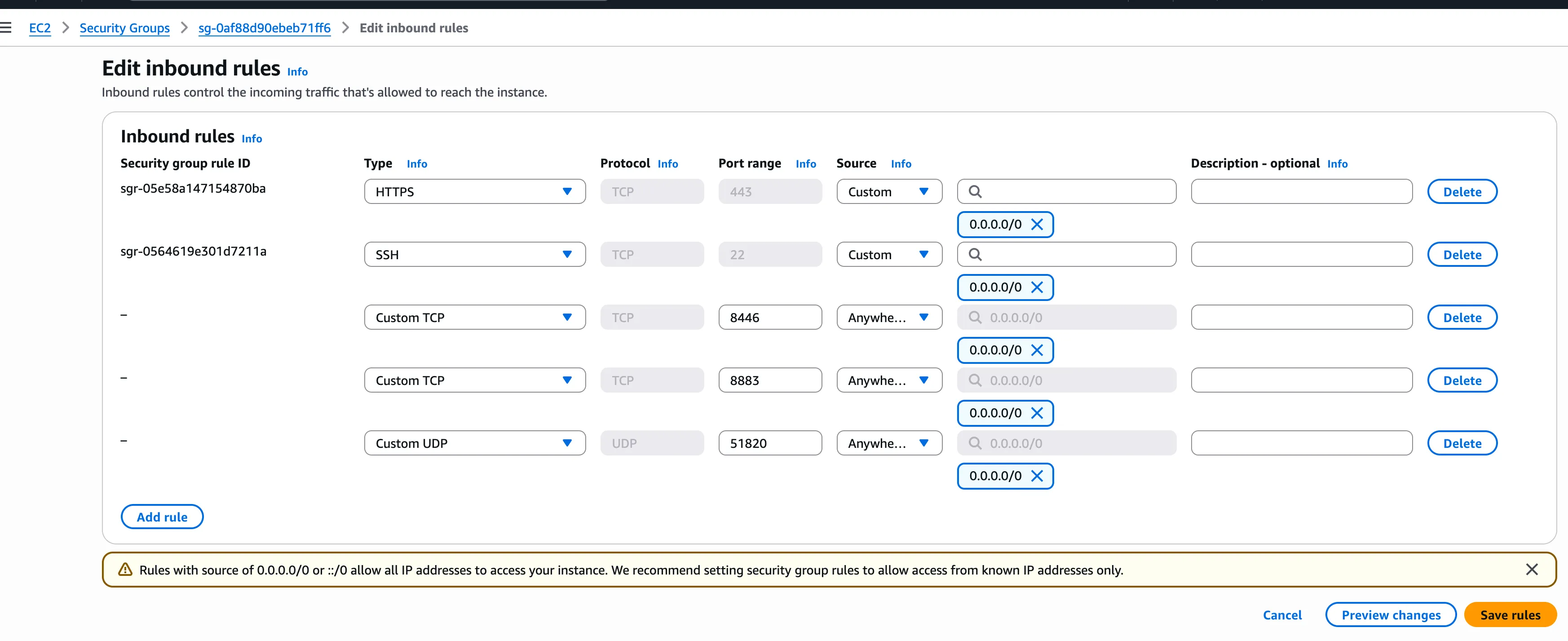
- In Edit inbound rules, specify ports to open. For example:
- 443/tcp: LEM UI access
- 8446/tcp: LEM admin console UI access
- 8883/tcp: Litmus Edge to LEM MQTT connection
- 51820/udp: Litmus Edge to LEM remote management connection
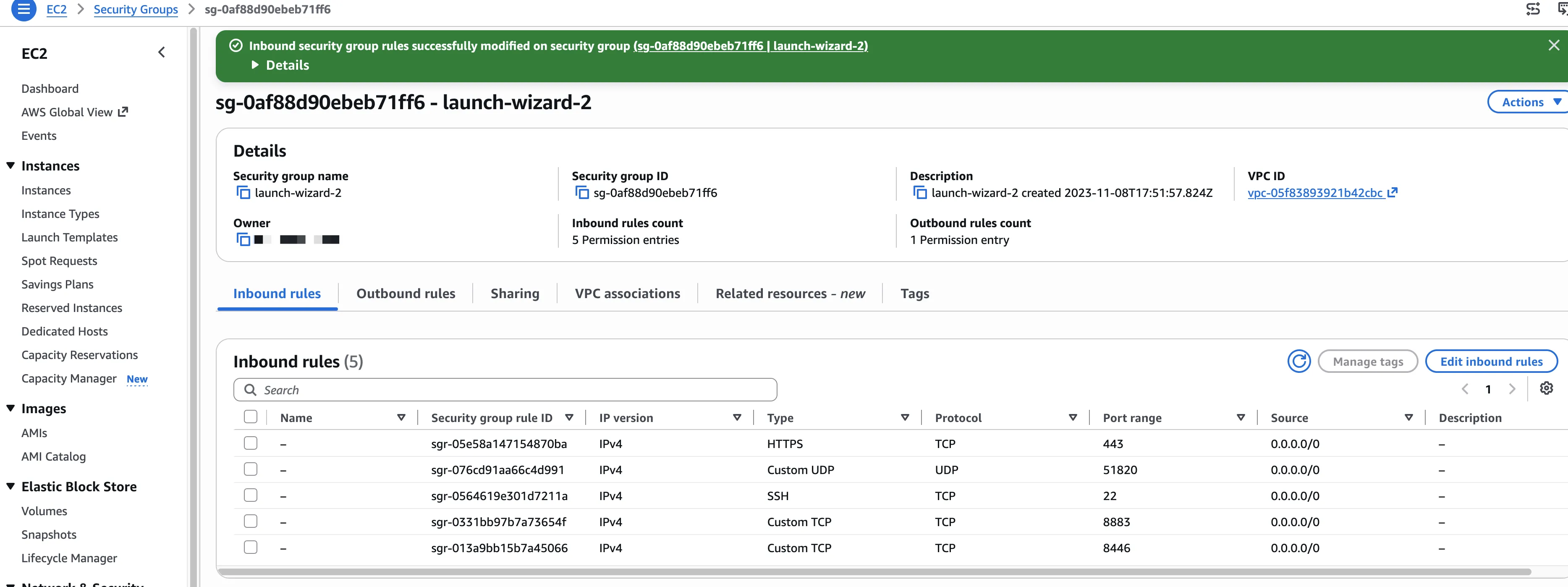
A confirmation page indicates that changes to security groups were successfully applied.
- Enter the IP or DNS in a browser to Access Litmus Edge Manager. Litmus Edge Manager launches.