Browse for Tags (after 3.16.x)
The Browse Tags feature allows you to search, select, and download selected tags available for a device.
Before You Begin
Before you complete the steps below, make sure you verify the following:
- Verify that the device you are searching for has a status of CONNECTED in DeviceHub.
Access Browse Web UI
From the DeviceHub module, navigate to the Browse tab.
Refer to the following to see the actions you can take from Browse's web ui page:
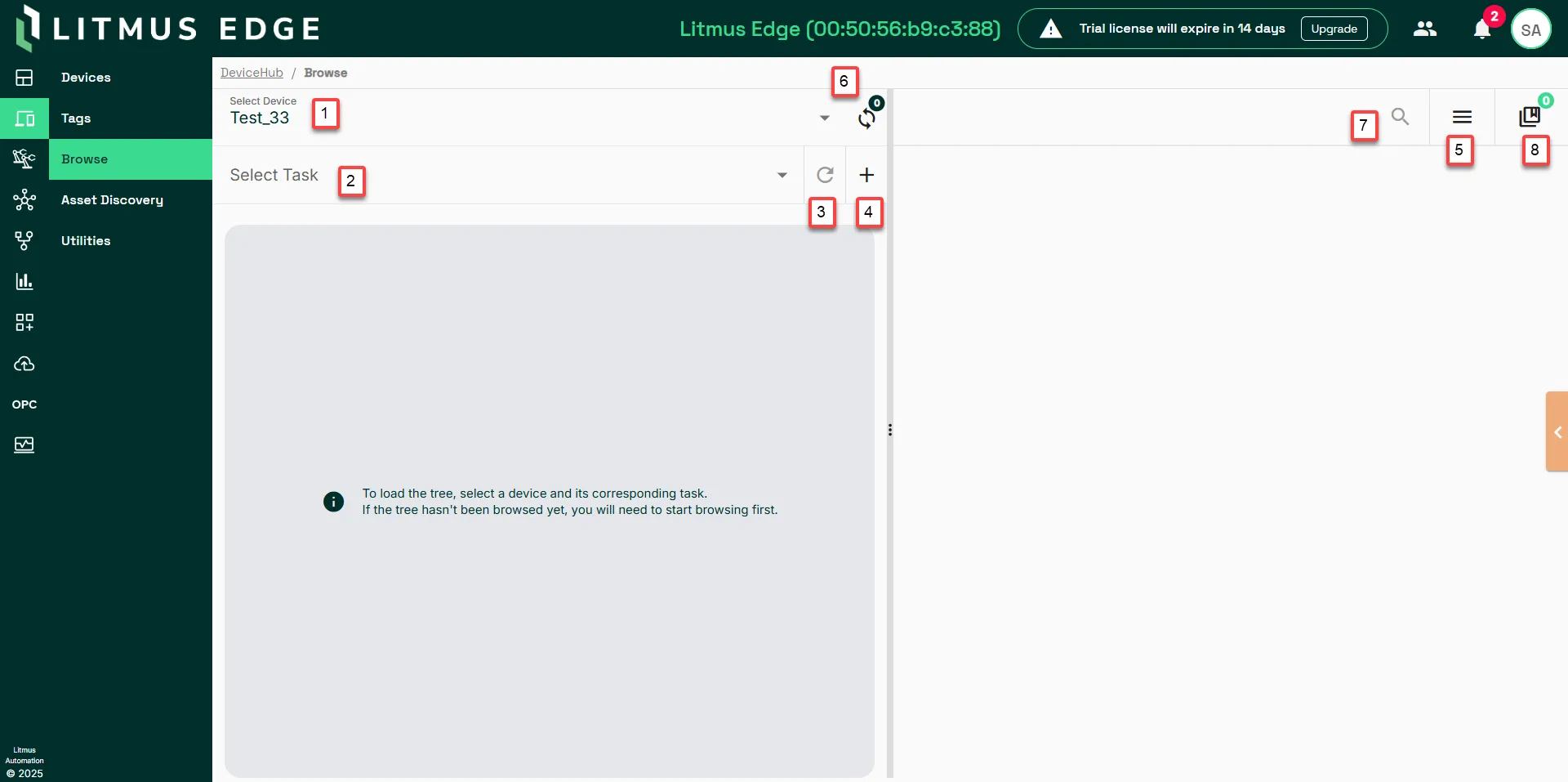
Action | Details |
|---|---|
[1] Select Device | Use this to select the device you want to browse.
|
[2] Select Task | This area displays the currently selected browsing task for the chosen device. If no tasks are currently running, it will indicate "There are currently no running tasks". |
[3] Refresh | Use this icon to refresh the view. |
[4] Create New Task (+) | Clicking this icon allows you to create a Browse task. |
[5] Ellipsis | Clicking this icon provides additional options, such as Manage Tasks, Create Tags, Add To Collection, and Download tags.
|
[6] Load Task | Refresh the task list. |
[7] Search Tree | Look up within a paginated table each time a new folder is selected or new data is requested. This table displays the tags within the selected folder. |
[8] Total Tags | A table of total tags that opens in a new pane.
|
Step to Browse for Tags
To browse for tags:
- Navigate to DeviceHub > Browse.
Select the DeviceHub device and the appropriate task. The tags list drops down. Note: It may be necessary to manually refresh the tag browser if it does not show the expected result. This can happen if the device was created with the wrong IP address, port, or device name. In this case, the first browsing will return no results, but a dummy browsing list is created when refreshed. You can edit the device and correct the mistake, and then try to browse tags again. If the dummy browsing list appears again, refresh the browse list.
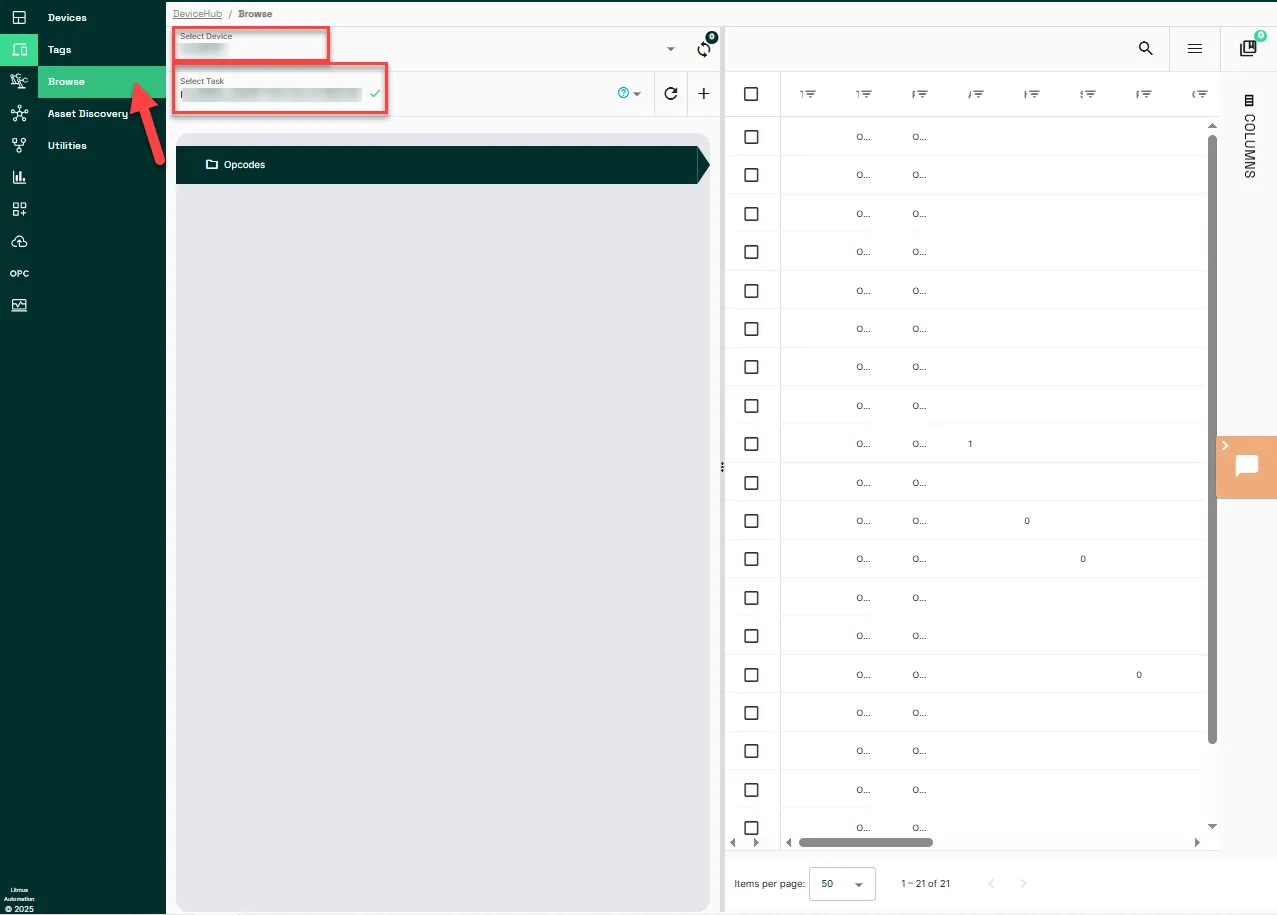 Browse tags list
- Select the tags to add.
- Click Add.