Browse for Tags (3.16.x and below)
1 min
To browse for tags:
- Navigate to DeviceHub > Tags.
Click the Add icon, and then select Browse Tags. The Browse Tags dialog box appears.
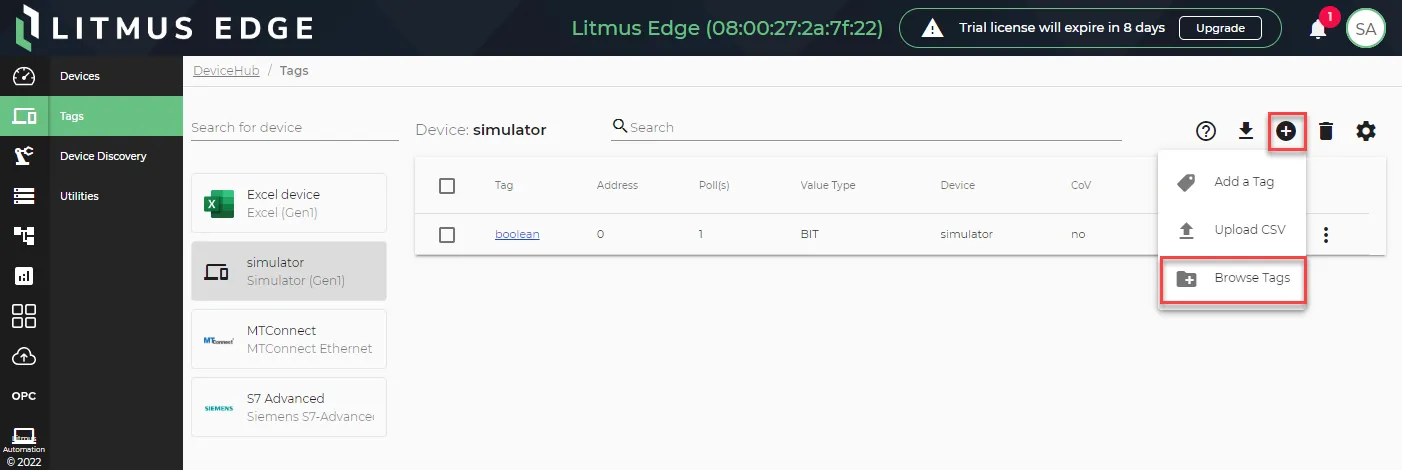 Browse Tags option
Select the DeviceHub device. The tags list drops down. It may be necessary to manually refresh the tag browser if it does not show the expected result. This can happen if the device was created with the wrong IP address, port, or device name. In this case, the first browsing will return no results, but a dummy browsing list is created when refreshed. You can edit the device and correct the mistake, and then try to browse tags again. If the dummy browsing list appears again, refresh the browse list.
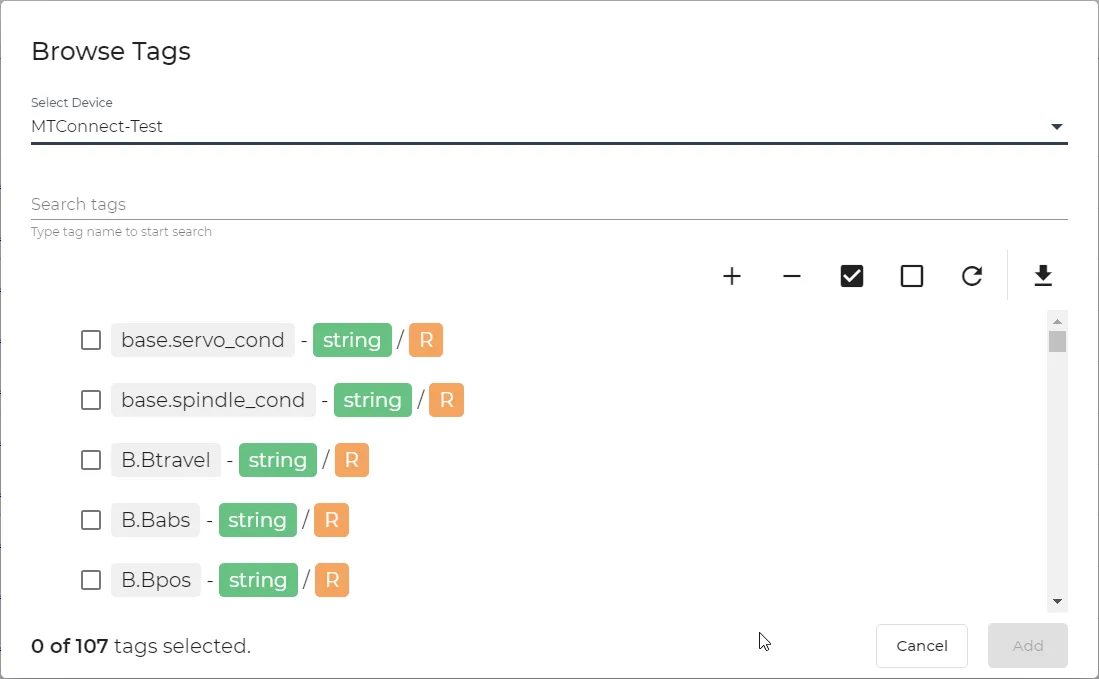 Browse tags list
- Select the tags to add.
- Click Add.
- Navigate to Devices. The DeviceHub device shows as CONNECTED in the Devices pane.