Work with SQL Databases
You can use flows to make a connection with SQL databases.
Step 1: Install MySQL in Litmus Edge
To install MySQL in Litmus Edge:
- Navigate to Applications > Marketplace.
- Click Marketplace List and select Default Marketplace Catalog.
- Click the MySQL tile. The MySQL configuration dialog box opens.
- Installation script version: From the drop-down list, select latest.
- Name: Enter a name for the application.
- Leave the other fields with their default values.
- Click Launch.
Navigate to Applications > Catalog Apps to ensure the application is running successfully.
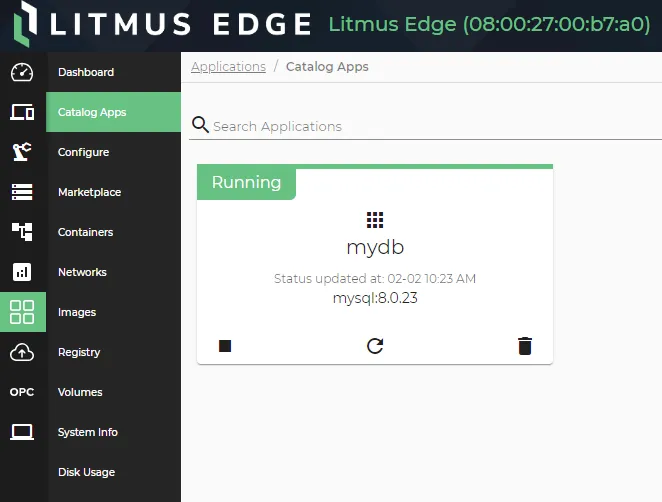 Running MySQL application
If you have any issues installing MySQL, do the following:
- Check System > Info to make sure that you have enough space on your edge device.
- Make sure that you do not have any network connectivity issues.
- Navigate to Applications > Catalog Apps and click the MySQL application tile to view the logs. Review any errors.
- If you get the MySQL error message Error: Too many connections , refer to MySQL Error Message: Too Many Connections.
Step 2: Create Flow
To create the flow:
- In Litmus Edge, navigate to the Flows Manager and create a new flow. See Create a Flow to learn more.
On the Flow canvas, drag and connect an Inject node, a Template node, a MySQL node, and a Debug node.
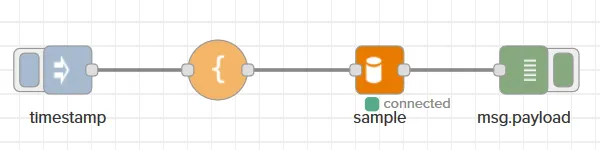 Flows canvas with MySQL nodes connection
Configure MySQL Node
You need to configure a database connection for the MySQL node.
To configure the MySQL node:
- Double-click the MySQL node. The Edit mysql node dialog box opens.
- In the Database field, click the Edit icon.
- Configure the properties for the node.
- Host: Enter the IP address for your SQL server. It is 127.0.0.1 if your MySQL instance is running on the same device as Litmus Edge.
- Port: If needed, update the default port value 3306.
- User: Enter the user value from the MySQL application configuration. The default value is user.
- Password: Enter the password value from the MySQL application configuration. The default value is loopedge-s3cr3t!.
- Database: Enter the database value from the MySQL application configuration. The default value is sample.
- If needed, configure the remaining parameters.
Click Add, and then Done.
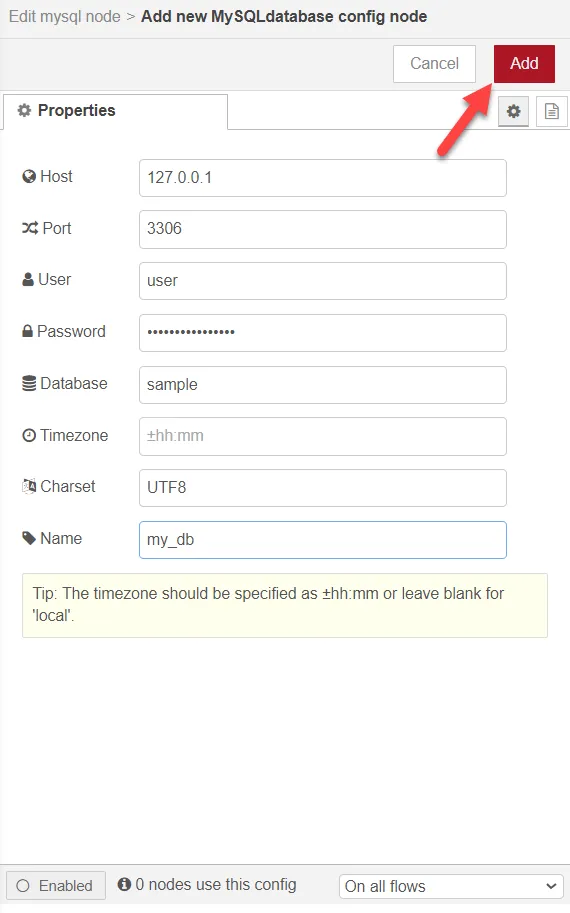 Edit mysql node dialog box
Configure Template Node
To configure the Template node:
- Double-click the Template node. The Edit template node dialog box opens.
- Property: Select msg. and enter topic.
Template: Enter below query into the form. CREATE TABLE Example ( id int NOT NULL AUTO_INCREMENT PRIMARY KEY, name VARCHAR(255) );
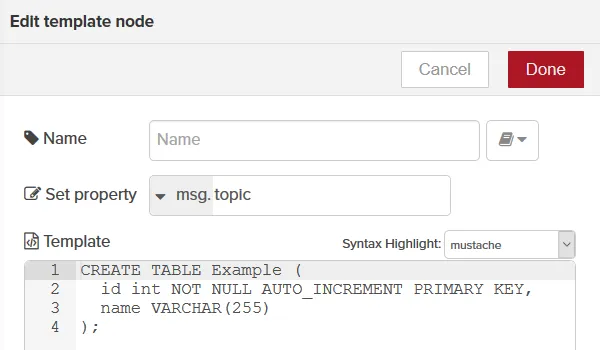 Edit template node dialog box
- Click Done, and then Deploy.
Review Flow Payload
To review the flow payload:
Expand the message window beneath the flow and click the Debug icon.
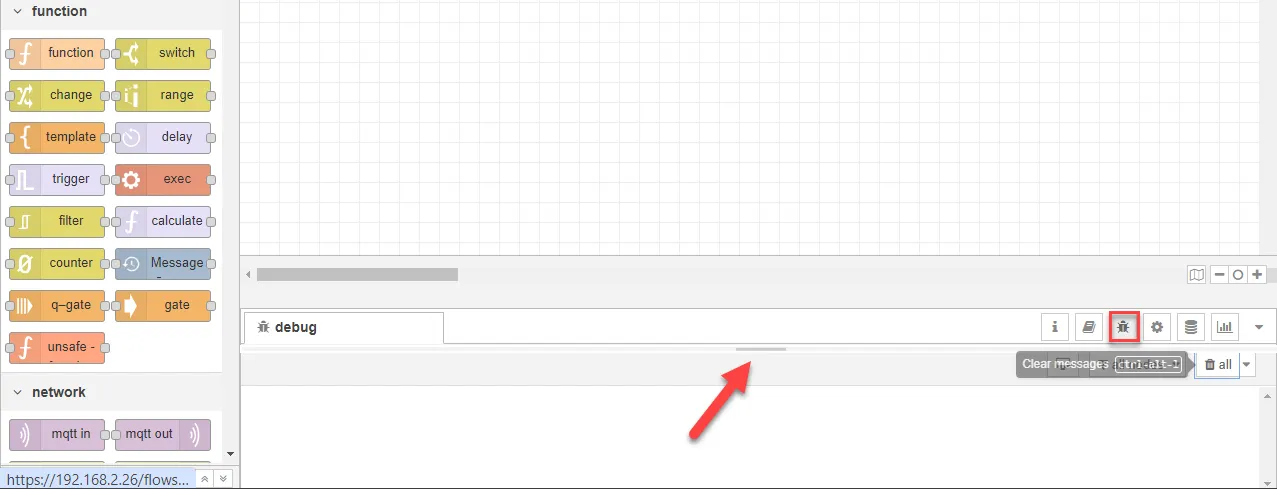 Flows canvas debug section
Click the Inject Node button to run queries after writing them.
 The output result for mysql query
Example Queries
Review the following example queries.
Create a Table
CREATE TABLE Example (

id int NOT NULL AUTO_INCREMENT PRIMARY KEY,

name VARCHAR(255)

);
Insert Values
INSERT INTO Example (name)

VALUES ("Jane"),("John"),("Chris");
Read the Inserted Values
SELECT * FROM Example;Update Inserted Values
UPDATE Example
SET name = "Christine"
WHERE name = "Chris";
Delete Values
DELETE FROM Example WHERE name = "Christine";