Work with MongoDB Databases
You can use Flows to establish a connection with the MongoDB database and complete operations on it.
Step 1: Install MongoDB in Litmus Edge
To install MongoDB in Litmus Edge:
- Navigate to Applications > Marketplace.
Click Marketplace List and select Default Marketplace Catalog.
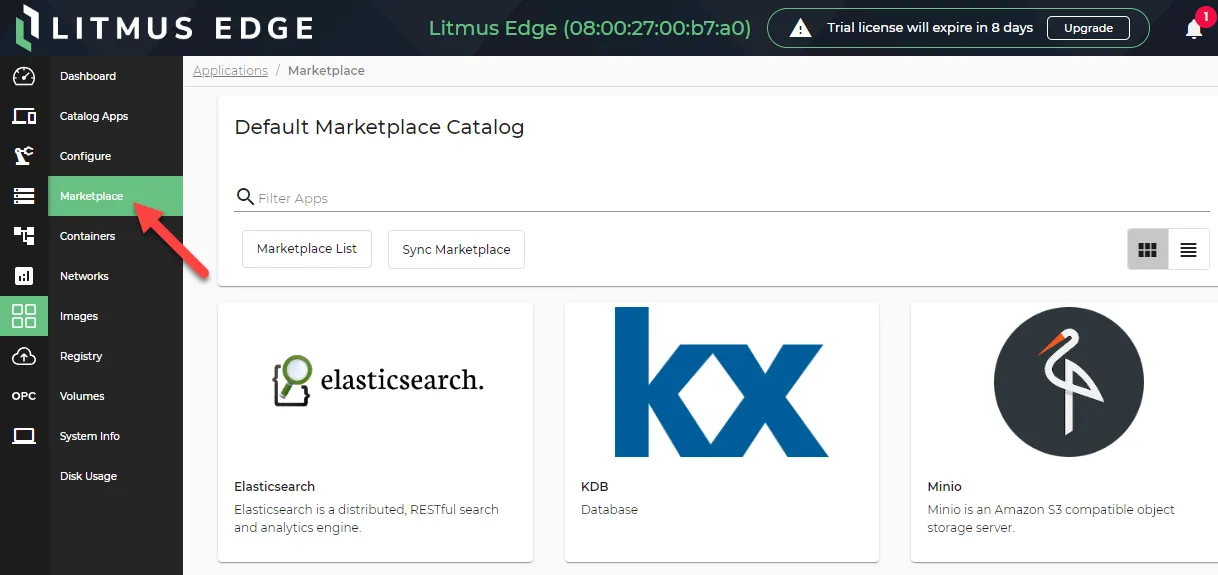 Applications marketplace page
- Search and click the MongoDB tile.
- Installation script version: From the drop-down list, select latest.
- Name: Enter a name for the application.
- Leave the other fields with their default values.
Click Launch.
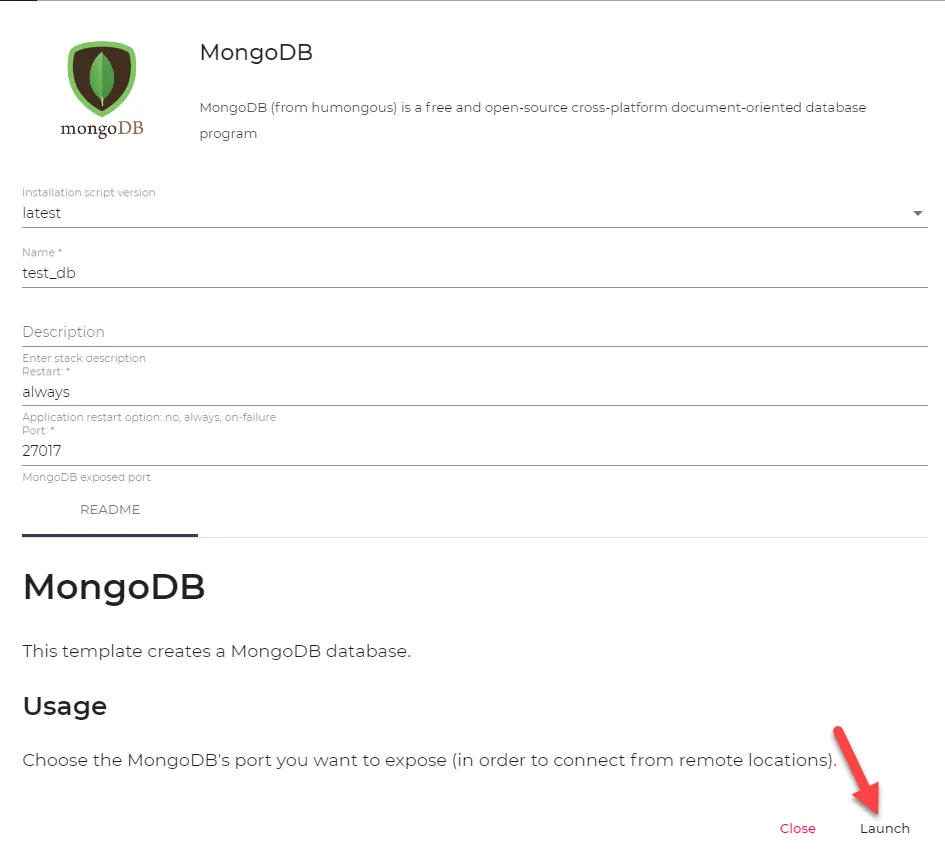 MongoDB configuration dialog box
Navigate to Applications > Catalog Apps to ensure the application is running successfully.
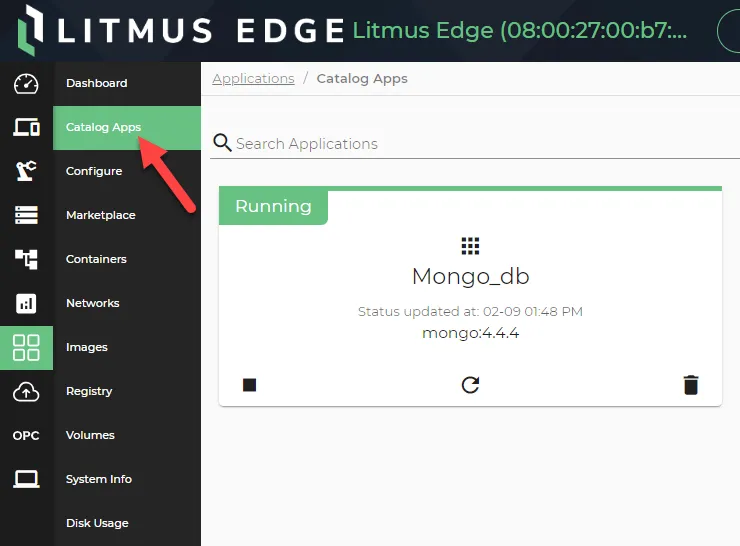 Running MongoDB application
Troubleshooting
If you have any issues installing mongoDB, do the following:
- Check System > Info to make sure that you have enough space on your edge device.
- Make sure that you do not have any network connectivity issues.
- Navigate to Applications > Catalog Apps and click the MongoDB application tile to view the logs. Review any errors.
Step 2: Create Flow
To start creating the flow in Litmus Edge, navigate to the Flows Manager and create a new flow. See Create a Flow to learn more.
You can create flows with MongoDB nodes to do the following:
- Read the inserted values
- Update the values
- Remove the values from the database
There are three MongoDB nodes available on the flow canvas.
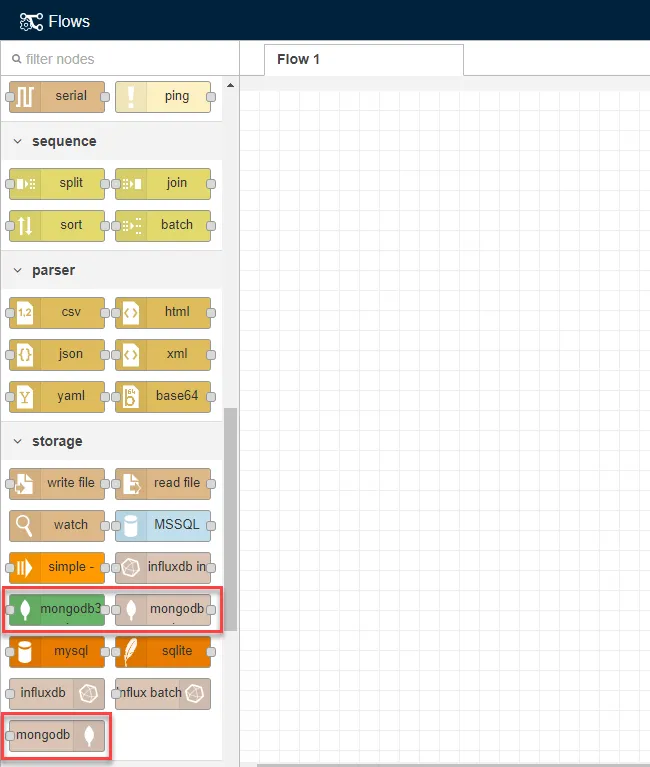
- Mongodb in: Allows simple queries such as find and count.
- Mongodb out: Allows operations such as insert, update, and remove.
- Mongodb3 in: Allows more complex operations such as MapReduce.
Configure MongoDB Node
You will first need to configure a database connection for the MongoDB node. You can set up the configuration once and use it for all MongoDB nodes in the same Flows Manager.
To configure the MongoDB node:
- Drag and double-click a Mongodb3 in node on the canvas. The Edit mongodb3 in node dialog box appears.
- Server: Click the Edit icon.
- Configure the Properties for the node.
- MongoDB does not require a username or password by default, so you can leave this blank unless you set them previously.
- URI: Enter the IP address for your MongoDB server. It is mongodb://localhost:<27017> if your MongoDB instance is running on the same device as Litmus Edge.
Click Add or Update.
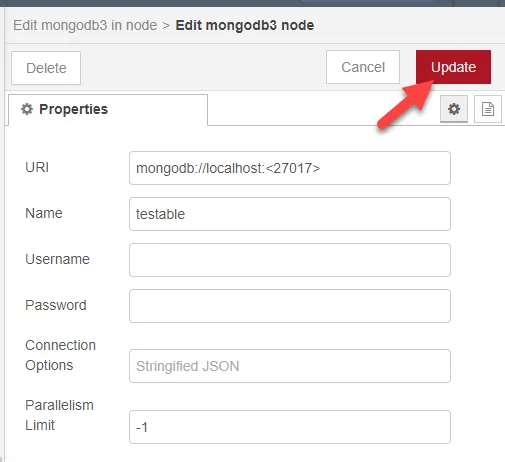 Mongodb3 in Properties dialog box
Click Done and then click Deploy.
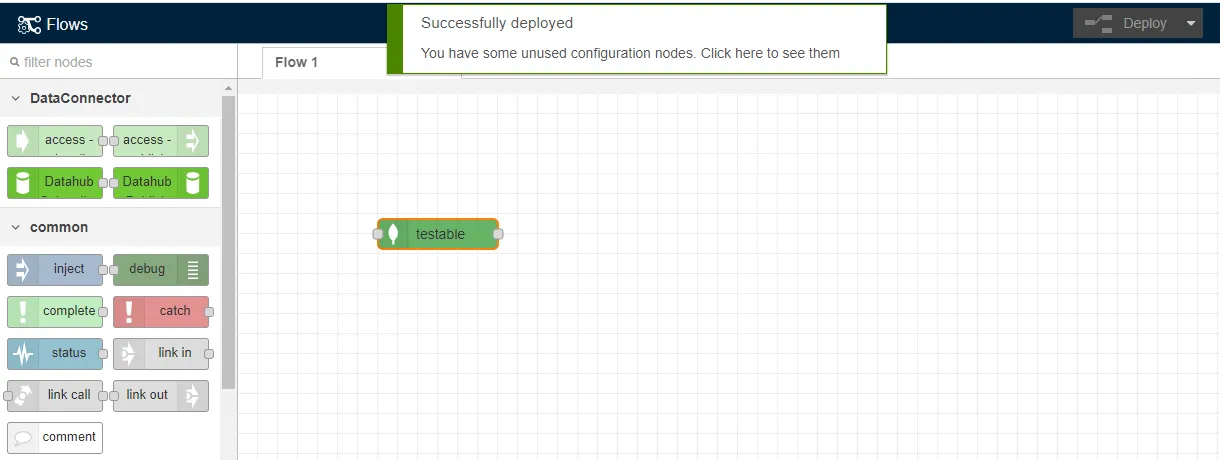 Flows canvas with mongodb3 in node
Insert Values
To insert new records into a MongoDB database:
From the flow canvas, drag and connect an Inject node, a Function node, and a Mongodb out node.
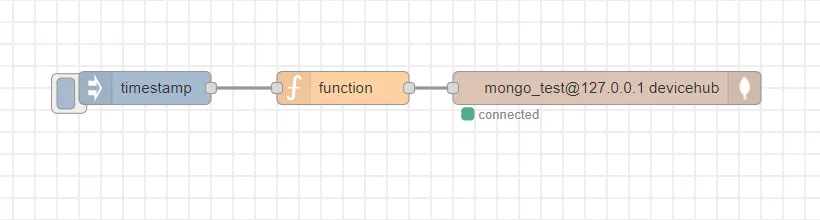 Connected nodes on canvas
- Double-click the Function node. The Edit function node dialog box appears.
- On Message: Enter the following: msg.payload = {"column1" : "value1", "column2" : 15}; // Change to be the keys and values appropriate for your database. return msg;
Click Done.
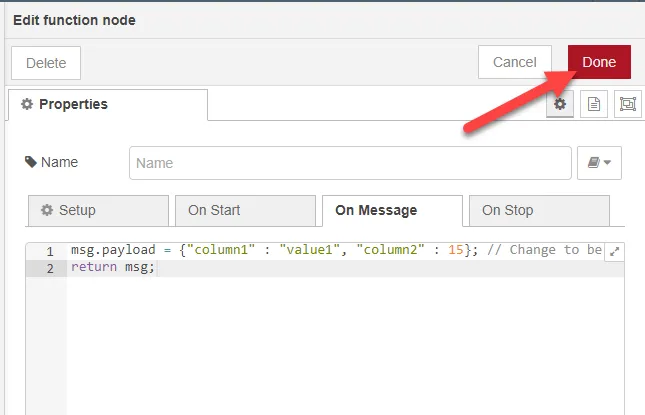 Edit function node dialog box
- Double-click the Mongodb out node. The Edit mongodb out node dialog box appers.
- Operation: Select insert.
- Only store msg.payload object: Select the checkbox.
- Collection: Enter devicehub.
- Server: Configure the server setting if needed.
Click Done.
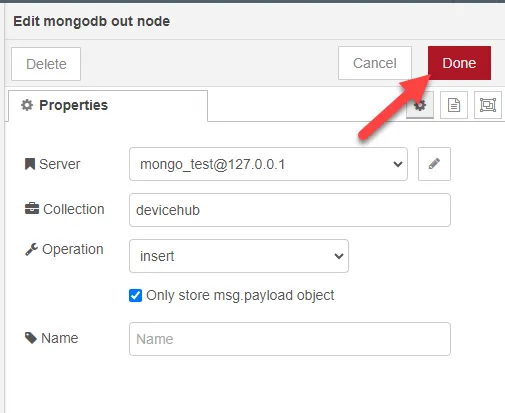 Edit mongodb out node dialog box
Click Deploy.
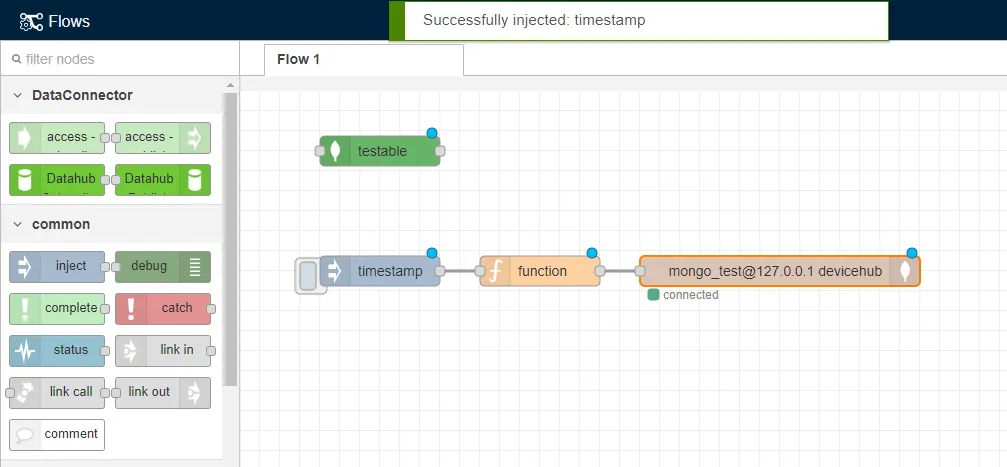 Completed flows canvas
- Click the Inject node button to insert records into the database. Each click inserts a new record with a new ID (_id).
Read All Records
To retrieve all records from a MongoDB collection:
From the flow canvas, drag and connect an Inject node, a Mongodb in node, and a debug node.
 Connected nodes on canvas
- Double-click the Mongodb in node. The Edit mongodb in node dialog box appears.
- Collection: Enter devicehub.
- Operation: Select find.
- Server: Configure the server setting if needed.
Click Done.
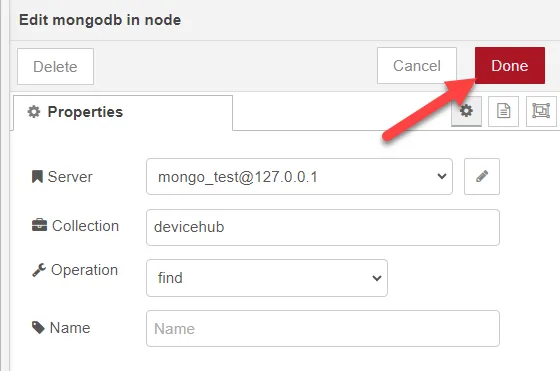 Edit mongodb in node dialog box
- Click Deploy and expand the message window beneath the flow.
Click the Debug icon to view the output. All the records are seen in the table.
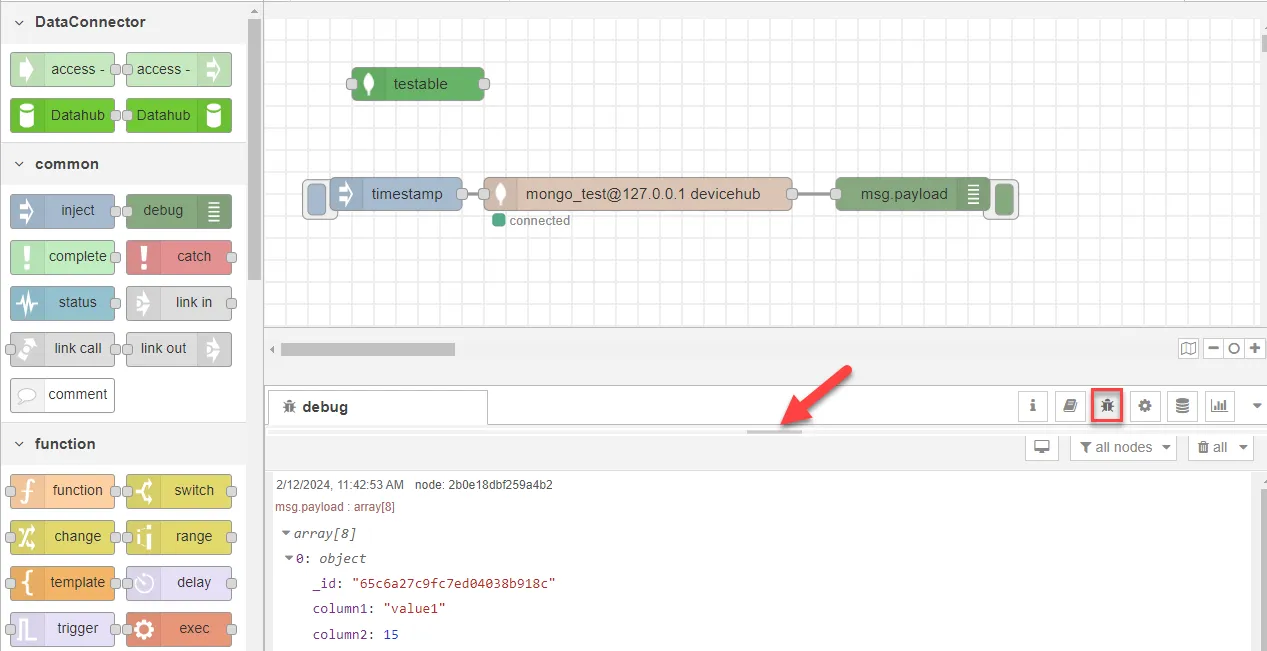 Completed flows canvas
Read Single Record
To retrieve a single record from a MongoDB collection:
- From the flow canvas, drag and connect an Inject node, a Function node, a Mongodb3 in node, and a Debug node.
From the flow canvas, drag and connect an Inject node, a Function node, a Mongodb3 in node, and a Debug node.
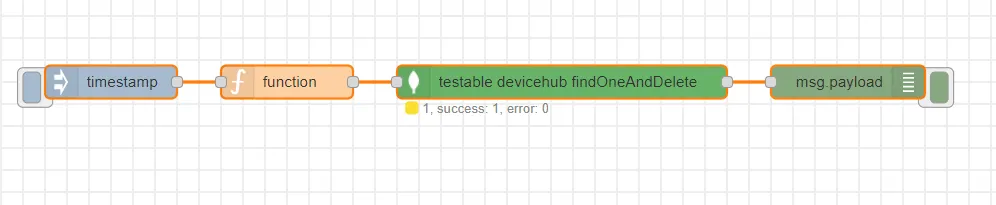 Connected nodes on canvas
- Double-click the Mongodb3 in node. The Edit mongodb3 in node dialog box appears.
- Service: Select External service.
- Server: Select the Server you created while configuring the MongoDB node above.
- Operation: Select findOne.
Click Done.
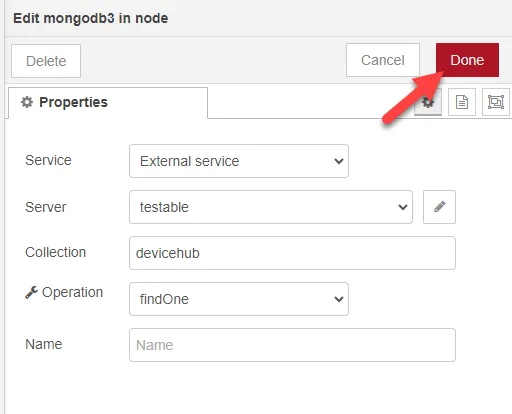 Edit mongodb3 in node dialog box
- Double-click the Function node. The Edit function node dialog box appears.
- On Message: Enter the following: msg.payload = {"column2" : 16} // This line reads all records where column2 is equal to 16. return msg;
Click Done.
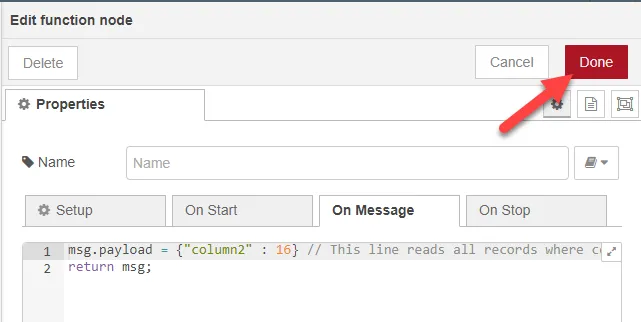 Edit function node dialog box
- Click Deploy and expand the message window beneath the flow.
Click the Inject node button to read the record that matches the specified key-value pair. View the record by clicking the Debug icon.
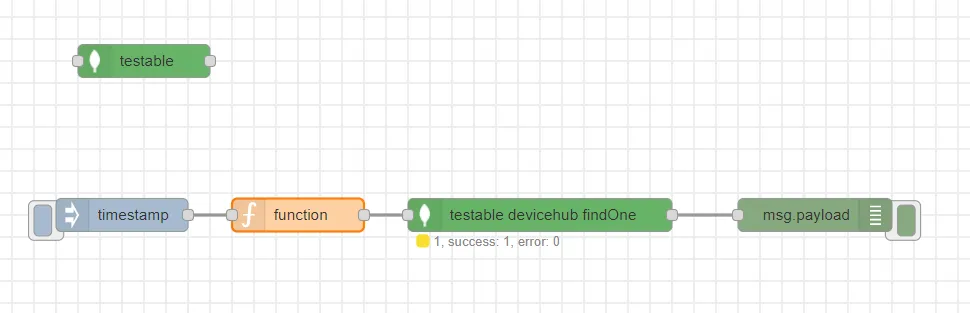 Completed flows canvas
Update Values
To update values in a MongoDB database:
In the flow canvas, drag and connect an Inject node, a Function node, and a Mongodb out node.
 Connected nodes on canvas
- Double-click the Mongodb out node. The Edit mongodb out node dialog box appears.
- Collection: Enter devicehub.
- Operation: Select update.
- Update all matching documents: Select the check box.
Click Done.
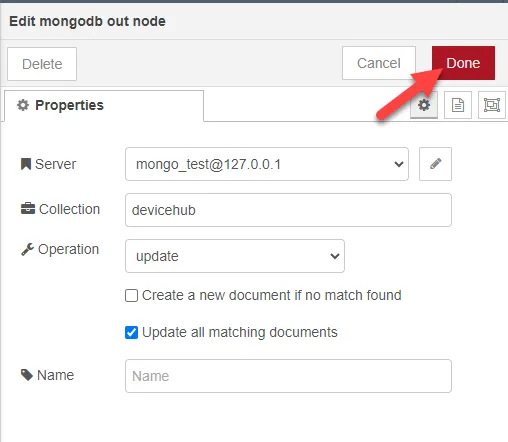 Edit mongodb out node dialog box
- Double-click the Function node. The Edit function node dialog box appears.
- On Message: Enter the following: msg.query = {"column2" : 15}; // This line makes the query only update records where column2 is equal to 15. msg.payload = {"$set": { "column2": 20 }}; // This line uses the set operator to ensure that the update sets column2 to 20 for all matching records. return msg;
Click Done.
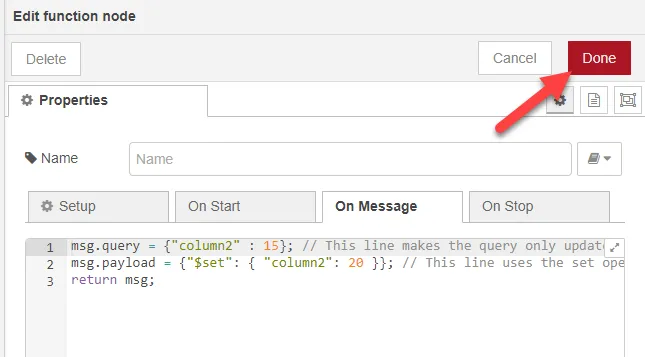 Edit function node dialog box
- Click Deploy and expand the message window beneath the flow.
Click the Inject node to perform the update operation. The records with column2 value as 15 are updated with 20.
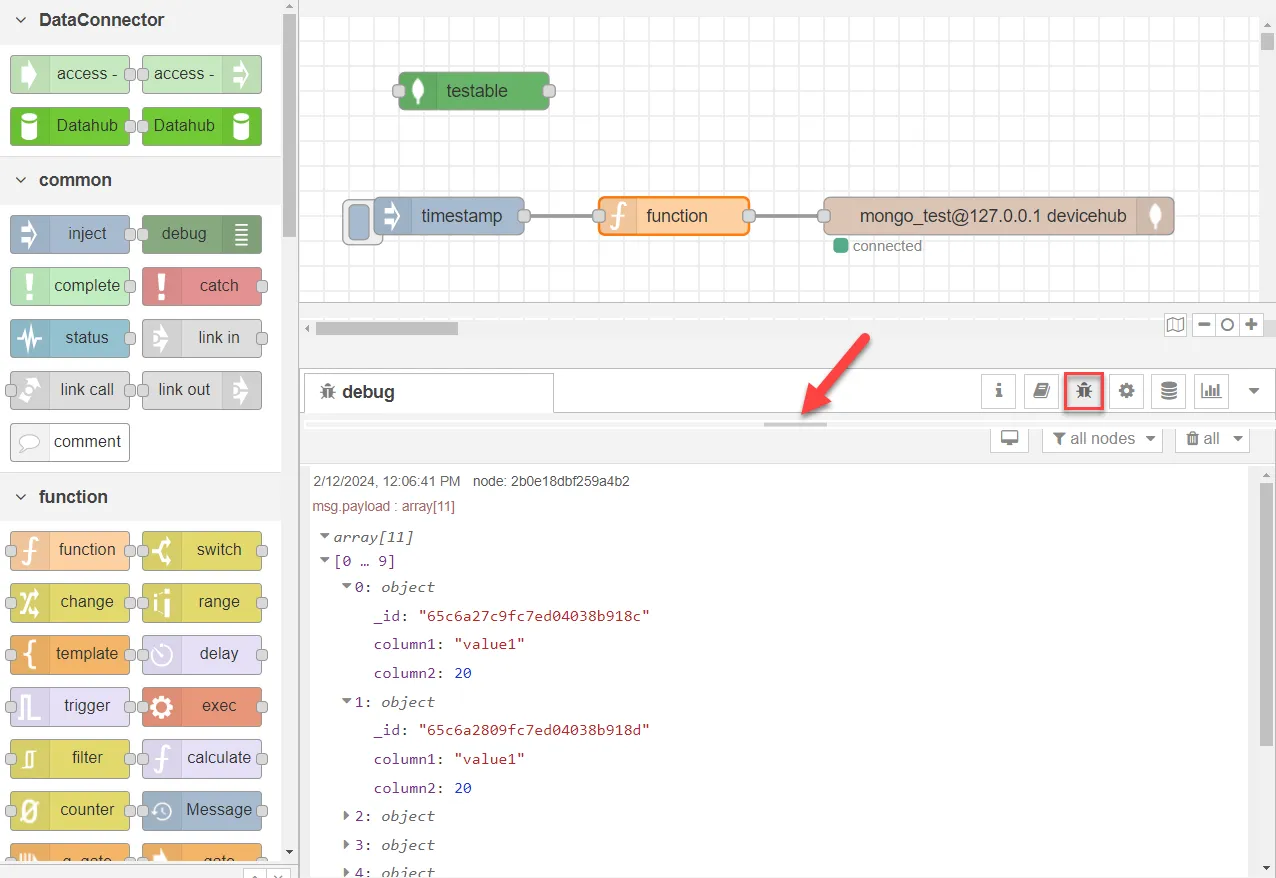 Completed flows canvas
Delete Values
To delete records from a MongoDB database:
In the flow canvas, drag and connect an Inject node, a Function node, and a Mongodb out node.
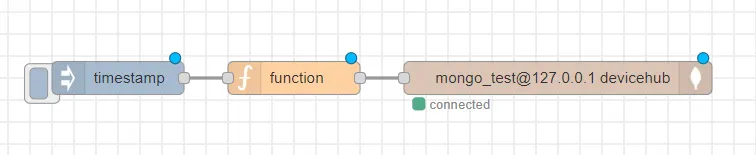 Connected nodes on canvas
- Double-click the Mongodb out node. The Edit mongodb out node dialog box appears.
- Collection: Enter devicehub.
- Operation: Select remove.
Click Done.
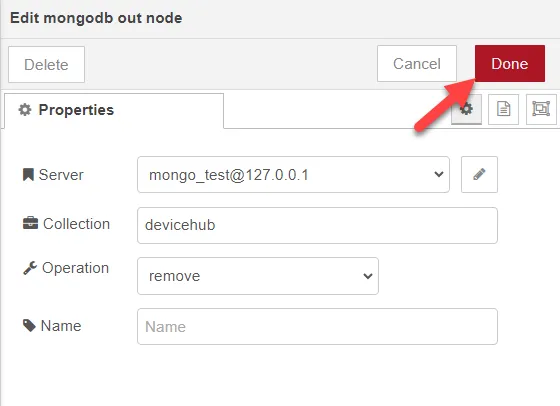 Edit mongodb out node dialog box
- Double-click the Function node. The Edit function node dialog box appears.
- On Message: Enter the following: msg.payload = {"column2" : 20}; // Makes the remove operation delete all records where column2 equals 20. return msg;
Click Done.
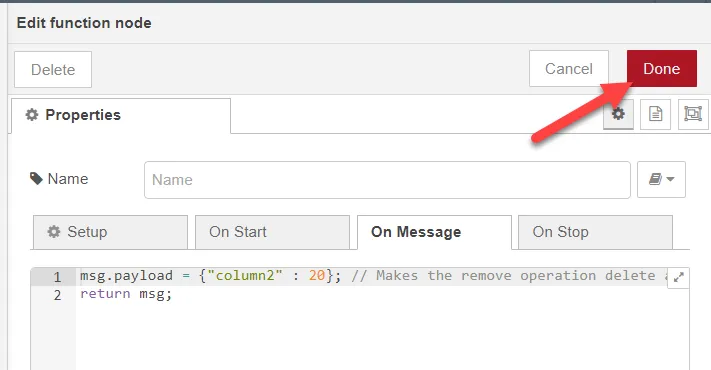 Edit function node dialog box
- Click Deploy and expand the message window beneath the flow.
Click the Inject node to perform the remove operation. The record with columns equal to 20 are deleted.
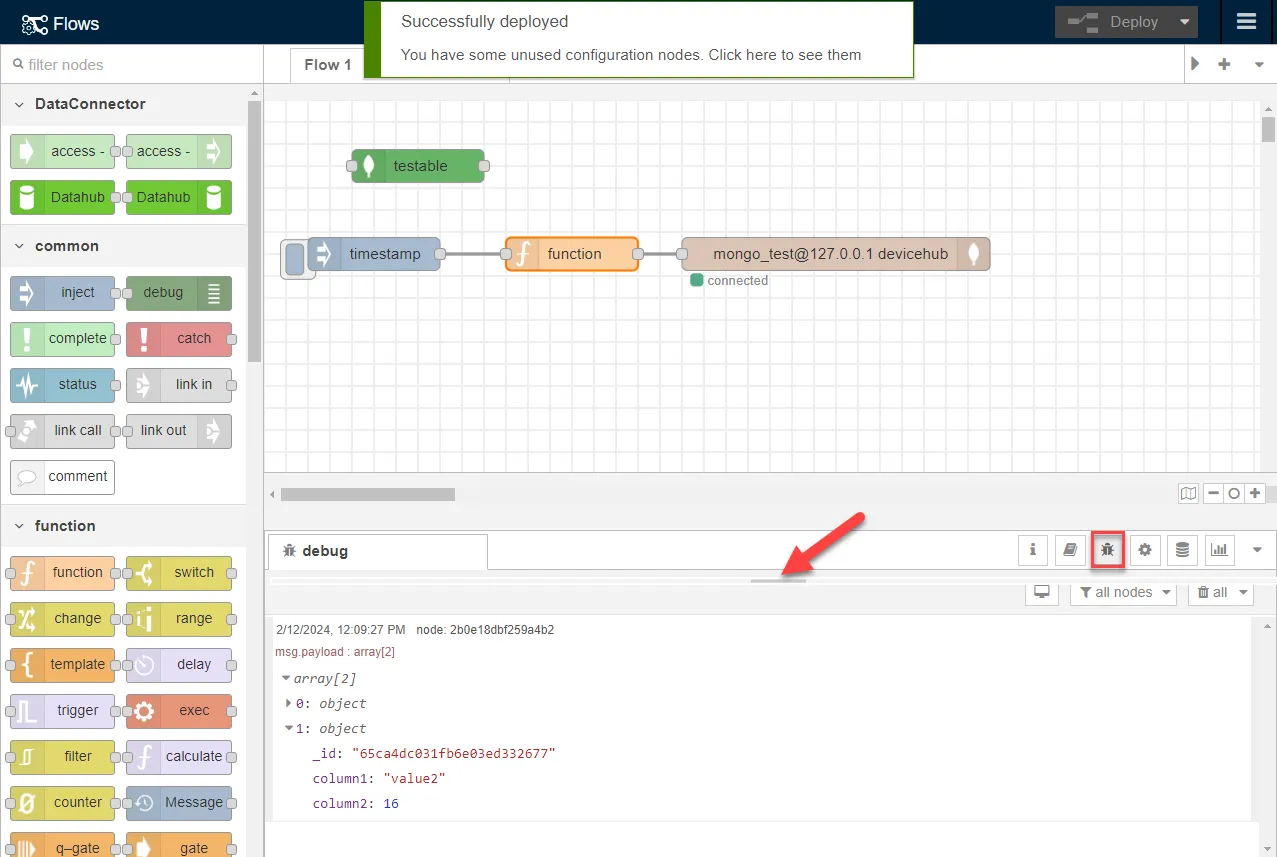 Completed flows canvas