Write to Databases with Integration Topics
You can create Flows to send data to a database through integration topics.
Before You Begin
Make sure you follow the preferable database integration in the Integration Guides. For this tutorial, we will use the MySQL Integration Guide.
Step 1: Add a Device
Follow the steps to Connect a Device and configure the following parameters:
- Device Type: Simulator
- Driver Name: Generator
- Enable Alias Topics: Select the checkbox.
Step 2: Add Tags
After connecting the device, Add Tags to the device.
Tag 1: tag1
- Name: Select S - Random value generator
- Value Type: Select float64
- Polling Interval: Enter 5
- Tag Name: Enter tag1
- Min_value: Enter 10
- Max_value: Enter 50
Step 3: Add a Database Integration Topic
To add a database integration topic:
- In Litmus Edge, navigate to Integration.
Click a database integration tile. Make sure the tile has a Connected status.
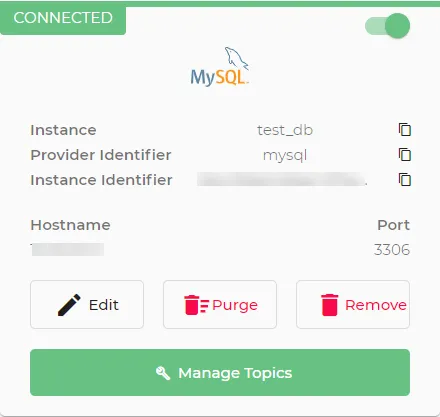 Database integration tile
- Click Topics.
- Click Add a new subscription icon. The Data Integration dialog box appears.
- Data Direction: Select Local to Remote - Outbound.
- Local Data Topic: Click the Search icon, and then select the device and alias topic for the tag you previously created.
Toggle Enable to enable the topic.
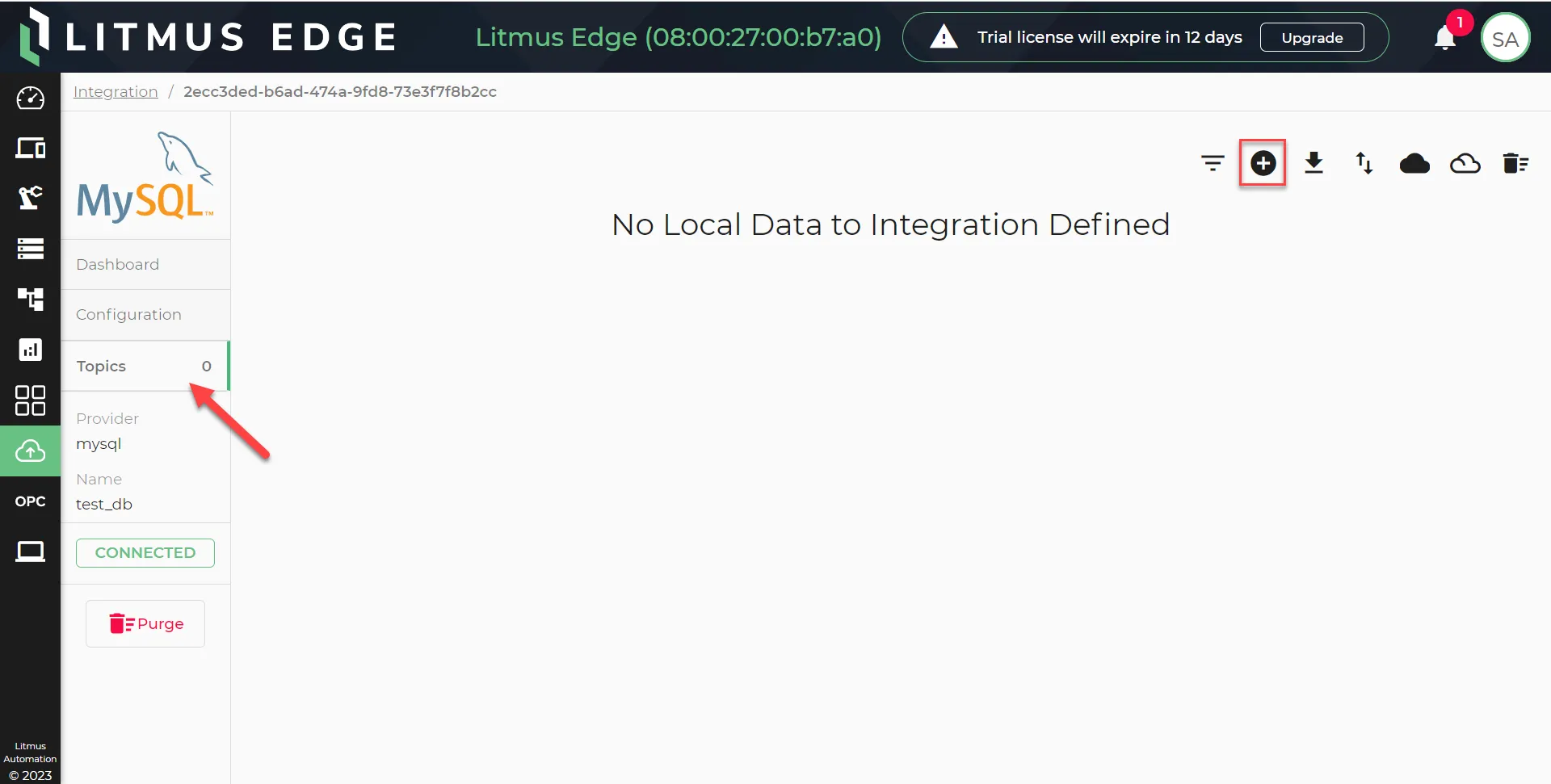 Topics page in integration
Click Yes.
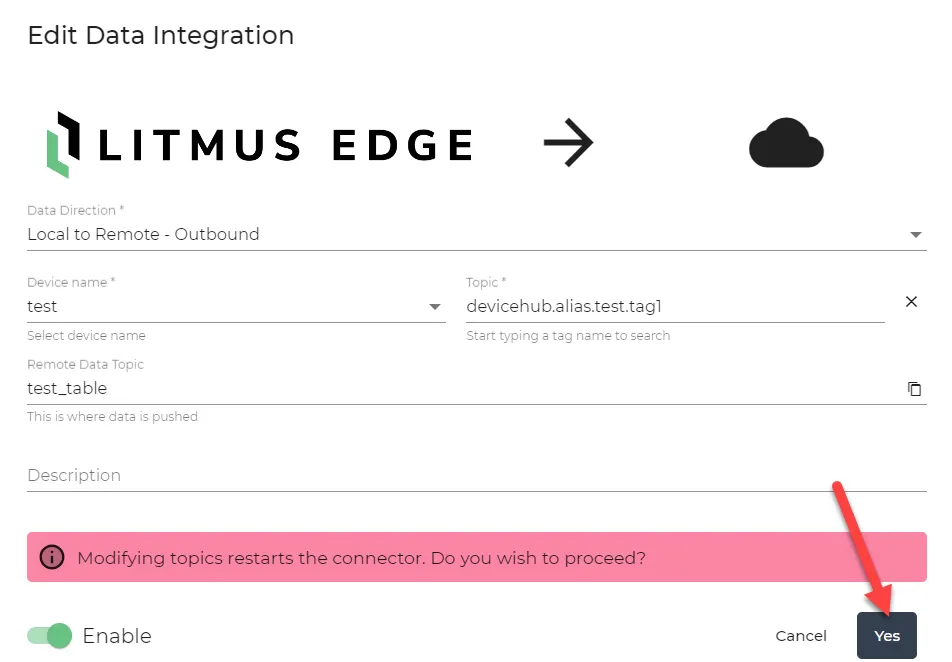 Edit data integration dialog box
Note: Modifying topics restarts the connector.
Step 4: Create Flow
To create the flow:
- Drag the Inject, Function, and DataHub Publish nodes to the canvas and wire them together.
Drag the DataHub Subscribe and Debug nodes to the canvas and wire them together.
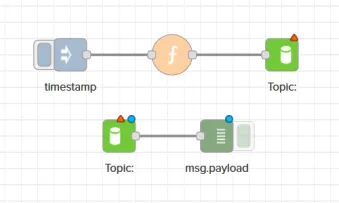 Flows canvas
- Double-click the Function node.
- In the On Message tab, input the code below, ensuring to update the variables obj.name, obj.num, and msg.subjectInput to match your topic and database. var obj = {}; // Create an empty JSON object. obj.name ="test_table"; // Write the name of your database integration remote data topic in the quotation marks. obj.num = 99000; // Change num to be one of the names of your columns or change 99000 to a value that you want to insert into the database. msg.payload = JSON.stringify(obj); // Puts the JSON object into the message payload. msg.subjectInput = "test_table"; // Write the name of your database integration remote data topic in the quotation marks. return msg;
- Click Done.
- Double-click the Datahub Publish node.
- Datahub: Configure the Datahub Publish connection if needed. See Configure Connector Nodes to learn more.
- Topic: Enter your topic name.
- Click Done.
- Double-click the Datahub Subscribe node.
- Datahub: Configure the Datahub Subscribe connection if needed. See Configure Connector Nodes to learn more.
- Topic: Enter your topic name.
- Click Done.
- Click Deploy.
Expand the message window beneath the flow.
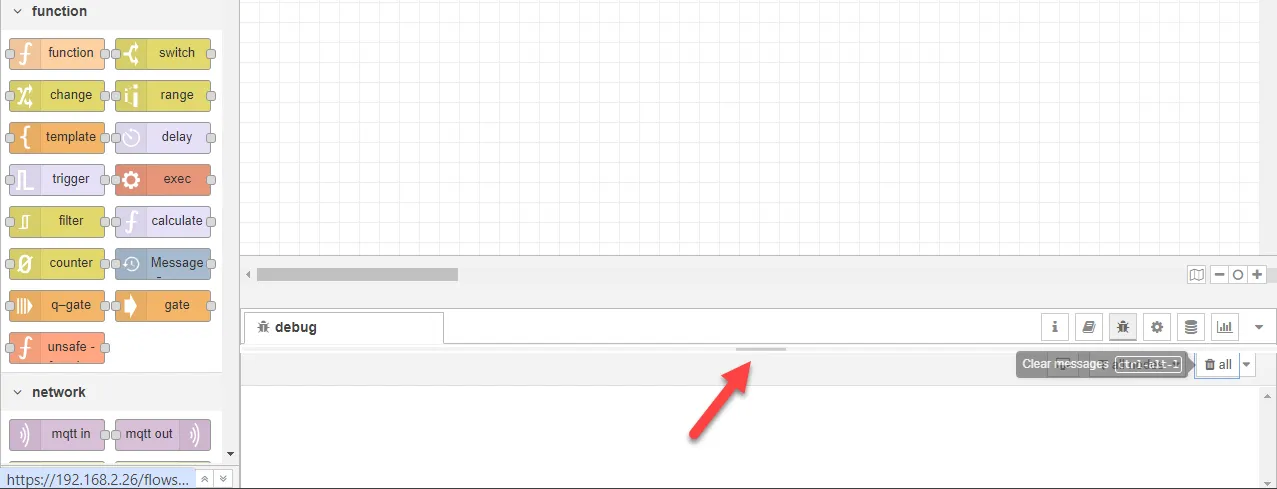 Flow canvas message window
- Click the Inject node button to insert rows into the database.
Click the Debug icon to view the data output.
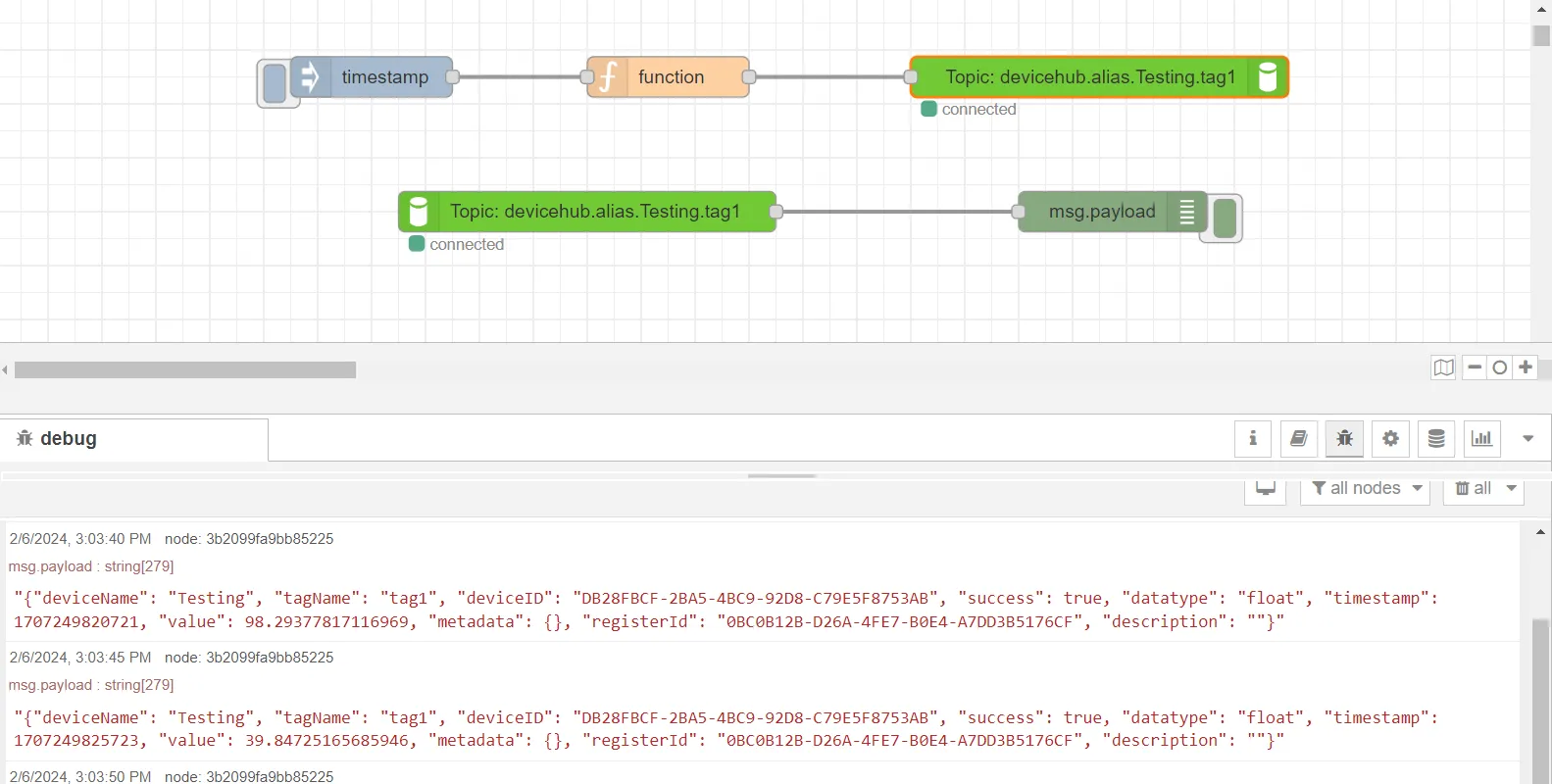 Flows canvas debug tab
Step 5: Verify the Results in Database
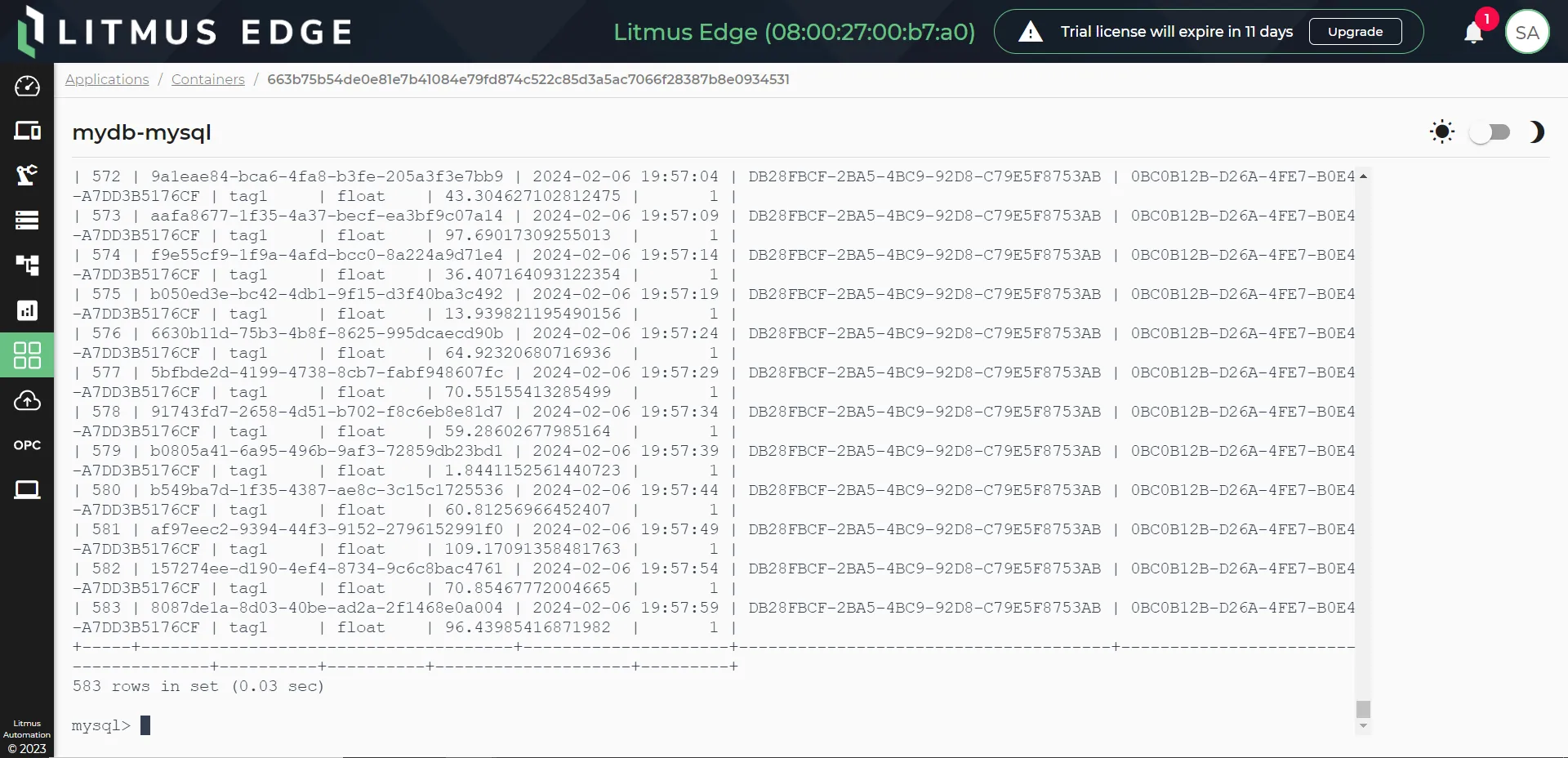
You can query the database to confirm that the integration topic inserted the data properly. See Make Queries in the Container Terminal to learn more.