OPC UA Client Advanced
Review the following information for setting up and configuring the OPC UA Client Advanced.
Litmus Edge Compatible Series
Compatibility parameter | Compatible items |
|---|---|
Driver type | Ethernet |
Functionality |
|
Replaces Gen 1 driver(s) | OPC UA Client OPC UA Client Poll OPC UA Client (Gen1) OPC UA Client Subscribe (Gen1) Learn more about Gen1 and Gen2 Driver Differences |
Step 1: Set up and Configure the Driver
To find the network parameters of the driver, you have the option of using the Device Discovery Tool. Otherwise, set up the device for Ethernet access and collect the network parameters.
To use the device discovery tool:
- Navigate to DeviceHub > Devices.
Click the Connect a Device box. The Connect Device dialog box appears.
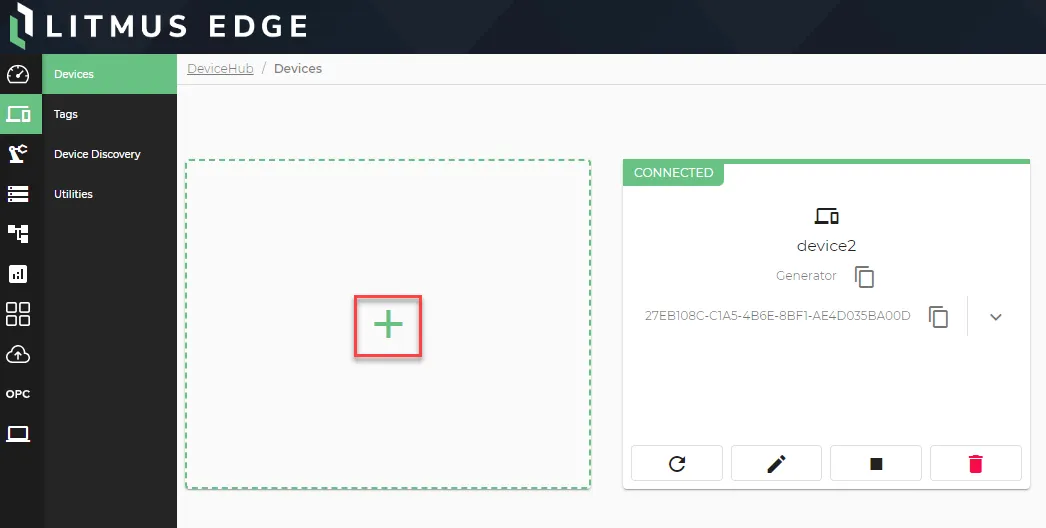 Connect a Device box
- Click the Device Type drop-down list and select OPCUA.
- Click the Driver Name drop-down list, and select OPC UA Client Advanced.
Click Device Discovery. The Device Discovery dialog box appears.
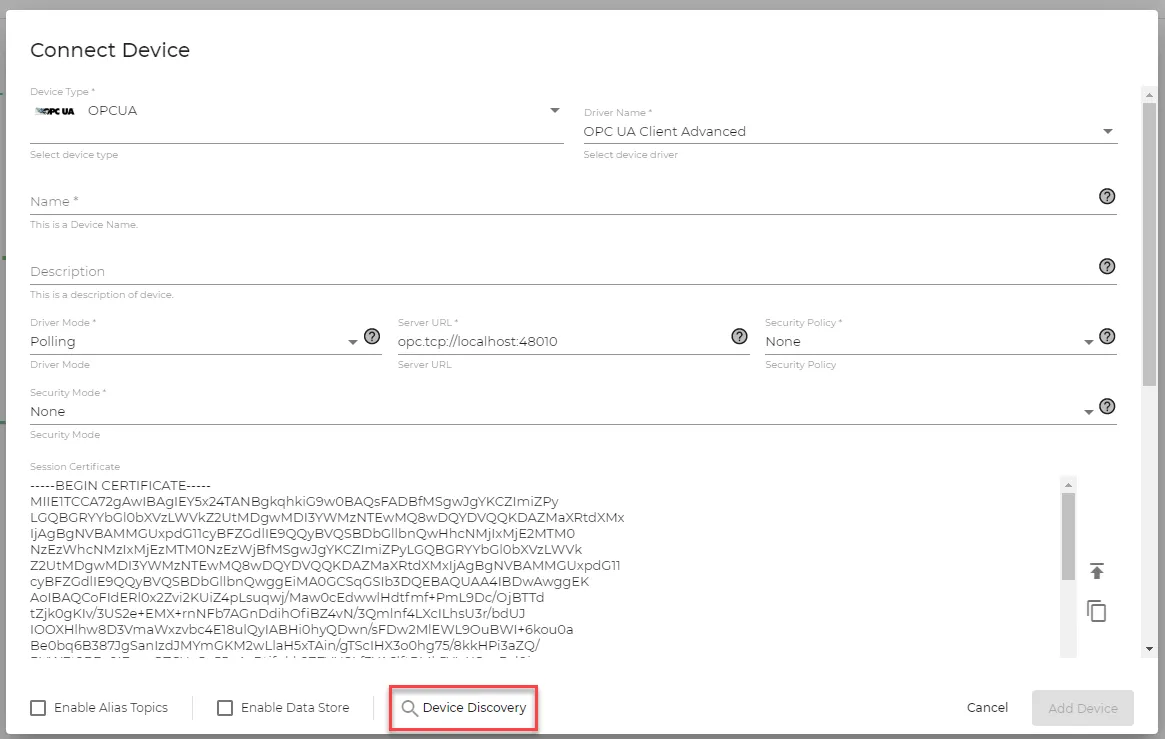 Device Discovery option
- Select only one of the following fields to use for discovering the device.
- Discovery Server URL (Servers and Endpoints Discovery): No prior setup/configuration is needed to use this field. Replace localhost with the appropriate IP address or domain name that will be used to search for the device. Ensure the correct port number is entered.
- Server URL (Endpoints Discovery): You'll need to enable/configure the server to use this field. Replace localhost with the appropriate IP address or domain name that will be used to search for the device. Ensure the correct port number is entered.
- Delete all text from the field not being used.
- Click Start discovery. When the search is complete, available servers with corresponding security policies will be listed.
- Click the appropriate server/security policy, and then click Update form with discovery results. The Connect Device dialog box appears with Server URL, Security Policy, and Security Mode pre-filled based on the discovery results.
- In the Driver Mode field, select either Polling or Subscription.
- Move onto Step 2 and continue configuring the driver with the remaining parameters.
Step 2: Set up the Driver in Litmus Edge DeviceHub
Configure the following parameters when you Connect a DeviceConnect a Device with this driver. Update default values to the specific setup of your device.
Parameter | Value |
|---|---|
Type | OPC UA |
Driver | OPC UA Client Advanced |
Driver Mode | Polling or Subscription |
Server URL | The server endpoint URL defined in Step 1 |
Security Policy | The policy you defined in Step 1 |
Security Mode | The mode you defined in Step 1 |
Certificate | Auto-generated |
Private Key | Auto-generated |
Auth Mode | Anonymous, Certificate, or UserName |
Disable Error Certificate Host Name Invalid | false or true |
Default Root | Start node to browse the server |
Step 3: Configure the List of Registers
Browse for tags to add to this FreeTag device. See Browse Tags to learn more.
Alternatively, when you Add Tags, for Name map the OPC server tags to the client using this format: ns=1;s=tagname.
Example: ns=2;s=Demo.Static.Scalar.Boolean
The following value types are supported:
- bool
- sbyte
- byte
- int16
- uint16
- int32
- uint32
- int64
- uint64
- float32
- float64
- string
- BLOB
- bool[]
- sbyte[]
- byte[]
- int16[]
- uint16[]
- int32[]
- uint32[]
- int64[]
- uint64[]
- float32[]
- float64[]
- string[]
- BLOB[]
Refer to the following tag parameters.
Tag Parameters
- Name: Enter a name based on this format: ns=1;s=tagname.
- Example: ns=2;s=Demo.Static.Scalar.Boolean
- Value Type: Select a data type from the drop-down list.
- Polling Interval: Enter a value in seconds. This determines how often the tag should poll the register for data.
- Tag Name: Enter a name for the tag.
- Description (Optional): Enter a description for the tag.
- Tag Formula: Enter a formula for the tag to process the generated data. Two variables are permitted: value (current tag value) and timestamp (current tag UNIX time in milliseconds). The following math functions are available:
- sin
- cos
- sqrt
- tan
- power: power(x) performs the operation 10^x.
- log: log(x) is the natural logarithm (the logarithm is in base e).
- exp: exp(x) performs the operation e^x.
- Only Publish on Change of Value: Select the checkbox to customize NATS messages to be published only when the value parameter changes from a previous value to a new one. Change of Value only applies to boolean, numeric (such as int or float), and simple string data types. It does not apply to complex types, such as JSON or array. Poll-once topics will not be affected by Change of Value settings. These topics will still only see a single message.
- Meta Data: Metadata summarizes basic information about data. This feature allows you to define key-value pair data for the device output payload later on. It can then be used to find, use, and reuse particular instances of data.
Note: If you use special characters in meta data key names, the special characters are replaced with underscore characters in the payload. This can cause two key names to be combined into one. For example, configuring the key names a**b and a&&b will cause only one key name to be created (a__b).
Tag Parameters
- Name: Enter a name based on this format: ns=1;s=tagname.
- Example: ns=2;s=Demo.Static.Scalar.Boolean
- Value Type: Select a data type from the drop-down list.
- Polling Interval: Enter a value in seconds. This determines how often the tag should poll the register for data.
- Tag Name: Enter a name for the tag.
- Description (Optional): Enter a description for the tag.
- Tag Formula: Enter a formula for the tag to process the generated data. Two variables are permitted: value (current tag value) and timestamp (current tag UNIX time in milliseconds). The following math functions are available:
- sin
- cos
- sqrt
- tan
- power: power(x) performs the operation 10^x.
- log: log(x) is the natural logarithm (the logarithm is in base e).
- exp: exp(x) performs the operation e^x.
- Only Publish on Change of Value: Select the checkbox to customize NATS messages to be published only when the value parameter changes from a previous value to a new one. Change of Value only applies to boolean, numeric (such as int or float), and simple string data types. It does not apply to complex types, such as JSON or array. Poll-once topics will not be affected by Change of Value settings. These topics will still only see a single message.
- Meta Data: Metadata summarizes basic information about data. This feature allows you to define key-value pair data for the device output payload later on. It can then be used to find, use, and reuse particular instances of data.
Note: If you use special characters in meta data key names, the special characters are replaced with underscore characters in the payload. This can cause two key names to be combined into one. For example, configuring the key names a**b and a&&b will cause only one key name to be created (a__b).