Applications Dashboard
The Applications Dashboard provides a live view of your edge device's containerized workloads and resource consumption. Use it to confirm that the right containers are running, identify stopped or errored resources before they affect production, and check whether the device is approaching storage or CPU limits. Access the dashboard from Applications > Dashboard.
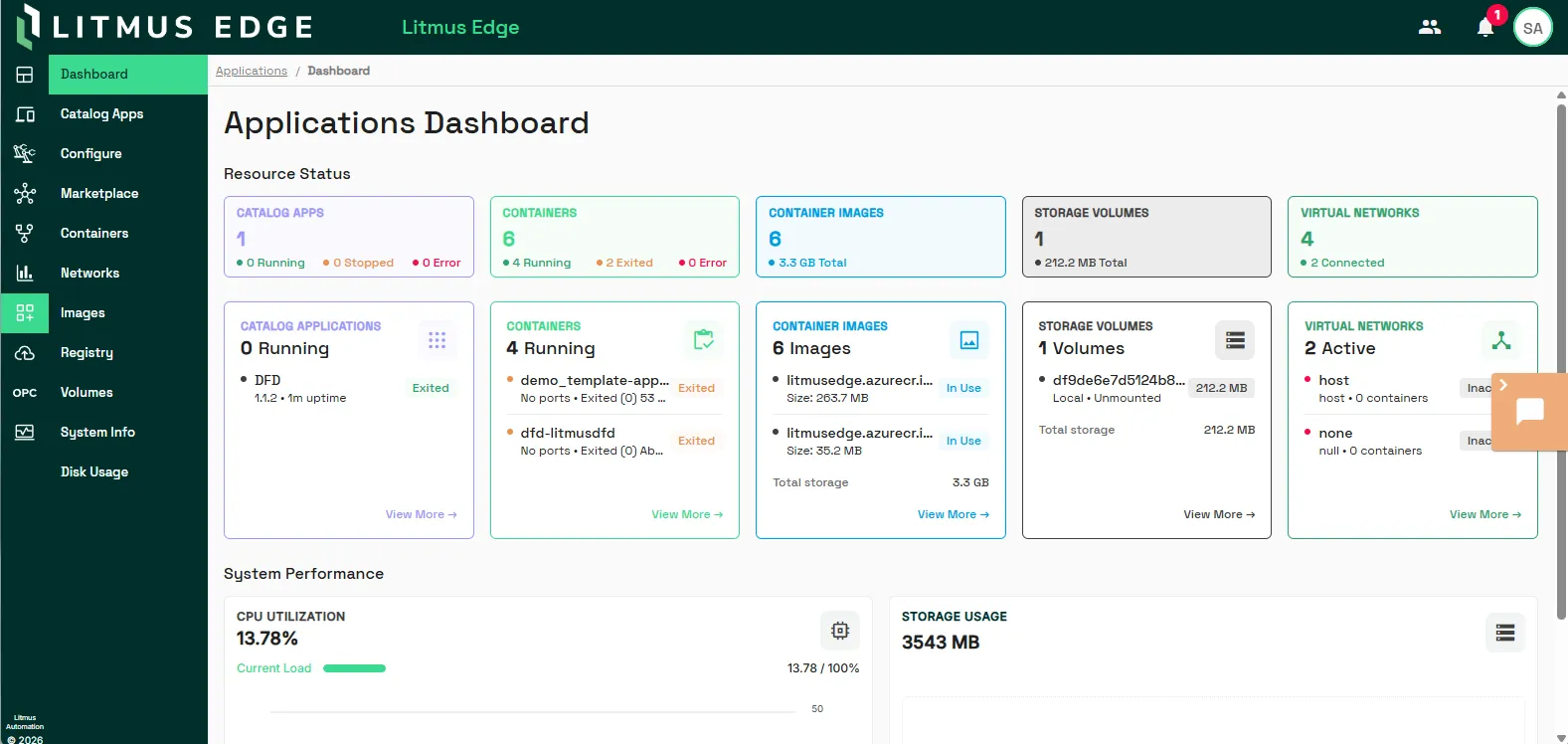
Resource status
Resource Status shows the current state of every resource type managed by the Applications module. Note that detail tiles displays information ordered by attention required. For example, exited containers display before running containers.
Summary tiles across the top show a count and health breakdown for each resource type. Color-coded status indicators let you see at a glance whether something needs attention. Click a tile to navigate directly to that section.
Tile | Status indicators shown |
|---|---|
Catalog Apps | Running, Stopped, Error |
Containers | Running, Exited, or Error |
Container Images | Total storage consumed |
Storage Volumes | Total storage consumed |
Virtual Networks | Number of networks connected |
Detail panels in the bottom row list the individual resources behind each count, so you can identify exactly which container has stopped or which network is inactive without leaving the dashboard. Each panel includes a View More link to open the full section.
Panel | Shows per resource |
|---|---|
Catalog Applications | App names and running status |
Containers | Container names |
Container Images | Image names and total storage consumed across all images |
Storage Volumes | Volume names and total storage consumed across all volumes |
Virtual Networks | Network name, driver type, and number of containers attached |
System performance
The System Performance section shows two charts that update continuously so you can monitor device-level resource pressure without leaving the dashboard.
- CPU Utilization charts current load as a percentage of total CPU capacity over time.
- Storage Usage charts total consumption and breaks it down between images and volumes. This breakdown helps you identify which resource type is driving disk growth when storage is running low.