Add and Manage AI Model Connections
5 min
An AI Models connection lets your analytics flows reference an external AI provider through the AI Processor. This guide walks you through adding a new connection, then updating or removing one you've already created.
Note: Also see AI Models for an overview of supported providers and what a connection is used for.
Before you begin
Before you add or manage a connection, ensure you have:
- Valid API keys or tokens for the AI model provider you're connecting to
- Permission to access and modify AI model configurations in LE Analytics
Step 1: Add a connection
To add a new AI Models connection:
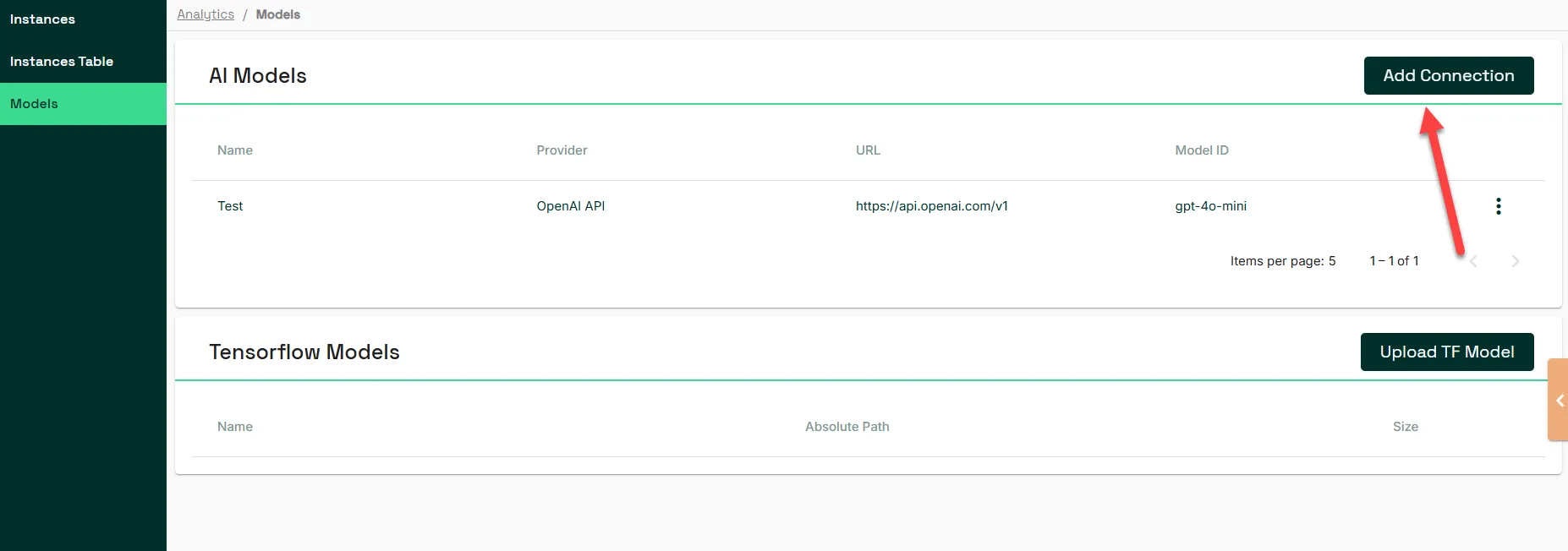
- Click Add Connection. The Add Connection dialog box appears.
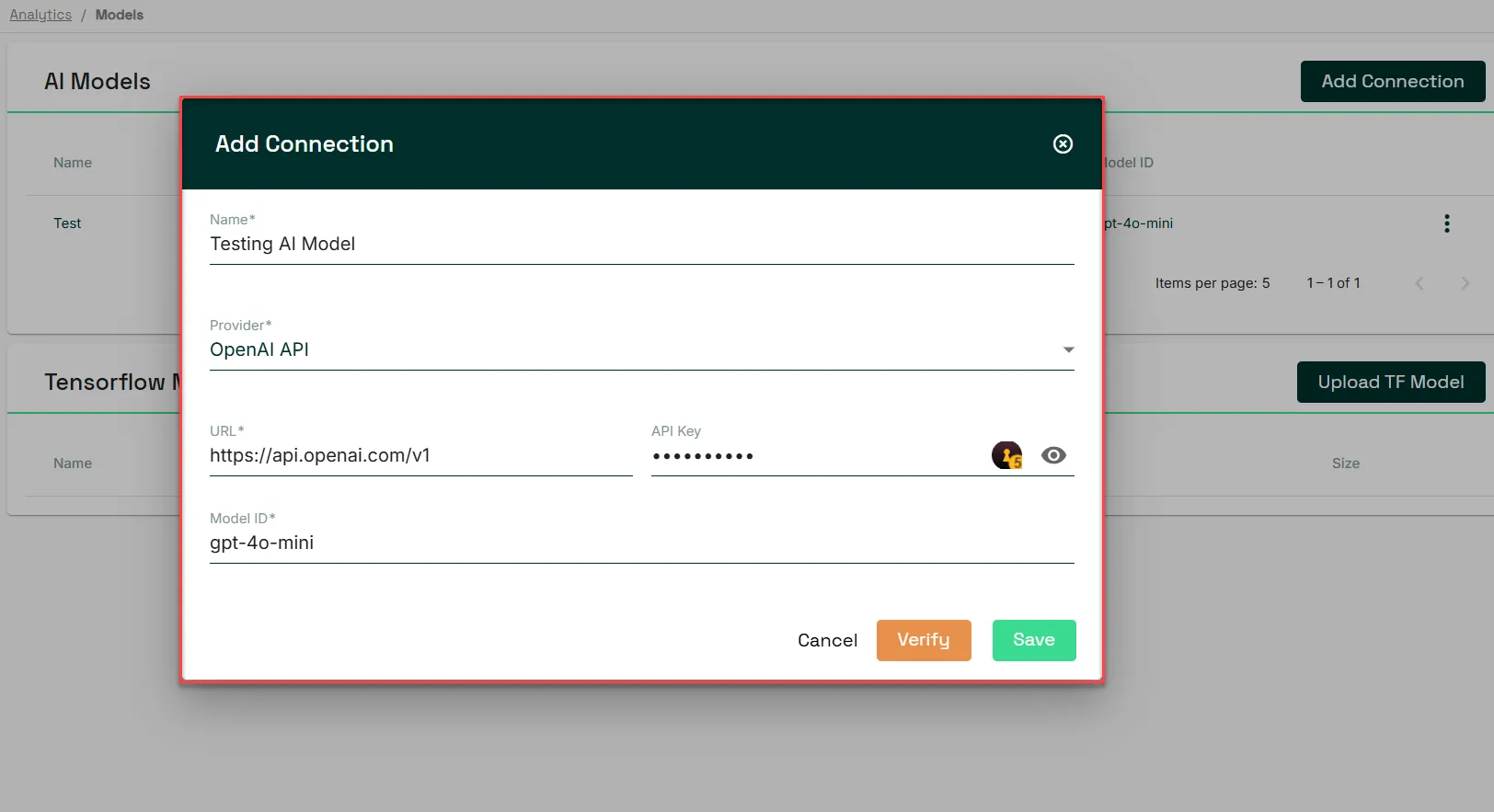
- In Name, enter a name for the connection.
- In Provider, select the provider you're connecting to: OpenAI API, Cloudflare AI Gateway, Grok API, Ollama API, Google Gemini API, Nvidia API, or Anthropic API.
- Enter the URL endpoint, API key, and Model ID for the provider you selected.
- Click Verify to test the connection using the List Models API call. Confirm that the connection validates successfully before continuing.
- Save the configuration to add it to your list of connections.
Step 2: Update a connection
To update an existing connection:
- In the AI Models list, locate the connection you want to update.
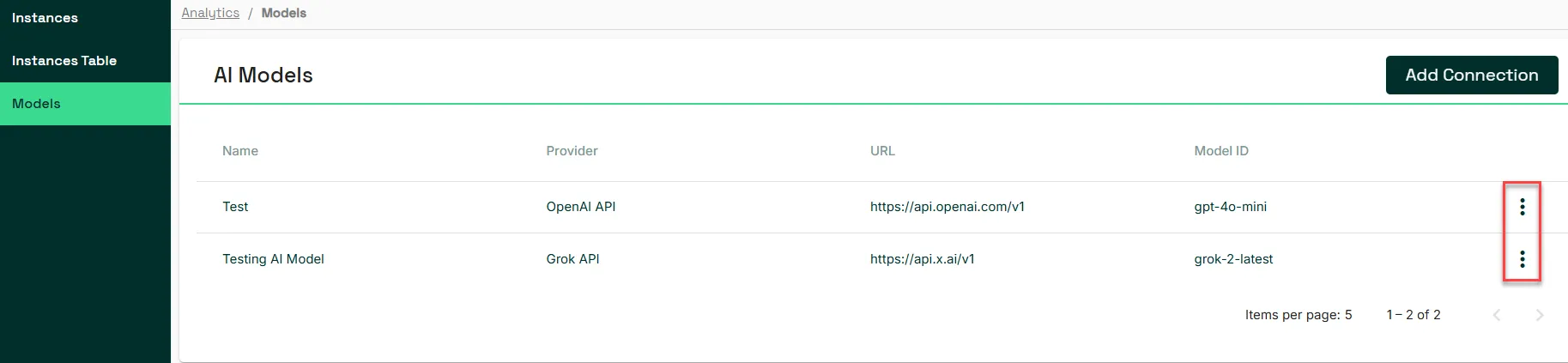
- Click the three dots icon next to the connection, then click Edit.
- Update the necessary fields, such as API key, URL, or Model ID.
- Click Save or Update.
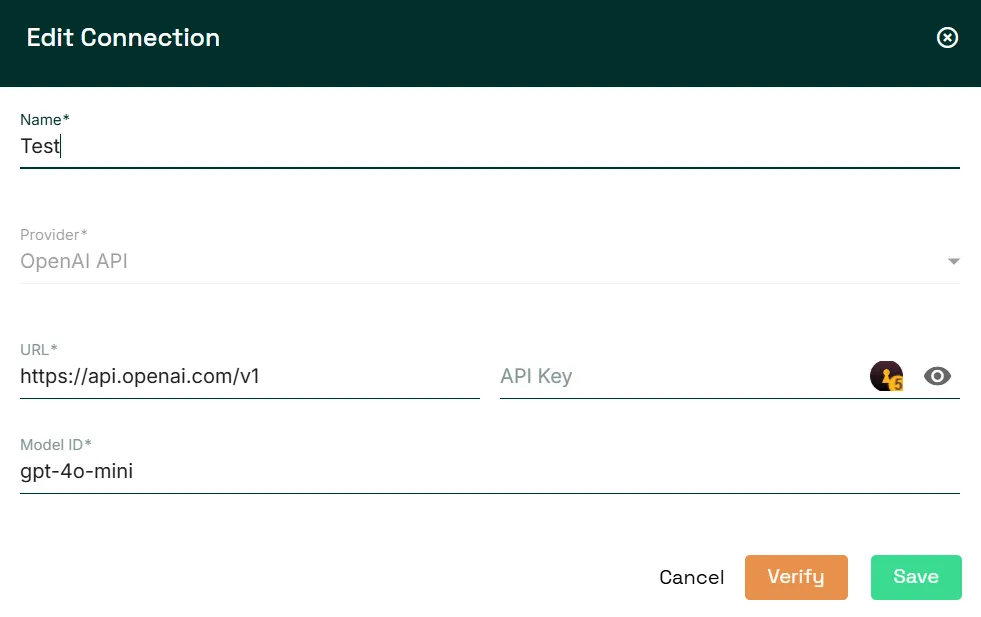
- Click Verify to confirm the updated configuration is working correctly.
Step 3: Delete a connection
To remove a connection you no longer need:
- In the AI Models list, locate the connection you want to remove.
- Click the three dots icon next to the connection, then click Remove.
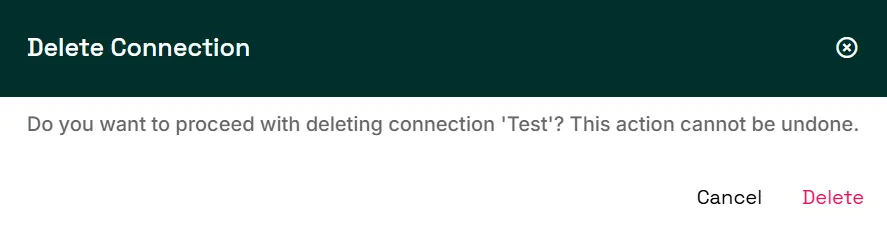
- Click Delete to confirm. The connection no longer appears in the AI Models list.