Create, import, and merge a template
Templates let you capture a working Litmus Edge (LE) configuration as a JSON file and reproduce it on other systems. This guide takes you through creating a template file from a configured system, importing it onto a target system, and merging it into a configuration that is already in use.
Note: Also see Templates for overview and background information.
Before you begin
Before you create and apply a Template, ensure you have:
- A configured LE system whose configuration you want to capture.
- Modify permission for config, to create and apply templates. Users with only View permission for config, such as the default Viewer role, can open the Template tab and see templates and snapshots, but cannot change them.
- A valid LE license on the target system. When the license is invalid, the template listing stays visible but cannot be applied.
- Confirmed that the target system has the drivers and connectors the template needs. Preflight prevents applying an invalid template.
Step 1: Create the template file
To capture the current configuration as a template:
- Navigate to System > Device Management > Template.
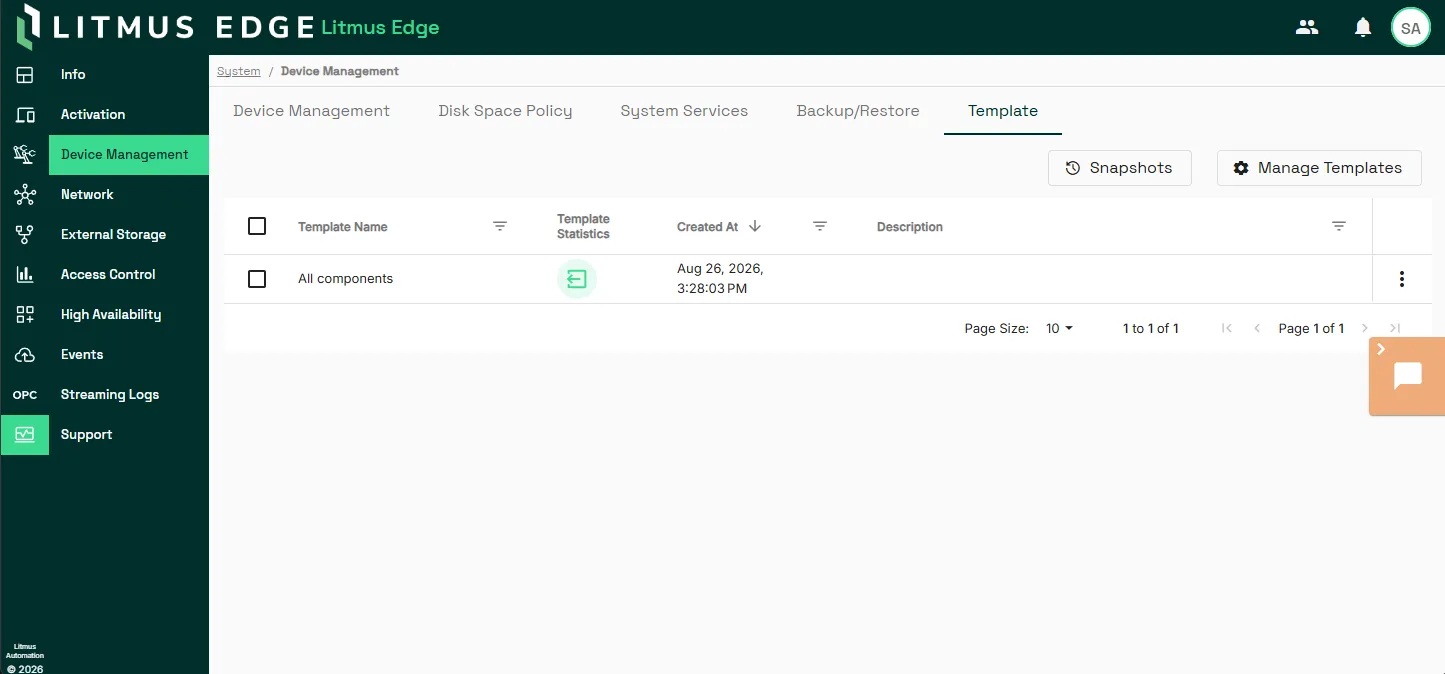
- Choose Manage Templates > Create New Template to create a new template from the current system configuration.
- Select the components to include. A template must contain at least one module.
- Choose whether to encrypt credentials in the template. Record the encryption key. You cannot retrieve it later.
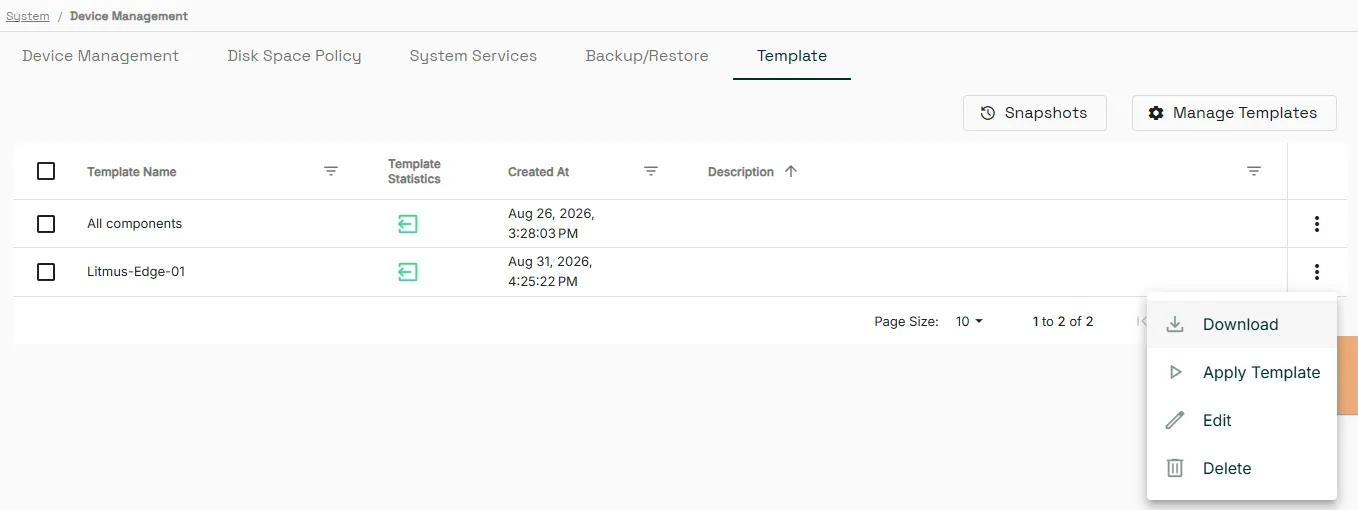
- Click Create. The new template is added to the listing, sorted by creation date with the newest first.
- From the action menu at the right, select Download to export the template.
Step 2: Import the template onto the target system
LE checks the file before adding it. The check has two layers and runs entirely against the file, without touching the live system:
Check | What fails it |
|---|---|
JSON syntax | A file that cannot be parsed. The error identifies where parsing failed. |
Internal references | A reference inside the file that does not resolve inside the same file, such as a Digital Twin instance naming a model the template does not contain. The error identifies the reference by path and value. |
Version format | A version or fileVersion that is not valid major.minor.revision format. |
Schema compatibility | A file whose schema version is newer than this LE build supports. |
A file that passes is added to the listing. If the file fails, correct the reported problem and import it again. A file with non-canonical key ordering imports without error. LE reorders it when the template is saved.
To add the template to another system's listing:
- On the target system, navigate to System > Device Management > Templates.
- To import the template, select Manage Templates > Upload New Template.
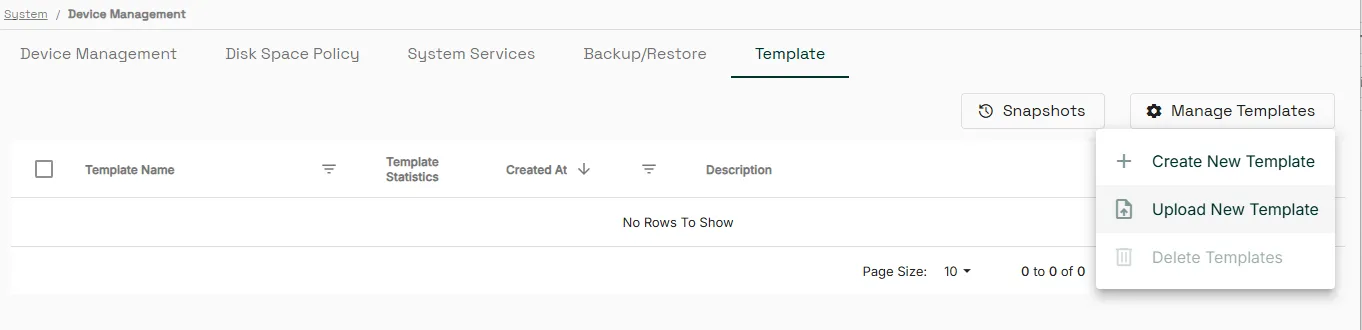
- Select the JSON file you exported and open it.
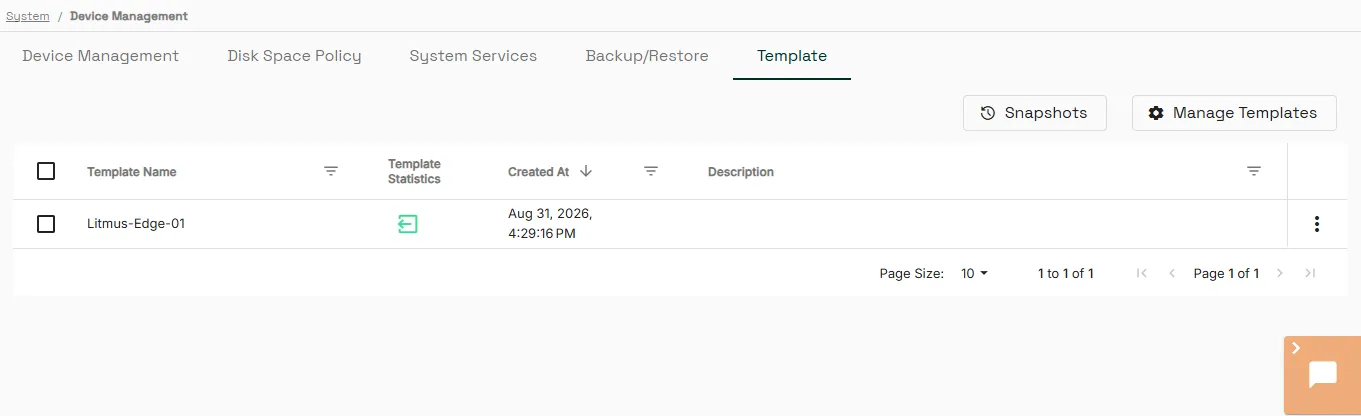
- In the Upload Templates dialog, name the template and click Upload.
The template uploads and is added as a listing.
Step 3: Review the template before you apply it
This step matters most before a merge. A merge overwrites items whose IDs already exist on the target system, so knowing what the template contains tells you what is at risk.
To confirm the template contains what you expect:
- Click the open template icon in the Template Statistics column for the imported template. The Template Details pane opens at the right.
- Review the component sections.
- If the template defines parameters, review the parameter list and note the values you need.
Step 4: Merge the template into the current configuration
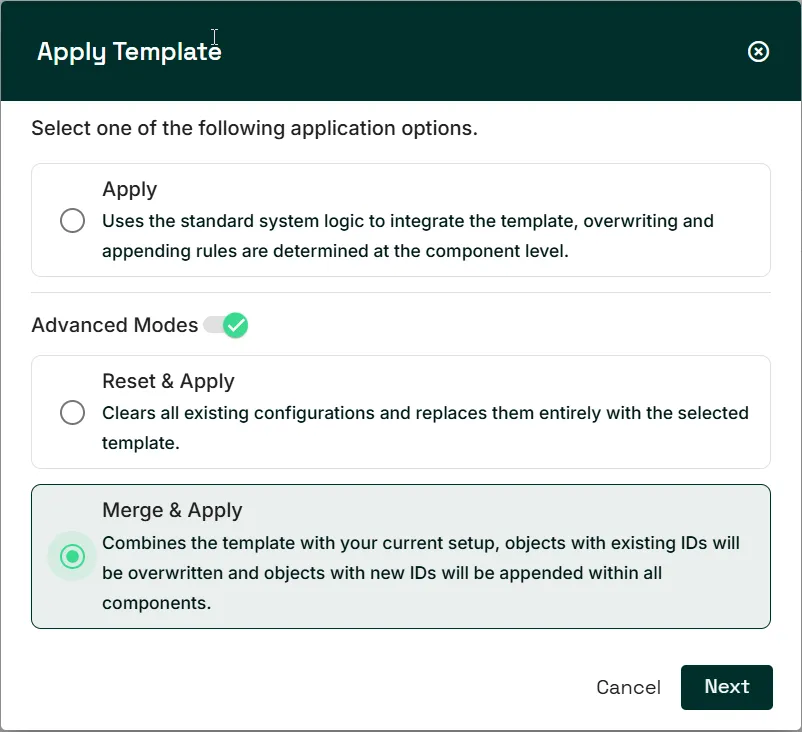
Merge & Apply combines the template with the configuration already on the system. Items with new IDs are added and items whose IDs already exist are overwritten.
Preflight runs before anything is captured or written. If any connector or driver the template references is missing on this system, the apply is blocked and a report identifies each missing item by component type, reference path, and value. Resolve those items, then start again. A blocked apply makes no changes and takes no snapshot.
To merge the template:
- In the template listing, select Apply Template from the action menu at the right. The Apply Templates dialog opens.
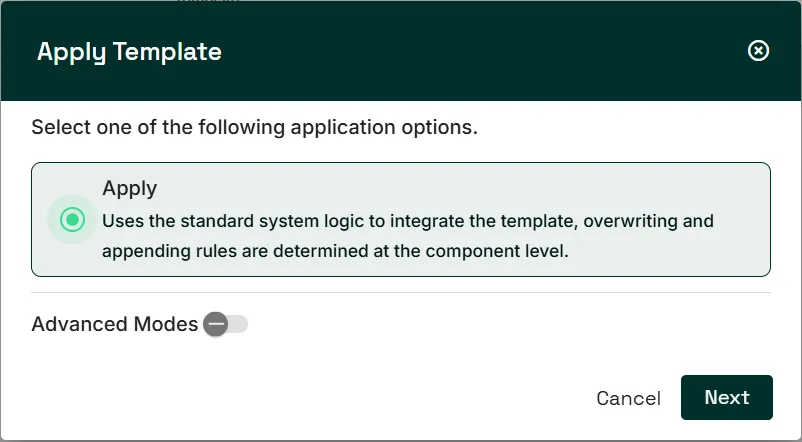
- Turn on Advanced Modes, select Merge & Apply, and click Next.
- In Merged Template Name, specify a name for the merged template that LE creates to apply to the LE instance. For example, Merge_TemplateName_20260831. Then, type I understand in the confirmation at the bottom. Click Next.
Note: LE takes a snapshot of the current configuration, builds a new template from the current configuration and the one you selected, and applies the result. The merged template is saved to the listing and becomes a template you can reuse.
- In Credential Format, choose whether to encrypt.
- If the template defines parameters, enter a value for each one. Leave a parameter blank to use its default. LE rejects a value that does not match its declared data type, such as a decimal entered for an INTEGER, and names the parameter to correct.
- Click Apply. A message indicates that the template is being applied.
If the apply succeeds, the Template Applied dialog shows its status. If a component reports an error, the message names the component that failed and gives the reason. Digital Twins skips any model it can't restore and applies the rest.
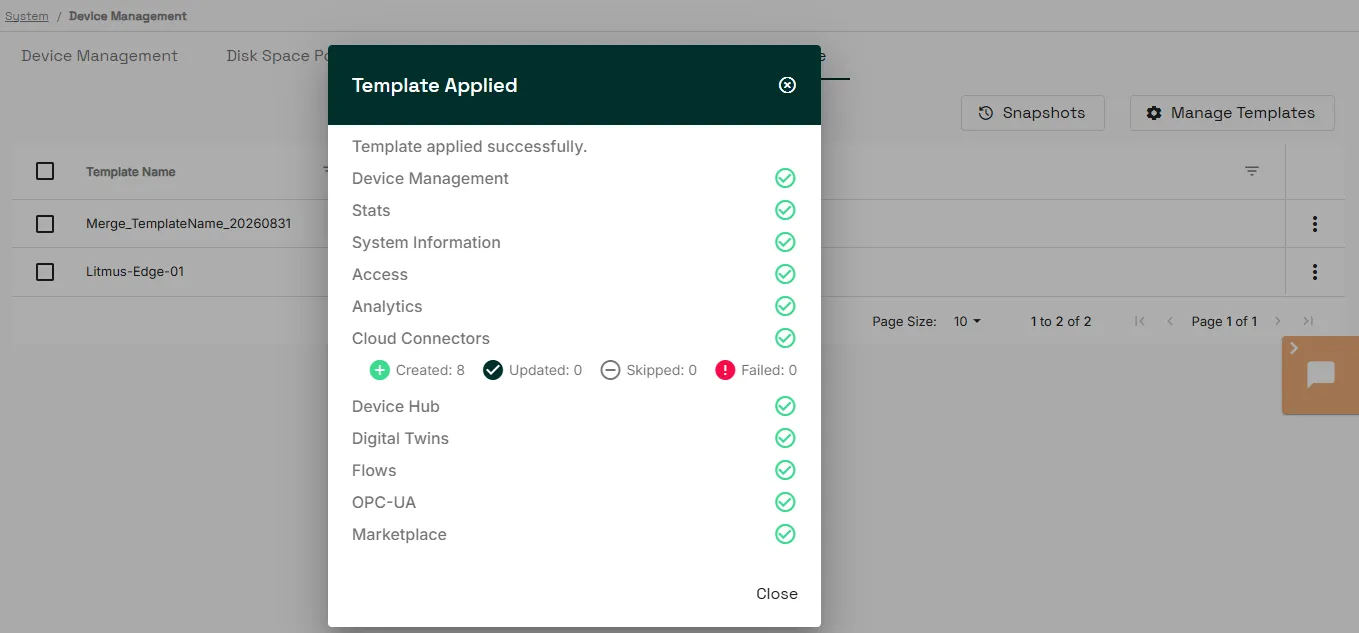
Merge conflicts
The Merge Conflict Warning dialog appears when the template contains items whose IDs already exist on the system. It reads: Some components in the selected template have the same IDs as components in the current configuration. Continuing will overwrite all matching components. Do you want to continue?
Caution: The overwrite prompt is all or nothing. Clicking Yes overwrites every conflicting item. Clicking No closes the dialog, returns you to Apply Templates, and sends no request, so the entire merge is abandoned rather than partially applied. If you are unsure what a template will overwrite, cancel and review the template details first.
Step 5: Verify the template applied
To confirm the merge worked:
- Navigate to the component areas the template provisions, such as DeviceHub or Digital Twins.
- Confirm that the items named in the template details are present.
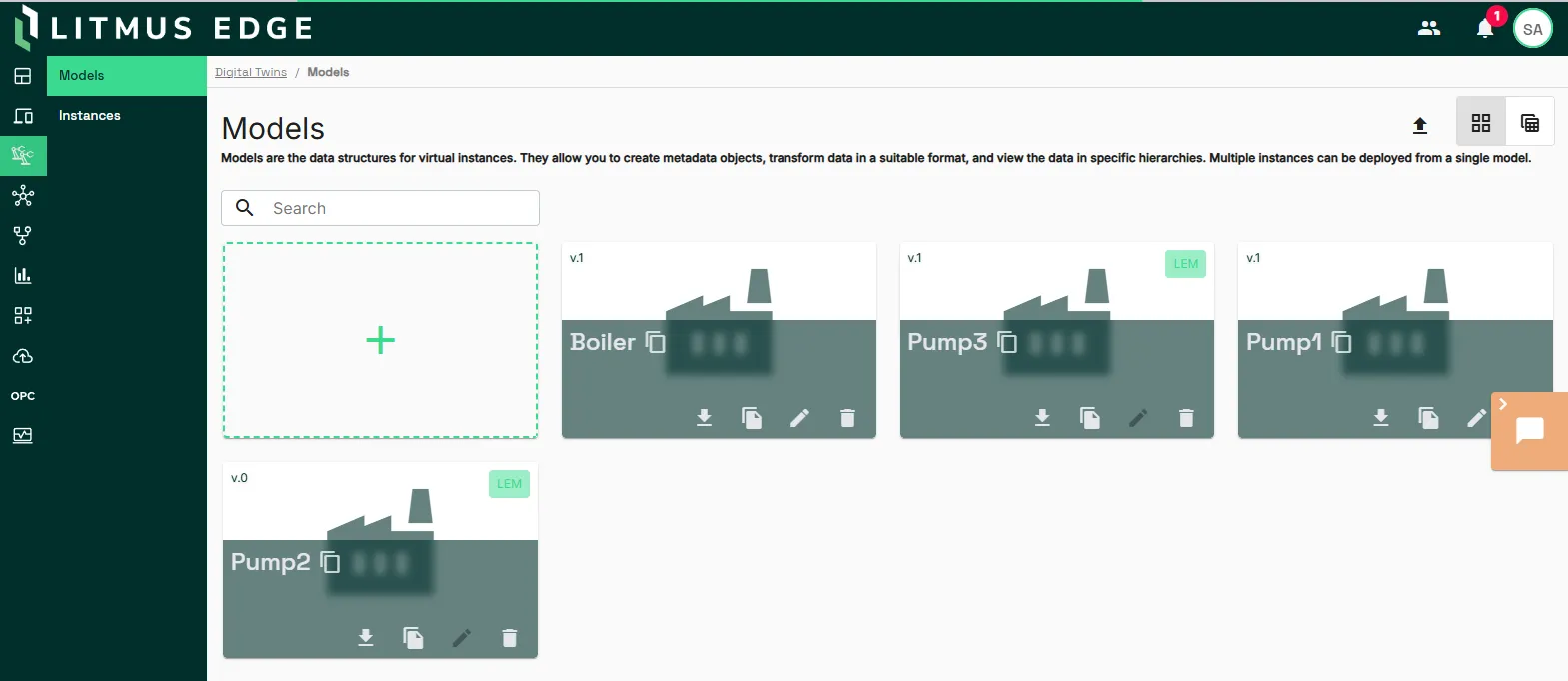
- If the template used parameters, confirm that the values you entered appear on the provisioned items rather than the defaults.
- On the Template tab, click Snapshots.
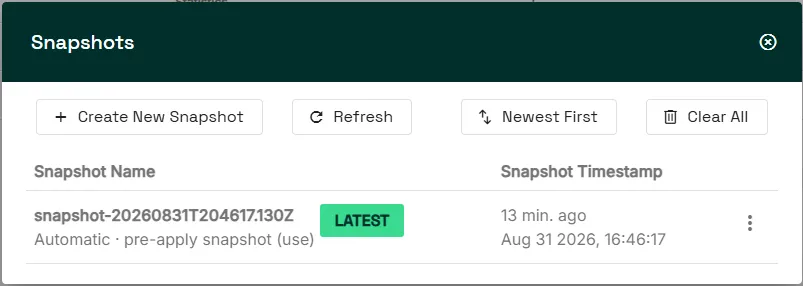
- Confirm that a new snapshot entry appears at the top of the history. The newest entry has the Latest tag, and its source reads Automatic · Merge & Apply. The Snapshot Timestamp column shows the relative time and the exact date and time.
The snapshot entry is the clearest signal that the apply completed. LE writes it to history only when the operation succeeds.
Tip: To capture a snapshot at any time, open the Snapshots split button menu and select Create Snapshot. Give the snapshot a label, which is pre-filled and editable, and optional notes of up to 512 characters.
Step 6: Roll back (optional)
To return the system to the configuration it had before the apply:
- On the Templates page, click Snapshots. The Snapshots dialog opens with entries listed newest first.
- Open the action menu for that entry to rollback to, and select Rollback. The Rollback Preview dialog opens.
- Click Rollback. A message indicates the rollback is occurring.
- When the rollback completes successfully, a new snapshots displays in the Snapshots dialog.
LE creates a new snapshot entry, then writes the snapshot's configuration to the system. The dialog closes, a success notification appears, and the snapshot history refreshes with the new rollback entry at the top.
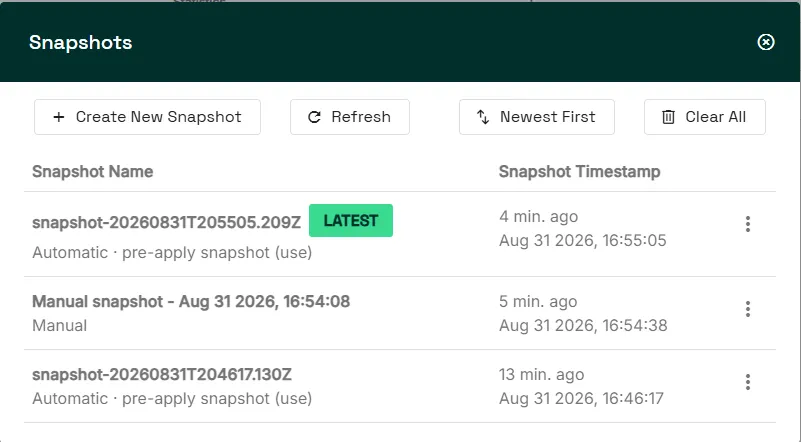
To delete every snapshot except the most recent one:
Caution: You cannot undo Clear All.
- In the Snapshots dialog, click Clear All.
- Type I understand in the confirmation field. The confirm button stays disabled until you do.
- Click the confirm button. A message reports how many snapshots were deleted and how many could not be.
Note: A rollback is itself snapshotted, so you can undo it by rolling back to the entry the rollback created. If the configuration changes between opening the preview and confirming, LE rejects the rollback and asks you to run the preview again.