How to use Streaming Logs
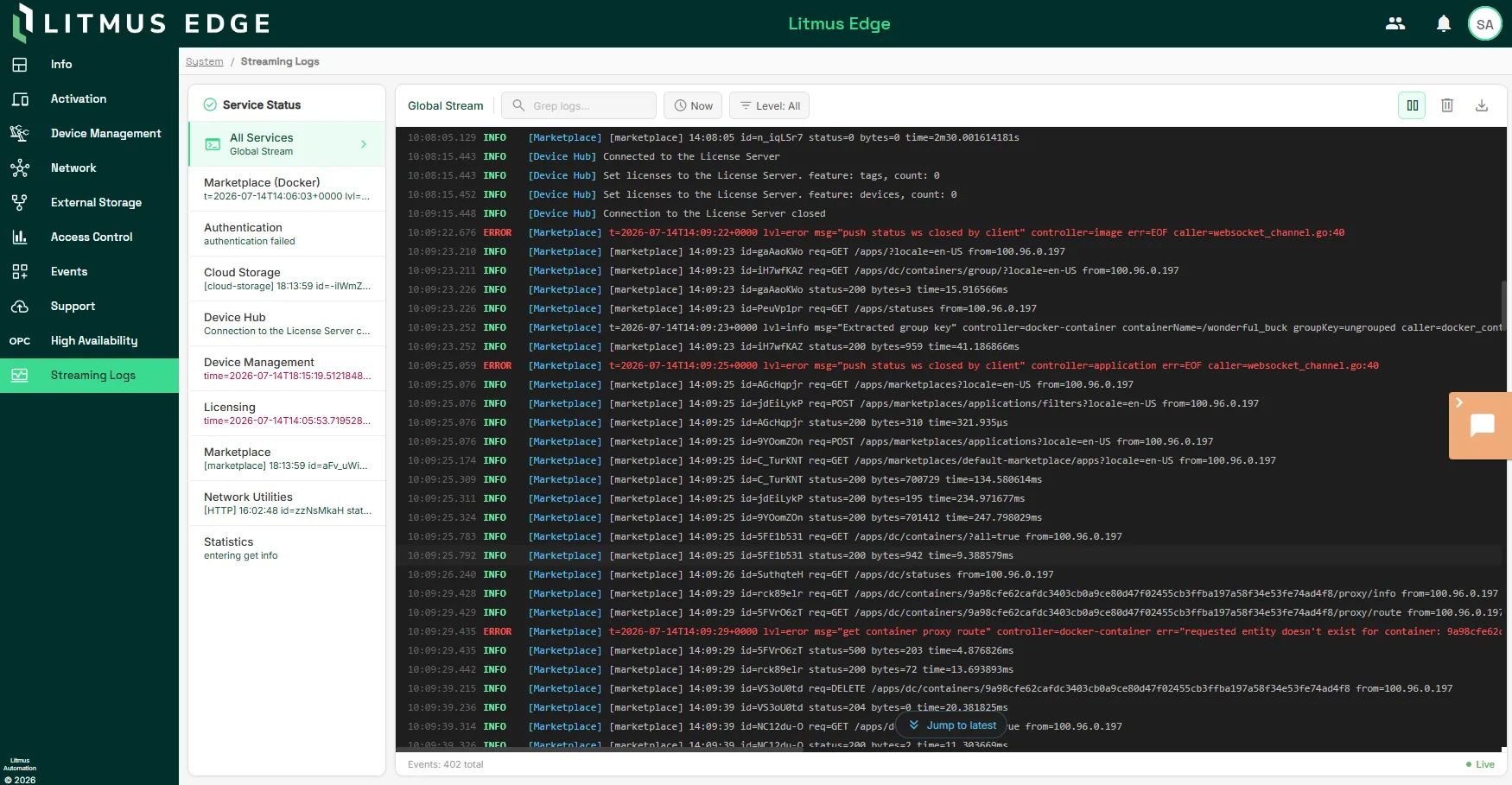
Streaming Logs gives you a live view of logs from every Litmus Edge service on the device, so you can check on a service or troubleshoot an issue without opening a terminal session. This guide walks you through viewing, filtering, and exporting logs from the Streaming Logs page.
Step 1: Open Streaming Logs
To open the Streaming Logs page:
- In Litmus Edge, navigate to System > Streaming Logs. The Streaming Logs page appears, showing live log entries from all Litmus Edge services.
Step 2: Narrow logs to a single service
To view logs from one service instead of all services:
- In the Service Status column, select the Litmus Edge service you want to view. The log stream updates to show only entries from that service.
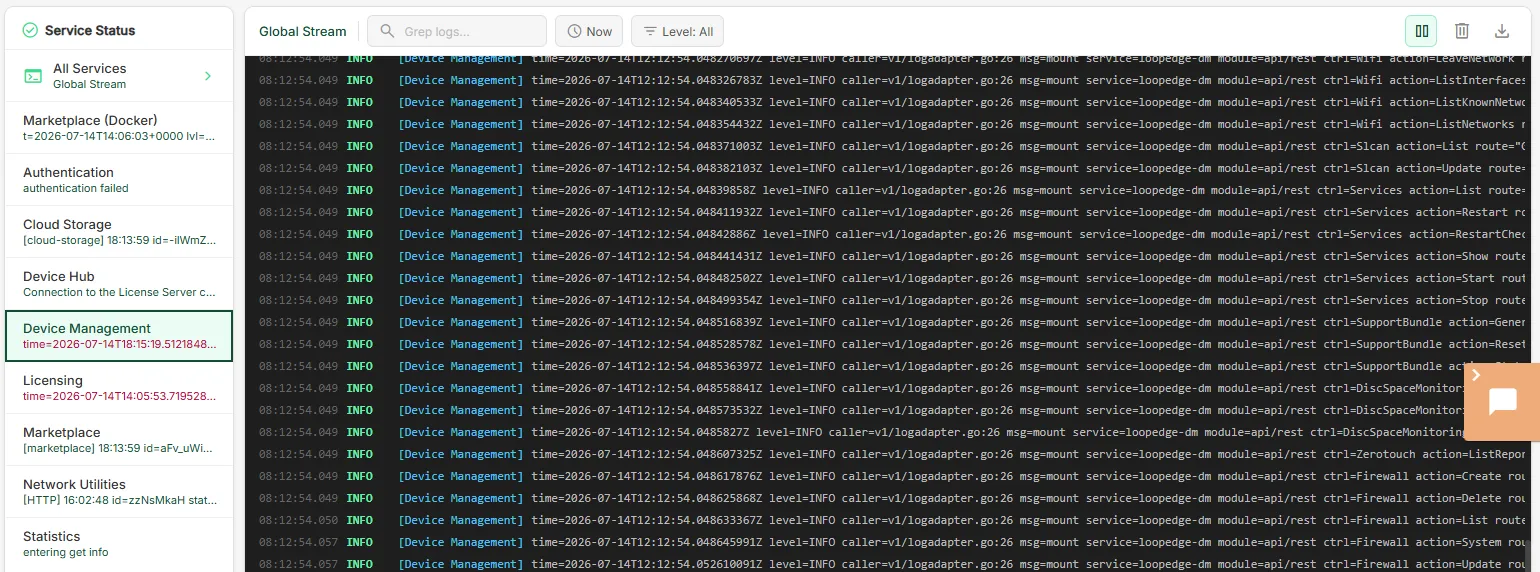
- To return to the combined view, click All Services.
Step 3: Filter log entries
To filter the logs by:
- Text in the log message, enter search criteria in the Grep logs field.
- Time, click Now and select a time range .
- By severity level, select Error, Warn, Info, or Debug from the Level: All dropdown.
You can combine the log level, time range, and search filters to narrow the results further.
Step 4: Control live scrolling
To manage how the log stream displays while you review entries:
- Click Pause stream to freeze the current view while new log entries continue recording in the background. Click Resume stream to return to live scrolling.
- Click Clear logs to remove the entries currently displayed. Clearing the display does not delete the stored log data on the device.
Step 5: Export the filtered log view
To save the current log view as a file:
- Apply the filters for the entries you want to export.
- Click Download logs. Litmus Edge downloads the currently filtered view as a log file.
Step 6: Check log forwarding status
Streaming Logs shows whether this device is forwarding its logs to Litmus Edge Manager (LEM). You cannot change forwarding from this page.
To check forwarding status:
- On the Streaming Logs page, locate the forwarding status indicator.
- To enable, disable, or otherwise configure forwarding, do so from LEM instead. See the Litmus Edge Manager documentation on Log Forwarding.
Verify Streaming Logs
To confirm Streaming Logs is displaying data correctly:
- On the Streaming Logs page, confirm that log entries appear and continue to update while live scrolling is active.
- Select a single service and confirm the view narrows to only that service's entries.
- Apply a log level, time range, or search filter and confirm the displayed entries match the filter.