Manage Templates
You can upload and download device configuration templates by navigating to System > Device Management > Template.
Template Configurations
You can select an entire category or individual components within a category for download. Each category shows the list of component that you have configured or installed on the device. For example, the connectors category will show the list of connectors that are on the device. The following component categories are available to download.
- Auth: Configurations of LDAP/AD Authentication Providers. This doesn't include roles, groups, and users created in Litmus Edge. See LDAP/AD Auth.
- Connectors: Installed connectors and configurations. Connectors with the same name that exist in both the template and the Litmus Edge device will be duplicated with a unique name after uploading the template. The default connector that connects Litmus Edge and Litmus Edge Manager is not included. See Integration.
- Country configured for the instance. See Change Country.
- Devices: Connected devices, tags, and configurations. See DeviceHub. Note that DataHub configurations and credentials are backed up for Timeseries DB connections.
- DNS: Saved Fallback DNS Resolvers. See Configure DNS/NTP Servers.
- Docker Binding IP: Contains the IP address and netmask to use for Docker’s default bridge using standard CIDR notation. See Applications.
Example: "bip":"10.30.50.1/24"
- Firewall: Saved firewall rules. See Manage Firewall Rules.
- Digital Twins: Saved models and instances. See Digital Twins.
- Flows: Saved Flows. See Flows Manager.
Note: When you upload a template, the existing flows in the instance are replaced with the flows in the template configuration. If you would like to ensure existing flows are maintained after uploading a template, confirm that any flows you want to keep are part of the template configuration.
- Analytics Groups: Saved Analytics Flows and Processors within each group. See Analytics.
- Marketplace: Installed catalogs and registries. Only applications deployed using a catalog can be part of a template. For example, If you deployed an application from the catalog, it is part of a template file. If you use the docker run command to deploy an application, it is not part of a template file. See Marketplace.
- NTP: Saved Network Time Protocol (NTP) servers. See Configure DNS/NTP Servers and Troubleshooting - Time Synchronization.
- OPC UA: Saved configurations. See OPC UA.
- Static Routes: Saved static routes. See Manage Static Routes.
- Timezone configured for the instance. See Set Timezone.
Download a Template
You can download multiple device configuration templates, selecting different configurations from a single Litmus Edge device.
These device configuration files are then available on your hard drive for upload to other Litmus Edge devices. The template files can also be uploaded to a Litmus Edge Manager to be applied to groups of Litmus Edge devices. See Edge Software Update to learn more.
You can customize the template before downloading by selecting components individually or by category.
Note: When you download configurations, you choose whether to encrypt external InfluxDB, OIDC and LDAP passwords in the template file. Encryption applies by default to these passwords when downloading all configurations at once.
Before You Begin
To enable this page you need a valid license. See Licenses.
How to Download a Template
To download a template:
- In Litmus Edge, navigate to System > Device Management.
- Click the Template tab.
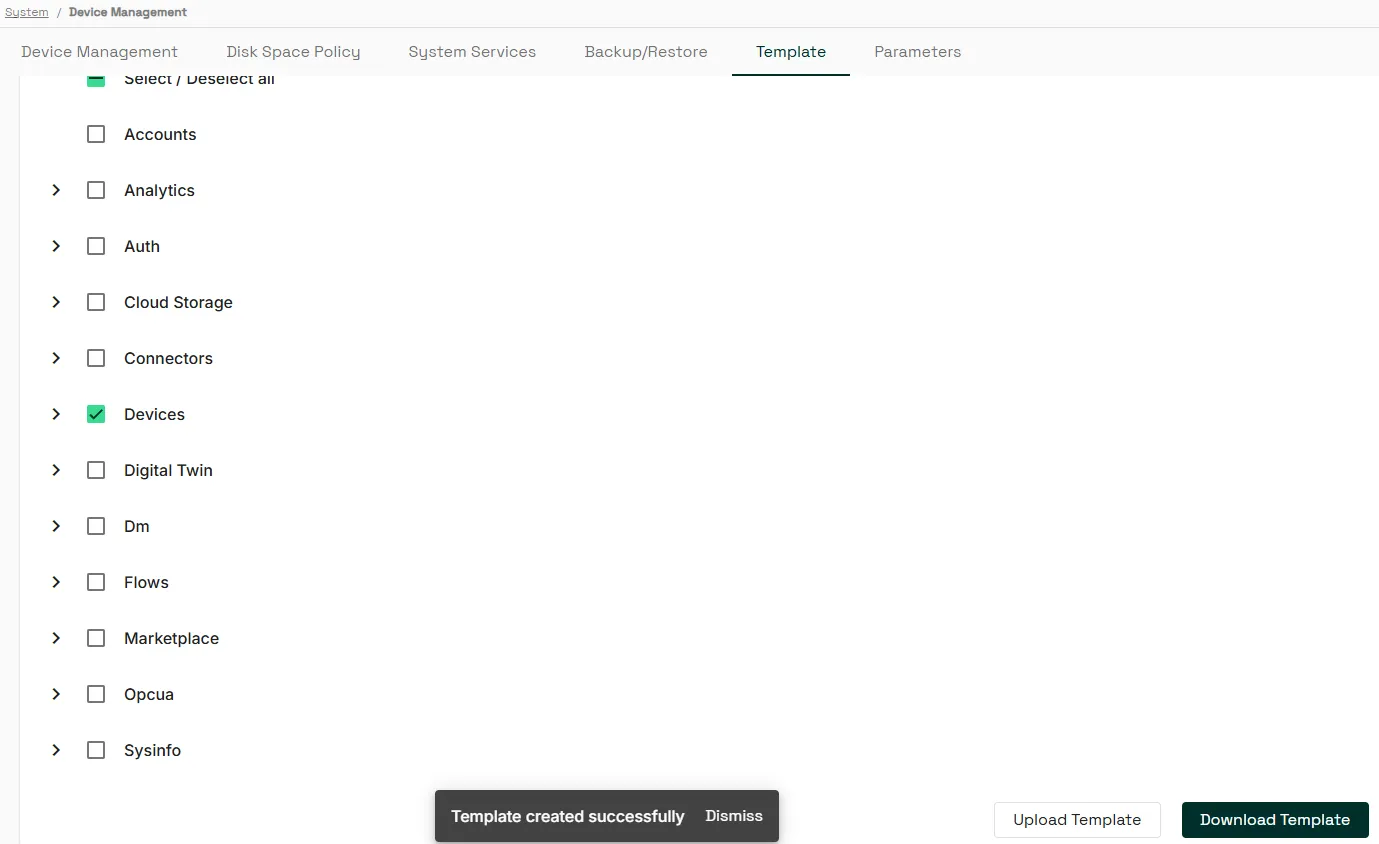
- Select the checkboxes for the configurations you want to include in the device configuration template or select the Select All checkbox.
- Click Download Template.
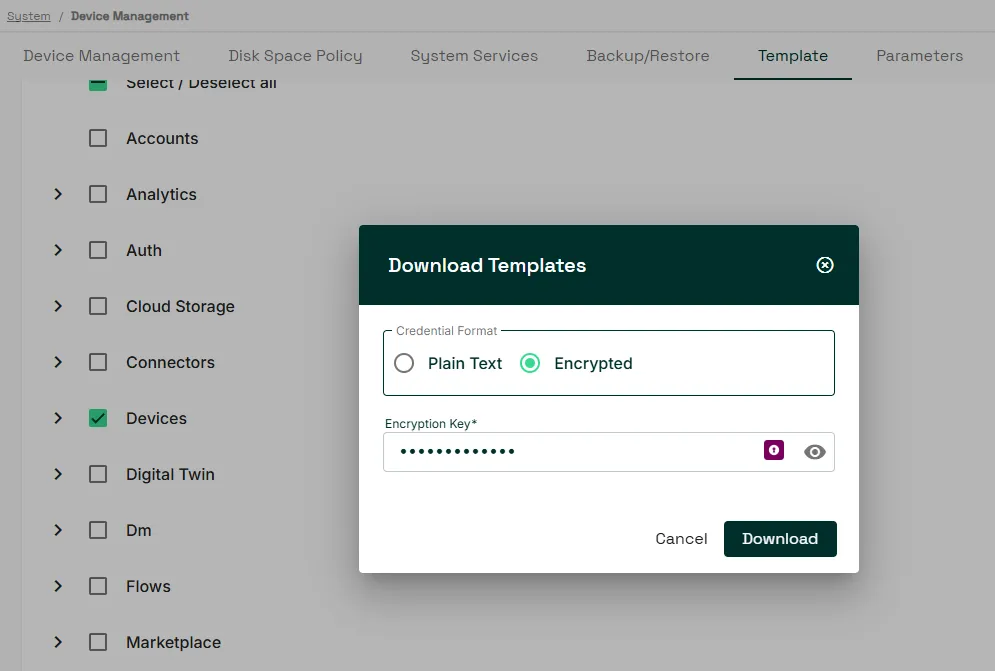
- In the Download Templates dialog, choose whether to encrypt external InfluxDB, OIDC, and LDAP passwords in the download file. Then, click Download:
- To download as plain text, choose Plain Text.
- To encrypt password in the file, choose Encrypted and provide a password in Encryption Key. Record the encryption key as you require this value when you upload the template.
The JSON file downloads to your hard drive.
Upload a Template
Note: Before you upload, consider the following:
- If one component fails during a template upload, an error message will display and the upload process will continue to upload the remaining components.
- If you upload a template with the same connectors that already exist in the Litmus Edge device, duplicate connectors are created with unique names. For example, if the template and the Litmus Edge device both have a MySQL connector named MySQL_integration, a duplicate connector will be created as MySQL_integration (1).
- If you upload a template with the same device and tags as the Litmus Edge device, any additional tags that are in the Litmus Edge device but are not in the template are automatically deleted when the template uploads. Additionally, the device and tag settings for existing devices are overwritten when the template is loaded.
You can upload a device configuration template by navigating to System > Device Management > Template.
When you upload a device configuration template, it applies the configuration in the file to the Litmus Edge device.
You can also apply templates to Litmus Edge devices using Litmus Edge Manager, potentially changing the configurations for hundreds of Litmus Edge devices.
Before You Begin
- To access the features on the Backup/Restore page, you need a valid license.
- Download a device configuration template. See the Download a Template section.
How to Upload a Template
To upload a template:
- In Litmus Edge, navigate to System > Device Management.
- Click the Template tab.
- Click Upload Template.
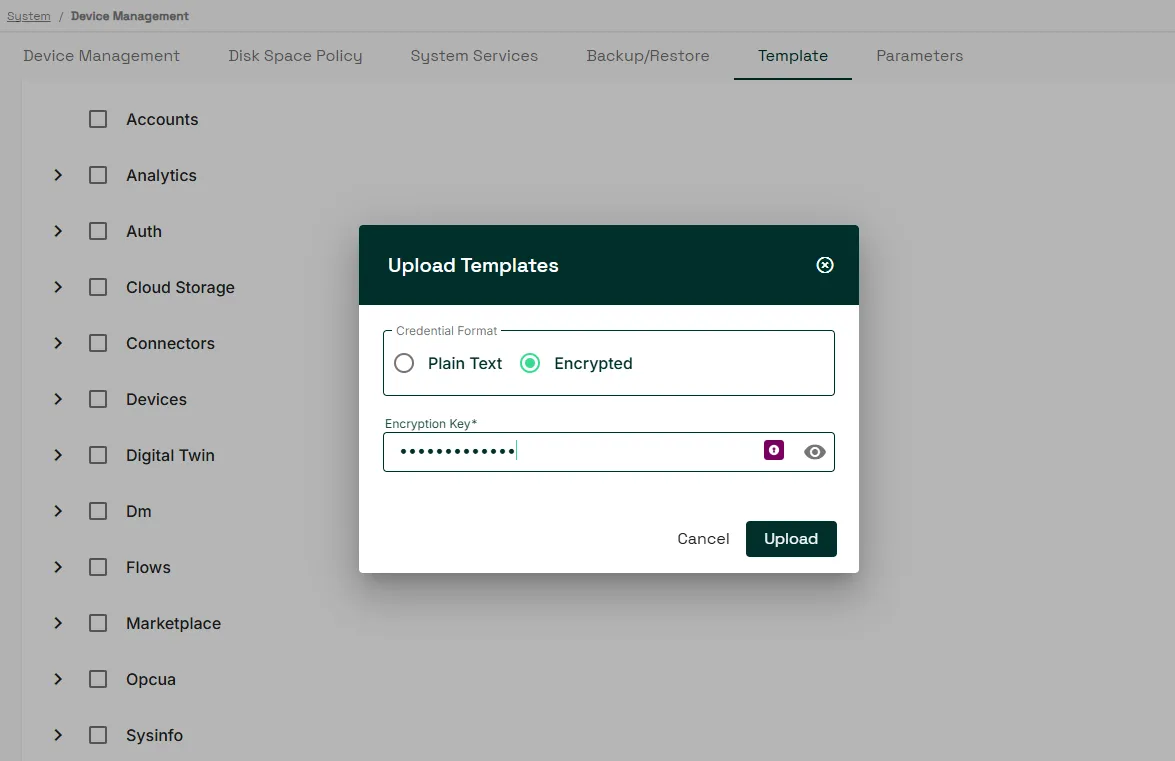
- In the Upload Templates dialog, select Plain Text or Encrypted depending on what you option you chose when you downloaded the template. The following example shows Encrpyted selected.
- Navigate to a <date>-template.json file saved on your hard drive, and then click Open. The selected template successfully updates in the Templates section and applies the configurations to the Litmus Edge device.