Import Model(s) Wizard
The Import Model(s) Wizard allows users to search for Digital Twin Models on a Litmus Edge and select which of these Model(s) they want to import the Model settings into the DT Model Management tool.
Open the Import Model(s) Wizard
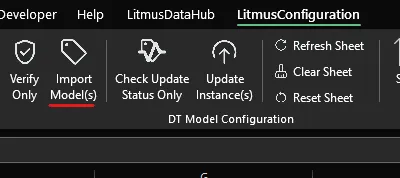
To open the Import Model(s) Wizard, press the Import Model(s) button from the LitmusConfiguration Ribbon.
Notes:
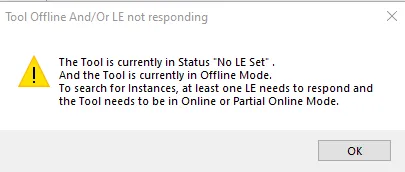
To open the Import Model(s) Wizard, the tool will verify that it is not in the Status:
- Offline
- DigitalTwin not responding
- No LE Set
- No API Key
If the Tool found to be in one of these states, a message is displayed.
Setting up the Search Filter
To search for Digital Twin Model(s), the user can setup a filter to apply to the search. This allows them to reduce the list for potentially imports to only the Model(s) they are truly interested in.
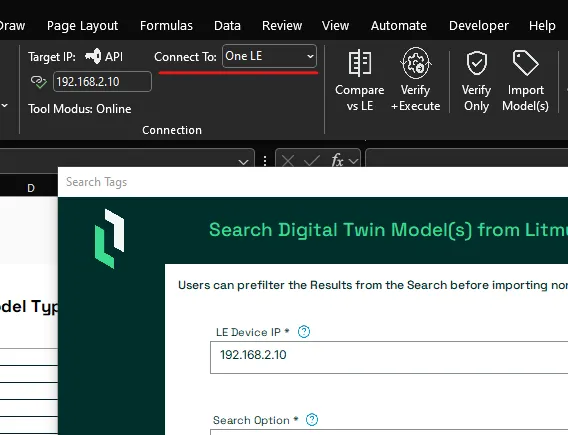
Select the LE Device IP
Tool set to One LE
If the tool is set to Connect To One LE, the user will not be able to change or select the LE Device IP.
Tool set to Multiple LE
If the tool is set to Connect To Multiple LE, the user can select which Litmus Edge to search for, provided that more than one Target Litmus Edge IP has been defined.
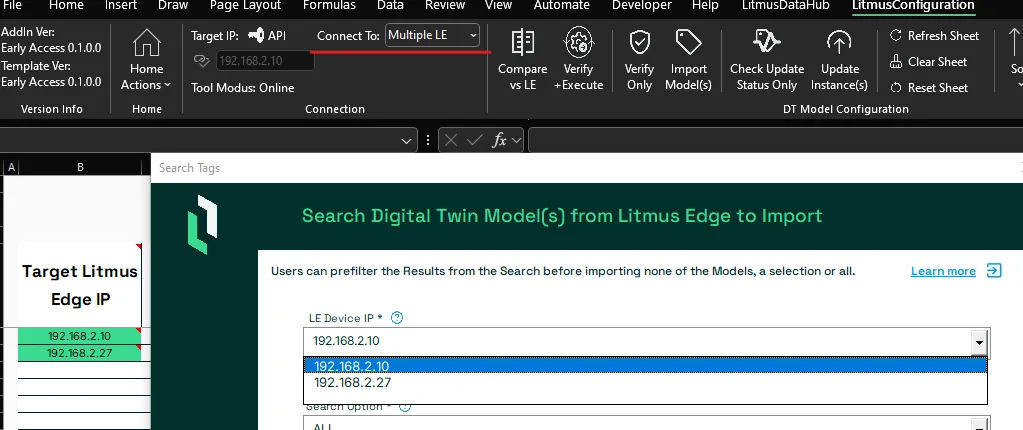
Additionally users can also enter a Litmus Edge IPv4 which is not yet present in the sheet
The tool will check if it does have an API Key for the Litmus Edge IPv4 address. If no API Key is found, it will notify the user and request the API Key.
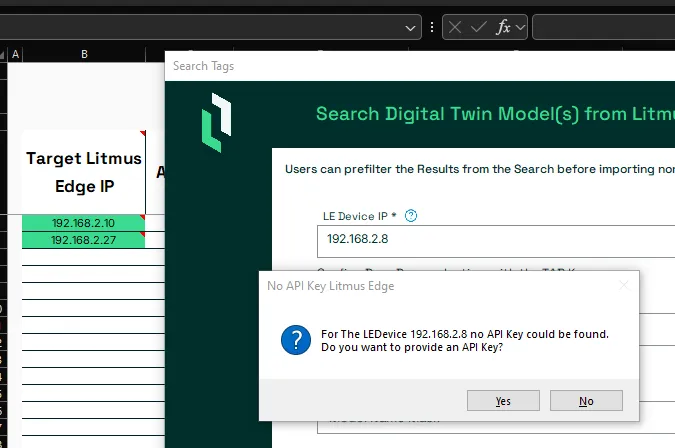
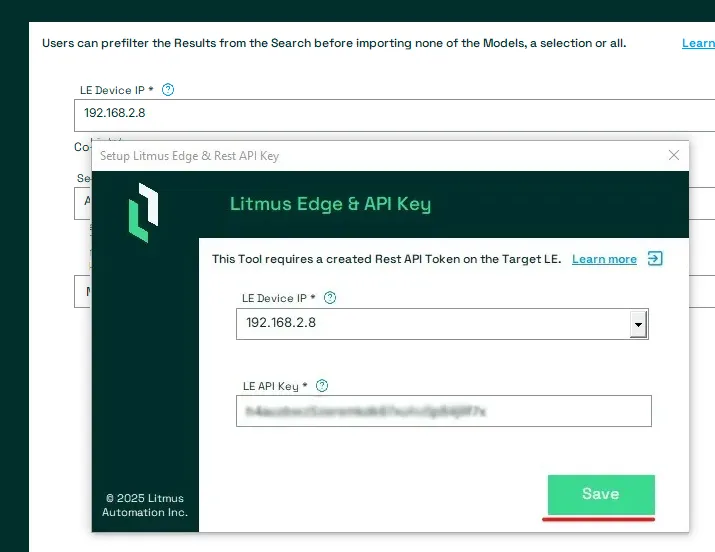
Press the Yes Button, provide the API Key and press the Save Button.
Set Search Option
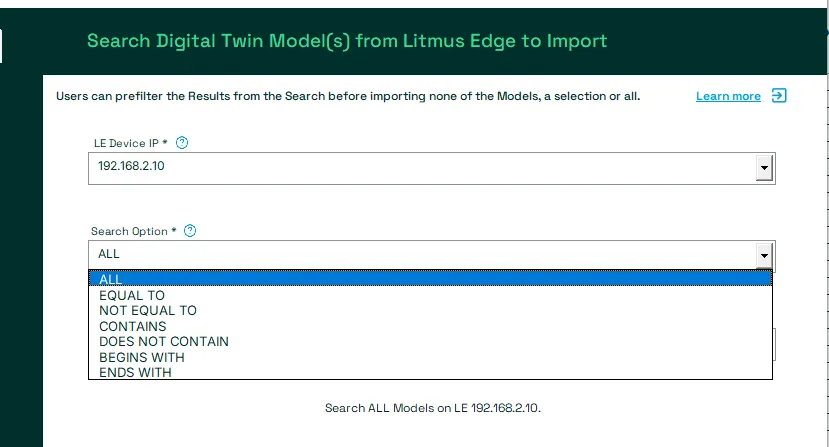
The tool provides a number of Filter Options the user can select from. The include:
- ALL: Do not apply any filter and return all Model(s) defined in DigitalTwin on the selected Litmus Edge
- DOES NOT CONTAIN: Select all Model(s) where the Model Name does not contain the value from my Model Name Mask.
- BEGINS WITH: Select all Model(s) where the Model Name begins with the value from my Model Name Mask.
Notes:
All Search Options except ALL, require a value for the Model Name Mask.
Define the Model Name Mask
For any Search Option except ALL, a mask is required to apply to the Model Name.
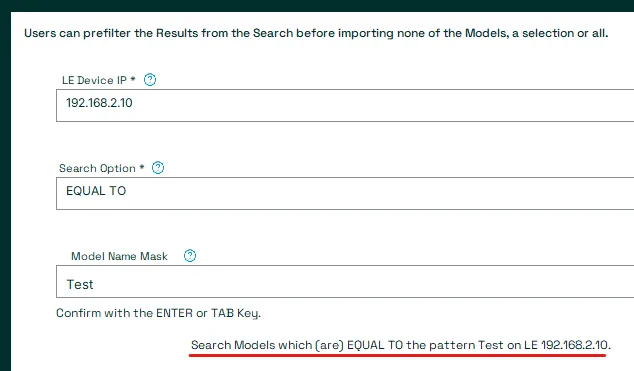
Example: Selected Search Option set to EQUAL TO and Model Name Mask set to Test
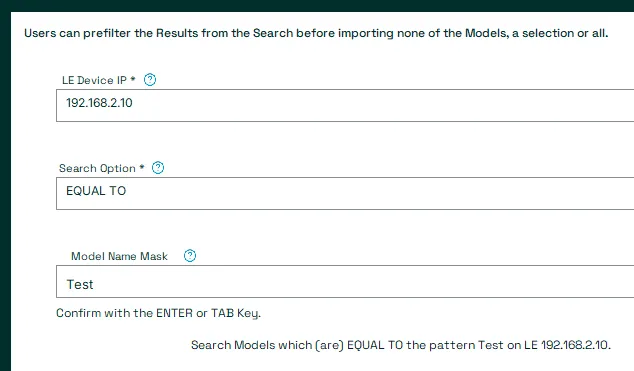
The Import Wizard will show what Filter will be applied.
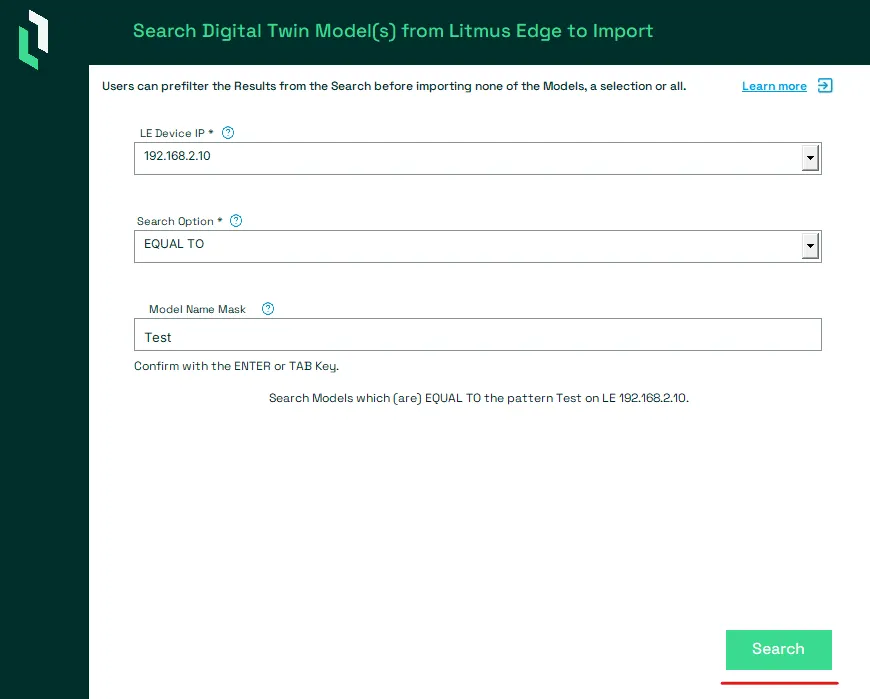
Initiate the Search
If all settings are correctly set, the Search Button will be set to green and allows to initiate the search. To initiate the search press the green Search button.
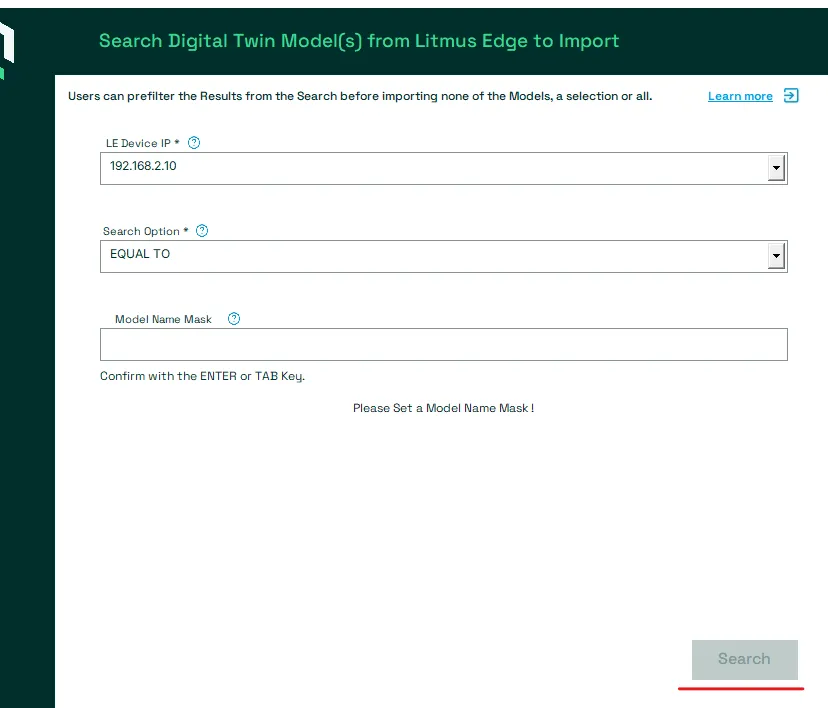
Notes:
If the Filter is invalid, the Search button will be grayed out and can not be used.
Example: No Model Name Mask has been defined for the Search Option EQUAL TO
Importing Model(s)
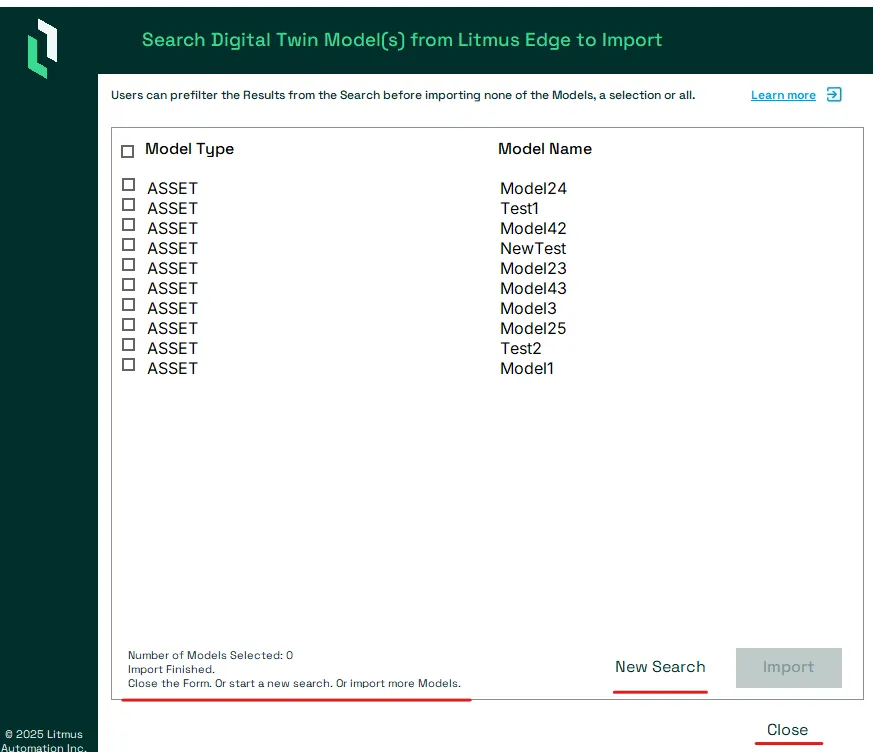
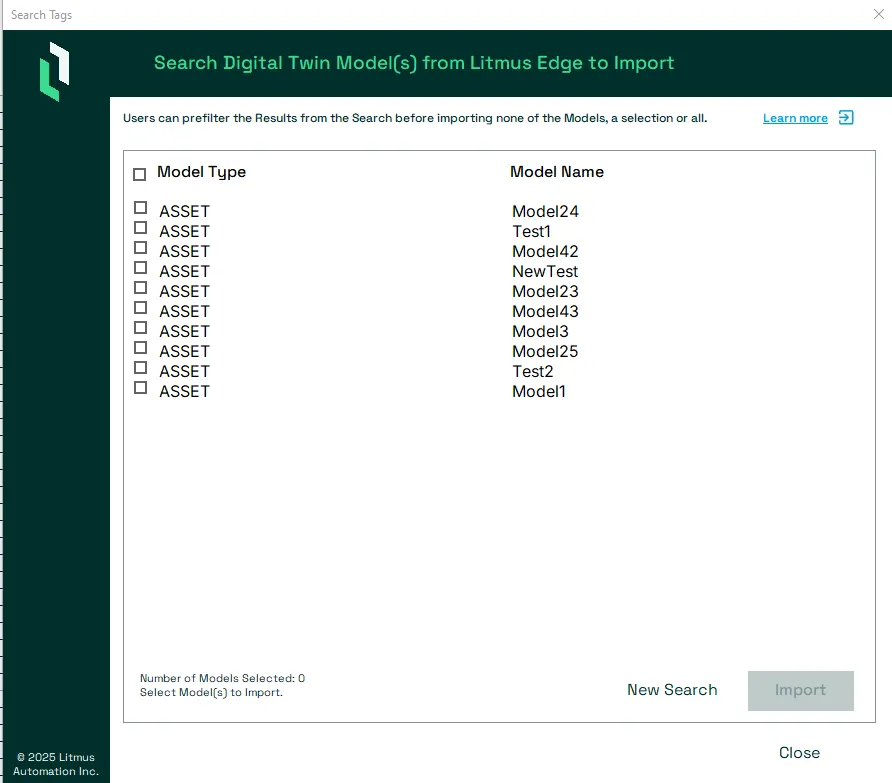
After the Search has been initiated, the results are shown in a List Box.
The User will see the Model Type as well as the Model Name.
Notes:
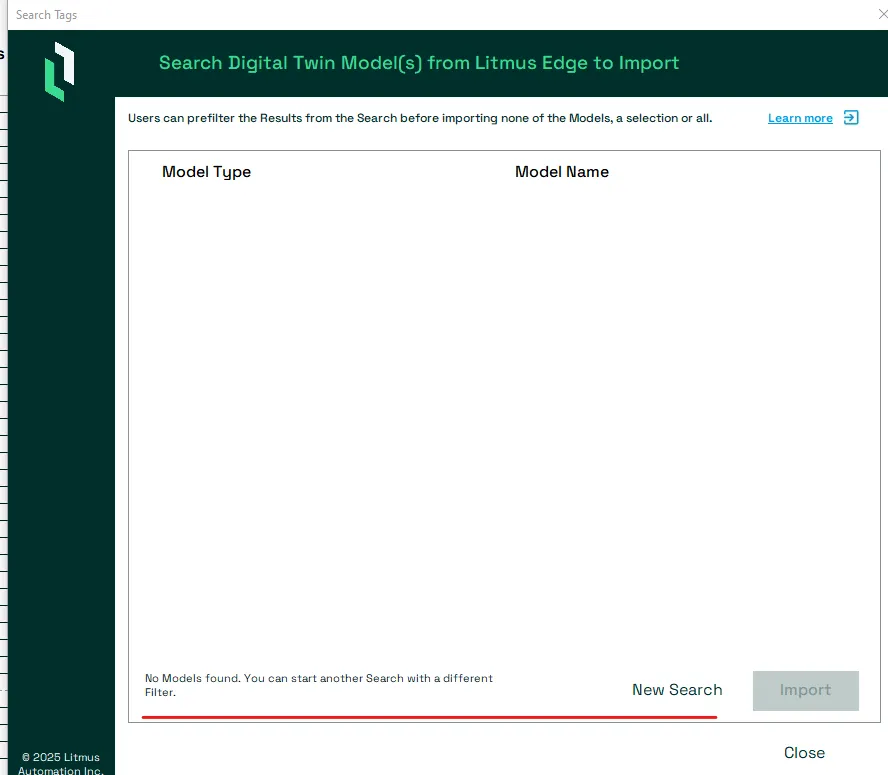
In case a Filter returned no Model(s), the user is informed and can initiate a new Search.
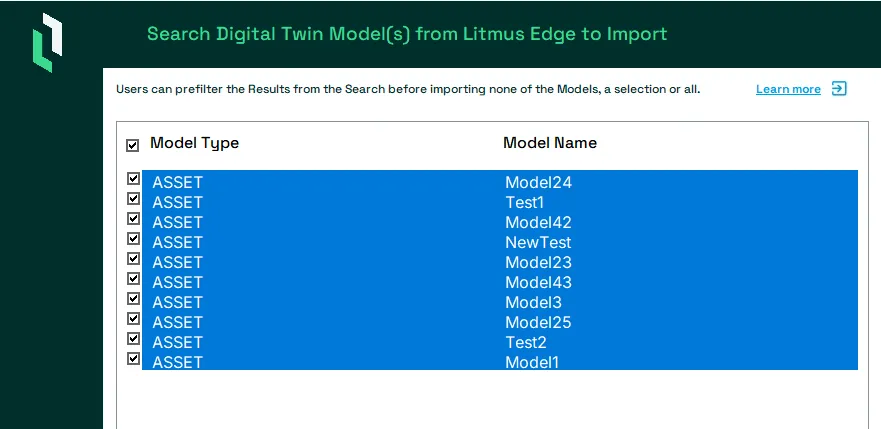
Selecting all Model(s)
To select all Model(s) for Import, check the Checkbox of the Header Row.
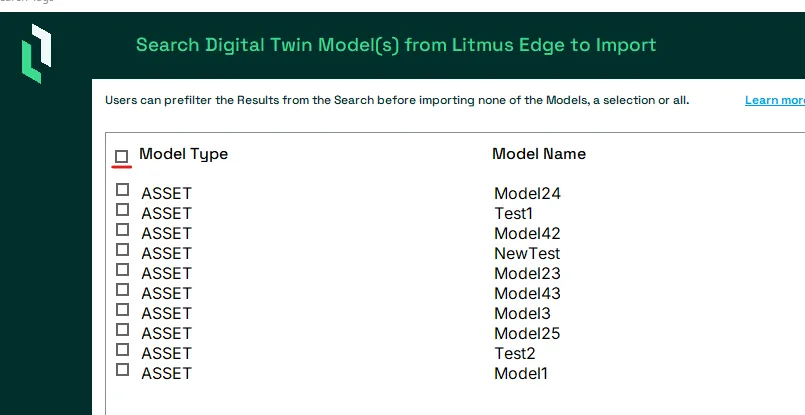
Unselecting all Model(s)
To unselect all Model(s) for Import, uncheck the Checkbox of the Header Row.
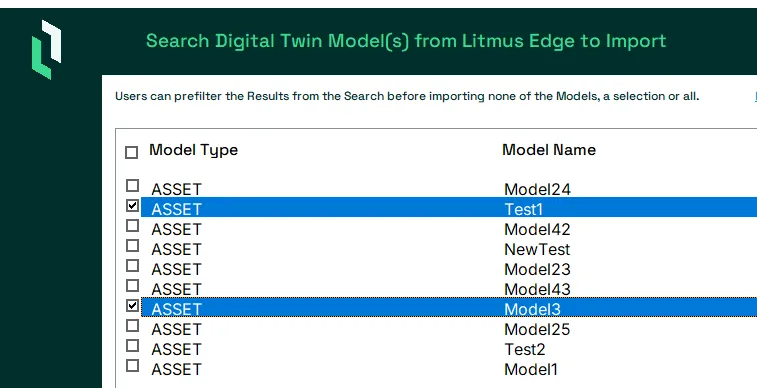
Select individual Models
To select individual Models for Import, check their respective Row or Checkbox.
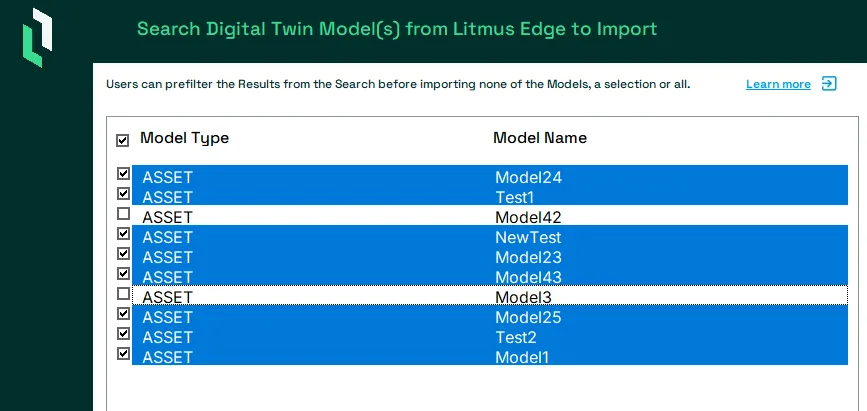
Unselect individual Models
To unselect individual Models for Import, uncheck their respective Checkbox or Row.
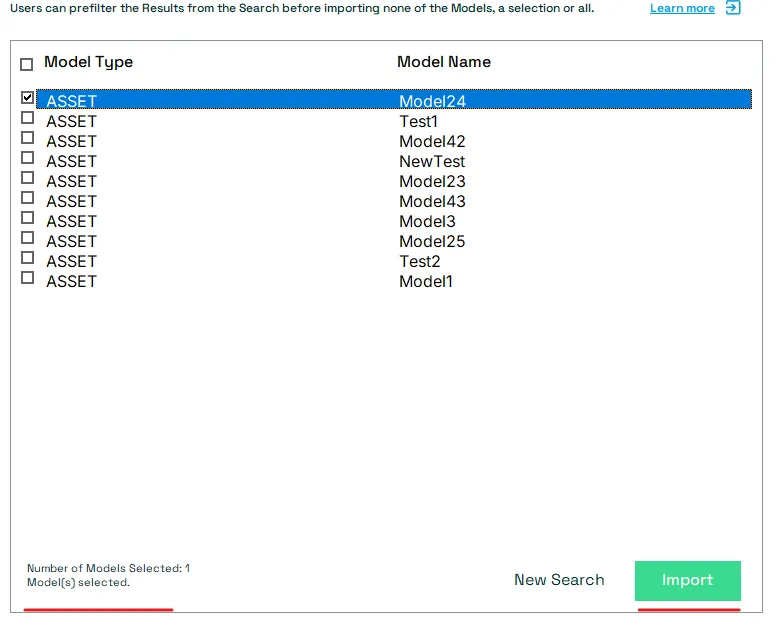
Import Model(s)
If at least one Model has been selected from the list, the Import button will change to green and an Import can be initiated. To initiate an Import press the green Import button.
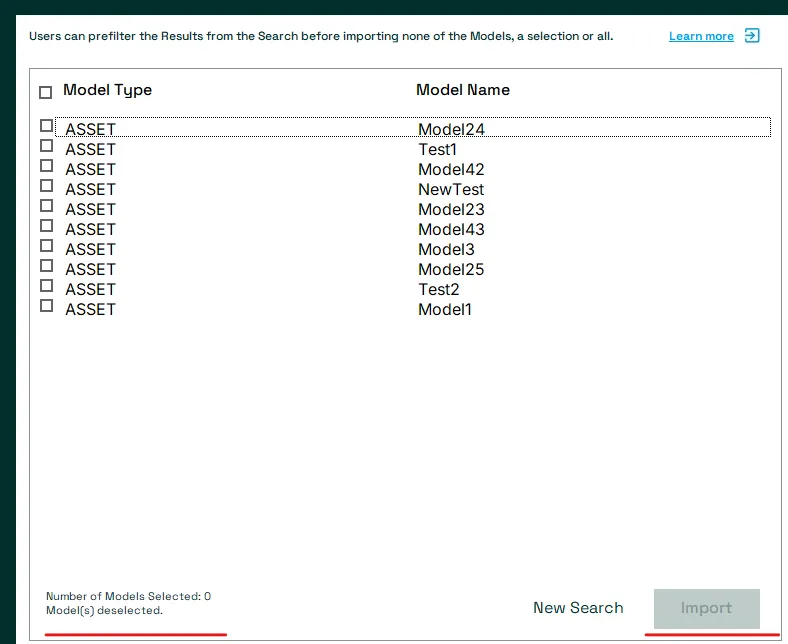
If no Model(s) have been selected, the Import button will be greyed out.
Notes:
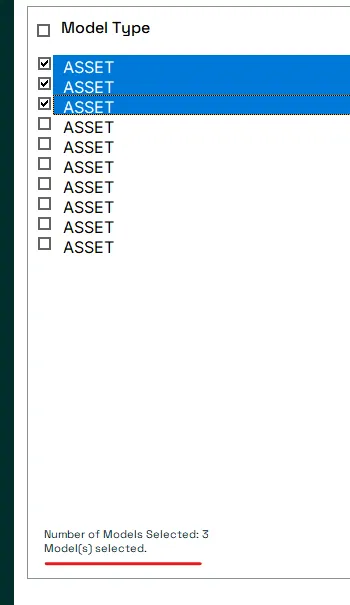
The Import wizard will show how many Model(s) have been selected in the left lower corner.
After an Import finished
Once all the selected Model(s) have been imported, the user is informed about the result and has three further options:
- Close the Wizard. This will end the import and the user can proceed with their desired actions on the sheet.