Manage DataHub Connections
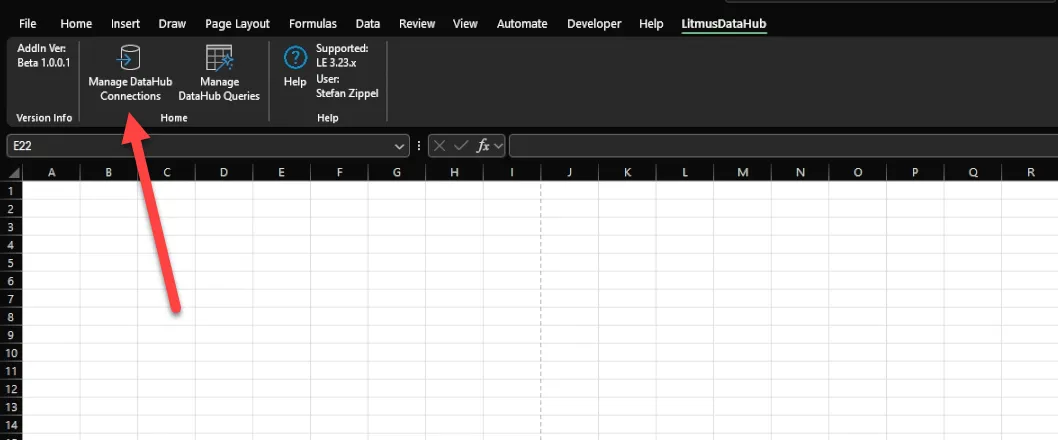
You can manage your datahub connections by viewing connection details in a paginated table. It supports a fixed layout of five rows per page, enabling easy navigation through multiple connections. Additionally, you can edit connection parameters and delete connections when necessary.
Before You Begin
- Ensure that connections have been previously created and are visible in the connection table. See Define DataHub Connections for details.
Step 1: Access the Manage DataHub Connections Form
- Navigate to the Manage DataHub Connections section. The Litmus DataHub Connections window pop-up appears.
Step 2: View Connection Details
You will see a table or list displaying your available connections. Refer to the following actions you can take from this page:

Action | Details |
|---|---|
[1] Connections | Shows the total number of defined connections. |
[2] Connection Name | Displays the defined connection name. |
[3] Server IPv4 | Helps identify the specific Litmus Edge device or external database connection. |
[4] Port | Displays the port used by the Connection. |
[5] Database | Displays the name of your database. |
[6] User | Indicates which database user user is associated with the connection. |
[7]Created By | Shows the creator of the connection, which is useful in multi-user scenarios. |
[8] Search | Allows to filter the List based on the provided filter. |
Step 3: Edit a Connection
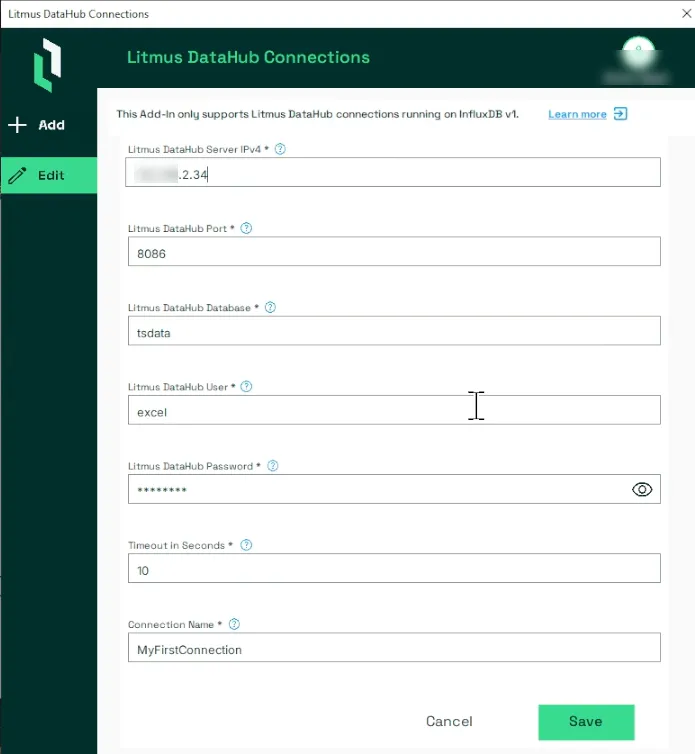
To enter the edit mode, you select the row of the Connection. When the row is highlighted, the available actions are shown in the left upper corner. For editing select the View icon to open the connection details.

- In edit mode, modify necessary fields such as the IP address, port, user credentials, password, or timeout settings.
- Confirm the updates to complete the editing process.
Notes:
- The datahub connections are managed in an independent workbook created outside of the add-in. This design enables multiple users to work on the same file concurrently.
- The interface supports tracking of connections created by various users, ensuring transparency and accountability in collaborative environments.
Step 4: Delete a Connection
To delete a connection, you select the row of the Connection. When the row is highlighted, the available actions are shown in the left upper corner. For deletion you select the Delete icon.

Note:
Connections can only be deleted after all Queries using it are deleted.
Otherwise the Connection can not be deleted.
