Configure an Active Directory as User Federation in Keycloak
5 min
You can connect an Active Directory to Keycloak through LDAP (Lightweight Directory Access Protocol) as a User Federation.
Before you begin
You will need an Active Directory to connect to. If needed, follow up with your IT department to create one.
Step 1: Configure standalone realm
You will first need to configure the default standalone realm with the new LDAP provider that you will create.
To configure the standalone realm:
- Log in to Keycloak using the following URL: https://[LEM IP address]/auth/admin. See Access Keycloak to learn more.
- In the top-left corner, open the drop-down list for the master realm and select standalone.
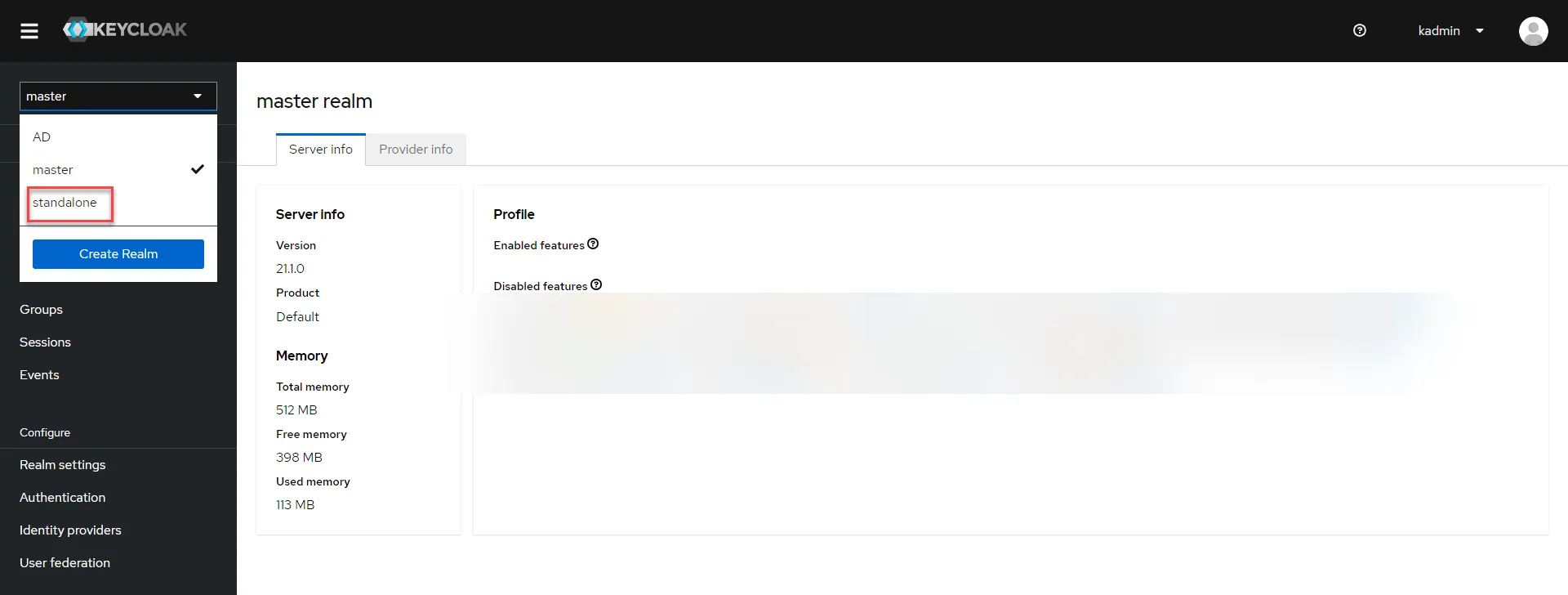
Standalone realm
- In the left-navigation menu, select User Federation and click Add Ldap providers. The Add LDAP provider page displays.
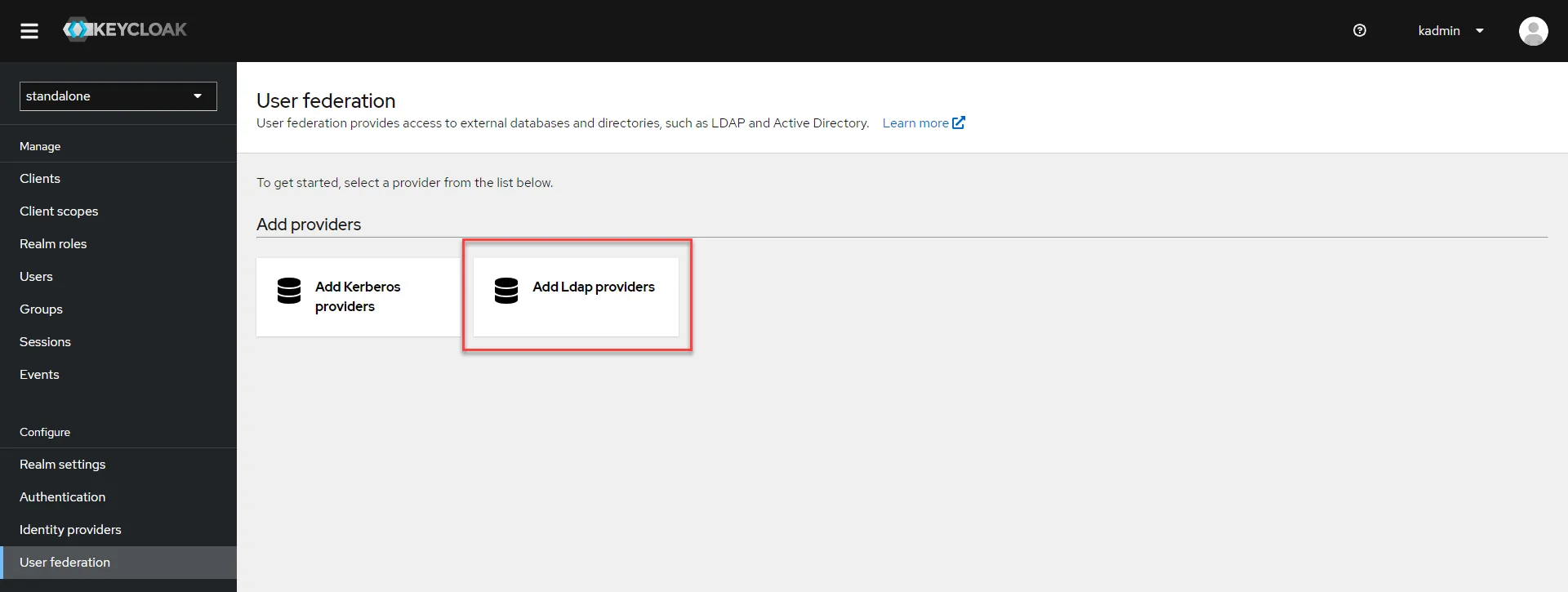
Add Ldap providers option
- In the General options section, enter a display name for the provider and select Active Directory as the vendor. After selecting the vendor, the following fields are auto-filled: Username LDAP attribute RDN LDAP attribute UUID LDAP attribute User Object classes
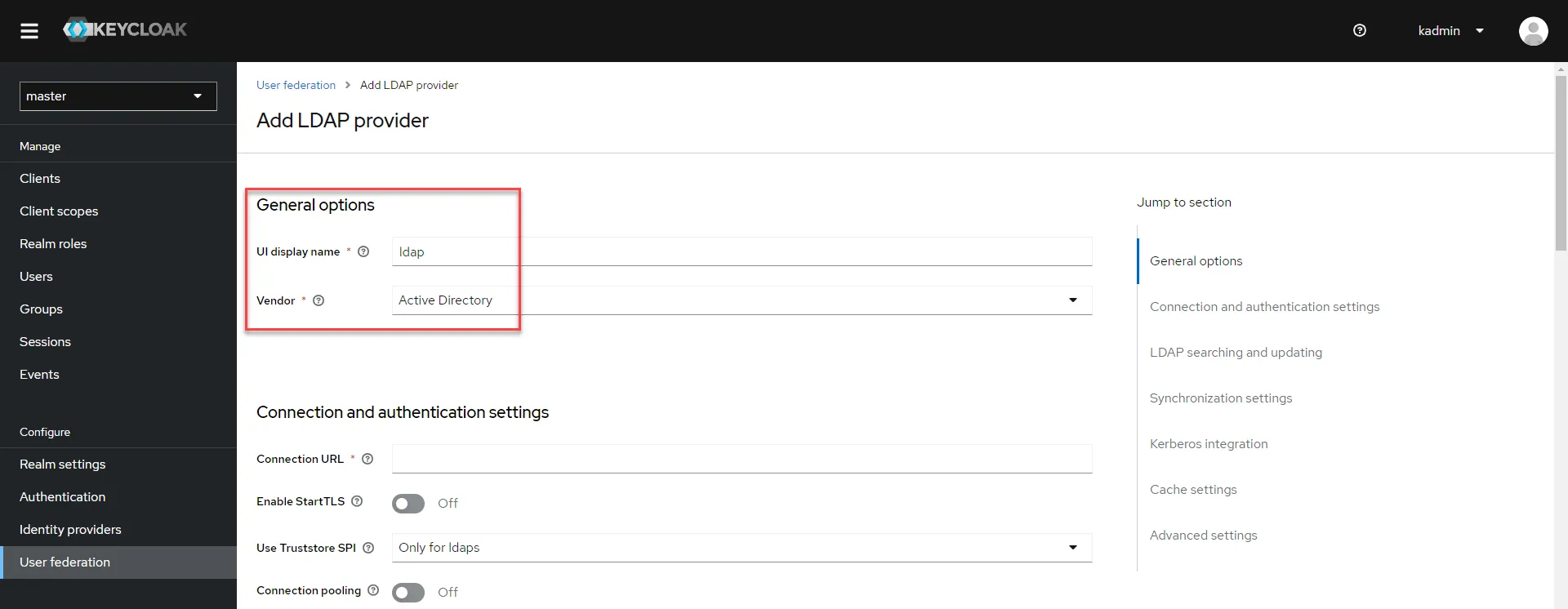
General options section
- In the Connection and authentication settings section, you will need to configure the external AD LDAP server. Enter the following URL: ldap://[AD server IP address]. Configure the other connection parameters as required. Then, click Test connection to confirm the LDAP connection is successful.
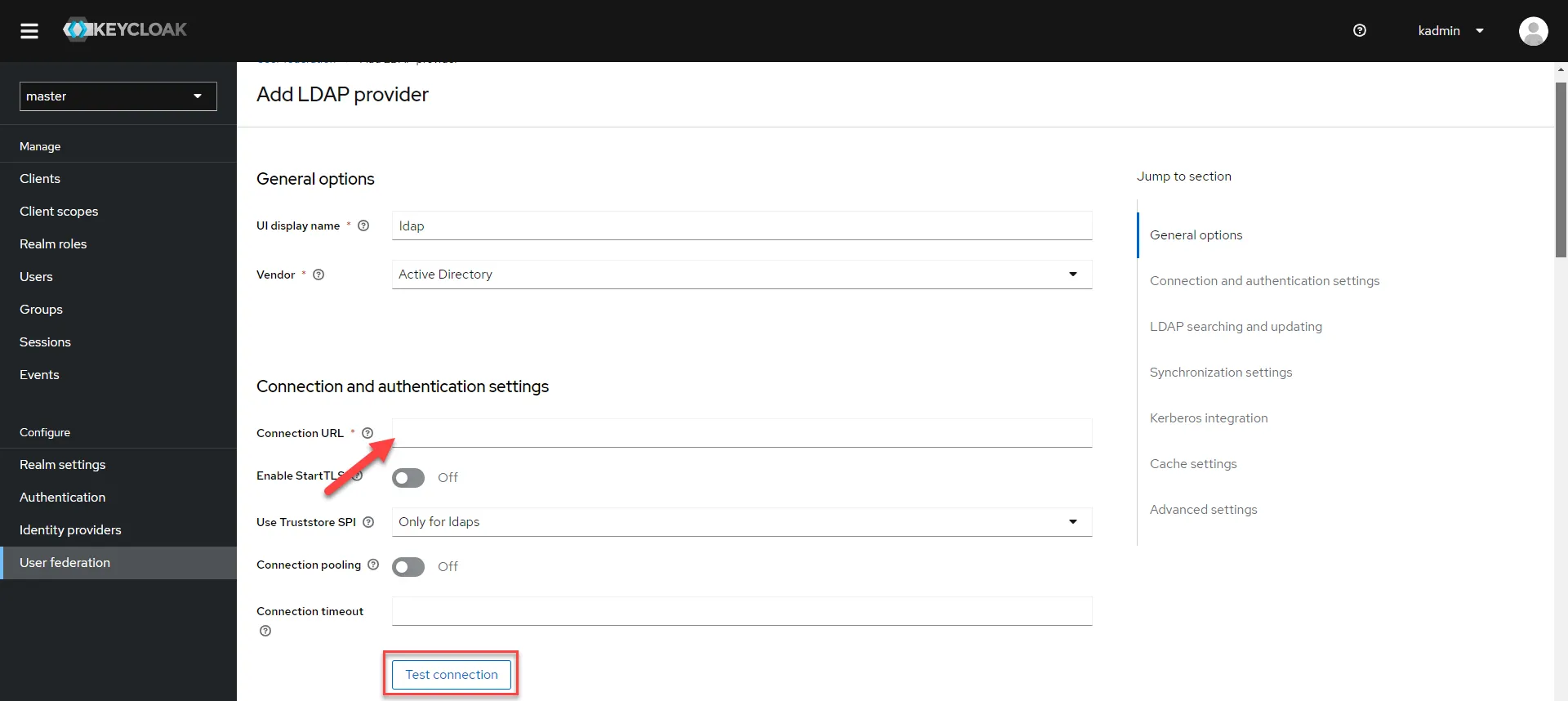
Connection and authentication settings section
- Configure the following settings and click Test authentication to confirm they are correct. Bind type: Select the type of the authentication method used during the LDAP bind operation: none (anonymous LDAP authentication) or simple (bind credential + bind password authentication). Bind DN: Enter the DN of the LDAP admin. Bind credentials: Enter the password of the LDAP admin.
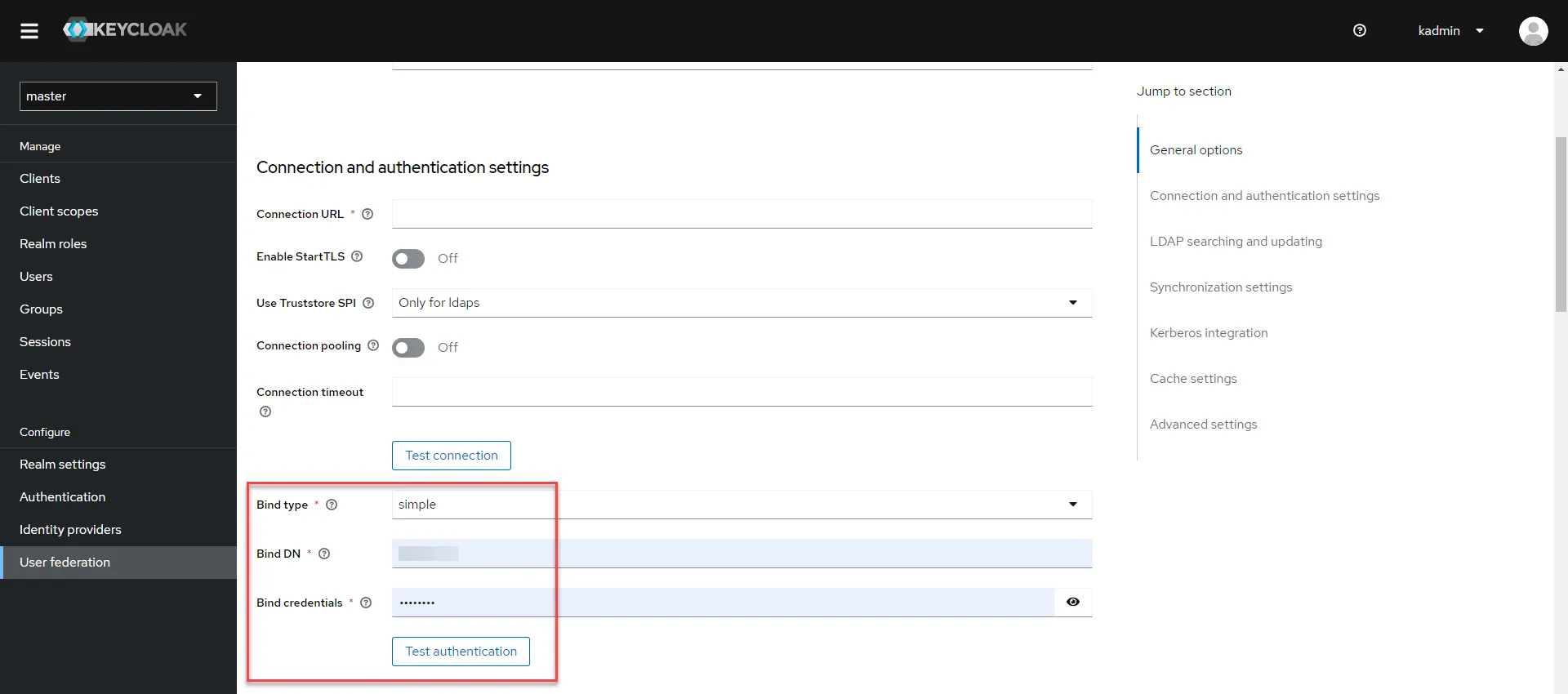
Bind settings
- In the LDAP searching and updating section, configure the User LDAP filter field with appropriate LDAP filters. This allows you to restrict users and enhance security and performance.
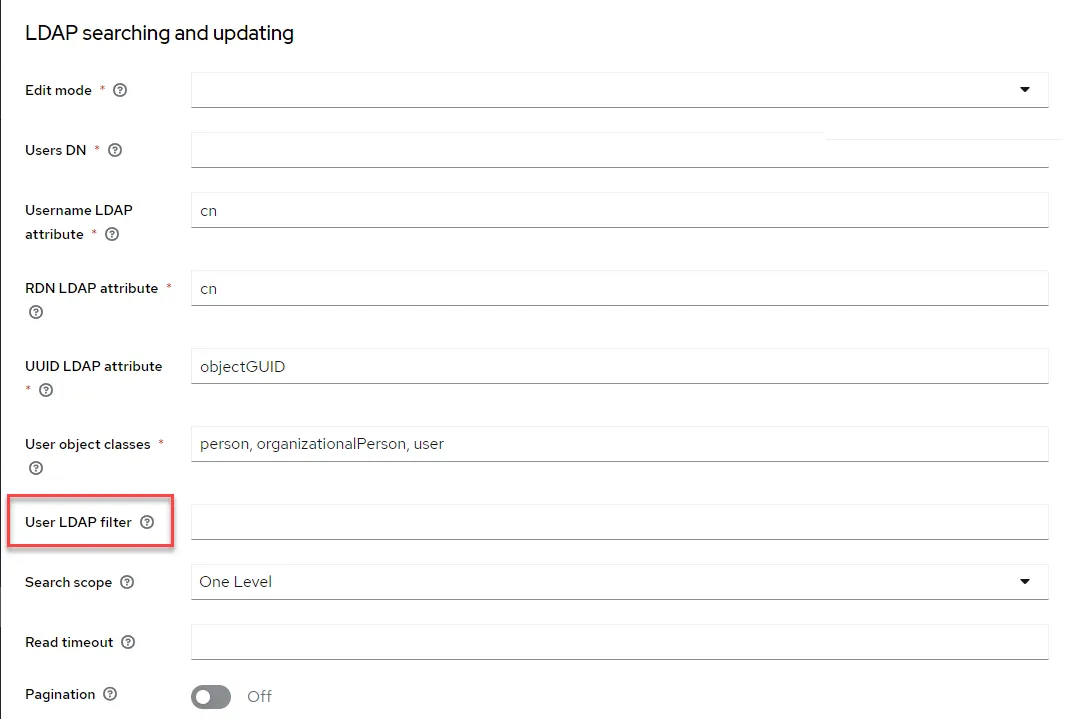
LDAP searching and updating section
- Configure the remaining settings as needed and then click Save.
Step 2: Confirm successful setup
After creating the realm, you can test the connection to confirm the Active Directory is successfully set up.
To confirm the setup is successful:
- In the left navigation menu, select Clients. Then, click the home URL for account-console. The Keycloak account management page opens in a new browser tab.
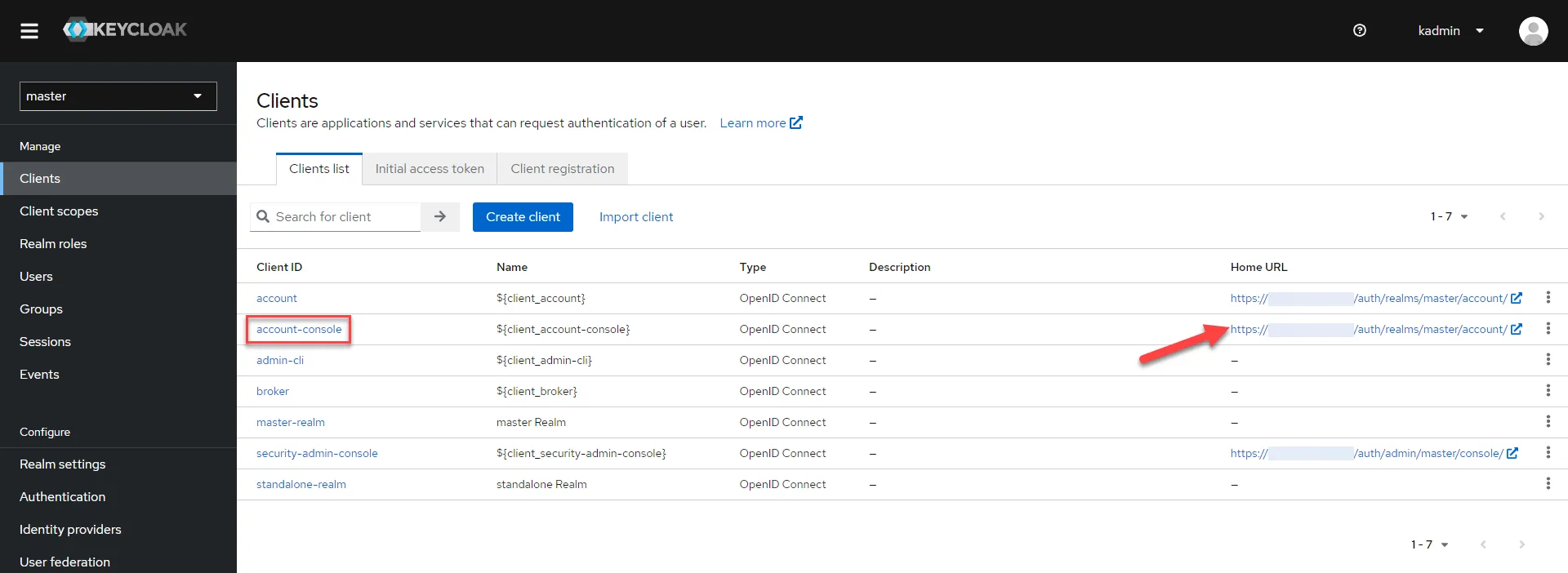
Clients page
- Click Sign out and then click Sign in. The Keycloak sign in page displays.
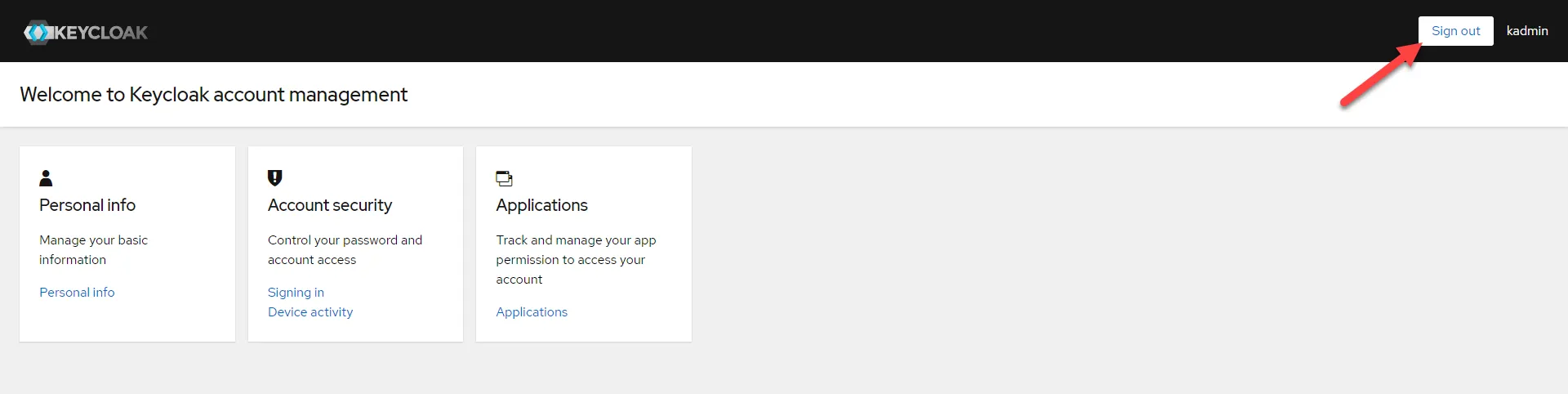
Sign out button
- Use the credentials of any user in your Active Directory to sign in. If the login in successful, the user is now authenticated using an Active Directory.
- Log in again to Keycloak, select Users, and confirm that the user you just logged in with is listed.
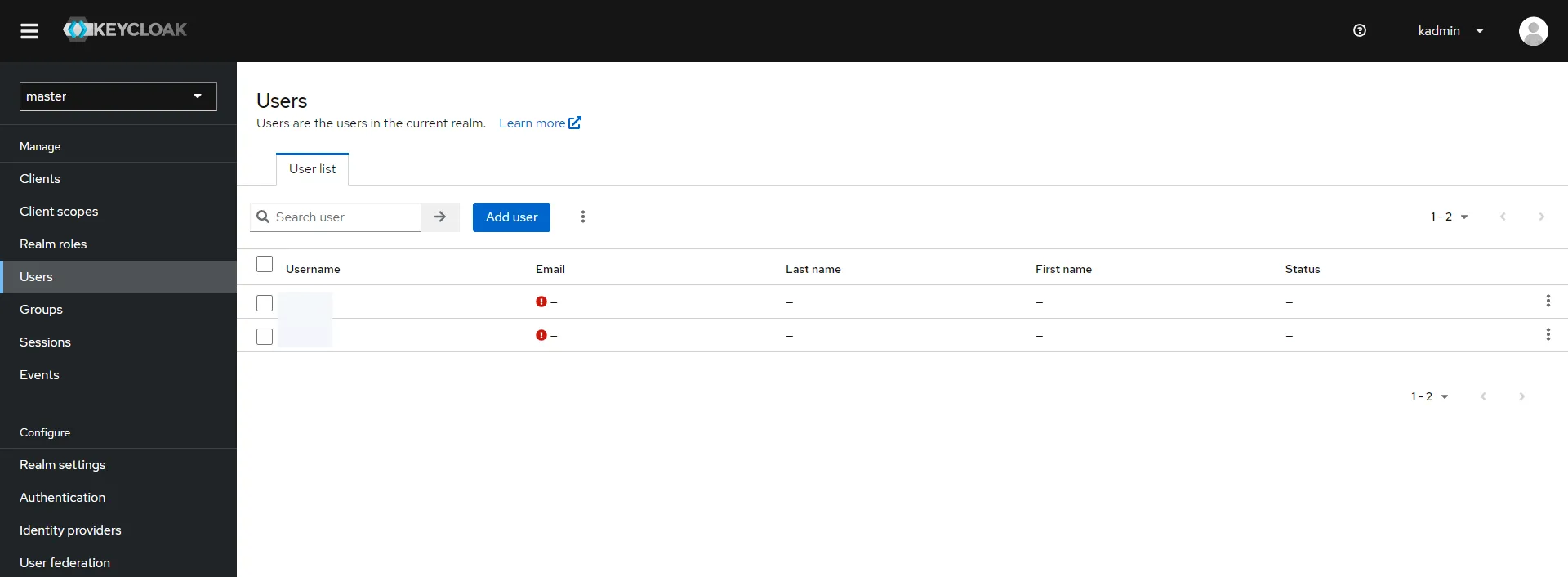
Users section