Create, import, and verify template
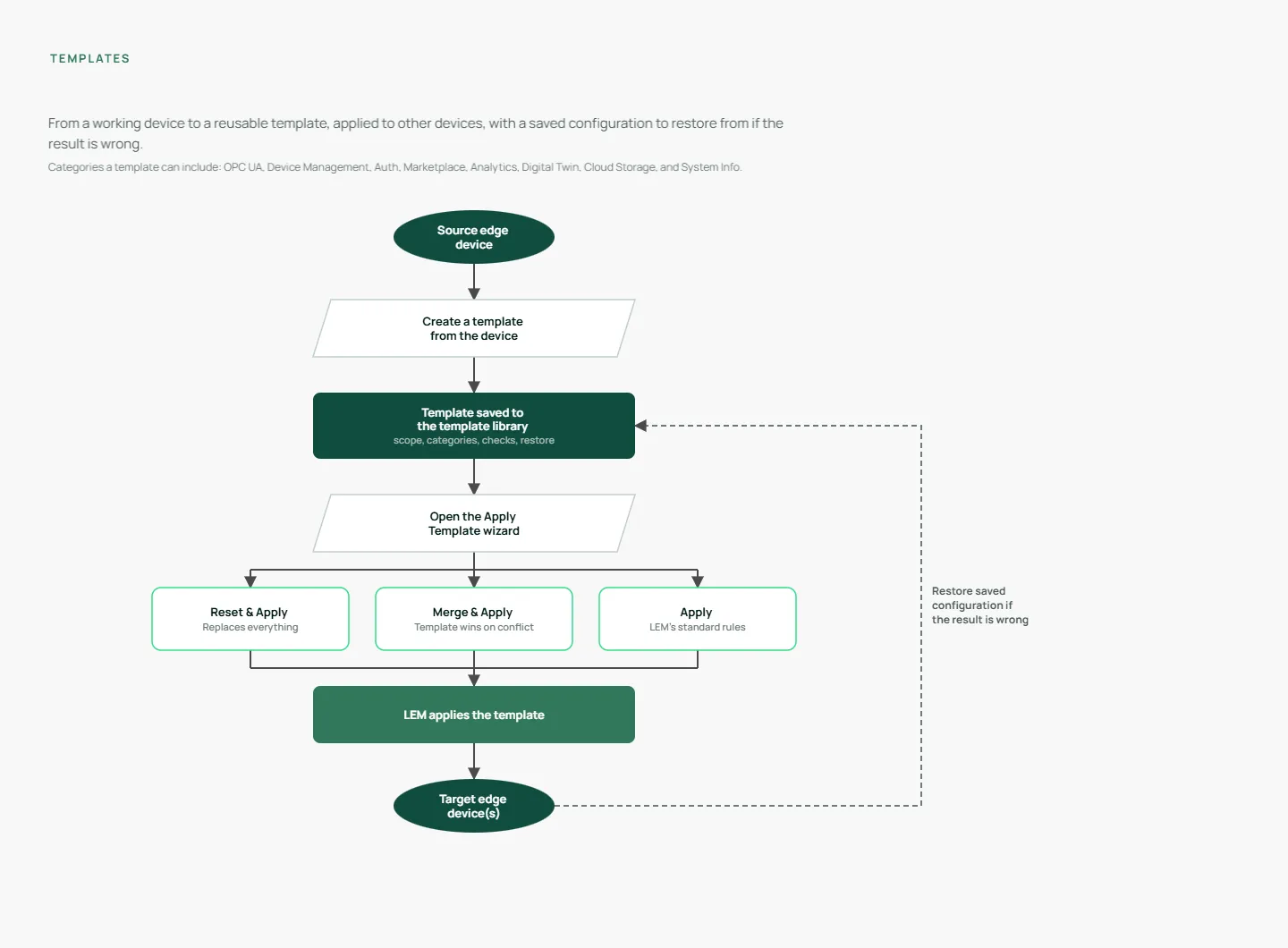
Templates let you capture a working Litmus Edge (LE) device configuration as a JSON file and reproduce it on other devices from Litmus Edge Manager (LEM). Manage device templates by creating, importing, applying, and downloading them.
Before you begin
Before you create and apply a template, ensure you have:
- A configured Litmus Edge device whose configuration you want to capture.
- Permission to apply templates.
- Confirmed that the target devices have the connectors and drivers the template needs. LEM checks for these before applying and blocks the apply if anything is missing.
Step 1: Create the template file
To capture a device's current configuration as a template:
- In the template library, select the option to create a new template from an edge device. LEM opens the Import wizard.
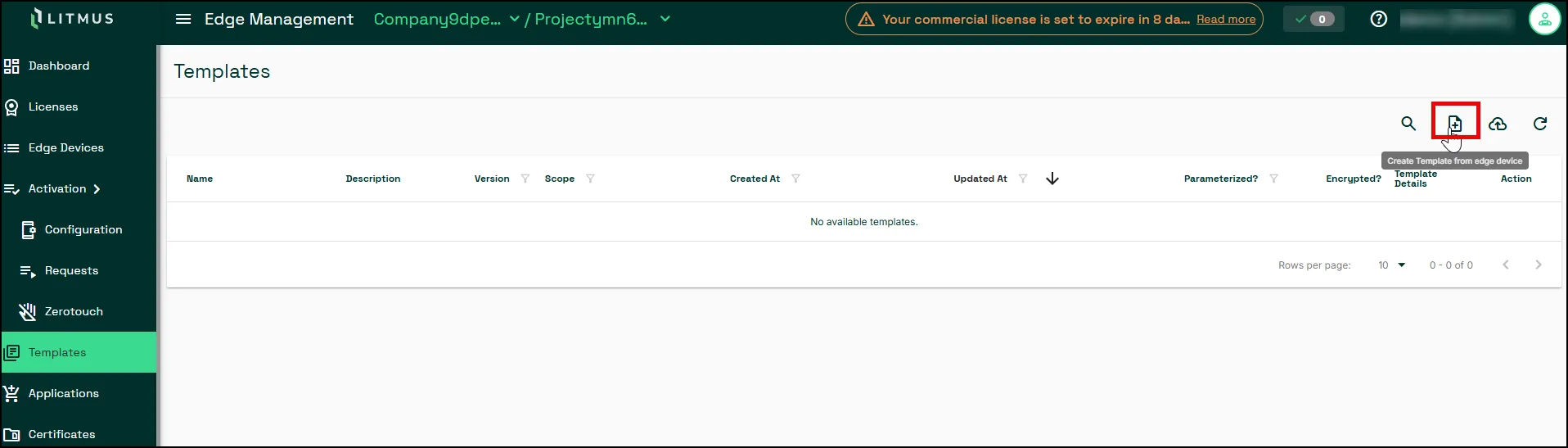
- On the Select edge device tab, select the source device. Optionally use the Labels, High Availability, and Show backup filters to narrow the device list, then select Apply Filter.
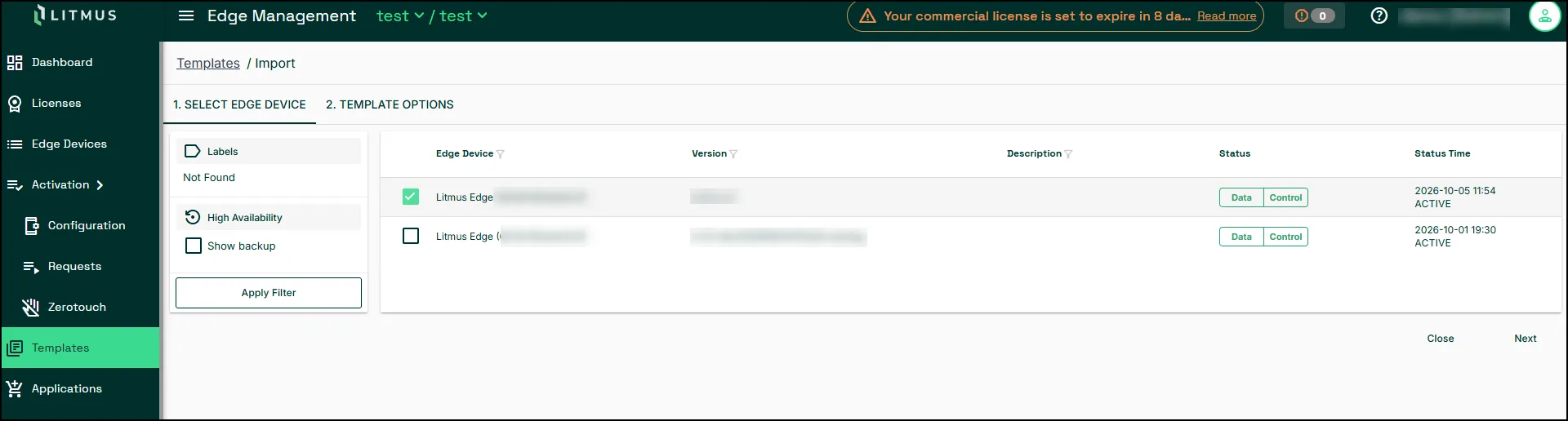
- Select Next.
- On the Template options tab, select what to include. Items are grouped into categories, such as OPC UA, Device Management, Auth, Marketplace, Analytics, Digital Twin, Cloud Storage, and System Info. Select Select / Deselect all for everything, or expand a category to pick individual items.
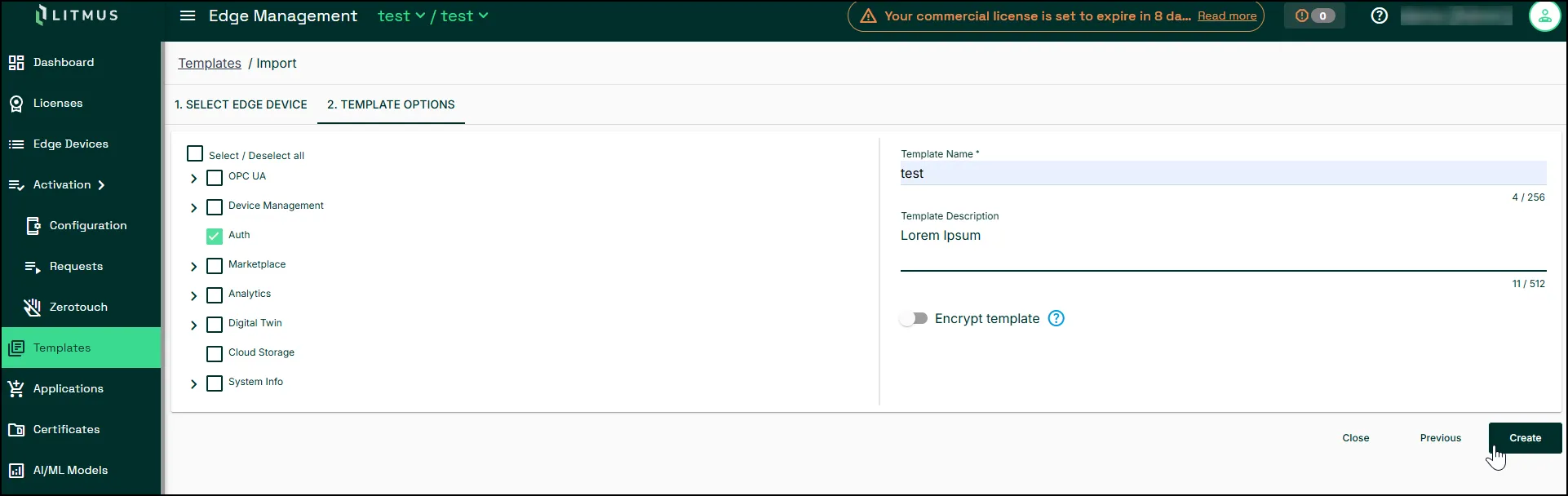
- Enter a Template Name. Template Description is optional.
- If the template contains protected passwords, turn on Encrypt template and enter an Encryption Key. The key is required while encryption is on. Save this key somewhere safe. You need it to import the template later.
- Select Create. LEM adds the template to the library and confirms it was created.
Step 2: Import the template into the library
Before adding the file to the library, LEM checks that it's a valid JSON file and that everything it points to is included in that same file. For example, if the template has a Digital Twin instance, the model it uses must also be in the template.
To import a template file:
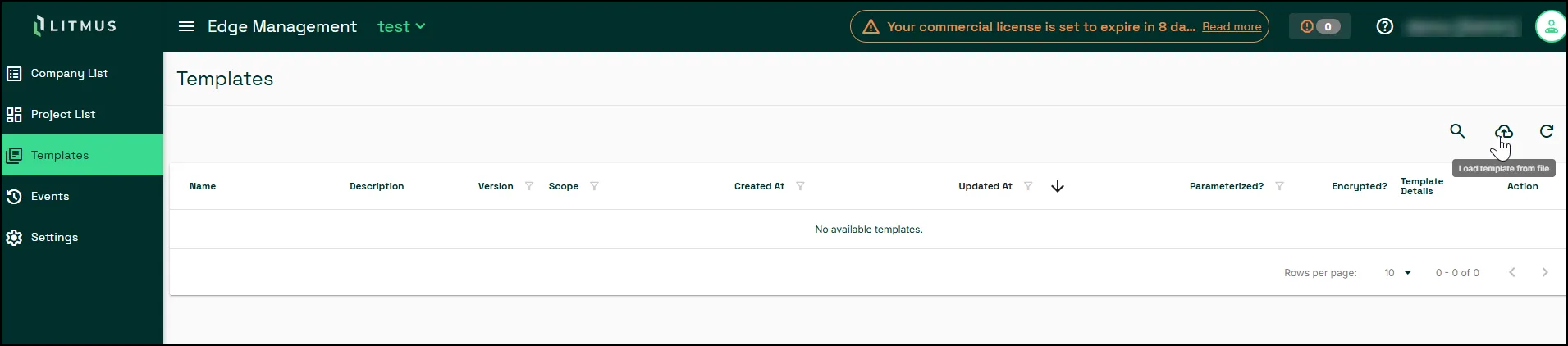
- In the template library, select the option to upload a template. LEM opens the Upload Template dialog.
- Select Simple Template. (Select Parameterized Template instead to upload a ZIP file created via Parameterize a Template - a separate workflow for adding substitutable variables to a template, described on its own page.)
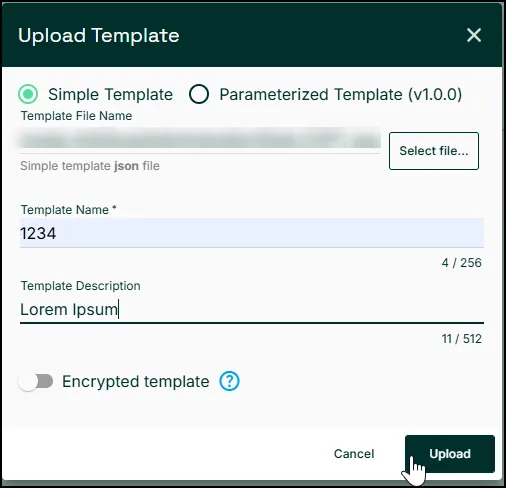
- Select Select file... and choose the JSON file you exported.
- Enter a Template Name. Template Description is optional.
- If the file was created with an encryption key, turn on Encrypted template and provide the key when prompted.
- Select Upload.
A file that passes the checks is added to the library. If the file fails, LEM reports the problem so you can correct it and import again.
Step 3: Review the template before you apply it
This matters most before a Merge & Apply, since a merge overwrites anything on the target device that shares an ID with the template.
To confirm the template contains what you expect:
- Open the template's details in the library.
- Review what it includes.
- If the template has reusable values, note which ones you'll need to supply, either per device, per site, or by CSV import.
Step 4: Apply the template
LEM supports three apply modes:
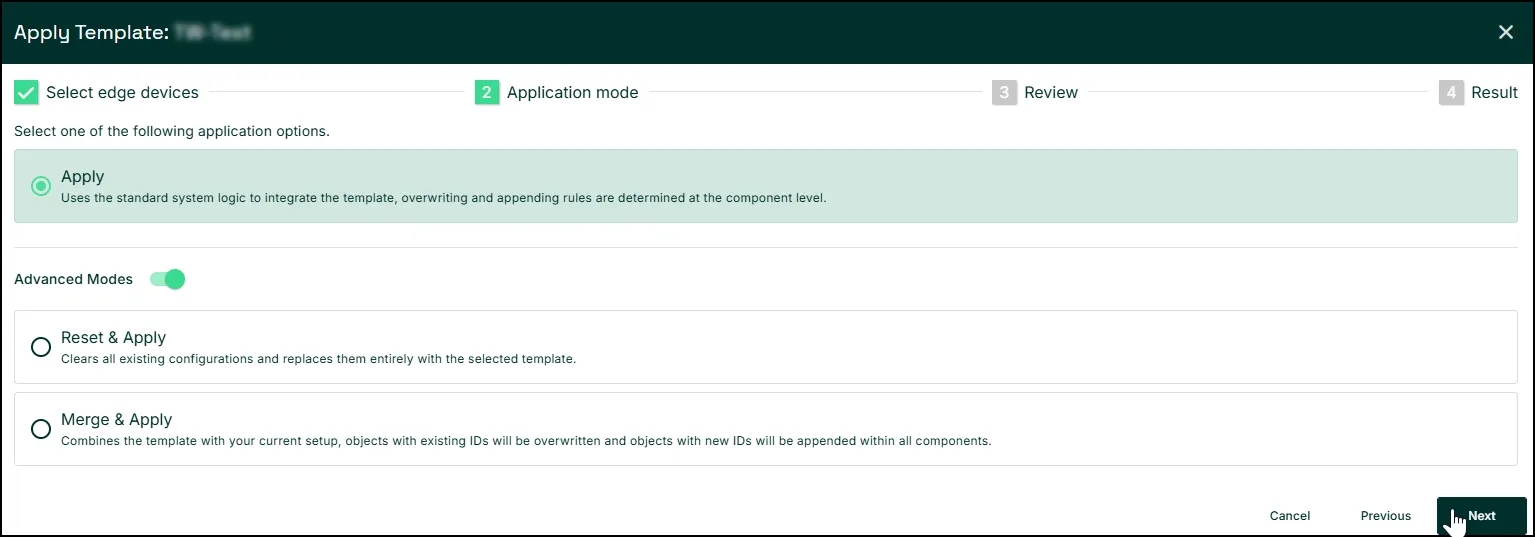
- Reset & Apply replaces everything on the target device with the template. Anything not in the template is removed.
- Merge & Apply adds the template to what's already on the device. Where an item in both shares the same ID, the template version wins.
- Apply uses LEM's standard rules to combine the template with the device, which can vary by item type. This mode skips the saved configuration, so it can't be undone by a restore.
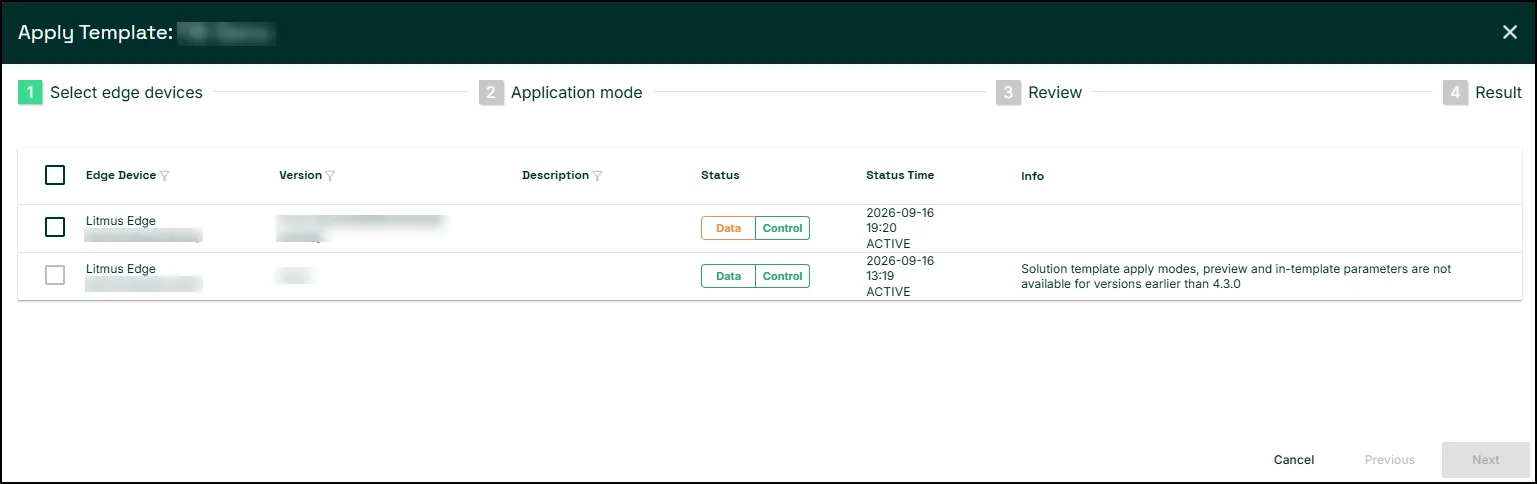
Apply modes, preview, and template parameters need Litmus Edge 4.3.0 or later on the target device. On an earlier version, LEM shows a message next to the device explaining that these aren't available.
To apply the template:
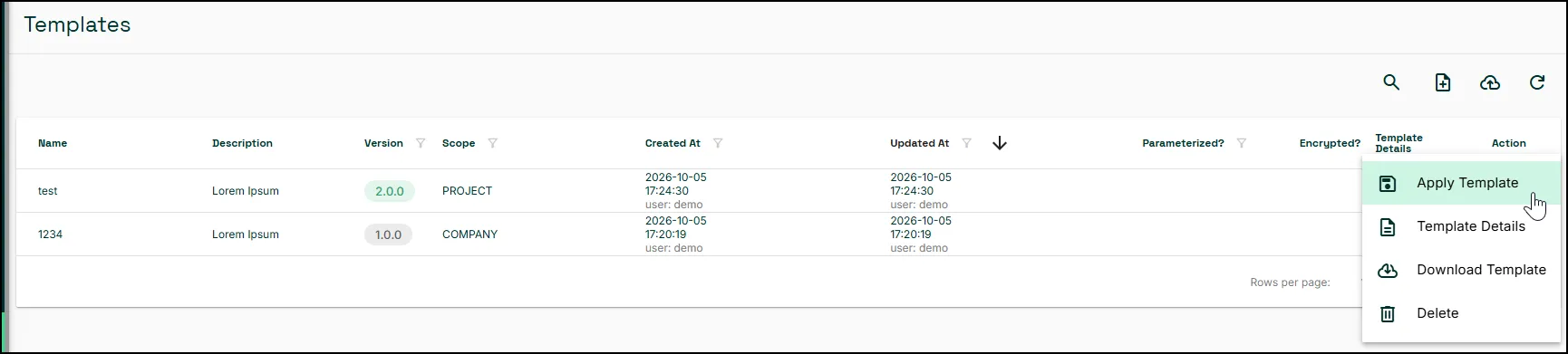
- In the template library, open the template's action menu and select Apply Template.
- On Select edge devices, select one or more target devices, then select Next.
- On Application mode, select Reset & Apply, Merge & Apply, or Apply, then select Next. If the template has reusable values, you supply them here.
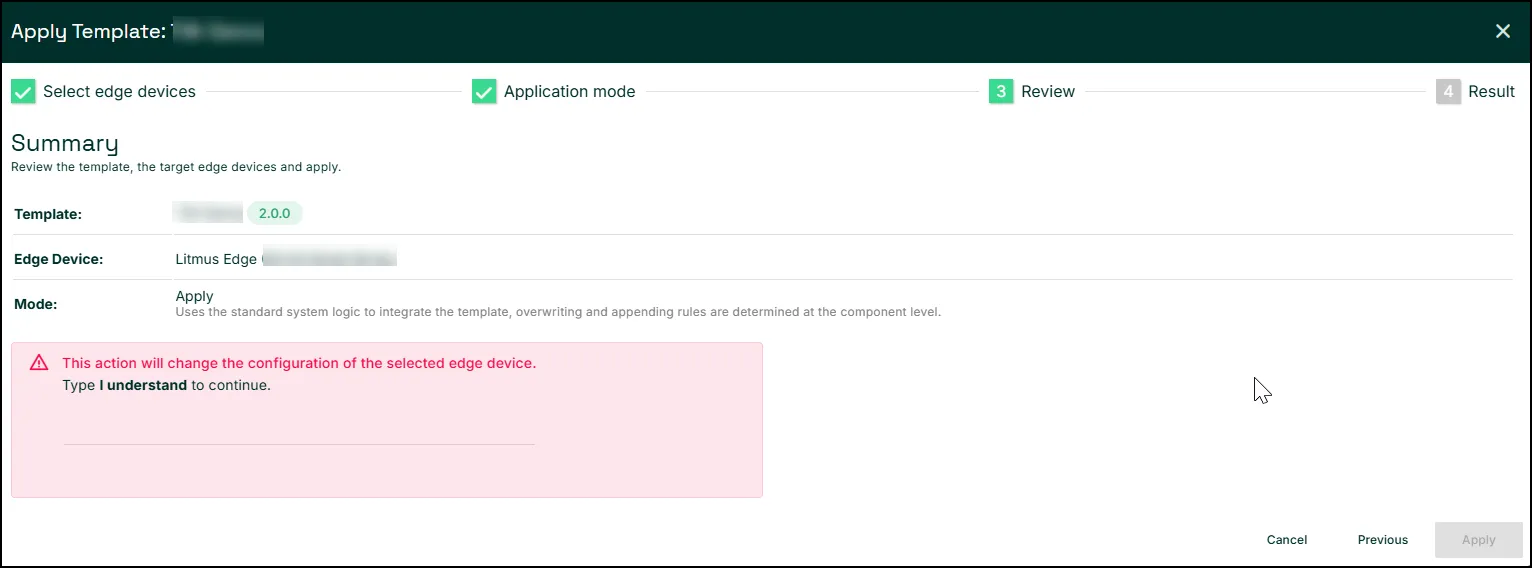
- On Review, check the summary, type I understand to confirm, then select Apply.
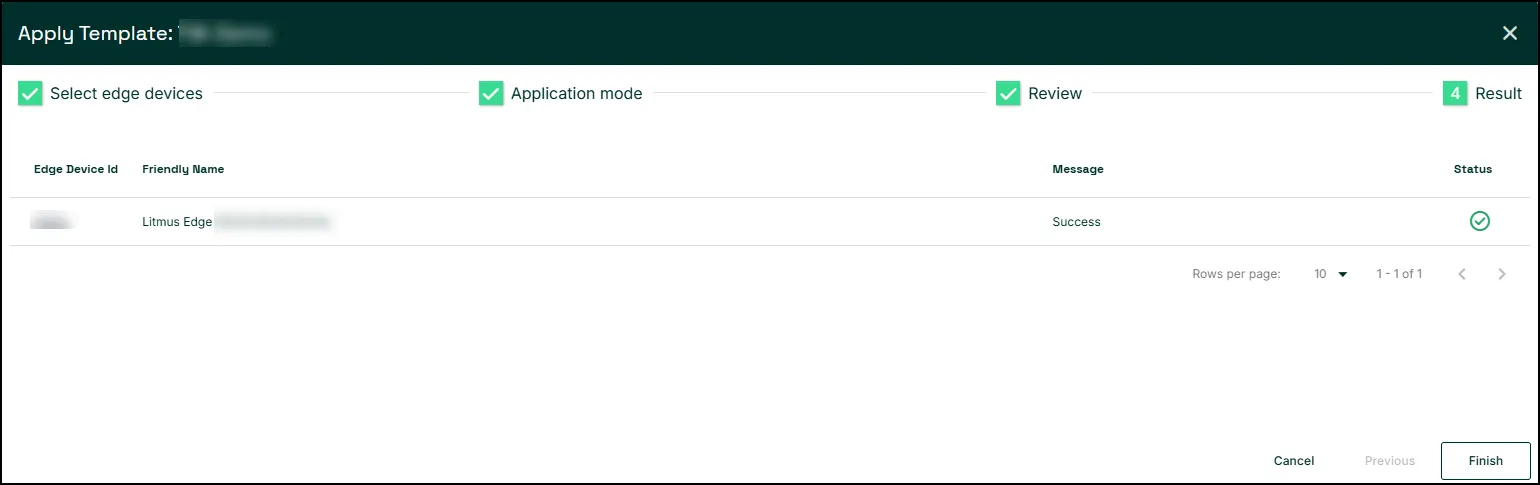
- LEM shows the result for each device and confirms when the apply finishes. Select Finish to close the wizard.
Before Reset & Apply or Merge & Apply changes anything, LEM saves the device's current configuration so you can restore it later if needed.
Step 5: Verify the template applied
To confirm the apply worked:
- Open Requests in the left navigation to check the status of the apply task.
- Check the areas the template configures on the device to confirm everything in the template is there.
- If the template used reusable values, confirm the values you supplied show up instead of the defaults.
Download a template
You can download a template as a JSON file at any time, independent of applying it. Downloading a template lets you back it up outside LEM, inspect its contents, move it to another LEM instance, or re-upload it after making changes elsewhere.
To download a template:
- In the template library, select the template.
- Select the option to download the template.
LEM downloads the template as a .json file.
If the template contains protected passwords, the downloaded file keeps them encrypted. You need the template's encryption key to use the file again.
Restore template
If a supported apply operation (Reset & Apply or Merge & Apply) produces an unwanted result, you can restore the device's saved configuration from before the apply.
Related topics
- TemplatesTemplates