Shared registries
A shared registry is a container registry that every catalog in Marketplace can use. You manage shared registries in one place, so you do not need to add the same registry to each catalog.
Shared and private registries
Marketplace has two kinds of registries:
- Private registries: You add a private registry on the Registry tab of a catalog. Only that catalog can use it. See Registry management.
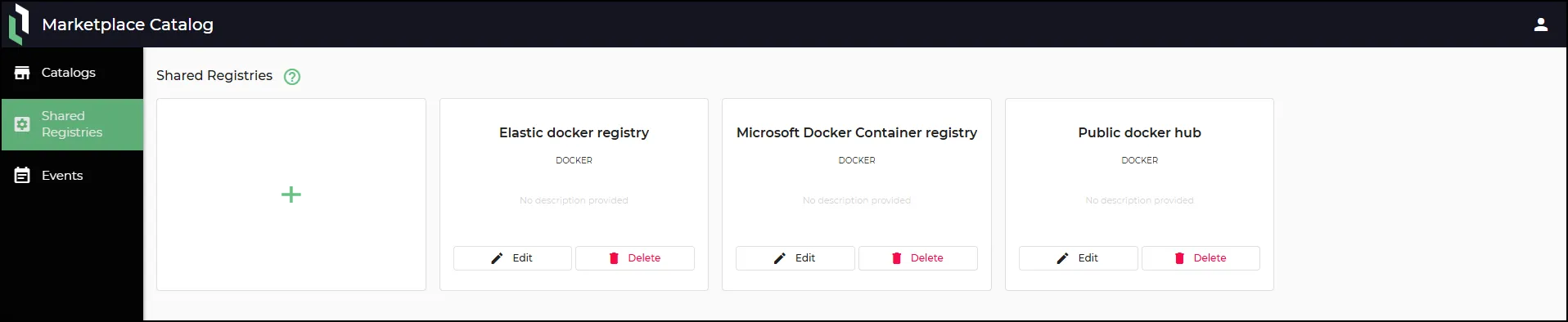
- Shared registries: You manage shared registries on the Shared Registries page. Every catalog can use them. Docker Hub, Elastic, and Microsoft are built-in shared registries.
When you add a component to an application release, the Repository list shows the private registries of the catalog and the shared registries. Shared registries are labeled Shared. See Configure container settingsConfigure container settings.
Before you begin
Ensure you have the following:
- Access to Marketplace. See Marketplace catalogMarketplace catalog for the steps.
- The Administrator Marketplace role to add, edit, or delete a shared registry. If you have the Observer role, you can view shared registries but you cannot change them.
- The address and credentials of the registry that you want to add.
Open shared registries page
To open the Shared Registries page:
- Open the Marketplace catalog. See Marketplace catalogMarketplace catalog for the steps.
- In the left navigation, click Shared Registries. The Shared Registries page lists the shared registries.
Add a shared registry
To add a shared registry:
- Open the Shared Registries page.
- Click Add registry.
- Select the registry Type.
- Enter the registry Name.
- Enter the registry Address.
- Enter the credentials for the registry.
- Click Save. Litmus Edge Manager checks the login. If the login succeeds, the registry appears in the list.
If the login fails, an error message appears and Litmus Edge Manager does not save the registry. Correct the information and save again.
The fields are the same as the fields that you use to add a registry to a catalog. For the fields that each registry type needs, see Registry management.
Edit a shared registry
To edit a shared registry:
- Open the Shared Registries page.
- Find the registry that you want to change.
- Click Edit.
- Update the fields.
- Click Save.
Litmus Edge Manager masks the registry credentials when it displays them.
Important: Every catalog can use a shared registry. When you edit a shared registry, the change applies to every catalog.
Delete a shared registry
To delete a shared registry:
- Open the Shared Registries page.
- Find the registry that you want to remove.
- Click Delete.
- Confirm the deletion if prompted.
Caution: When you delete a shared registry, it is removed from every catalog. Releases that use the registry are not deleted, but the application fails when you launch it.
Shared registries in catalog exports
When you export a catalog, the export includes the shared registries that the catalog uses as dependent registries. See Marketplace catalogMarketplace catalog.
Next steps
- Registry managementRegistry management
- Configure container settingsConfigure container settings