Manage Digital Twins instances
A Digital Twins instance represents a specific physical asset. It inherits its structure from a model, including static attributes, dynamic attributes, topic expressions, and transformations, and populates that structure with real values from the device it represents. Where a model is a reusable template, an instance is the live data object that holds asset-specific metadata and real-time data from the sources you configure.
Why instances matter
A single model can serve many edge devices. Instead of configuring each device individually, you define a model once and deploy as many instances as you need, each with its own parameter values. A plant with 50 identical Modbus controllers needs one model and 50 instances rather than 50 separate configurations.
This separation also simplifies maintenance. When a model changes, you update the model once. Existing instances continue running with the previous version until you choose to upgrade them.
The Instances page in Litmus Edge Manager shows all Digital Twins instances running across your edge devices. From here you can deploy new instances, upgrade instances when their model changes, and disable, enable, or delete existing instances.
View instances
Instances appear in a table that shows each instance's name, model it was deployed from, project, edge device, edge device status, and instance status. Click an instance name, project name, or edge device name to view its details.
Instances appear in the table when they are deployed:
- From Litmus Edge Manager to Litmus Edge.
- Directly from Litmus Edge.
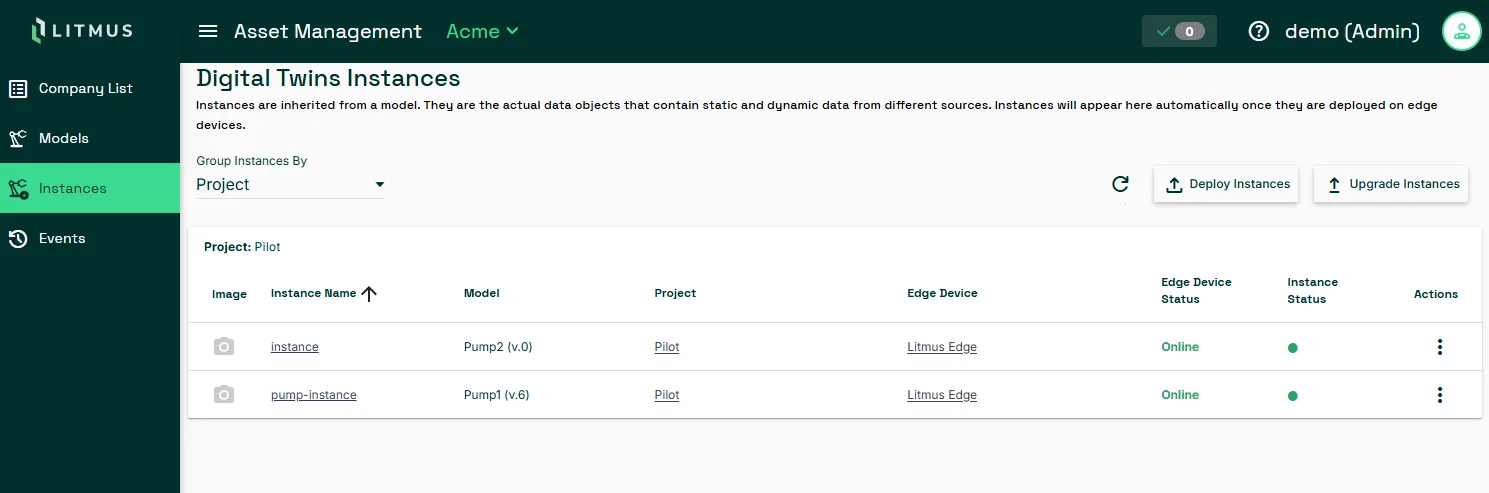
To perform actions on an instance, open the Actions menu in the instance's row. Available actions are upgrade, disable, enable, and delete.
Deploy instances
Deploying an instance from Litmus Edge Manager creates a running copy of a Digital Twins model on one or more edge devices. Each instance runs with its own parameter values, which Litmus Edge Manager substitutes into the model's topic expressions at deploy time. You upload a CSV deployment file with configuration parameters when you deploy.
Create a CSV deployment file
Open the CSV deployment file and add one row per instance.
- Enter a unique instance name.
- Enter parameter value for each parameter column.
Do not modify the model name or parameter column headers. These must match the model definition exactly.
Required columns:
Column | Description |
|---|---|
modelName | Must match the selected model exactly |
instanceName | Unique name for this instance |
interval | Polling or update interval for the instance |
paramName | Parameter name as defined on the model |
paramValue | Value to substitute for that parameter |
When uploading the CSV deployment file, Litmus Edge Manager validates the file and ensures that:
- The modelName value matches the selected model.
- Each paramName matches a parameter defined on the model.
- All required columns are present.
How parameter substitution works
When you deploy an instance, Litmus Edge Manager resolves each topic expression defined on the model by replacing {paramName} placeholders with the instance's parameter values. For example, a model with Device1 and KPI parameters and the following topic expressions:
devicehub.alias.{Device1}.Power
analytics.publish.{Device1}.{KPI}
An instance where Device1 = Modbus1 and KPI = OEE produces:
devicehub.alias.Modbus1.Power
analytics.publish.Modbus1.OEE
Because topics are derived from parameter values, they update automatically when you change the instance's parameters. For more information on modifying digital twin instance in Litmus Edge, see Add an instance and Manage Instances.
Deploy instances to Litmus Edge
To deploy instances to Litmus Edge:
- From the companies list, navigate to Instances.
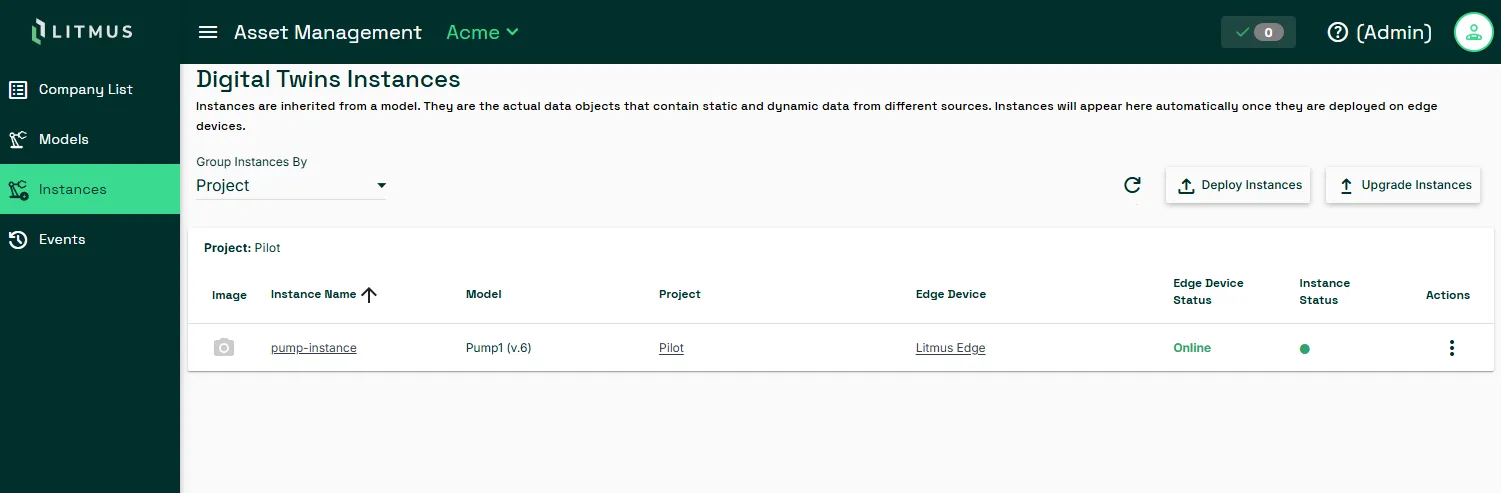
- At the top-right, click Deploy Instances.
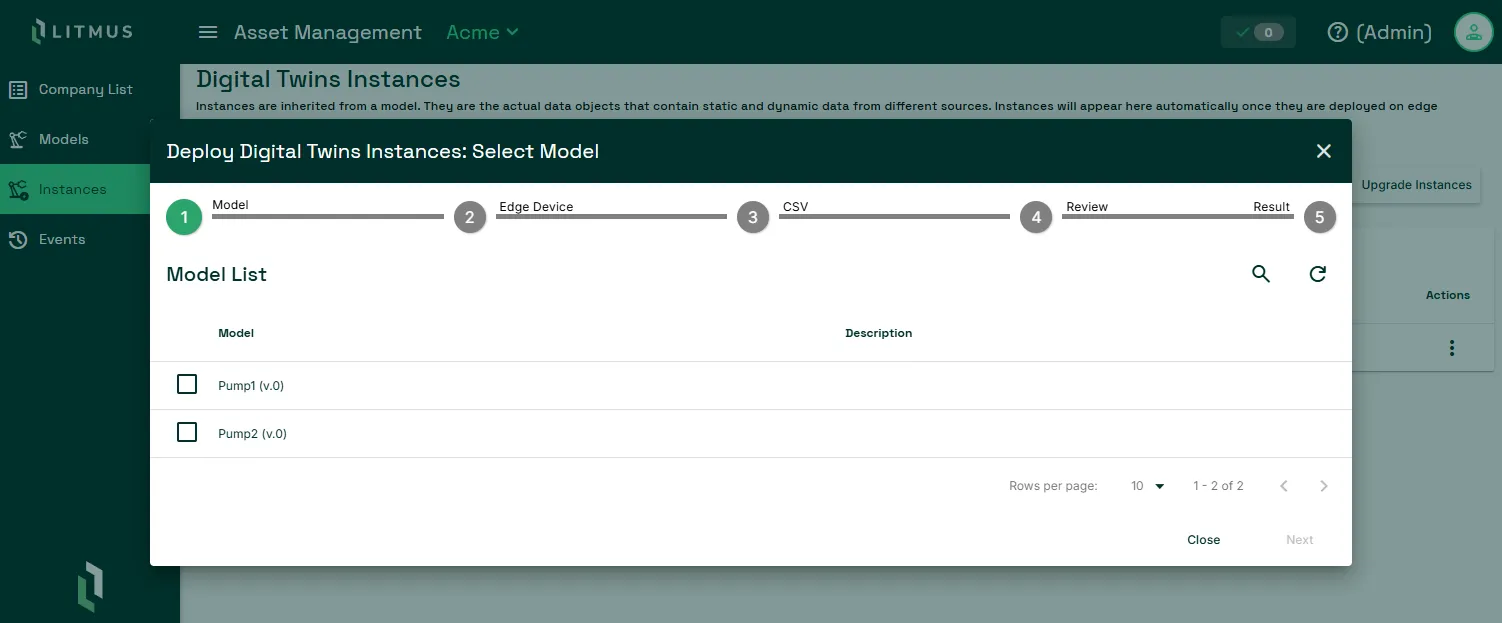
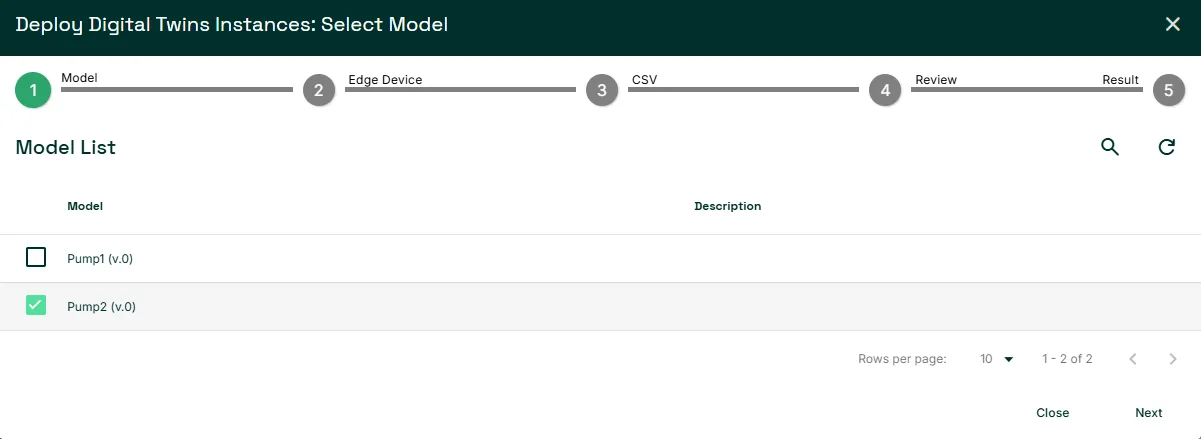
- In the Deploy Digital Twins Instances dialog, select the model from which to deploy an instance. Click Next.
- In Edge Device List, select the edge device or devices to deploy the instance to.
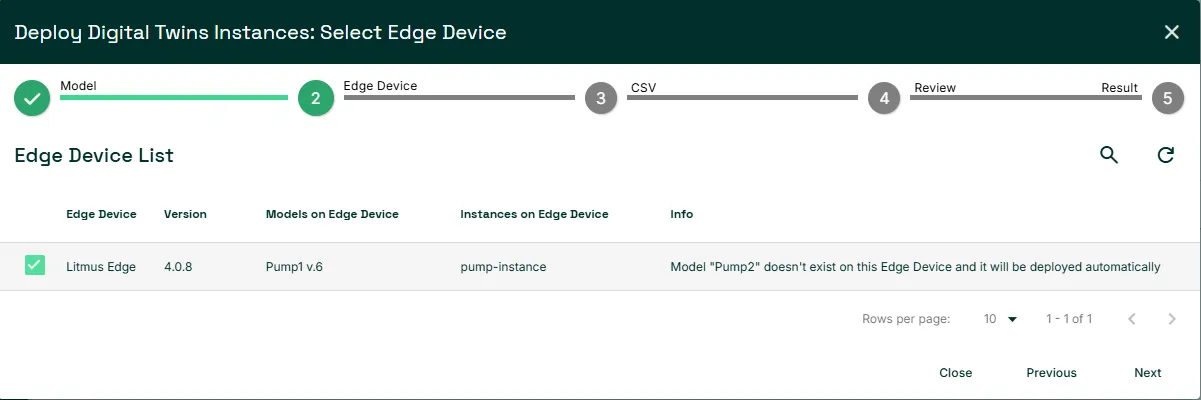
- In Instance Parameters, upload a CSV deployment file. Click Upload CSV and upload the file in the Upload Instances Parameters dialog.
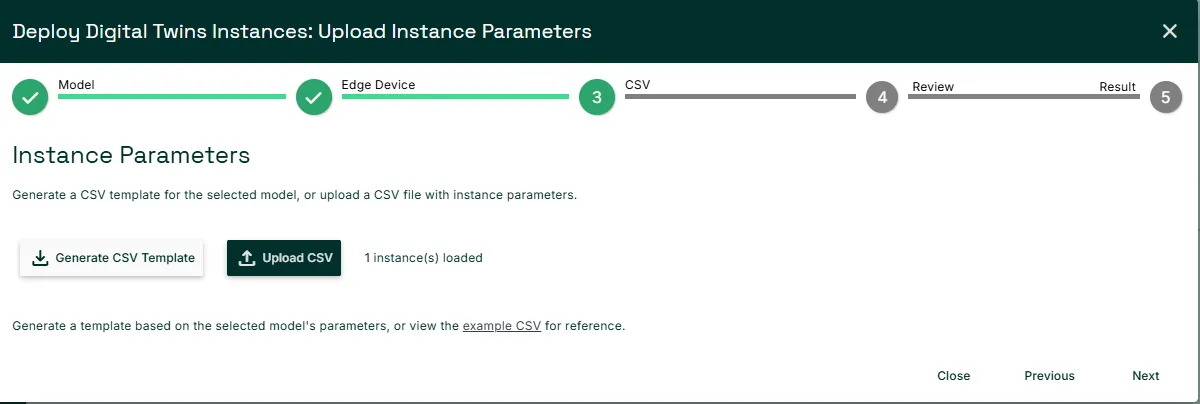
If you don't have a CSV deployment file, you can:
- Click Generate CSV Template to create a deployment file with values from the model that you selected earlier.
- Click example CSV to download a deployment file with sample values.
- In Deployment Plan, review the deploy settings and click Deploy.
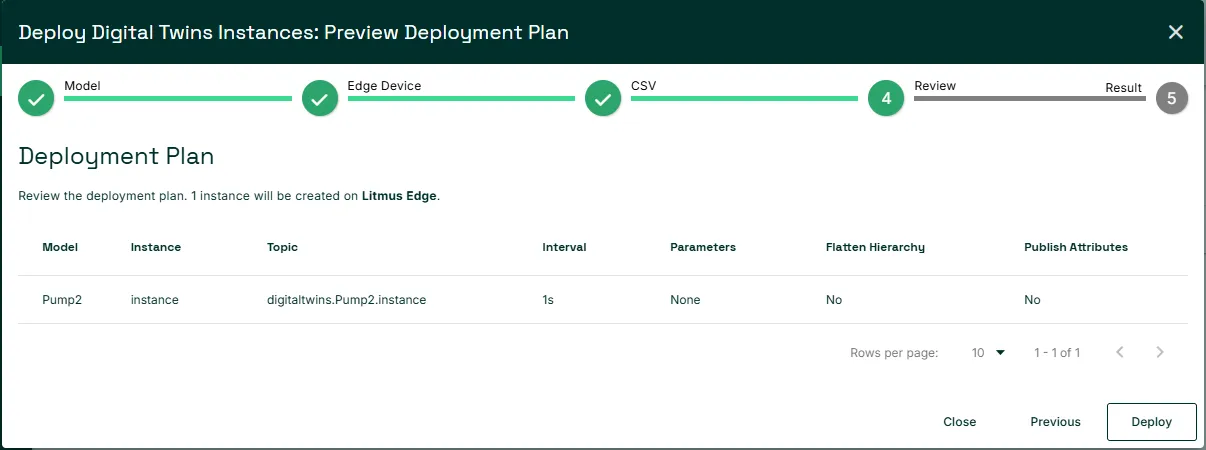
- In the Deployment Confirmation dialog, review the deploy conditions and click Confirm.
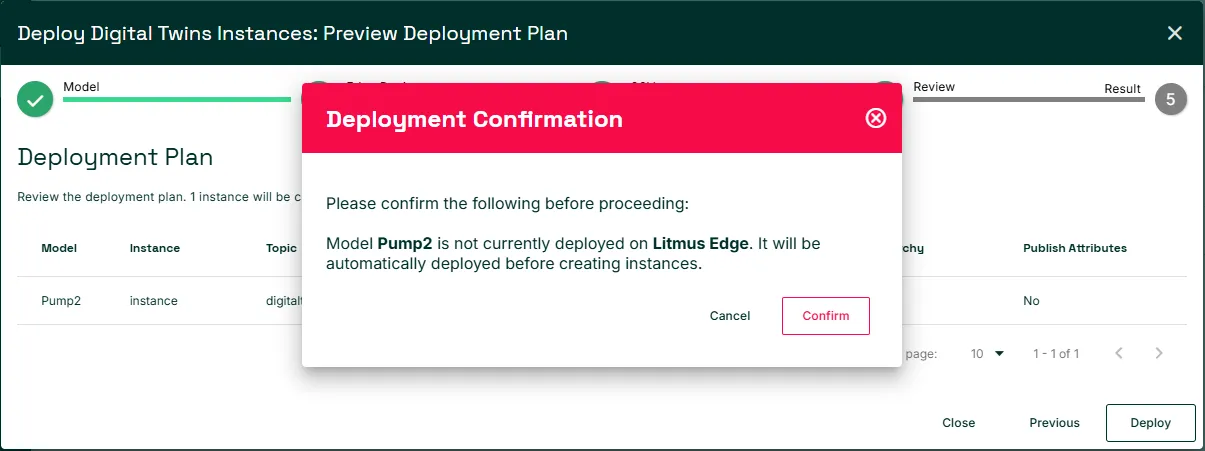
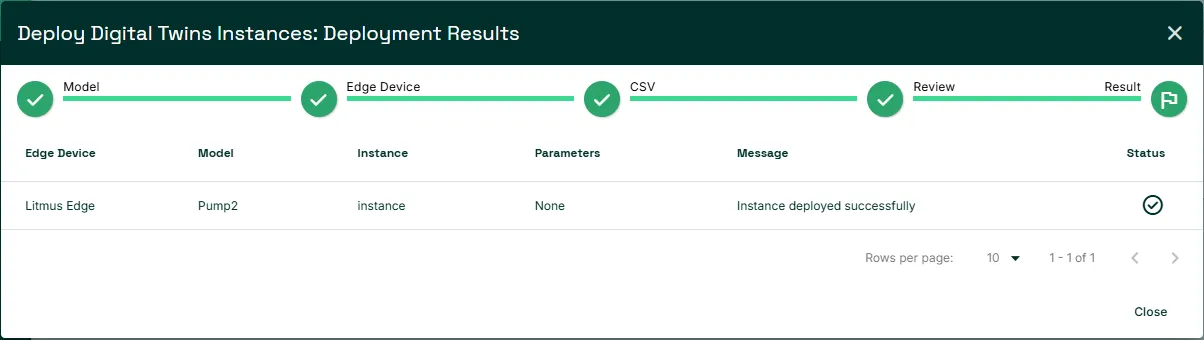
Deployment results appear in Deployment Results. Verify that instances have deployed in Litmus Edge.
Upgrade instances
Upgrade instances to apply model changes to them. When a model is updated, existing instances continue running with the previous version until you upgrade them.
You can upgrade instances in bulk using the Upgrade Instances button, or upgrade a single instance from its Actions menu.
To upgrade instances:
- Click Upgrade Instances or open the Actions menu for an instance and select Upgrade.
- In the Upgrade Instances window, select the instances to upgrade. Litmus Edge Manager only displays instances that have pending model updates.
- Click Upgrade to apply the model changes to the selected instances.
Disable and enable instances
To disable an instance, open its Actions menu and select Disable. To enable a disabled instance, open its Actions menu select Enable.
Delete instances
To delete an instance, open its Actions menu and select Delete.