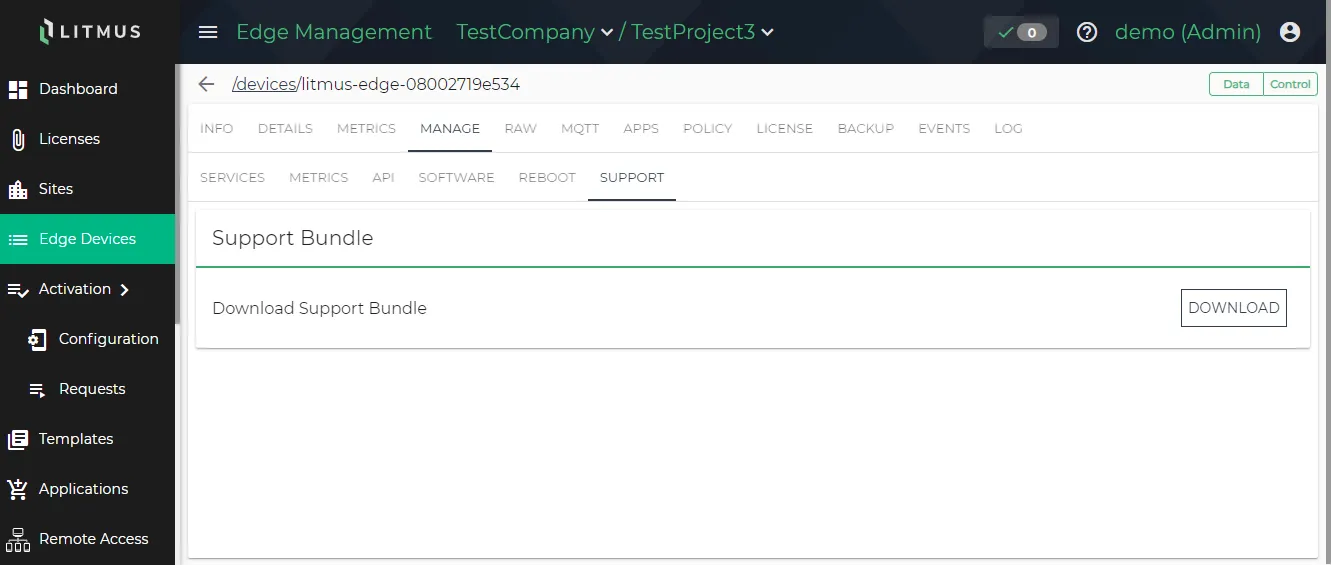
Manage
The Manage tab for an edge device enables you to:
- Stop and restart specific services.
- Enable or disable log forwarding to Litmus Edge Manager.
- Enable and configure how frequently Litmus Edge Manager polls the edge device for metrics.
- Change the token for direct access to the Litmus Edge API.
- Update the device from a specific version of Litmus Edge.
- Reboot the device.
- Download a support bundle for the device.
Stop and restart services
In the Service tab, optionally start and stop the SSH service and restart device management, authentication, licensing, and NATS server services.
Edge Device metrics sync interval
Edge Device Metrics Sync controls how often LEM polls connected edge devices for metrics data. Adjusting the interval lets you balance reporting frequency against network and performance constraints. A shorter interval provides more granular visibility into edge device behavior. A longer interval reduces network load in bandwidth-limited environments.
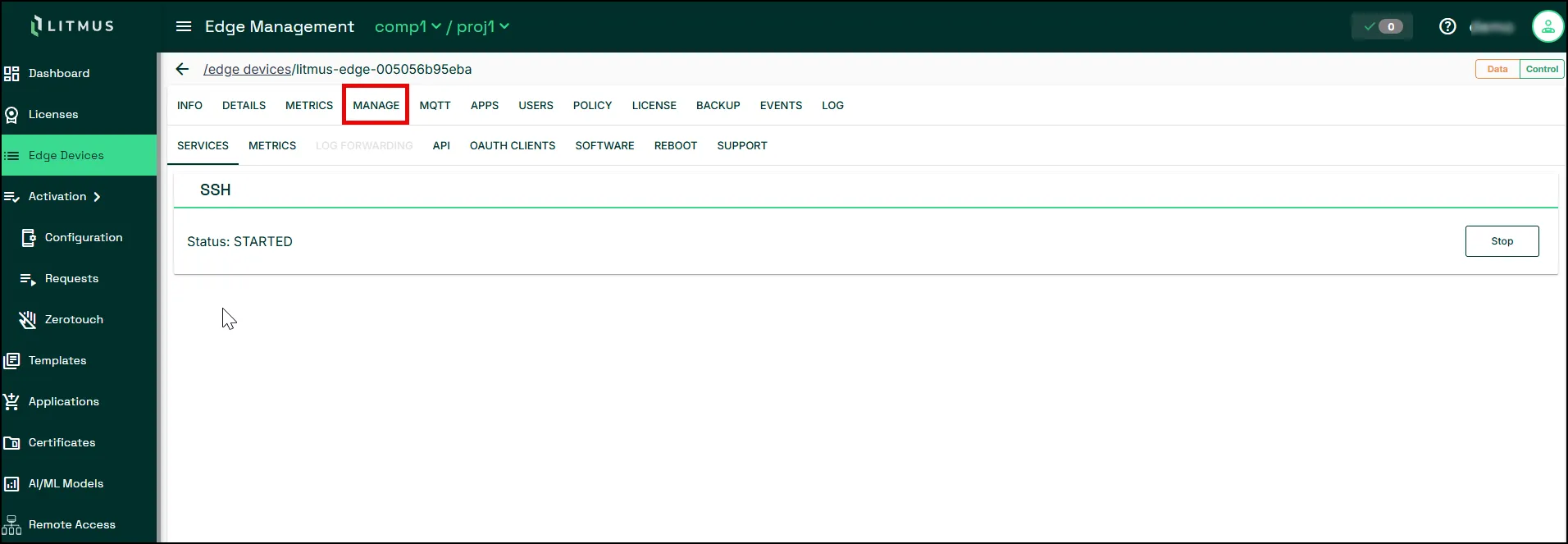
Sync interval priority
The sync interval can be configured at three levels: device, project and instance. By default, lower-level settings take priority:
- The device sync setting overrides the project setting for that device.
- The project sync setting overrides the instance setting for all devices in the project.
You can also override these priority settings:
- Here at the device level by choosing to use the project's metrics sync settings (see Manage ).
- At the project level by choosing to use the instance's metrics sync settings (see Management).
Note: Edge Device Metrics Sync Settings is available for Litmus Edge Manager version 2.26.1 and later.
Set the Edge Device metrics sync interval
The default interval is 30 seconds with a valid range of 30 to 604,800 seconds (1 week).
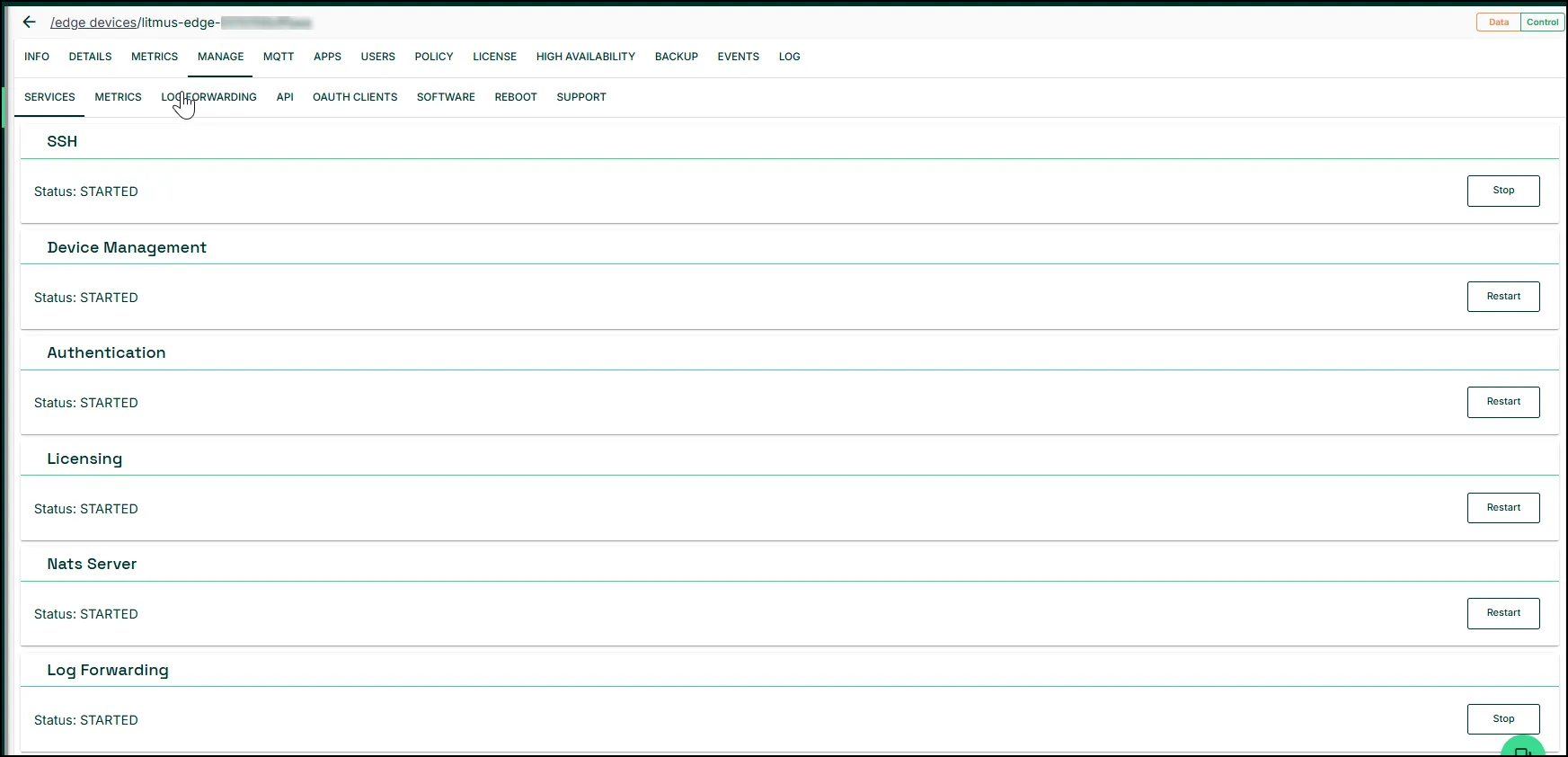
Do any of the following:
- Use the Enable Edge Device Metrics Sync toggle to enable or disable synchronization of metrics.
- Update the sync interval for the device by providing a new value in Enable Edge Device Metrics Sync.
- To instead use the interval defined by the project, select Use the project's edge device metrics sync settings.
Log Forwarding
Use the Enable Log Forwarding toggle to start or stop continuous forwarding of edge device logs to the Litmus Edge Manager log storage. The edge device must be online to start or stop forwarding.
Note: Log Forwarding is available for edge devices running Litmus Edge 4.1.0 or later.

API
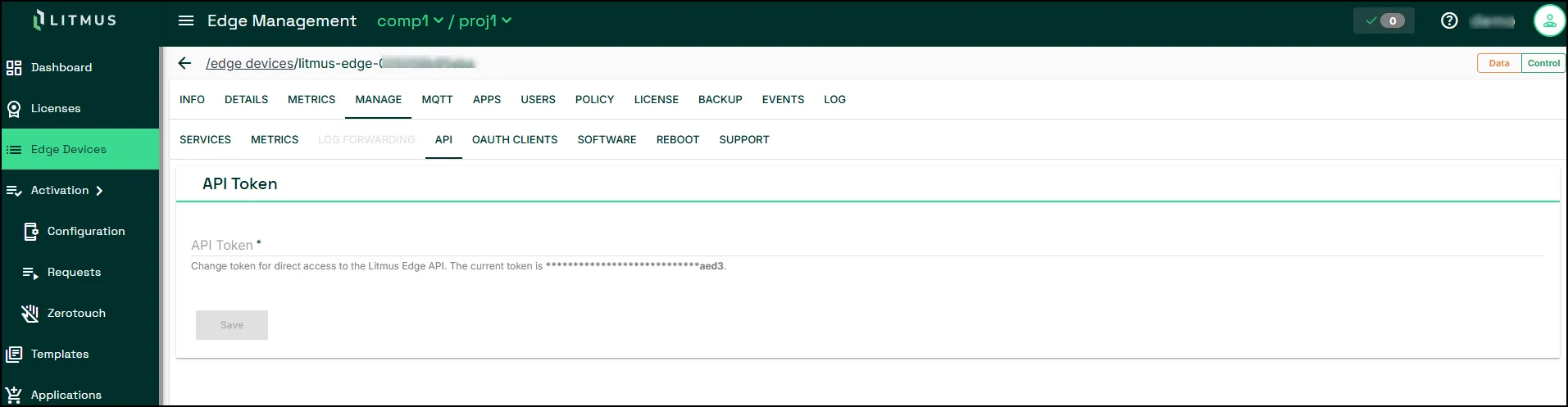
Change the token for direct access to Litmus Edge API. See Tokens to create an API Token. When creating the API token, you cannot make it read-only from the Litmus Edge user interface.
OAuth Clients
View, create, and manage the OAuth clients of an edge device from Litmus Edge Manager (LEM). LEM passes the key values through to the edge device and does not store them.
Note: OAuth Clients is available for edge devices running Litmus Edge 3.16.0 or later. The OAuth Clients tab is disabled while the edge device is offline.
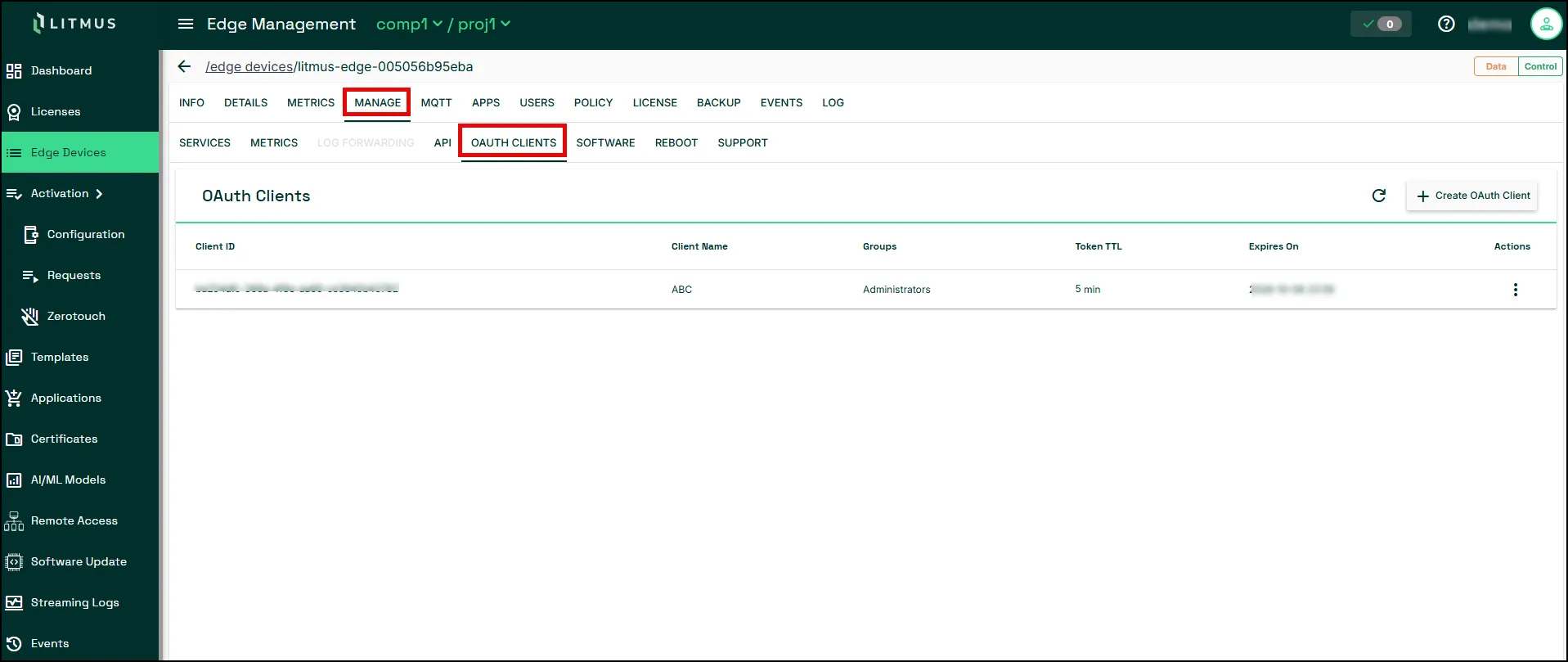
Create an OAuth client
To create an OAuth client:
- Select Create OAuth Client.
- Enter a Client Name.
- Select one or more Groups for the client, for example Administrators or Viewers.
- Enter a Token TTL, in minutes. Value should always be in Integers.
- Select whether the client Never expires or Expires on date. If you select Expires on date, enter an Expiry Date.
- Select Create.
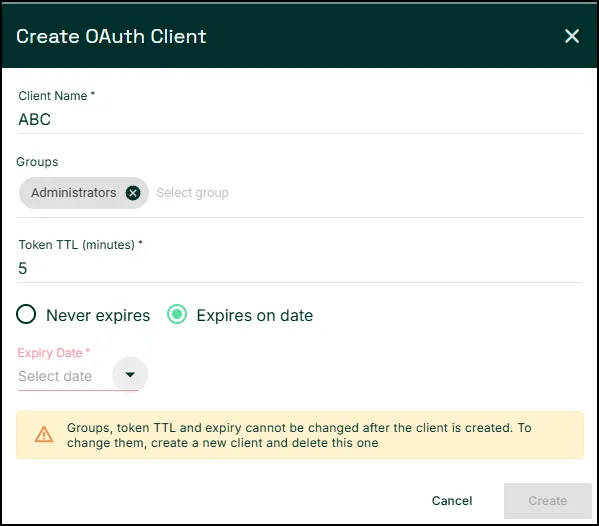
Caution: You can't change Groups, Token TTL, or expiry after you create a client. To change any of these, create a new client and delete the old one.
After you select Create, LEM shows the Client ID, Client Secret, and Token Endpoint for the new client.
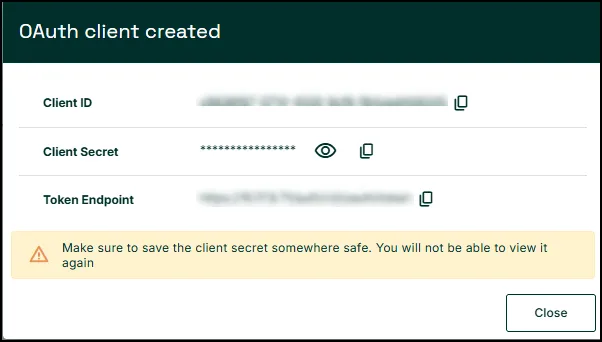
Caution: Save the Client Secret somewhere safe. You can't view it again after you close this dialog.
Manage an existing OAuth client
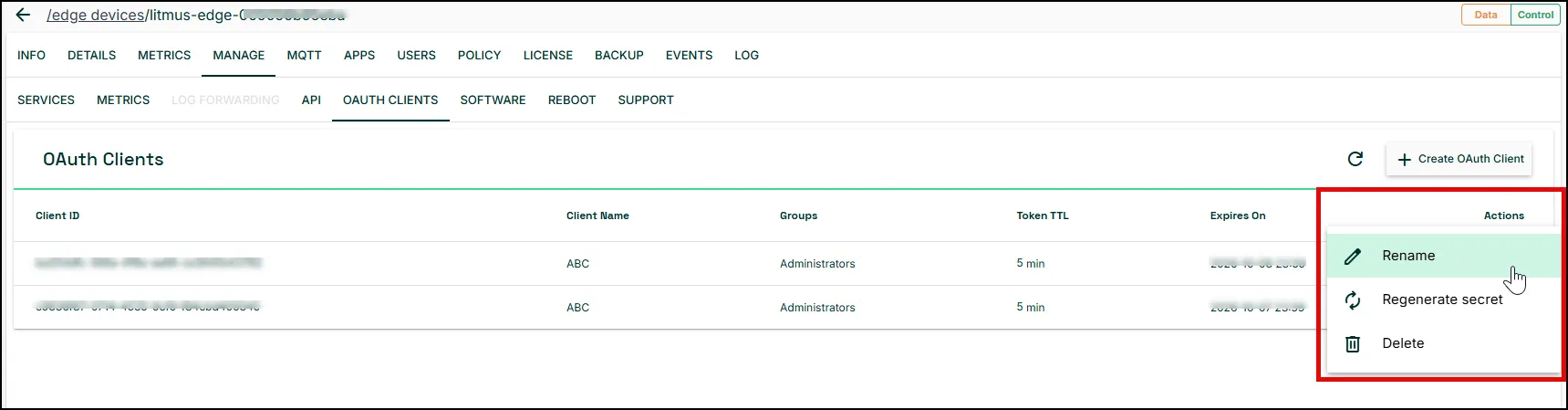
From the Actions menu for a client in the list, you can:
- Rename the client.
- Regenerate secret to issue a new Client Secret for the client.
- Delete the client.
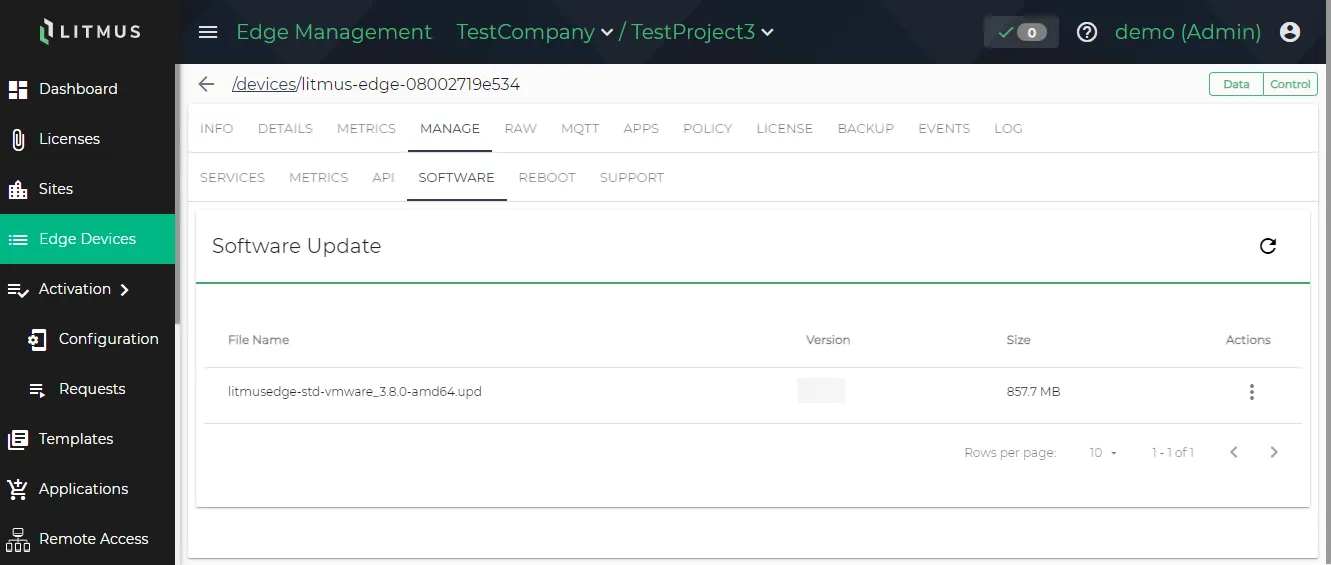
Software
View the list of downloaded update files for the edge device.
From the Action menu, you have the following options:
- Manually upgrade the edge device from the update file.
- Delete the update file.
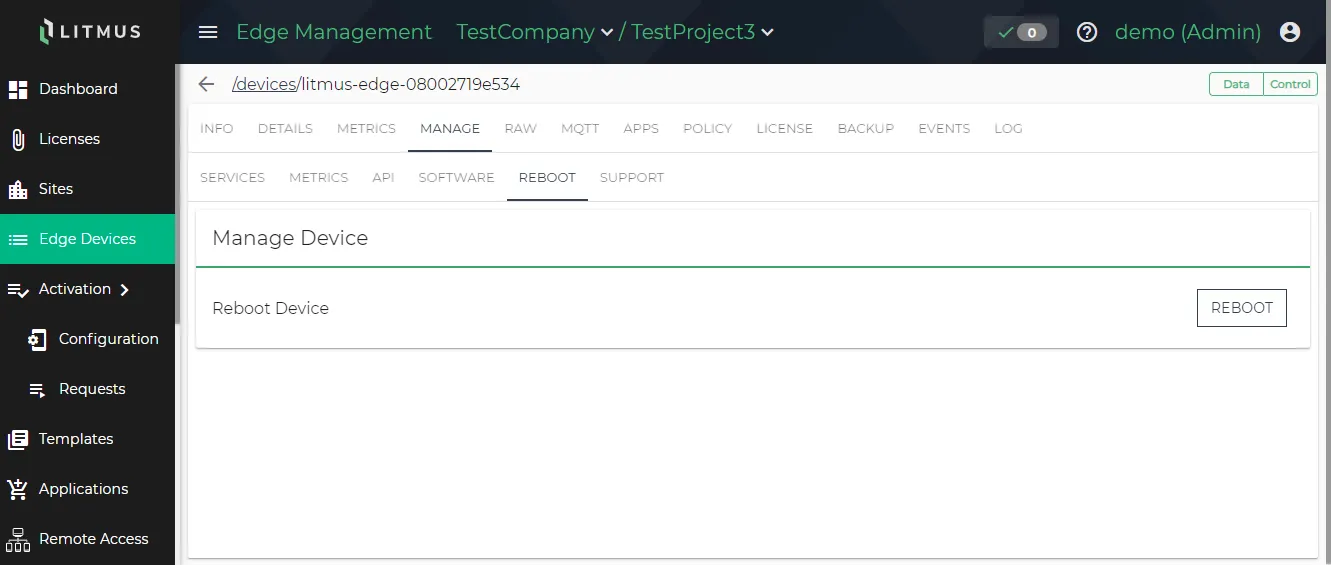
Reboot
Reboot the edge device.
Support
Download support bundle files for the edge device.