Project settings
A project represents an individual plant that a company operates. Projects contain the edge devices required for plant operations and maintain separate team access privileges from company-level teams.
Project Settings provide a centralized location to configure data storage format, backup retention, metrics sync intervals, incident resolution and retention, time zone, team access, MQTT connectivity, and the message schema used by connected devices.
Why this matters
Each plant may have different network environments, data requirements, and operational teams. Project-level settings let you configure these independently by plant without affecting other projects in the same company.
Core components
Project Settings are organized across four tabs:
Tab | Purpose |
|---|---|
Settings | Operational configuration: storage format, backups, metrics, incidents, time zone |
Members | Team assignment and access privileges for the project |
Credentials | MQTT connection details, SSL certificates, topics, and ACL |
Message Schema | JSON schema for messages published by connected devices |
Operational model
Backup retention
LEM retains the most recent backups per edge device. The default retention count is three backups per device.
Metrics sync interval
Configure how frequently LEM polls edge devices for metrics. You can:
- Set a project-specific sync interval (in seconds) in Enable Edge Device Metrics Sync.
- Defer to the interval defined in individual edge devices by selecting Use instance's edge device metrics sync settings.
Roles and permissions
- Team access: Assign company-level teams to the project from the Members tab. Team definitions are managed in Company settings.
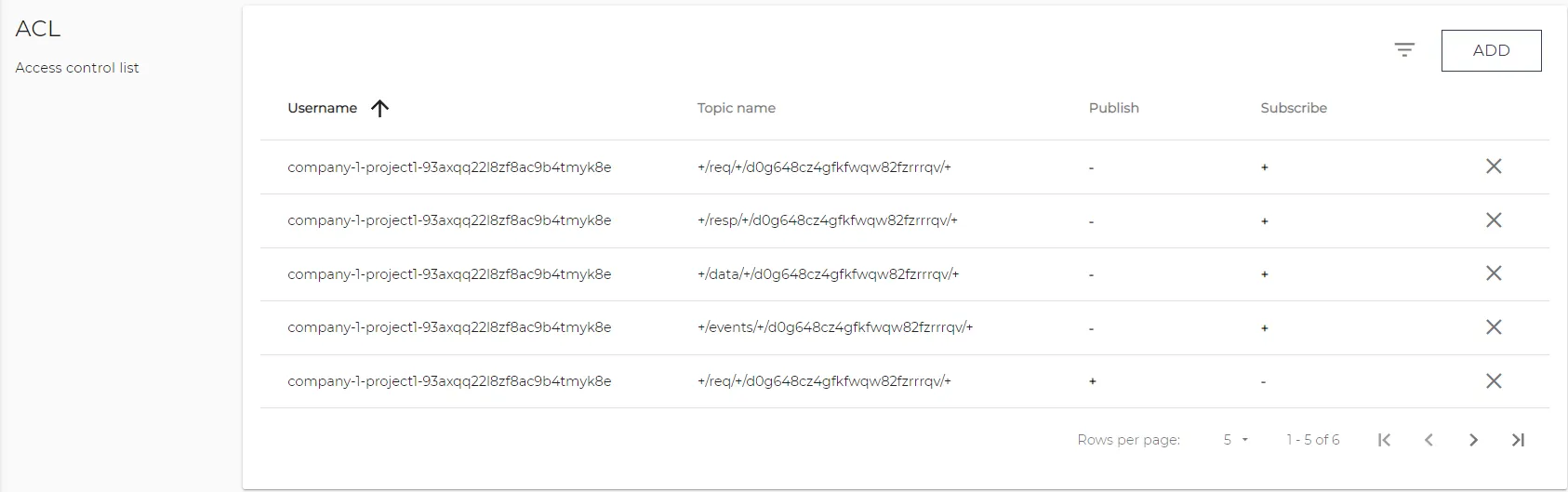
- MQTT access control: The Credentials tab manages credentials, custom topics, and ACL entries that control which clients can publish to or subscribe from project topics.
Project settings
Use the Settings tab to configure the project name and description, edge device data storage and backup settings, metrics reporting intervals, incident resolution and retention behavior, and time zone. You can also remove a project from this tab.
Project
Modify the project name, and add or modify the project description.

Edge device data storage
You have the option of storing edge device data in ClickHouse. You can store raw data or OMA (Open Mobile Alliance) data.
- OMA data: OMA data has been deprecated from Litmus Edge and Litmus Edge Manager, but this option is available for backwards compatibility. We recommend selecting RAW data.
- RAW data: We recommend using this option. To visualize data in Grafana, you must select RAW data. See Grafana dashboards and Visualize Child Device Data Using Grafana to learn more.

Edge devices backups
Configure the backup retention policy for edge devices. By default, Litmus Edge Manager stores the three latest backups per edge device.

Edge device metrics sync interval
Edge Device Metrics Sync controls how often Litmus Edge Manager polls connected edge devices for metrics data. Adjusting the interval lets you balance reporting frequency against network and performance constraints. A shorter interval provides more granular visibility into edge device behavior. A longer interval reduces network load in bandwidth-limited environments.
Sync interval priority
The sync interval can be configured at three levels: device, project and instance. By default, lower-level settings take priority:
- The device sync setting overrides the project setting for that device.
- The project sync setting overrides the instance setting for all devices in the project.
You can also override these priority settings:
- At the device level by choosing to use the project's metrics sync settings (see Manage).
- Here at the project level by enabling Use instance's edge device metrics sync settings (see Management).
Note: Edge Device Metrics Sync Settings is available for Litmus Edge Manager version 2.26.1 and later.
Set the edge device metrics sync interval
The default interval is 30 seconds with a valid range of 30 to 604,800 seconds (1 week).

Do any of the following:
- Use the Enable Edge Device Metrics Sync toggle to enable or disable synchronization of metrics.
- Update the sync interval for the project by providing a new value in Enable Edge Device Metrics Sync.
- To instead use the interval defined by the instance, select Use instance's edge device metrics sync settings.
- Manually trigger a synch by clicking Fetch Latest Data.
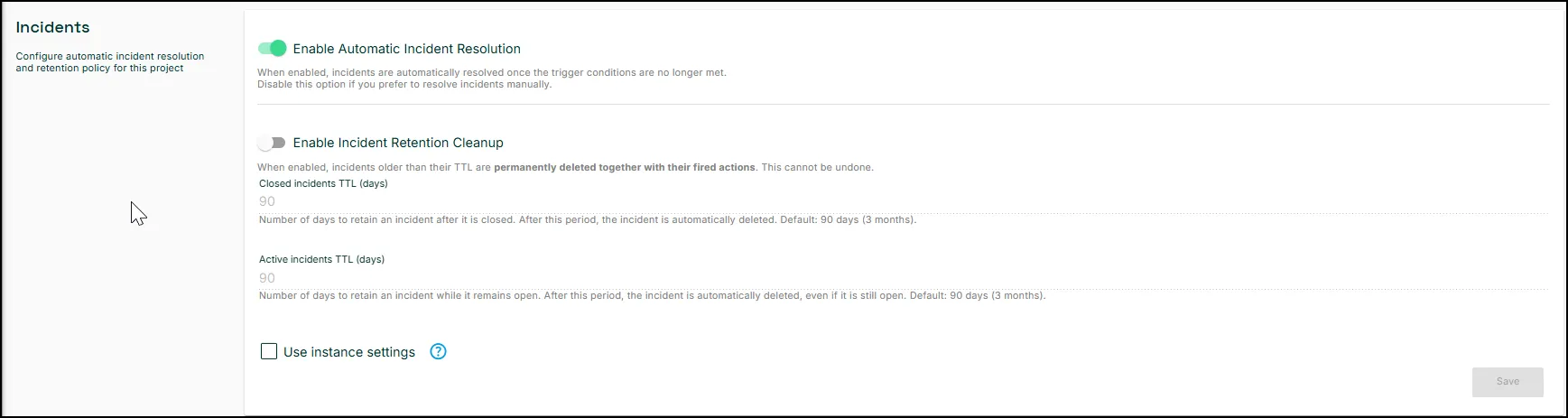
Incidents resolution
Configure whether incidents created by edge devices, such as an edge device going offline, resolve automatically once the condition that triggered them clears, or require manual resolution by your team.
Resolution priority
Automatic incident resolution can be configured at two levels: project and instance. By default, the project-level setting takes priority over the instance-level setting for this project.
You can override this priority by selecting Use Instance Settings, which defers to the instance-wide value configured in Admin Console > Settings > Management (see Management).
Note: Instance-level incident resolution settings and project-level inheritance are available for Litmus Edge Manager version 2.34.0 and later.
Set automatic incident resolution
Do one of the following:
- Use the Enable Automatic Incident Resolution toggle to control whether incidents created by edge device and metrics triggers close automatically once the underlying condition clears, for example when an offline edge device reconnects. This is enabled by default, matching prior behavior. When disabled, incidents must be resolved manually from the Incidents page.
- Select Use instance settings to defer to the instance-level setting instead of specifying a project-specific value. Selecting this option disables the Enable Automatic Incident Resolution toggle, since the project now follows the instance setting.

When automatic resolution is off, either set directly or inherited from the instance, the Incidents page displays an Auto-resolve: OFF badge.
Incident retention
Configure whether closed and active incidents are deleted automatically after they exceed a set retention period, together with their fired actions.
Note: Incident retention settings are available for Litmus Edge Manager version 2.36.0 and later.
Set incident retention
Caution: When you enable Incident Retention Cleanup, incidents older than their TTL are permanently deleted together with their fired actions. You can not undo this.
Do one of the following:
- Use the Enable Incident Retention Cleanup toggle to control whether closed and active incidents are deleted automatically once they exceed their TTL (time to live). This is disabled by default.
- When Incident Retention Cleanup is enabled, set:
- Closed incidents TTL (days): the number of days to retain an incident after it's closed. After this period, LEM deletes the incident automatically. Default: 90 days (3 months).
- Active incidents TTL (days): the number of days to retain an incident while it remains open. After this period, LEM deletes the incident automatically, even if it's still open. Default: 90 days (3 months).
- Select Use instance settings to defer to the instance-level retention policy instead of specifying project-specific values.
Timezone
Select the time zone for your project. You can remove the time zone and reselect the time zone.

Remove project
Remove the selected project. Removing a project cannot be undone.

Members tab
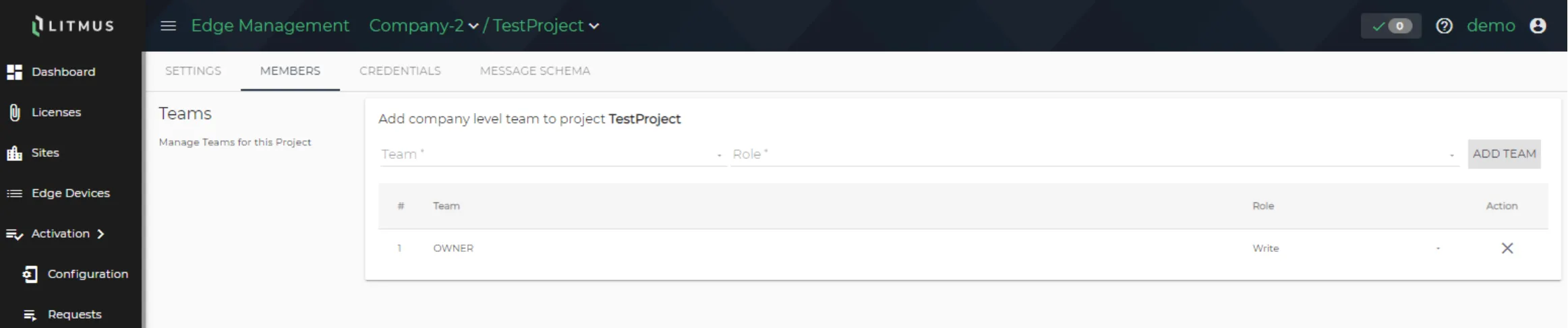
Teams
Select a company-level team, including role, for the selected project. Available options for a company-level team are based on teams you added in the Company Teams section in Company Settings > Company > Company Teams section (see Company settings).
Credentials tab
Connection
Copy any of the server URLs listed in the connection list.

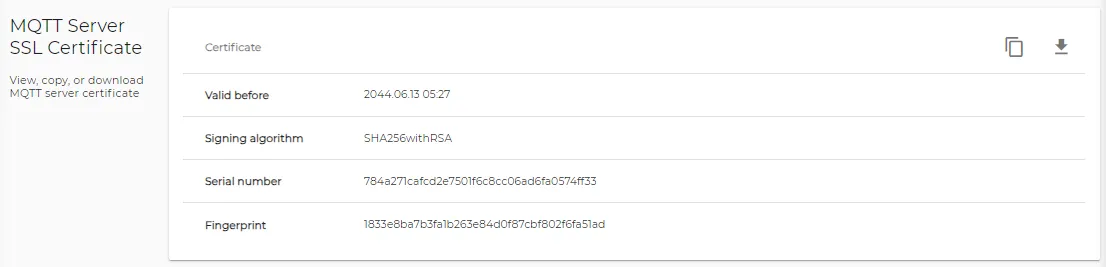
MQTT server SSL certificate
View, copy, or download MQTT server certificate.
Web server SSL certificate
View, copy, or download Web server SSL certificate.
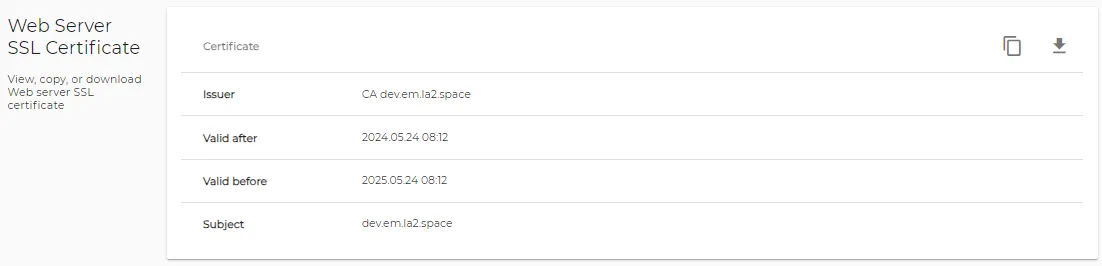
Credentials
Add, copy, or remove a credential. Credentials are used for accessing wildcard and custom topics.

Topics
You can add, copy, and remove a custom topic. You can copy a default topic.
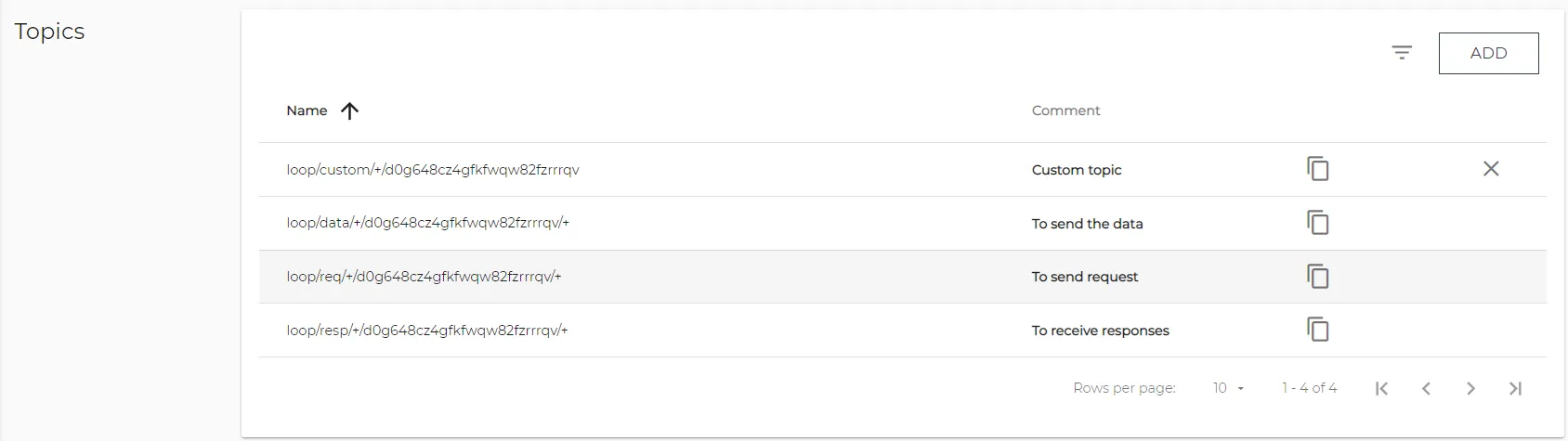
There are three preloaded topics credentials:
- To send the data
- To send request
- To receive responses
ACL
You can add or remove an access control for a topic associated with the selected project.
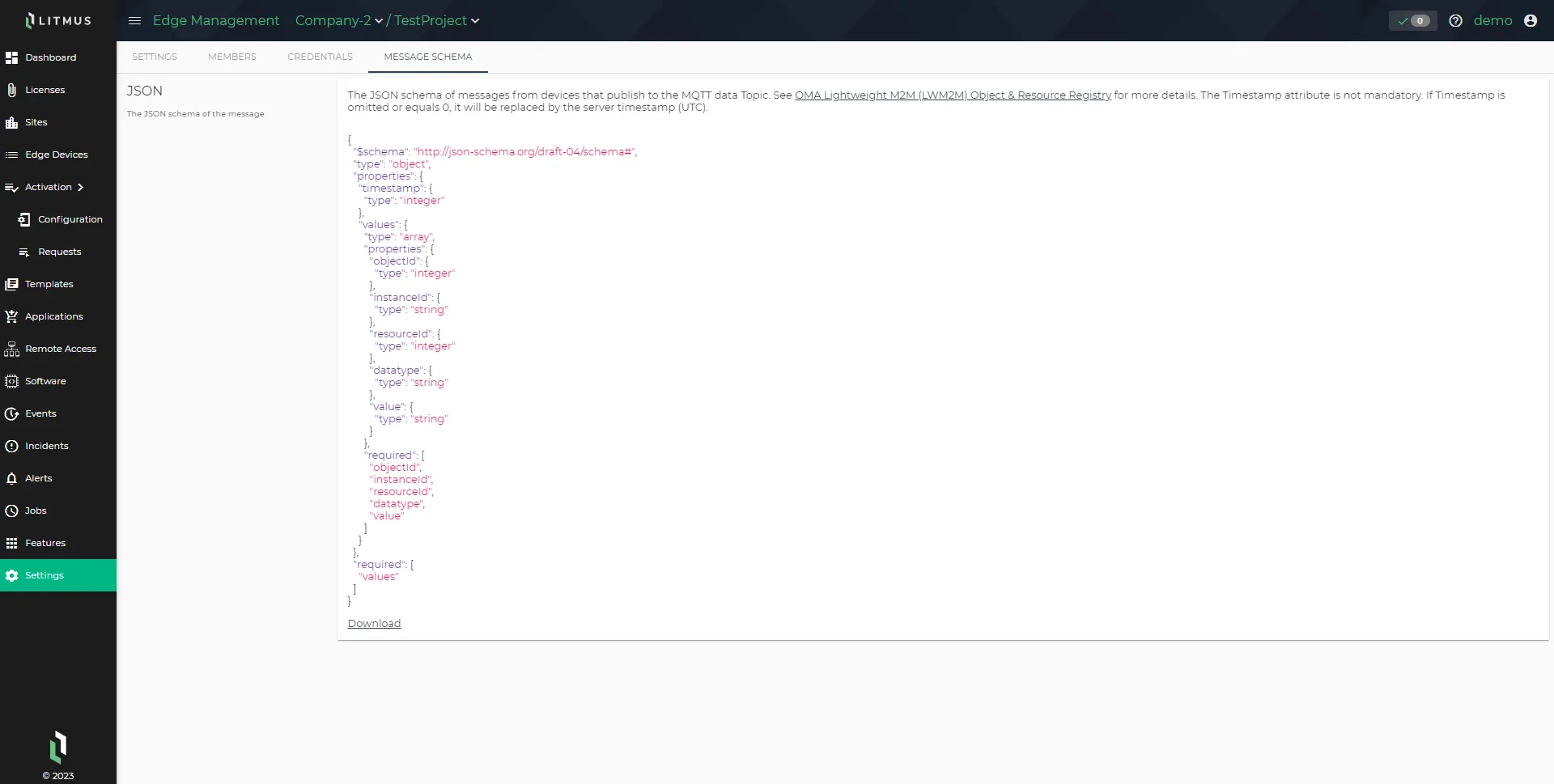
Message schema tab
From the JSON section, you can view and download the JSON schema of messages from devices that publish to the MQTT data topic.