Input Processors
The Analytics module makes use of built-in input processors to retrieve data from a topic, database, or generator. The following describes the input processors that are currently available.
Note: To add one of these processors to a flow, see Add Processors and Processor Connections.
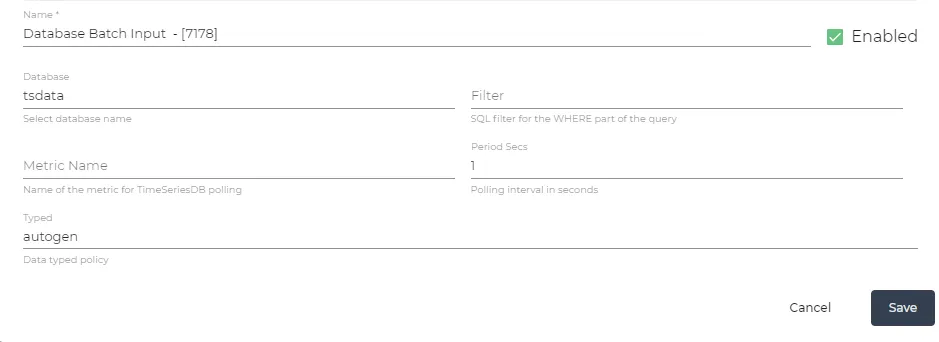
Database batch input
Generates events by periodically polling specified database measurements. You can filter queries; available fields depend on the database and measurement, and for device data, standard filters are datatype, device_id, is_device_status, register_id, success, tag, topic, and value. For example, filter by tag with "tag" = 'tag1', or by tag and success with "tag" = 'tag1' AND "success" = 1.
Configure the following parameters to control how data is polled from the database.
Parameters | Details |
|---|---|
Database | Select the name of the database from which data will be retrieved. |
Filter | Specify the SQL filter for the WHERE part of the query to filter the data from the database. |
Metric Name | Name of the metric for TimeSeriesDB polling. |
Period Secs | Set the polling interval in seconds for retrieving data from the database. |
Typed | Define the data typed policy for processing the retrieved data. |
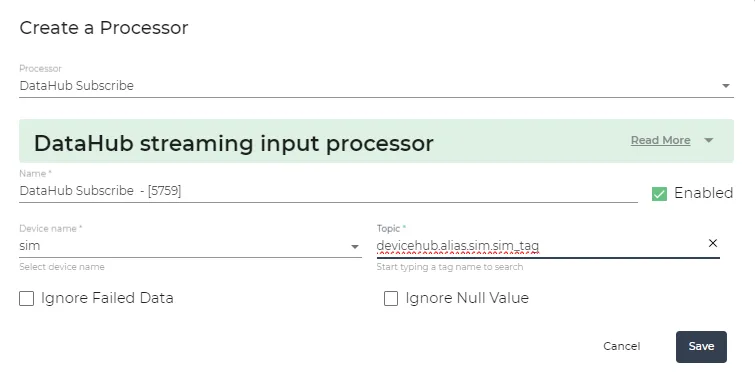
DataHub subscribe
Generates events from a specified DataHub topic and attaches them to output.
Note: When using the DataHub Subscribe processor, number values in your JSON payload are parsed as float datatypes.
If you're working with processors like Switch, Change, JavaScript Processor, or Tengo Script, ensure your input value and data type configurations are correct.
Configure the following parameters to control which DataHub topic the processor subscribes to.
Parameters | Details |
|---|---|
Format | Choose the format of the data, with possible values of json or fb (flat buffer). |
Topic | Select the specific device and tag from which data will be collected. |
Ignore Failed Data (Litmus Edge version 3.11.0 and later) | Select to ignore data with the output `success=false`. |
Ignore Null Value (Litmus Edge version 3.11.0 and later) | Select to ignore data with the output `value=null`. |
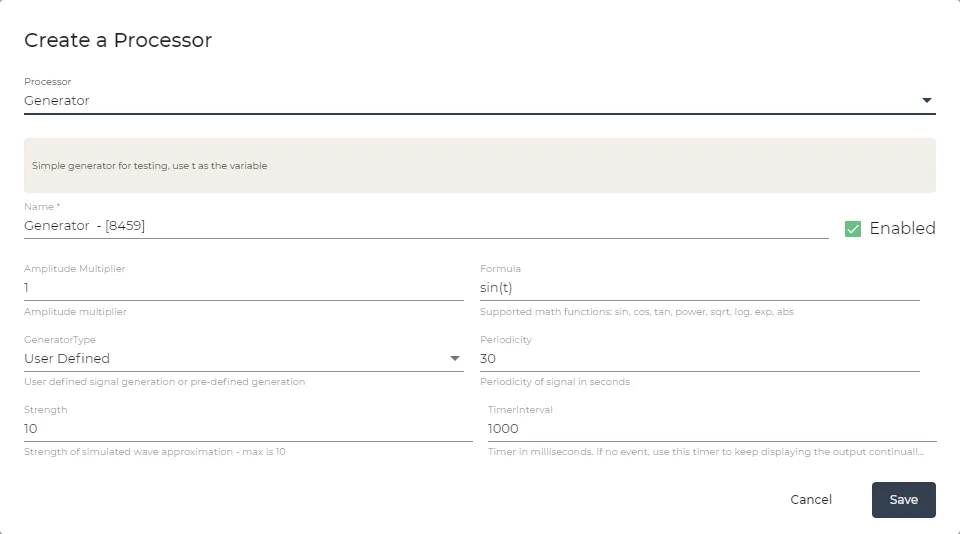
Generator
A simple generator for testing: use t as the variable.
Configure the following parameters to control the generated test signal.
Parameters | Details |
|---|---|
Amplitude Multiplier | Specify the amplitude multiplier for the generated signal. |
Formula | Choose the supported math functions for generating the signal, such as sin, cos, tan, power, sqrt, log, exp, or abs. |
Generator Type | User defined signal generation or pre-defined generation. |
Periodicity | Define the periodicity of the signal in seconds. |
Strength | Specify the strength of the simulated wave approximation, with the maximum value being 10. |
Timer Interval | Set the timer in milliseconds. If no event occurs, this timer is used to keep displaying the output continually. Enter zero to disable the timer. |
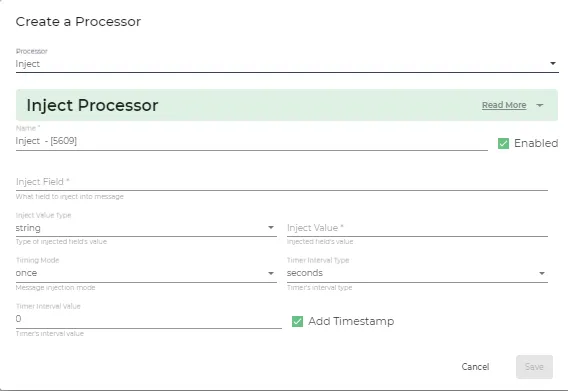
Inject
Generates a new message event based on the provided inputs. You can manually trigger the Inject processor using the Invoke button.
Configure the following parameters to control what gets injected and when.
Parameters | Details |
|---|---|
Inject Field | This parameter specifies the name of the field in the message where the data will be injected. |
Inject Value Type | This defines the type of value being injected. Options include String, Integer, Boolean, etc. |
Injected Value | This is the actual value that will be injected into the specified field. |
Timing Mode | This parameter controls when the message injection occurs. Options include once and interval. |
Timer Interval Type | If you're using a timed injection, this parameter defines the type of interval (e.g., seconds, minutes, or hours). |
Timer Interval Value | This specifies the duration for the timer interval. |